
功能深度解析
Claude Skills 完全指南:怎么创建、调用和共享(15 步截图实操)
Skill 就是一个存着提示词的 Markdown 文件。跟着本页在 claude.ai 上用内置的 skill creator 做出第一个 Skill,用斜杠命令调用它,在聊天、Cowork 和 Claude Code 三个环境里运行,再从四种方式里挑一种共享给团队。
共 15 步图文实操,阅读约需 5 分钟。每一步都能回跳到来源视频的对应秒数。
一分钟看懂
一个 Claude Skill 就是一个 Markdown 文件:frontmatter 写名称、描述和触发词,正文写真正的指令。在 claude.ai 的 Customize → Skills 里点 Create skill → Create with Claude,回答 skill creator 的几个问题、拿真实邮件线程测一轮,点 Save skill 就完成了。调用时输入 / 加名称——比等 Claude 自己识别更可靠;同一个 Skill 会自动出现在桌面端的聊天、Cowork 和 Code 里,不用重装。唯独 Claude Code 从文件夹读 Skill:把文件以 zip 下载、解压,把文件夹放进 .claude/skills(项目级)或 ~/.claude/skills(全局),重开会话即可识别。共享给团队有四条路:zip 文件、Teams/Enterprise 的组织 Skill、带 CLAUDE.md 的同步网盘,以及用 git 管版本。
来源视频
本页跟随 Kevin Stratvert 的录屏,把它从零做出一个 Skill 的全过程逐帧拆成图文。每张截图都能跳回视频里的原始时刻。
截图取自该视频并署名原作者;文字教程为本站原创。步骤已于 2026 年 9 月对照视频核对。
guide_claude_code_skills.sections.creation_title
guide_claude_code_skills.sections.creation_subtitle
- 1
打开 Customize → Skills,点 Create skill
Skill 藏在 claude.ai 侧边栏的 Customize 里,归 Skills 标签管——视频先打开一个现成的 dashboard-updater Skill 给你看布局。创建 Skill 不需要付费套餐。点加号按钮、选 Create skill,菜单会展开三条路:Create with Claude、Write instructions 和 Upload skill。选第一个,就等于把活交给 Claude 自带的 skill-creator。
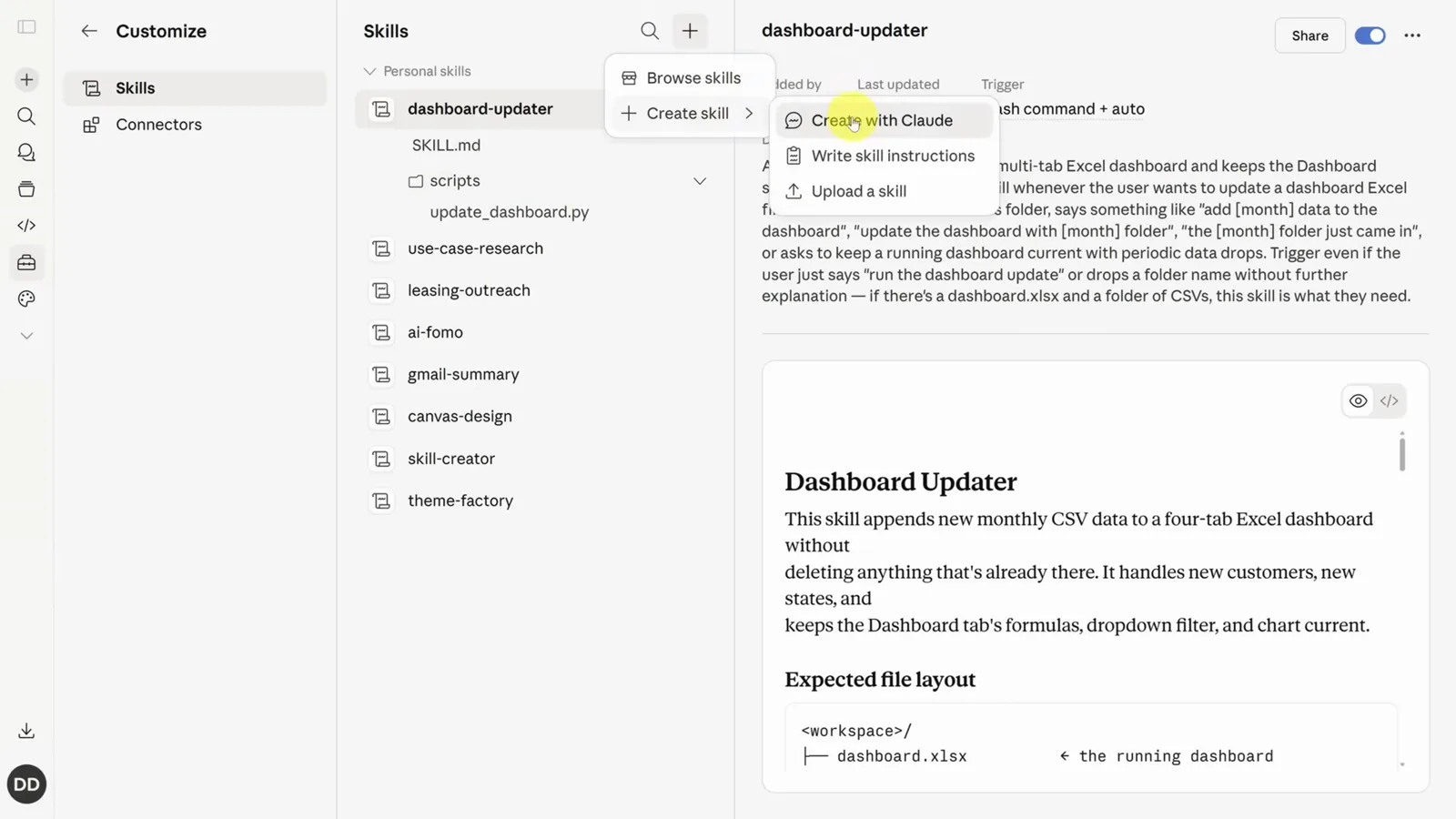
三个入口,Create with Claude 会替你把需求问清。看视频第 1:20 - 2
回答 skill creator 的提问
准备一句大白话的需求就够了:给定同事之间的长邮件或 Slack 线程,总结要点、列出我的待办、起草回复。creator 会追问一组编号问题——输入格式(直接粘贴、转发邮件还是 Gmail 连接器)、用什么触发词、输出形态、待办只列你自己的还是全部、默认直接起草还是先确认。在第一句话里加上"还有什么需要我澄清的?",它就会追问而不是自作主张。这些答案就是 Skill 的雏形,值得认真答。
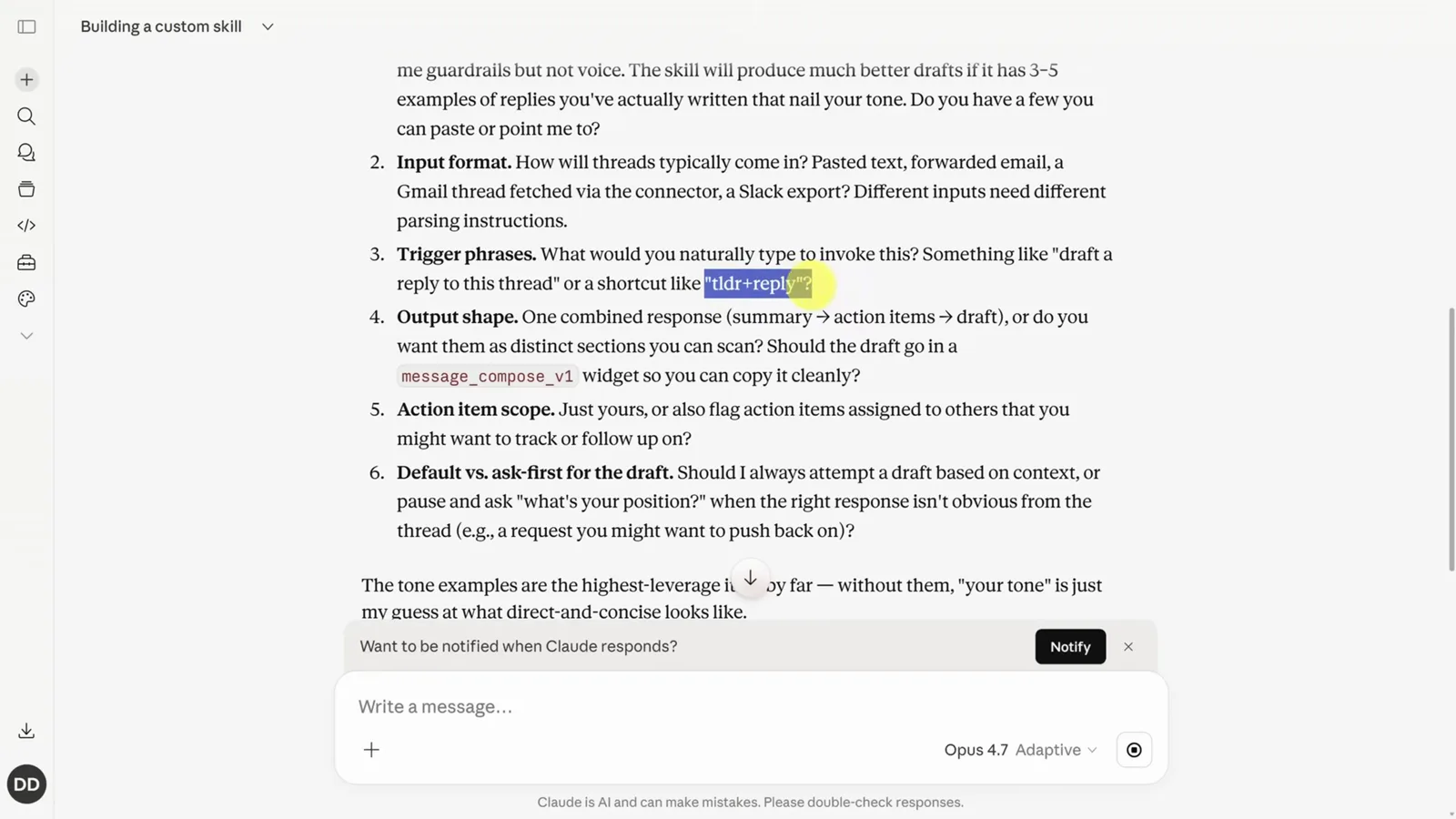
从输入、触发词到输出形态,一次问清。看视频第 2:45 - 3
检查草稿:frontmatter 加正文
起草好的 Skill 就是一个 Markdown 文件,草稿里直接给出路径(/home/claude/thread-reply/SKILL.md),并分成两半。frontmatter 负责描述:既响应 thread-reply 快捷指令,也响应自然语言请求;描述故意写得"积极",因为 Claude 容易漏触发 Skill。正文才是提示词本身:按 Summary → Action items for you → Draft 的固定顺序产出,还要写清使用者的语气、示例和边界情况。简单的 Skill 到这一步就完了;复杂的还能内嵌代码,比如视频里那个带 Python 的 dashboard-updater。
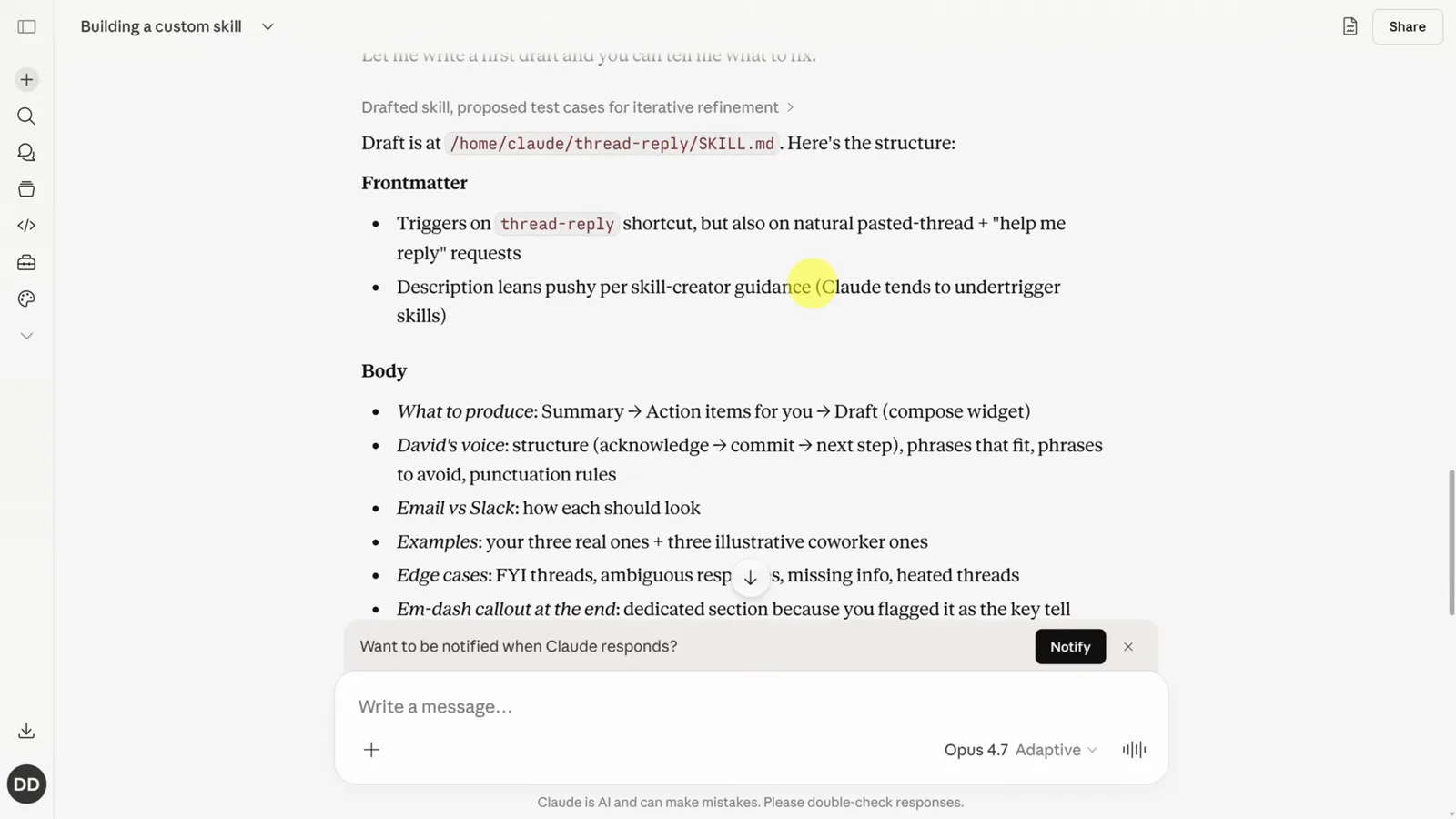
一个 Markdown 文件两半:元数据加提示词。看视频第 2:52 - 4
拿真实线程测试,然后点 Save skill
启用之前,creator 会主动提测试用例——贴一段真实线程,它就返回摘要、待办和几版草稿回复。这一步的反馈才真正决定 Skill 好不好用,直接用自然语言把修改意见发过去即可。测试满意后,直接让 Claude 创建 Skill(不然它会不停追问反馈),成品文件就会出现在右侧预览窗格,顶部带着 Save skill 按钮。保存后,thread-reply 会带着描述和触发设置出现在 Skill 列表里。
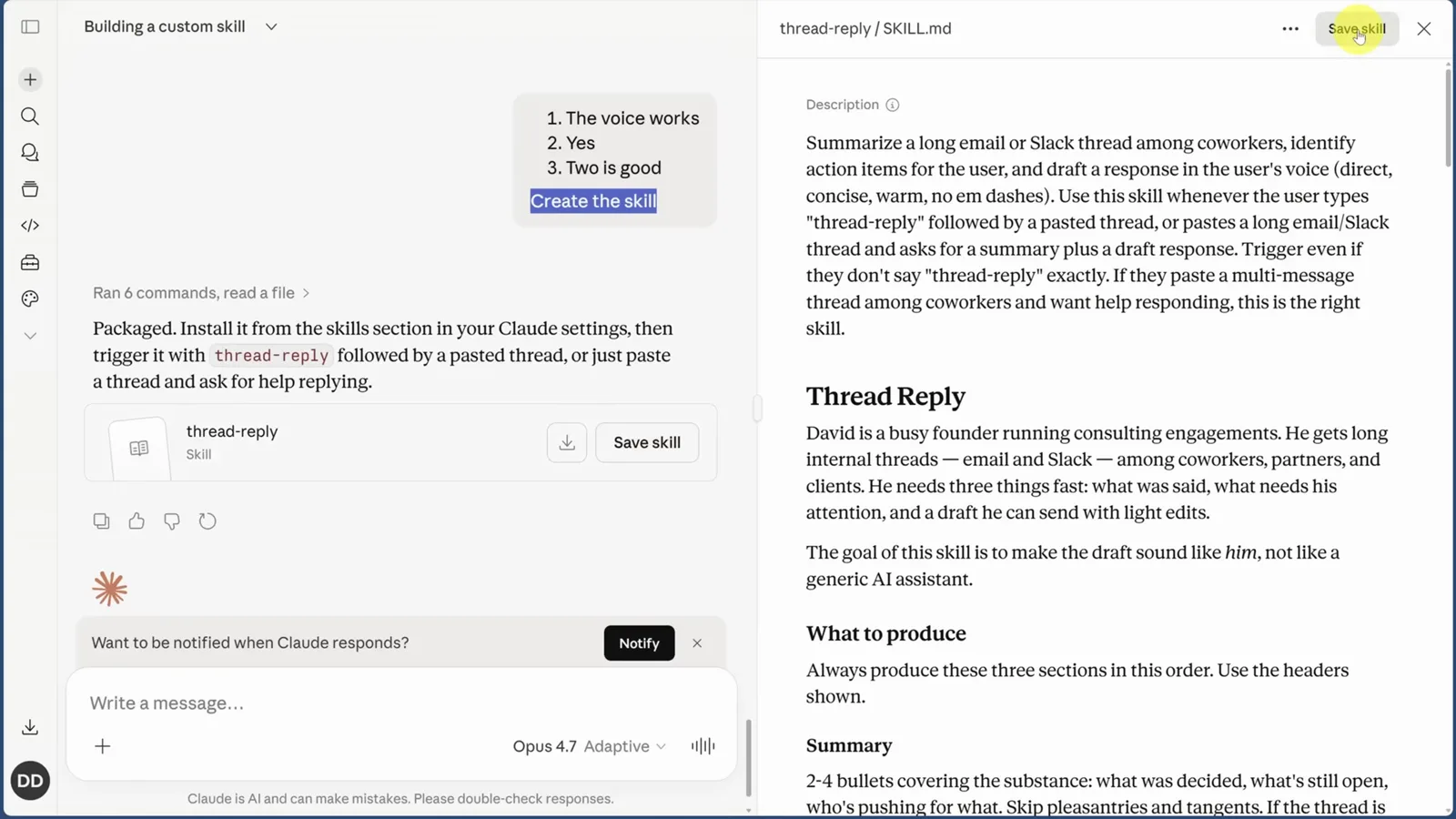
测试通过、打包成文件,一键安装。看视频第 4:18
guide_claude_code_skills.sections.running_title
guide_claude_code_skills.sections.running_subtitle
- 5
输入 / 加名称来调用
触发 Skill 有两条路:Claude 根据上下文自己判断,或者你直接输入名称。视频说得直白——自动识别一直在进步,但手动输入更可靠。在任意聊天框里敲一个斜杠,自动补全窗口就会列出所有已安装的 Skill 和各自描述,连名称都不用背。选中 thread-reply、贴上线程、发送。
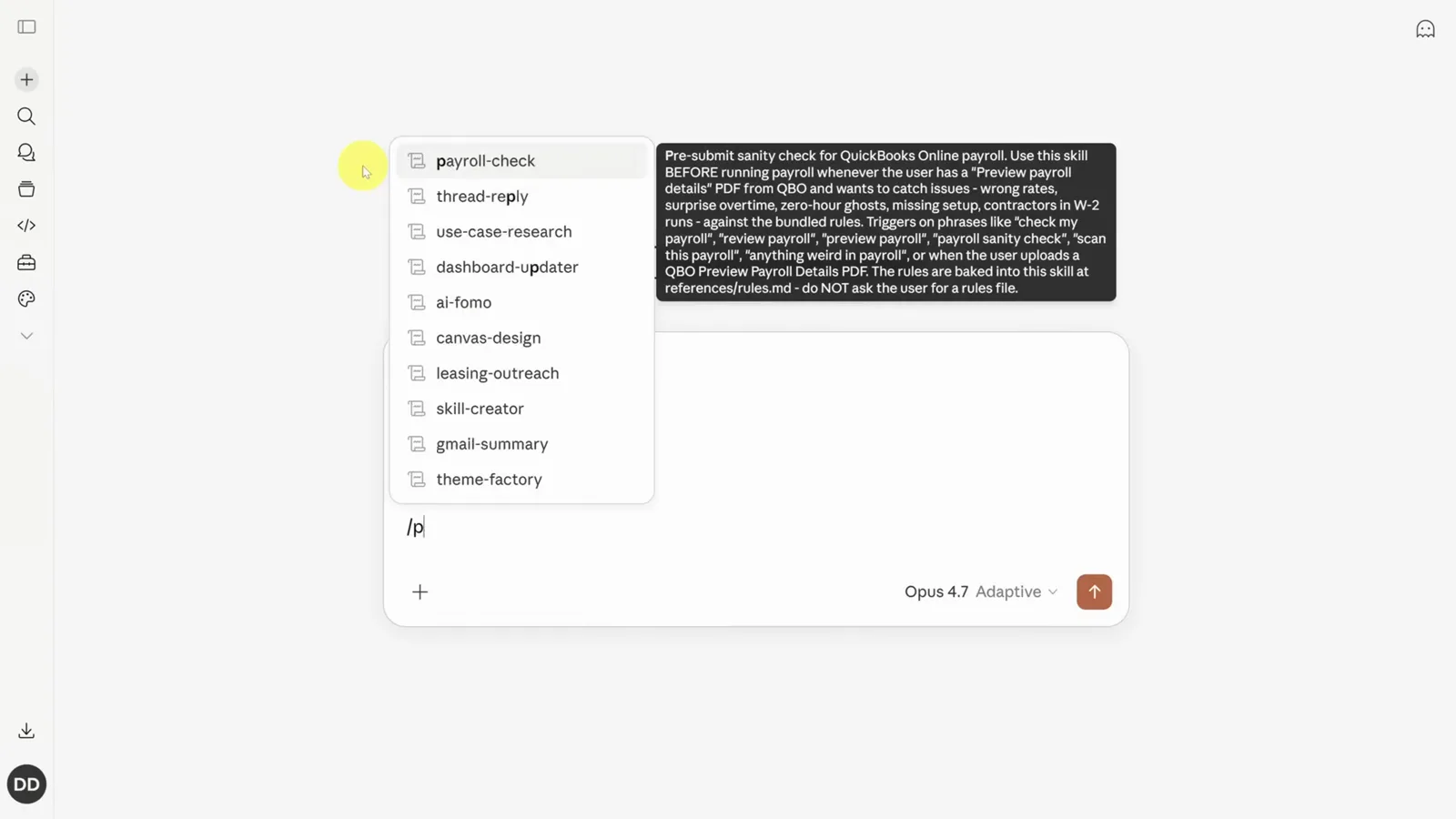
一个斜杠,列出全部 Skill 和描述。看视频第 6:20 - 6
桌面端三个应用,同一份 Skill
安装 Claude 桌面端后,一个窗口里有三个界面:聊天、Cowork 和 Code,从侧边栏切换。Customize → Skills 也在,而且在 claude.ai 上创建的 thread-reply 已经躺在列表里——没有单独安装这一步。各环境是打通的,Skill 存一次,处处可用。
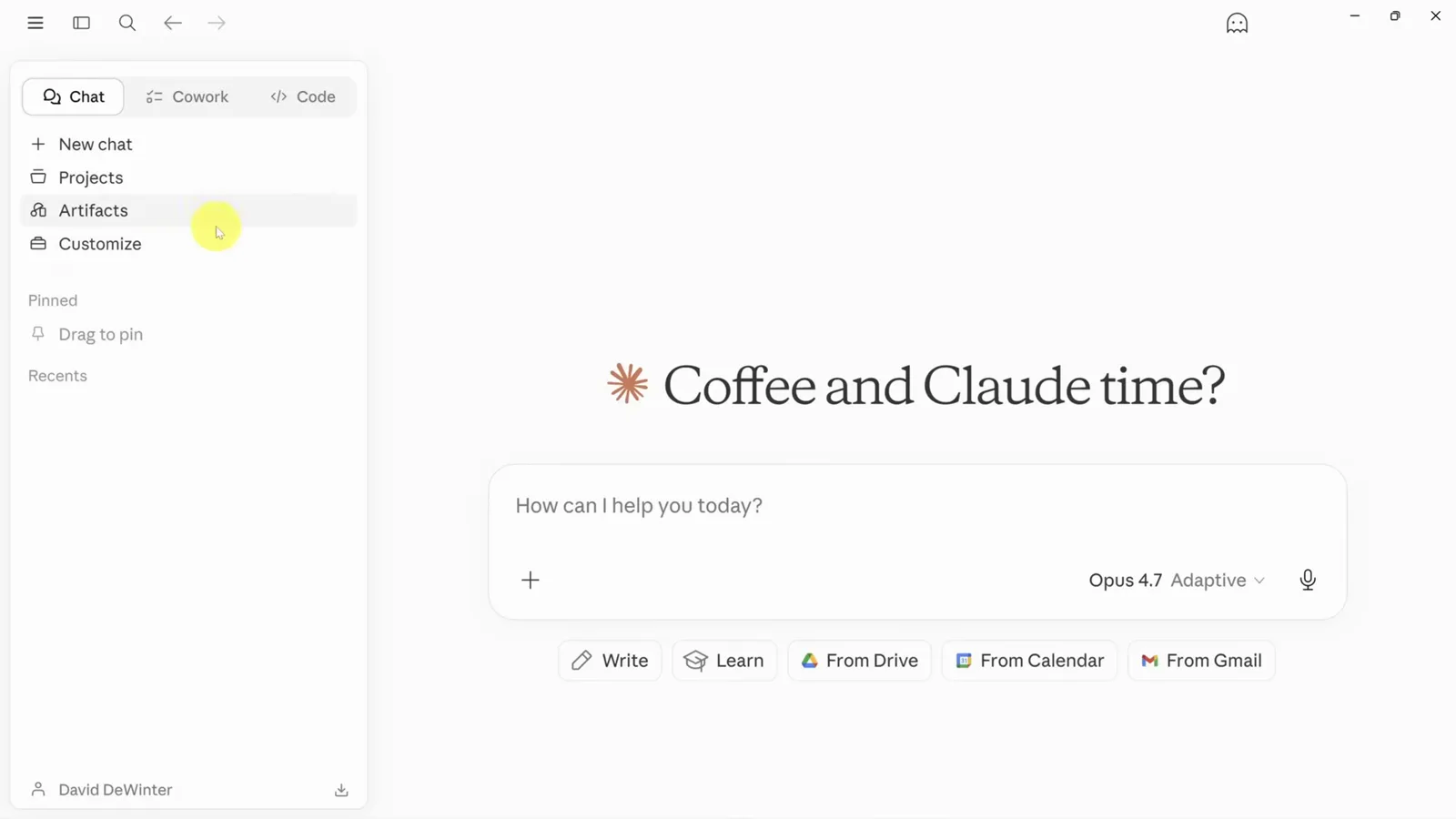
聊天、Cowork、Code,一个屋檐下。看视频第 7:17 - 7
确认 Skill 已经同步到桌面端
回到桌面端的 Customize → Skills,thread-reply 出现在 Personal skills 分组下,描述和触发设置与网页端完全一致。接下来既可以在聊天里直接用,也可以让 Cowork 在处理文件夹时调用它——同一个 Skill、同样的行为,没有任何需要手动执行的同步操作。
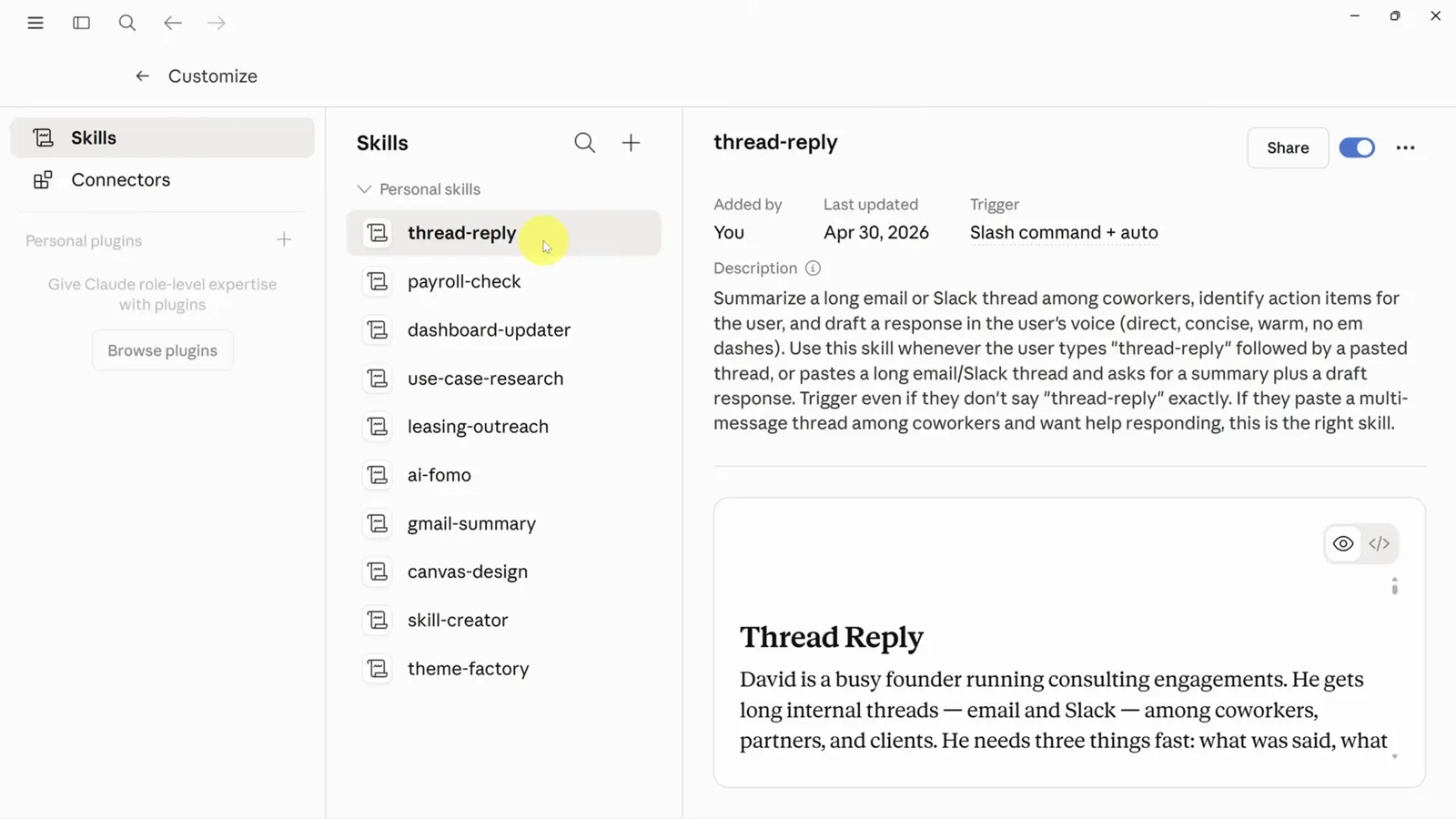
同一个 Skill,同样的描述,零重装。看视频第 7:27
guide_claude_code_skills.sections.claude_code_title
guide_claude_code_skills.sections.claude_code_subtitle
- 8
Claude Code 是另一套规则
在 VS Code 里打开 Claude Code——视频偏好这个视角,因为工作区文件就显示在面板旁边,并说明接下来所有操作在终端里同样适用。输入斜杠后你会发现,这里的 Skill 列表和 claude.ai 上的对不上。Code 安装 Skill 的方式不同,最快的理解方法是直接问它 global 和 project skills 的区别。
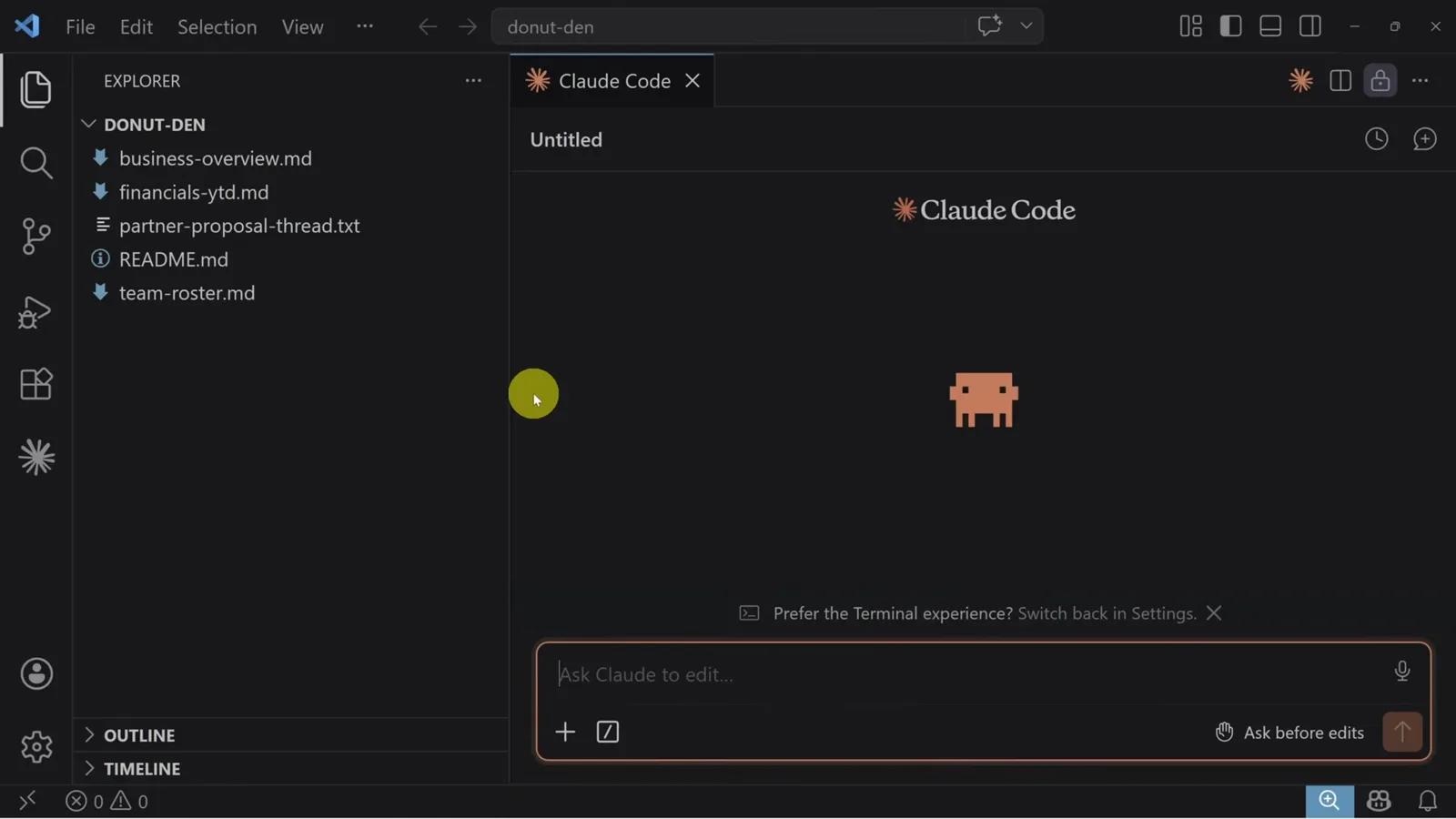
Code 里的斜杠列表一开始是空的,有原因。看视频第 8:40 - 9
全局还是项目:两种文件夹作用域
Claude Code 的回答把路径说得很清楚。项目级 Skill 放在项目根目录的 .claude/skills/ 文件夹里,只在 Claude Code 于该项目中运行时加载;全局 Skill 放在 ~/.claude/skills 下,这台机器上所有项目都能用。插件自带的 Skill 则打包在插件自己的目录里,而每个 Skill 都是一个独立文件夹,内含带 YAML frontmatter 的 SKILL.md 和若干辅助文件。
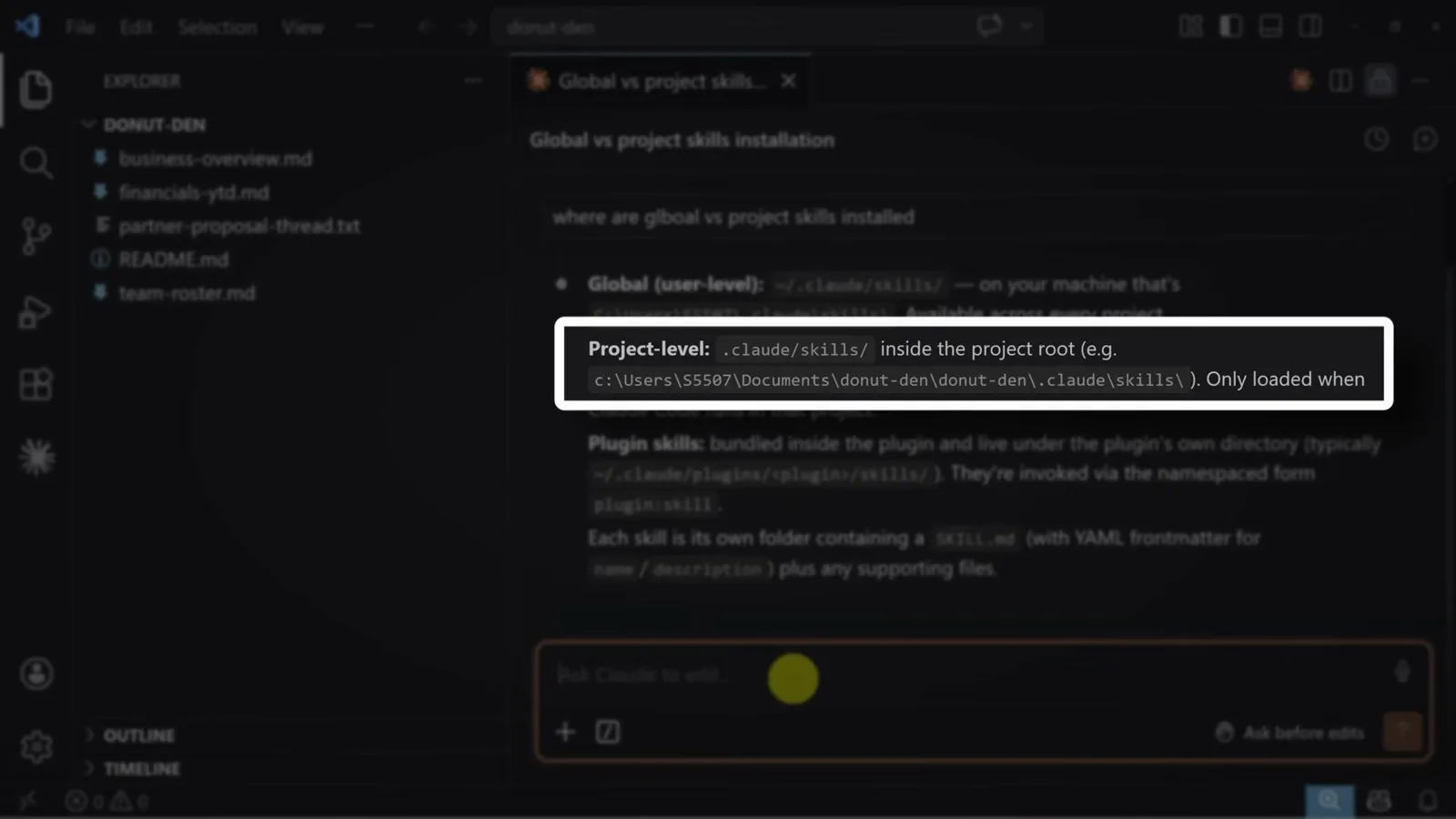
团队仓库用项目级,个人助手用全局。看视频第 9:16 - 10
下载 Skill 并改名为 .zip
想把网页端做好的 Skill 搬进 Code,回到桌面端或网页端的 Skills 视图,选中该 Skill,点右上角三个点的菜单选 Download。浏览器询问文件名时,把扩展名改成 .zip——否则下载下来的是单个 Skill 文件,没法直接解压。解压后会得到一个装着 Skill 文件的文件夹。
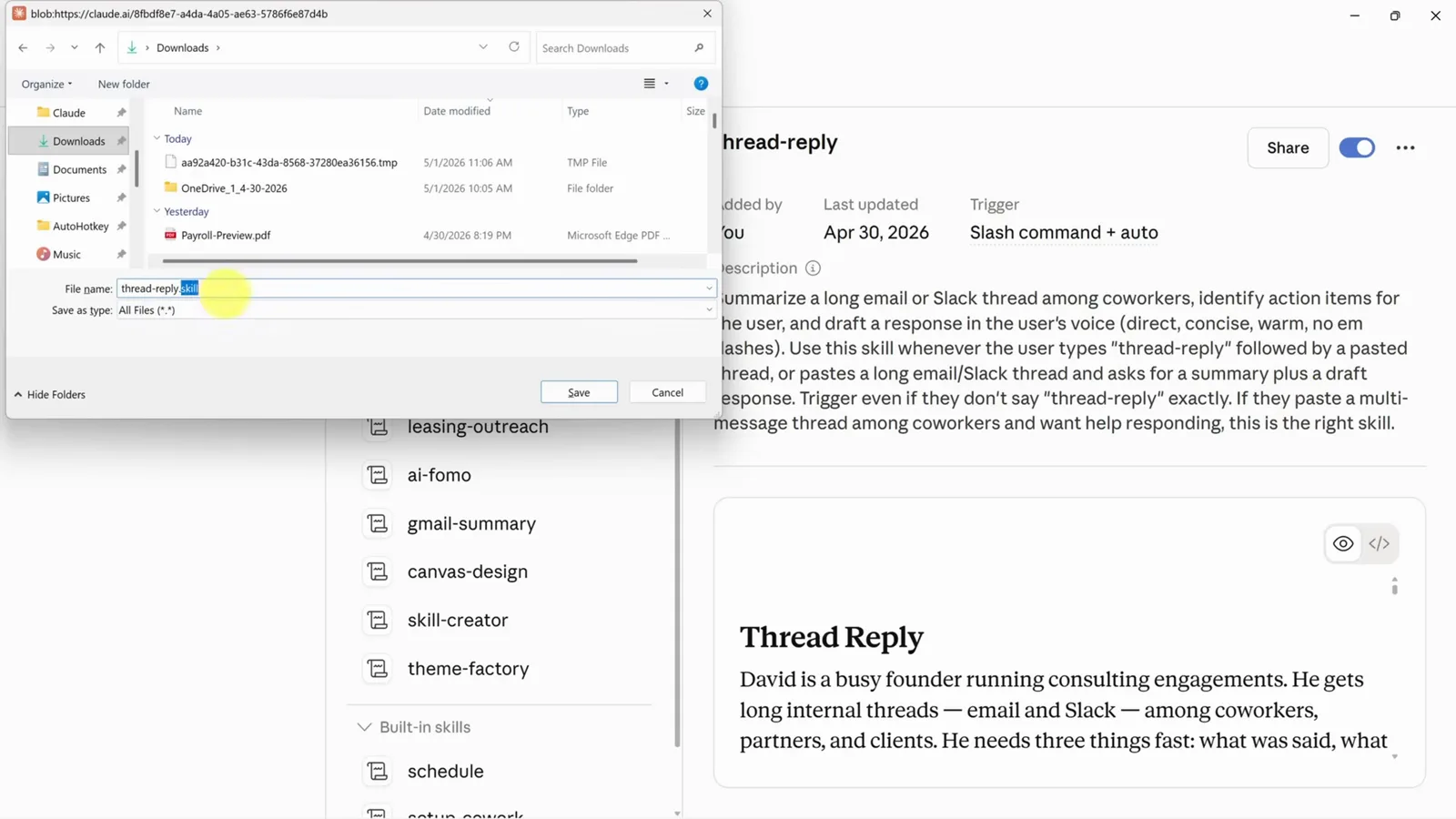
改成 .zip 这一步,决定了它能不能解压。看视频第 9:50 - 11
把文件夹放进 .claude/skills
在 VS Code 里打开项目文件夹后,把解压出的 thread-reply 文件夹——注意是整个文件夹,不是单个文件——复制到 .claude 文件夹下的 skills 文件夹里。资源管理器里现在能看到 .claude/skills/thread-reply/SKILL.md。当前会话不会识别它;重开一个新会话,斜杠后输入名称,Skill 就出现了。同样的 .claude/skills 结构在 Cowork 里也生效,所以共享一个文件夹给别人时,可以把 Skill 一起带过去。
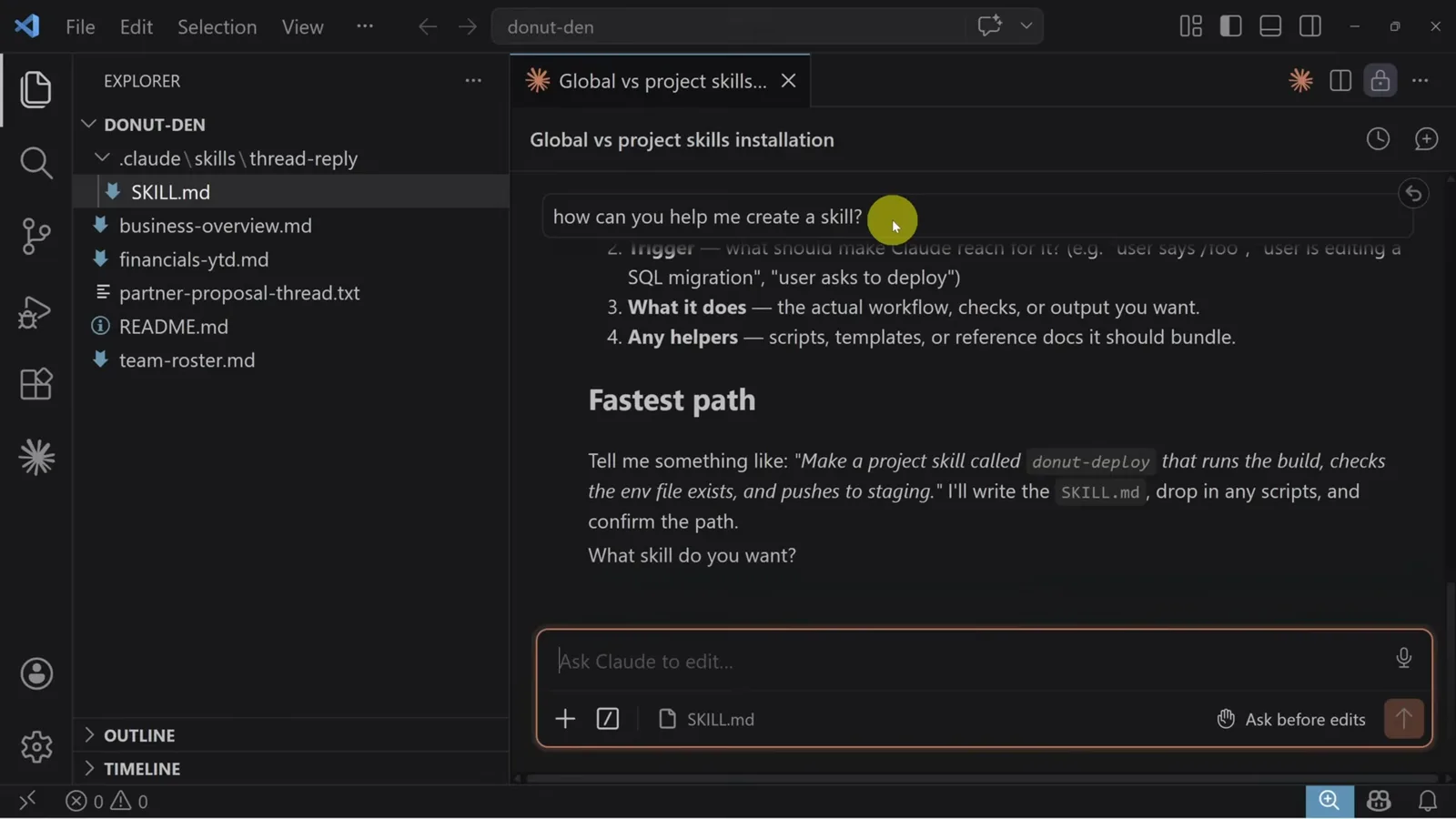
文件夹放进去,重开会话即可识别。看视频第 10:20 - 12
读懂你刚装进去的文件
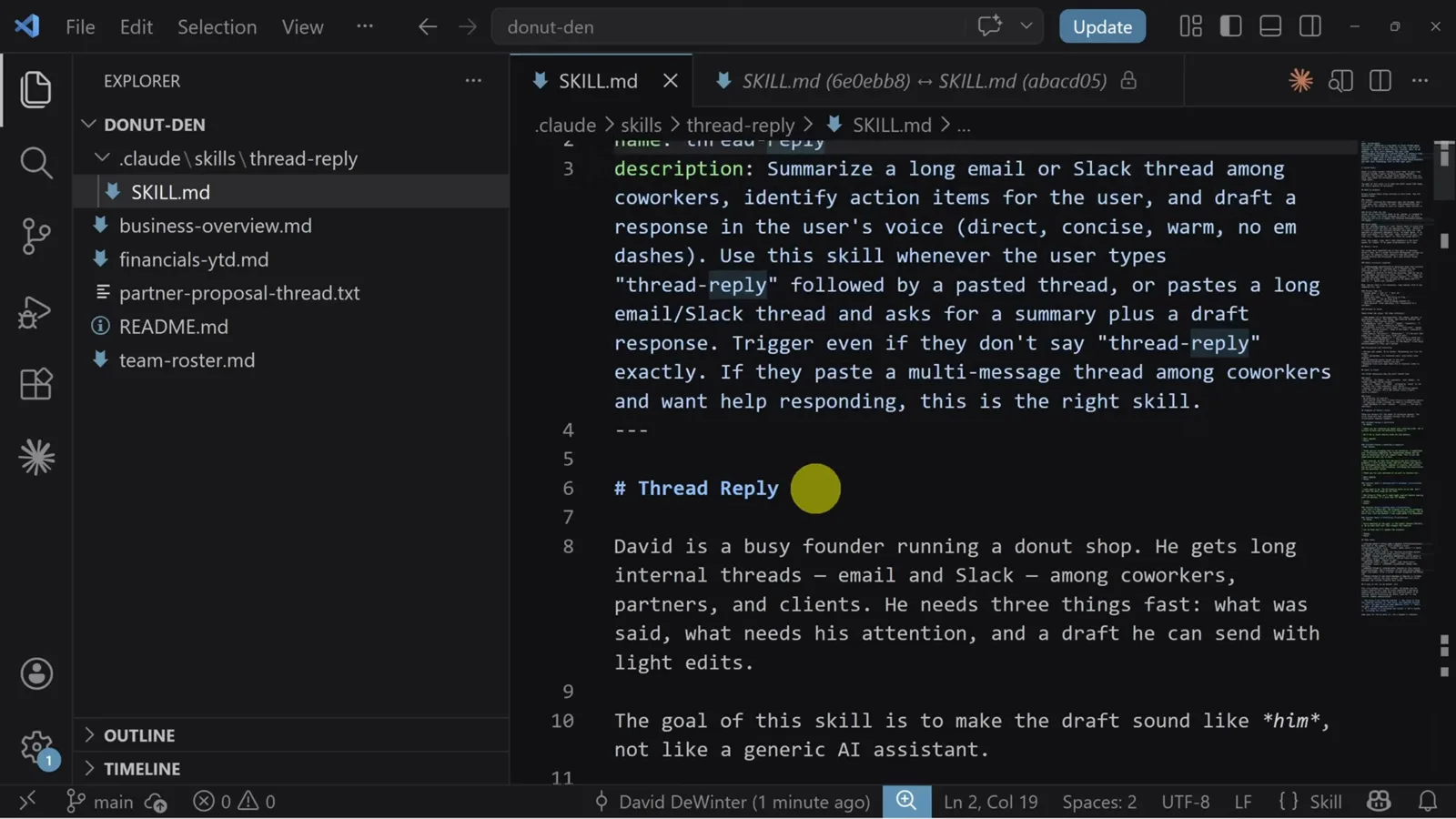
打开 SKILL.md,创建阶段那套结构已经落在磁盘上:YAML frontmatter 里的 description 告诉 Claude 这个 Skill 什么时候用——总结同事间的长邮件或 Slack 线程,哪怕用户没说出"thread reply"这几个字也要触发;下面的 Markdown 正文写清要产出哪些小节、回复结构,以及符合使用者语气的措辞。这个文件就是 Skill 的全部,可以像普通文本一样直接编辑。
frontmatter 管触发,正文管怎么做。看视频第 13:45
guide_claude_code_skills.sections.sharing_title
guide_claude_code_skills.sections.sharing_subtitle
- 13
Teams 和 Enterprise:发布到整个组织
zip 的路子能用,但版本会分叉:两边各有一份,一边更新后你们跑的就已经是两个不同的 Skill。订阅 Claude Teams 或 Enterprise 后,管理员会多出一个 organization settings 视图,里面有 Skills 区块。在底部的 Organization skills 处上传,全组织的成员都能使用,Customize → Skills 里也会多出一个对应分组。成员只能用、不能改;要修改就得请管理员下载后发给你。
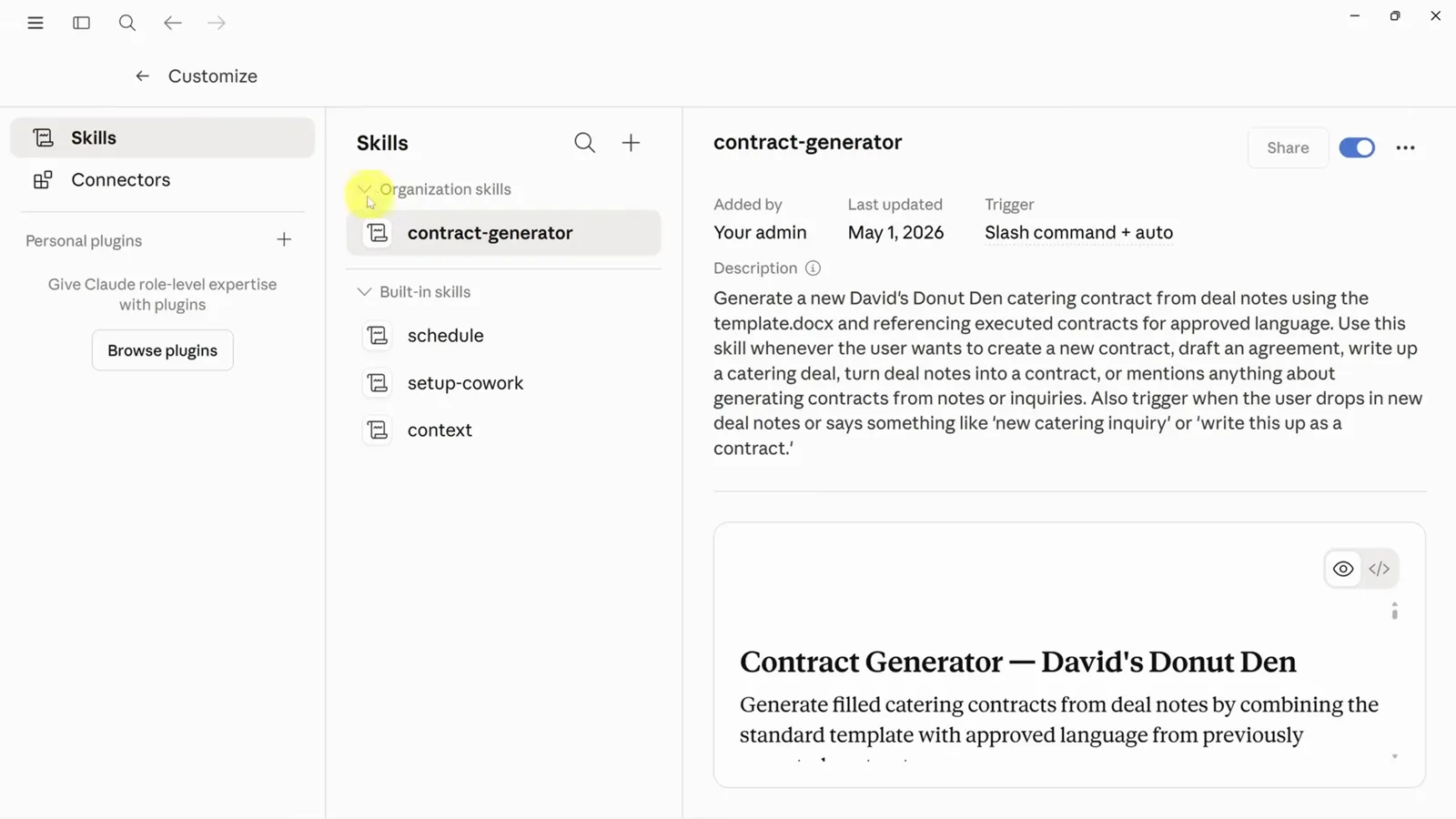
管理员传一次,全组织都能用。看视频第 12:00 - 14
没订 Teams:同步网盘加 CLAUDE.md
一个实验性偏方,适合已经在用 OneDrive 或 Google Drive 共享的团队。把网盘同步到本地,右键工作文件夹选"始终保留在此设备上"。文件夹里放着装 Skill 的 .claude 文件夹、负责预加载 Skill 的 CLAUDE.md,以及 Skill 要处理的文件。OneDrive 不支持点开头的文件夹,所以视频里退而求其次用了普通的 claude 文件夹,再靠 CLAUDE.md 把 Cowork 指向这些 Skill——偏进阶,但确实能借团队现成的网盘共享 Skill。
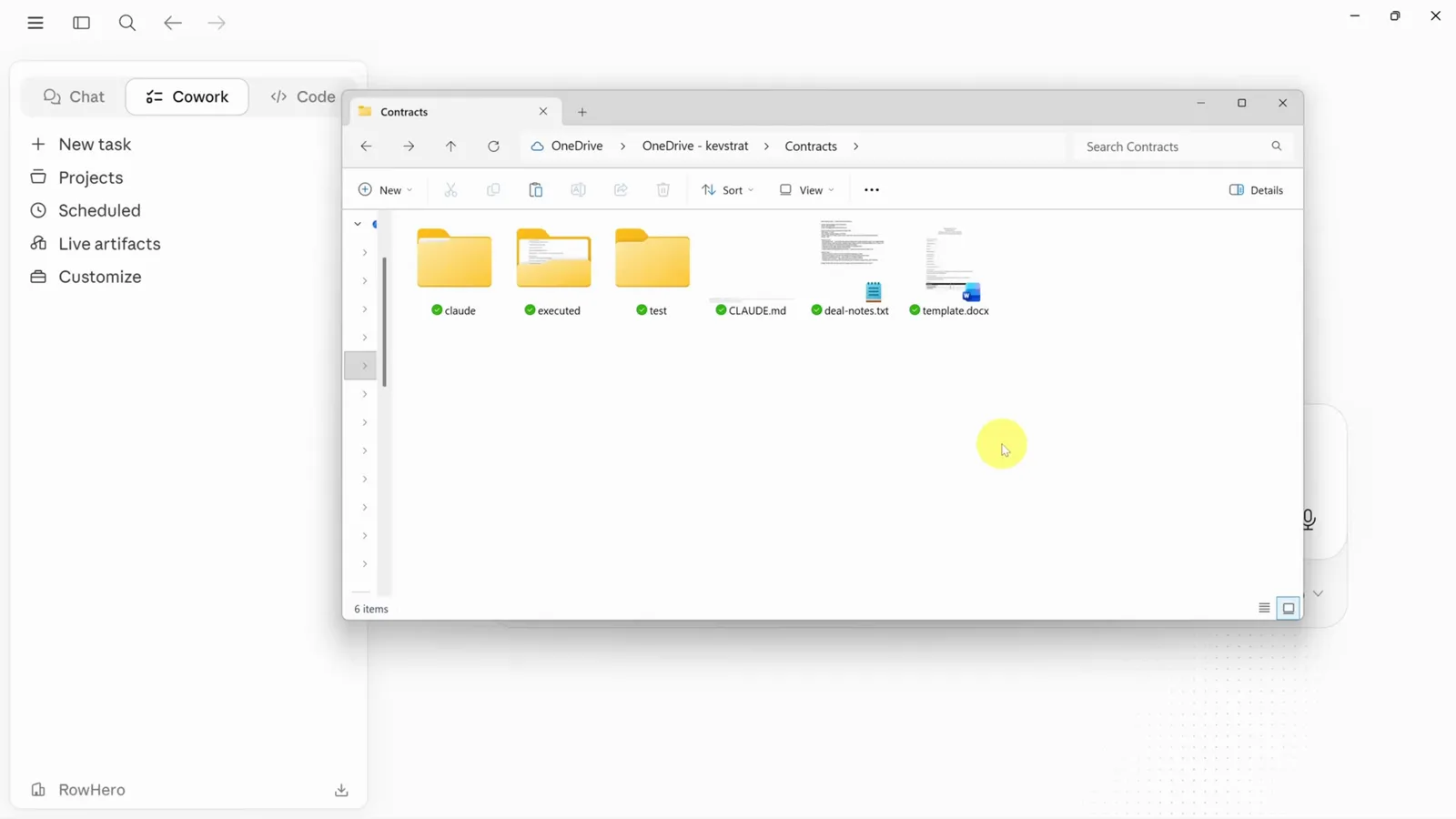
CLAUDE.md 负责从共享文件夹里加载 Skill。看视频第 12:46 - 15
在 Cowork 里直接跑文件夹里的 Skill
在 Cowork 里选中同步好的 Contracts 文件夹,输入:对 deal-notes 文件运行 contract-generator。Cowork 先读 CLAUDE.md 的指令,再从 skills 文件夹找到 SKILL.md,照流程走——读 deal notes、扫描已执行的合同找类似条款、读模板、生成合同——右侧 Contracts 面板把 instructions、SKILL.md 和 deal-notes.txt 全部列为上下文。这个 Skill 从未安装到任何地方,文件夹本身就够了。
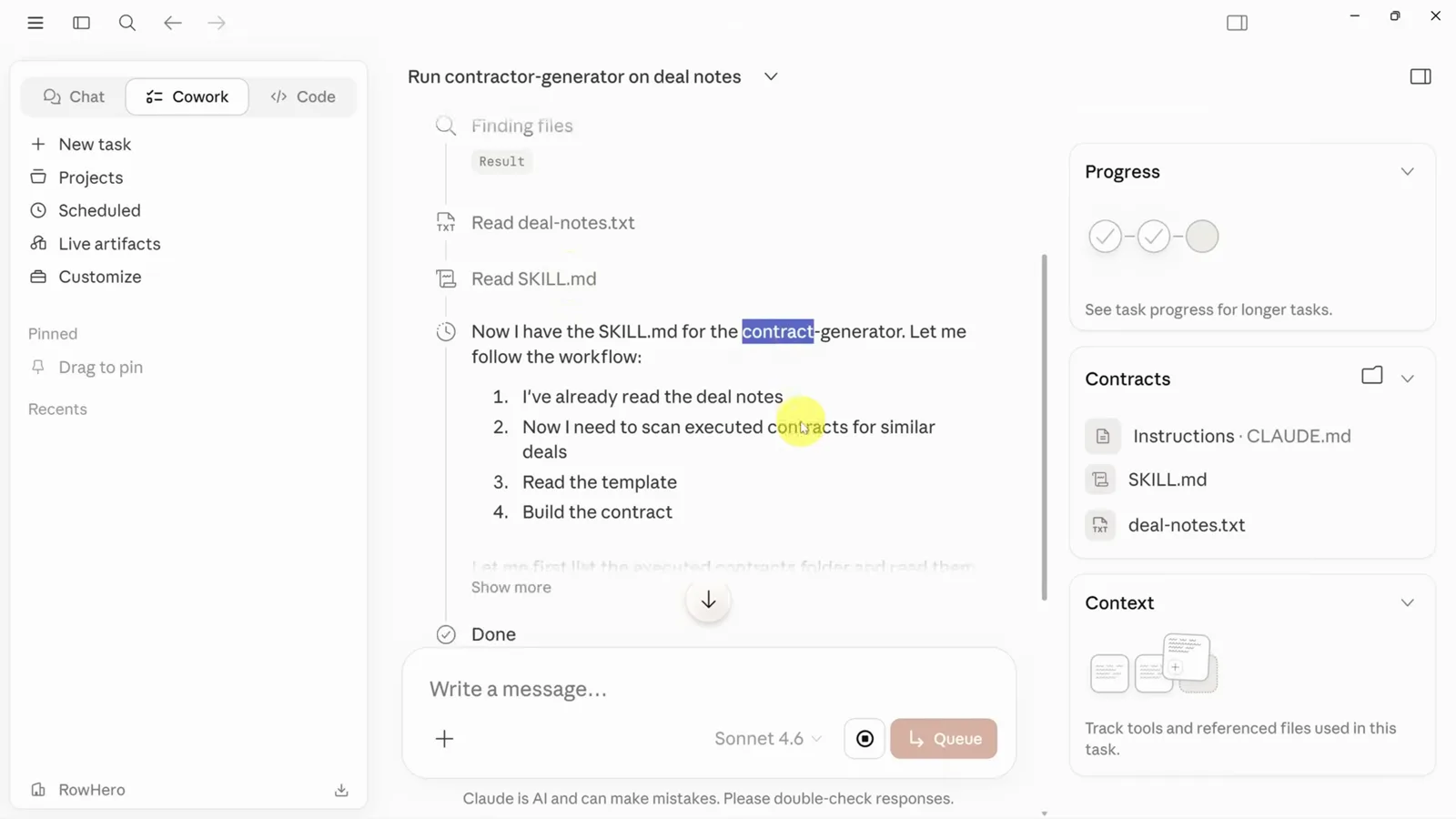
Contracts 面板里能看到 CLAUDE.md 和 SKILL.md 在干活。看视频第 13:35