上下文管理实战指南

Claude Code 上下文管理:/compact、/clear 与上下文余量读表

上下文窗口是怎么被吃掉的、自动压缩什么时候触发、压缩后还剩什么,以及 CLAUDE.md、MCP 精简、skills、子代理这些让 Claude Code 始终保持专注的习惯。
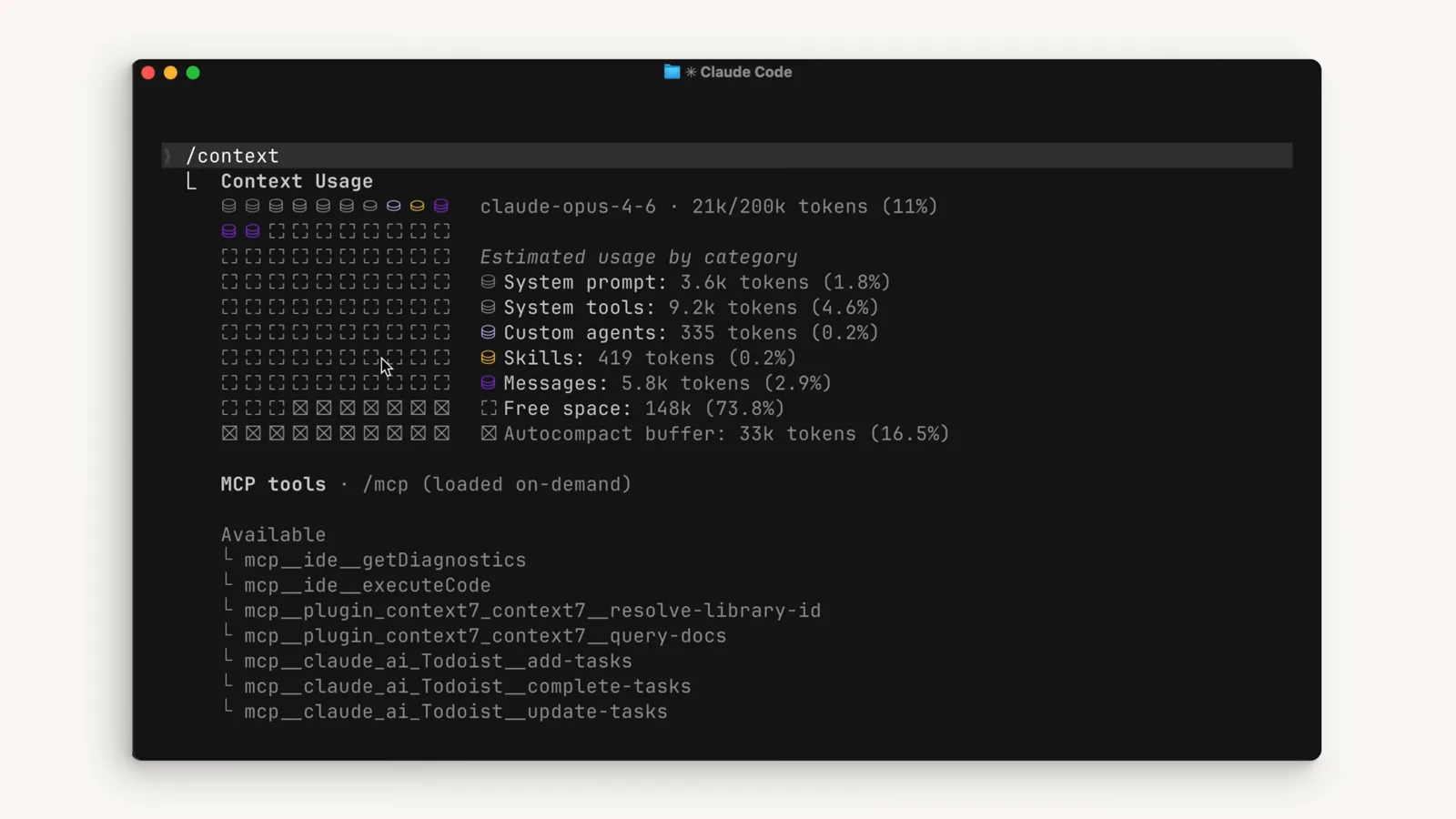
Claude Code /context dashboard showing 21k of 200k tokens used (11 percent) with the colored usage grid, the estimated usage breakdown by category including Skills and Messages, Free space and the 33k token AutoCompact buffer
Claude Code 的 /context 仪表盘:彩色占用格子、分类 token 明细,以及预留给自动压缩的缓冲区。

共 13 个图文步骤,约 5 分钟读完。每一步都可以回跳到来源视频的精确时间点。

速览

你输入的每一句话、Claude 读的每一个文件、每一次工具调用的结果,都会占进上下文窗口。用 /context 看谁在占用。快到上限时 Claude Code 会自动压缩——摘要要点、丢掉冗余——但你也可以在合适的时机自己跑 /compact。换新任务就用 /clear 全部清空。长期要记住的内容写进 CLAUDE.md,用不上的 MCP 工具关掉,只需要答案的过程性工作交给子代理。

来源视频

本页基于 Claude 团队的官方录屏,把其中的上下文管理工作流逐帧还原成图文。每张截图都链接到它在视频中出现的确切时间点。

截图来自 Claude 官方频道的视频画面,版权归创作者所有;文字为本站原创。步骤已于 2026 年 9 月对照视频与 Claude Code 官方文档核实。

上下文窗口是什么,怎么被消耗的

上下文是 Claude 的工作记忆——你发的每条消息、它读的每个文件、每次工具调用的结果都在扣减它。

  1. 1

    把它想象成一个有上限的窗口

    上下文窗口是 Claude 在处理你的项目时能装进记忆的空间总量。它能装的东西是有限的,所以优化什么进入上下文才这么重要。
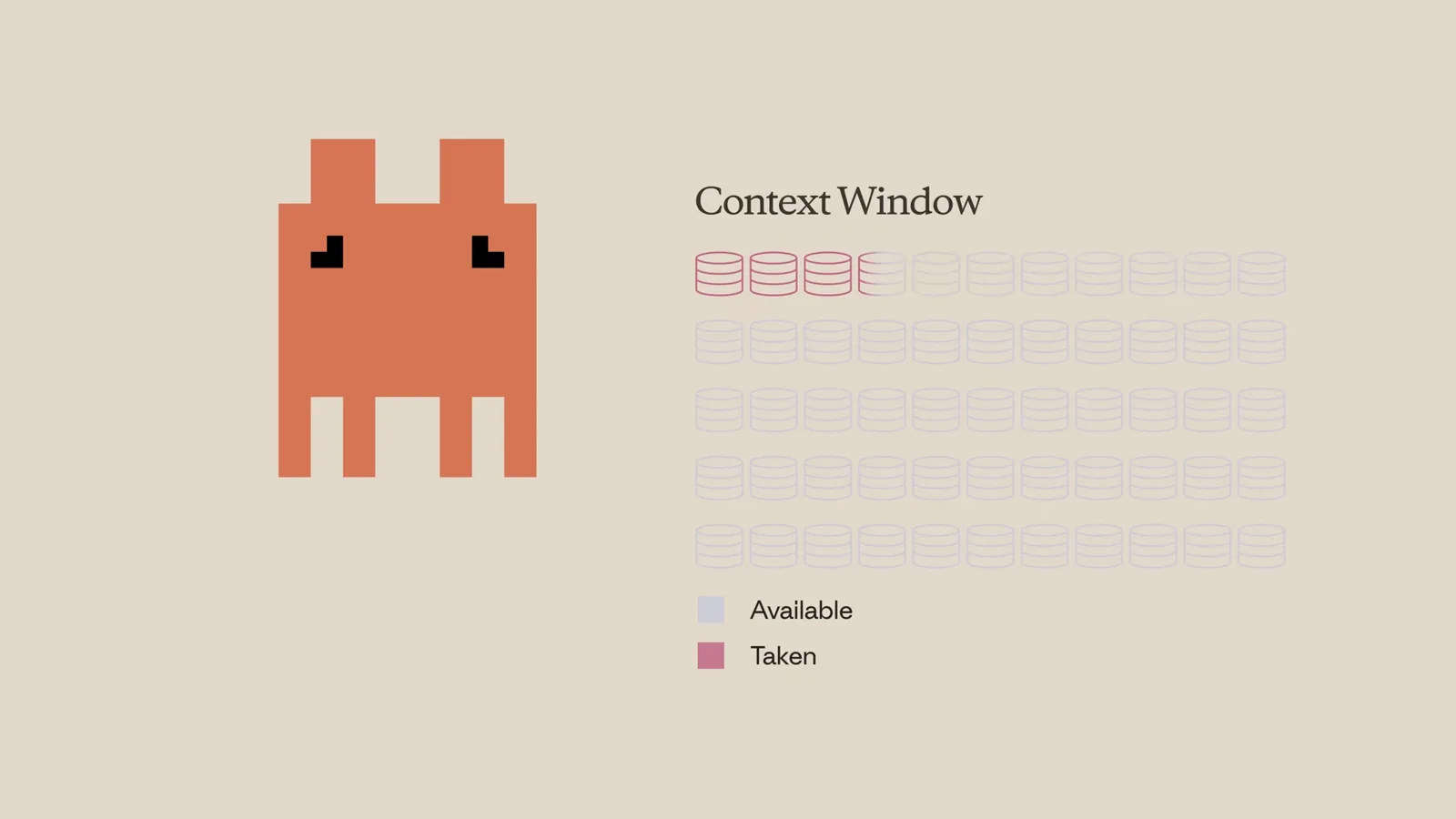
    Claude Code explainer graphic showing a context window grid with a few database icons marked Taken in red and the rest Available, illustrating that the context window is a finite amount of working memory
    官方示意图:窗口里一部分已被占用(Taken),剩下的仍可用(Available)。看视频 0:32 处
  2. 2

    Claude 做的每件事都在往里加

    你每输入一条提示词,Claude 每读一个文件、每跑一次工具调用、每收到一个工具返回结果,这些都会加进上下文窗口。像截图里这样一轮代码审查——问题清单加上它读取的文件——已经是看得见的上下文消耗了。
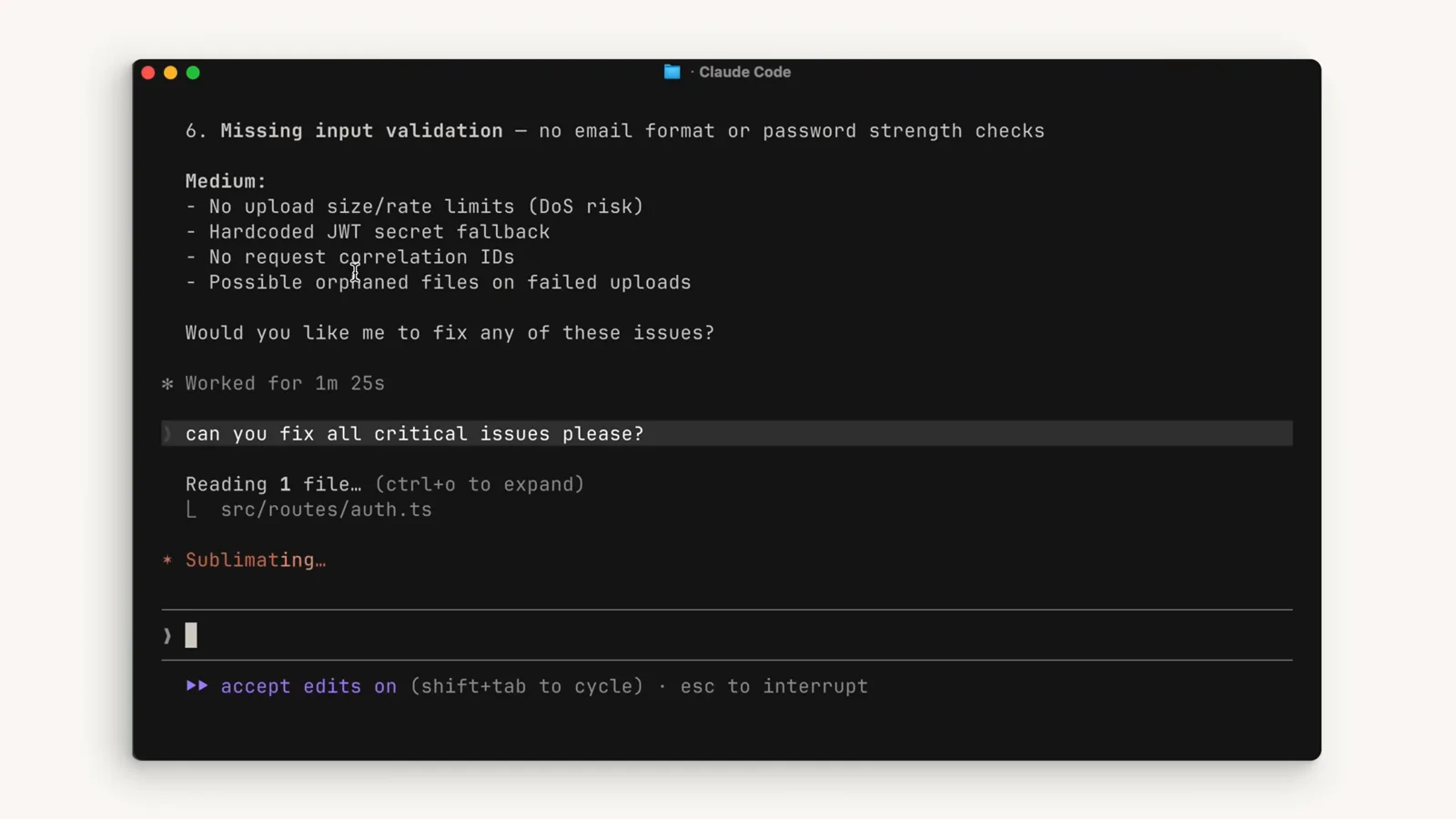
    Claude Code session listing security review issues while Reading 1 file src/routes/auth.ts and showing a Sublimating status line, the moment file reads and tool call results are being added onto the context window
    一次审查进行中:问题列表、读入的文件、状态行,全都进了窗口。看视频 0:22 处
  3. 3

    用 /context 看一眼余量表

    运行 /context 命令,就能看到上下文占用的全景:彩色格子、已用总量——这里是 200k token 用了 21k,占 11%——以及分类明细:系统提示词、系统工具、自定义 agent、skills、消息,还有剩余空间和预留给自动压缩的缓冲区。

    Claude Code /context dashboard reporting 21k of 200k tokens used (11%) with an estimated usage breakdown by System prompt, System tools, Custom agents, Skills, Messages, Free space and a 33k token AutoCompact buffer
    200k 用了 21k(11%),AutoCompact 缓冲区单独预留 16.5%。看视频 1:32 处

自动压缩与手动 /compact

窗口快满时 Claude Code 会自动做摘要;你也可以用 /compact 在自己选的时机做同样的清理。

  1. 4

    接近上限时自动压缩触发

    当占用接近上限,上下文窗口会被自动压缩:重要细节被摘要保留,不必要的工具返回结果被移除,腾出大量空间。视频里也提醒了一句——自动压缩有可能丢失对话前段的细节。
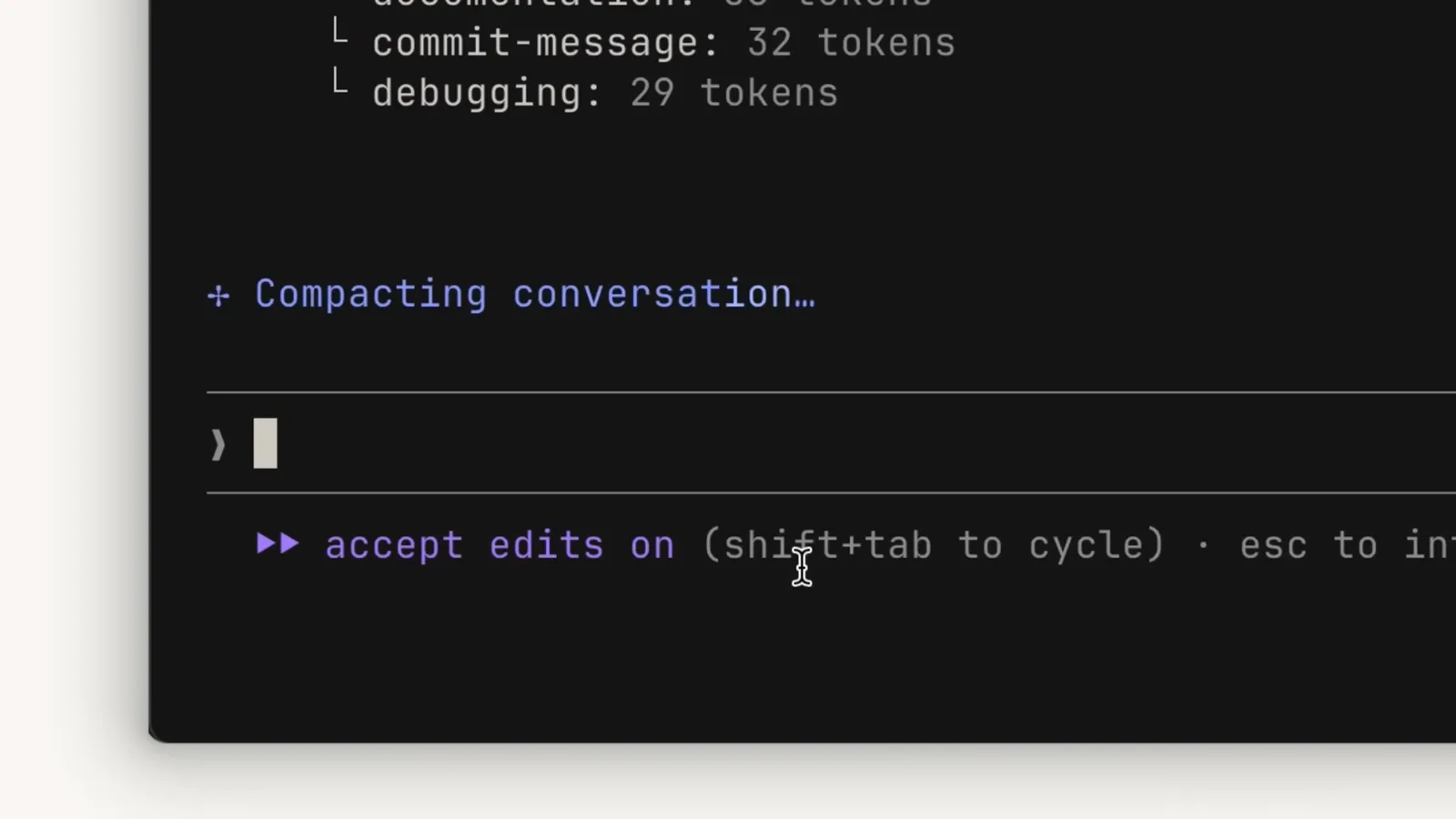
    Claude Code showing the Compacting conversation status above an empty input box while accept edits mode is on, the moment automatic compaction summarizes important details and clears older tool results near the context limit
    "Compacting conversation…"——自动摘要正在自己跑。看视频 0:44 处
  2. 5

    用 /compact 手动压缩

    你也可以用 /compact 命令自己触发压缩。它会把截至当前的全部内容压缩一遍——既想腾出上下文空间、又想保留之前工作记忆的时候特别合适。自己挑时机压缩,总好过任务进行到一半被自动压缩打个措手不及。
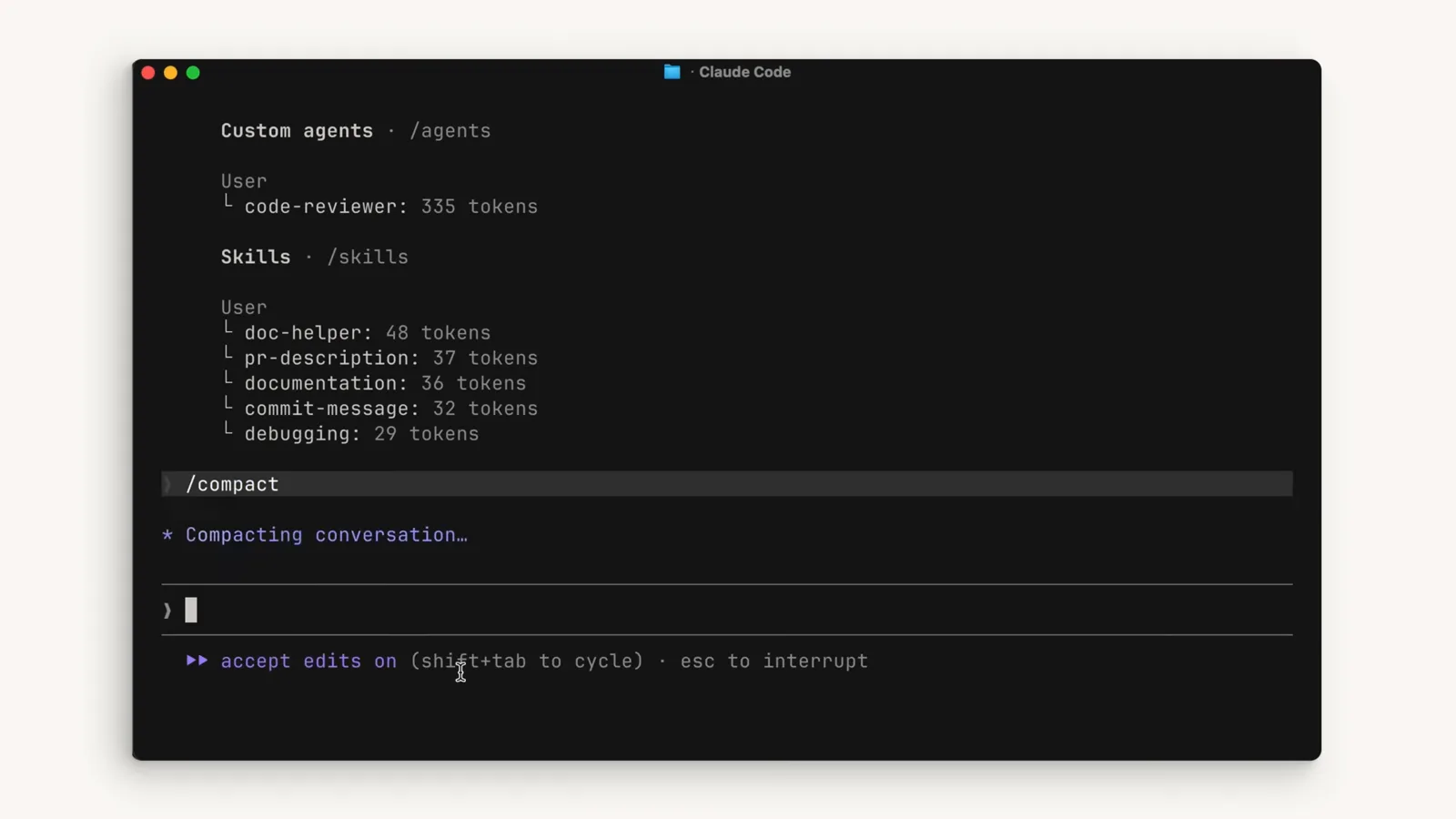
    Typing the /compact slash command into the Claude Code input box beneath the Custom agents and Skills token usage list to manually compact everything done so far in the session
    输入框里敲下 /compact,摘要立刻开始。看视频 1:04 处
  3. 6

    压缩之后留下了什么

    压缩完成后,记录里保留了一份现状摘要:Current Work(当前工作)、Optional Next Step(建议的下一步),以及指向磁盘上完整记录 .jsonl 文件的路径——万一你需要压缩前的精确代码片段或报错信息,可以去那里找。
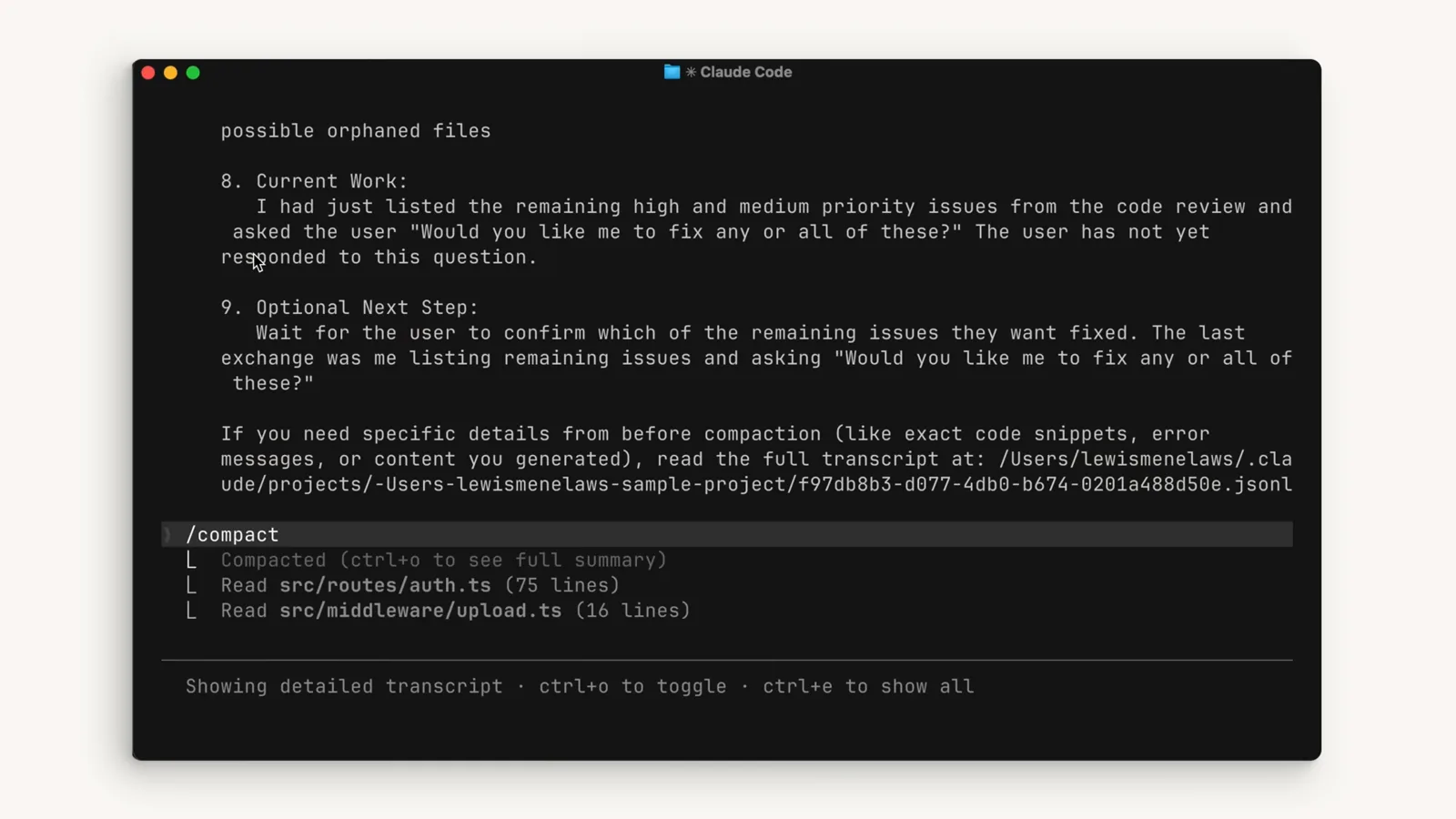
    Claude Code compacted conversation transcript showing Current Work and Optional Next Step sections plus the full transcript .jsonl path to read exact code snippets and error messages from before compaction
    压缩后的摘要,完整对话记录已存成 .jsonl 文件。看视频 0:52 处
  4. 7

    在摘要之上继续干活

    会话紧跟着摘要继续:"Conversation compacted (ctrl+o for history)"、一条列出读过哪些文件的 /compact 摘要块,然后 Claude 立刻问还有什么要做——同一个功能保持推进,旧的工具结果包袱已经卸掉了。
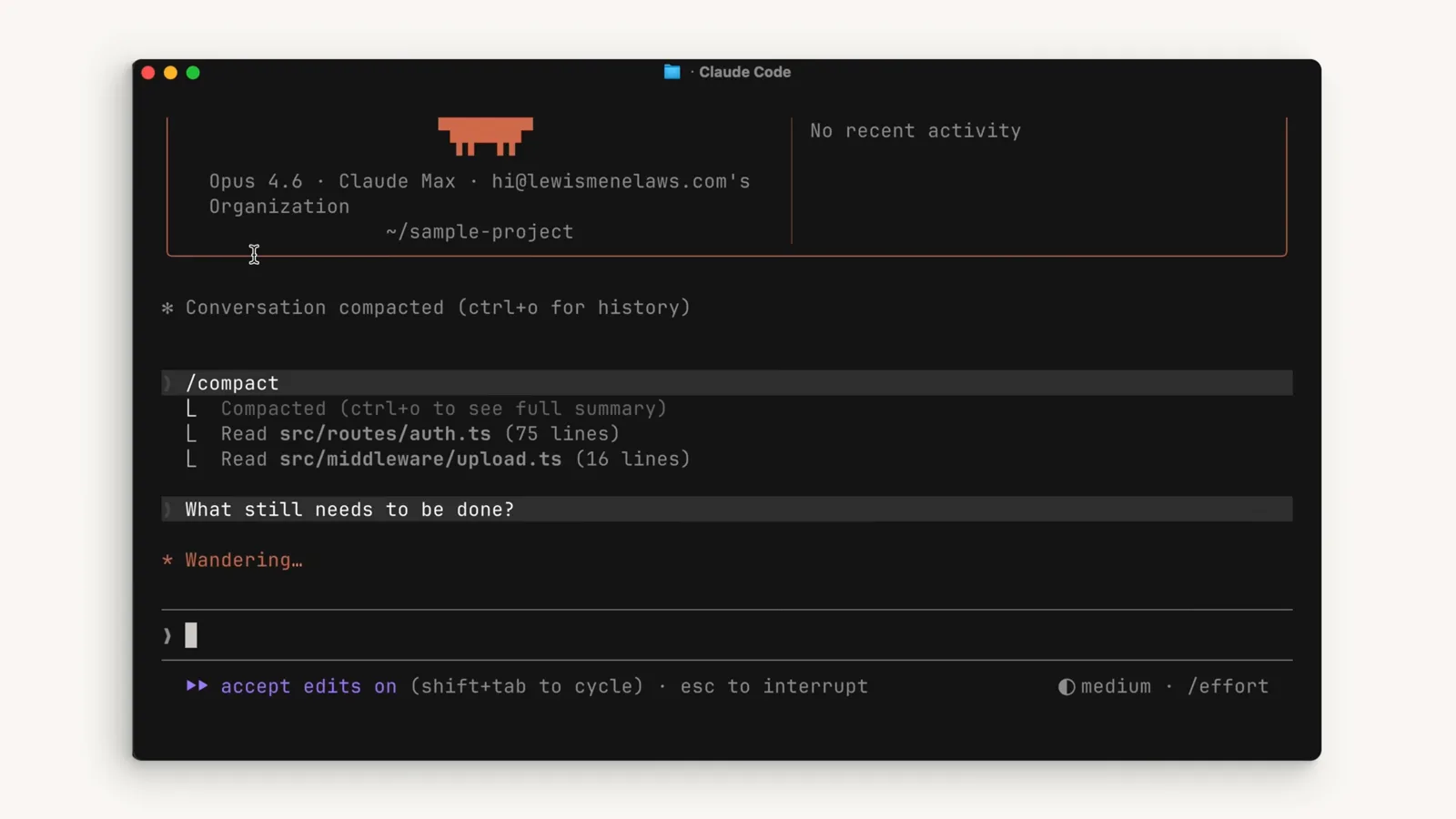
    Claude Code after compaction showing Conversation compacted (ctrl+o for history), a /compact summary listing the files that were read, and a What still needs to be done? prompt to continue the feature
    "还有什么要做?"——同一个功能,更轻的窗口。看视频 1:46 处

什么时候该用 /clear

新功能值得一张白纸——旧上下文只会给新工作带来偏见。

  1. 8

    两条命令,两种意图

    斜杠菜单把区别写得明明白白:/compact 清空对话历史但在上下文里保留一份摘要,/clear 则直接释放全部上下文。视频里的经验法则:还在做同一个功能、只是快超窗口——压缩;已经做完、要开新功能——清空,别让旧对话给新工作带偏。
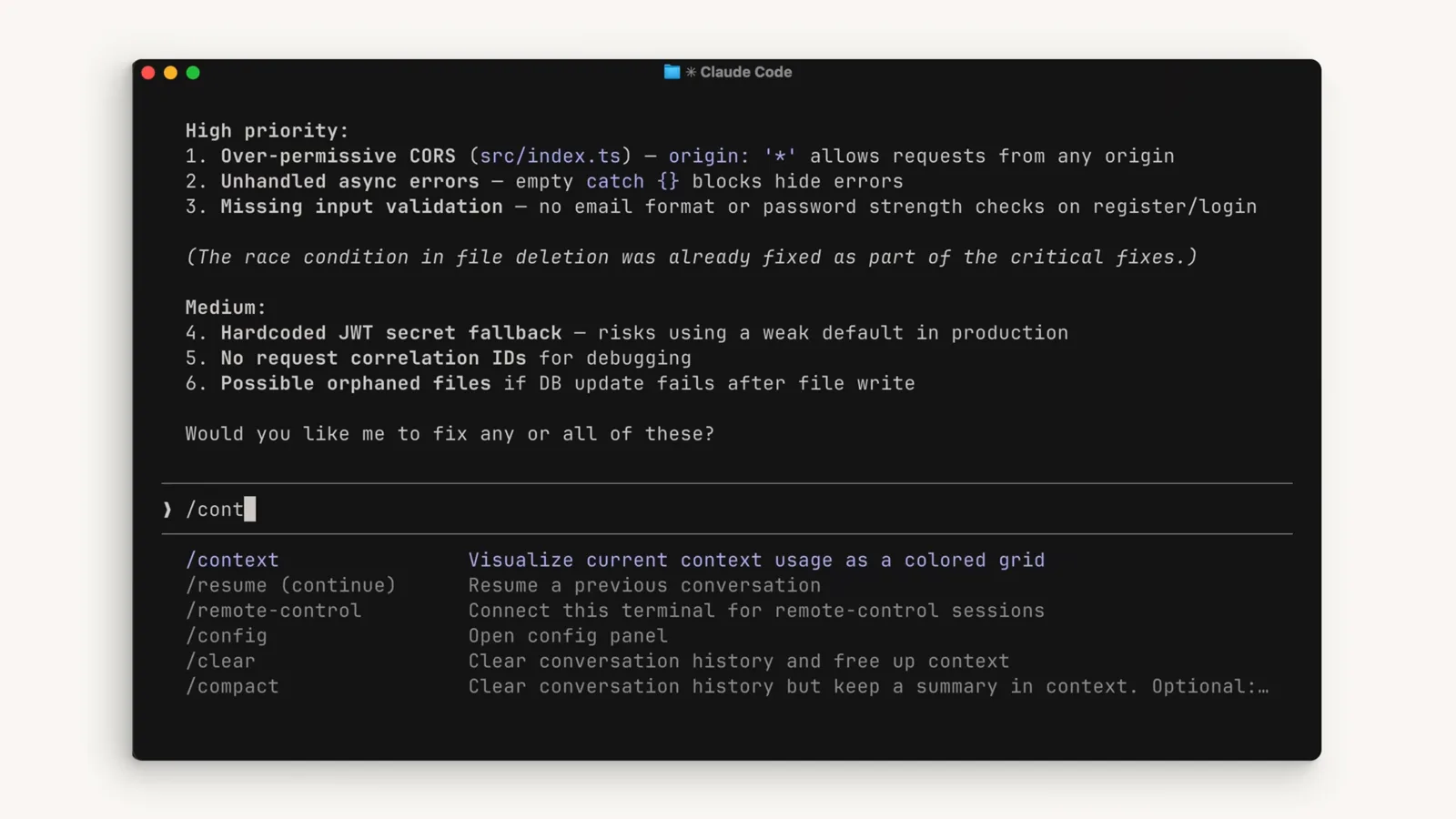
    Claude Code slash command menu opened by typing a forward slash, showing the descriptions for /context, /resume, /clear and /compact including Clear conversation history but keep a summary in context
    命令描述把区别写得很清楚:留摘要 vs 全部清掉。看视频 1:24 处
  2. 9

    /clear 让你从零开始

    运行 /clear 后所有内容被移除——会话退回欢迎界面,没有任何内容、没有最近活动。之前对话里的任何东西都不会渗进你接下来要做的事。
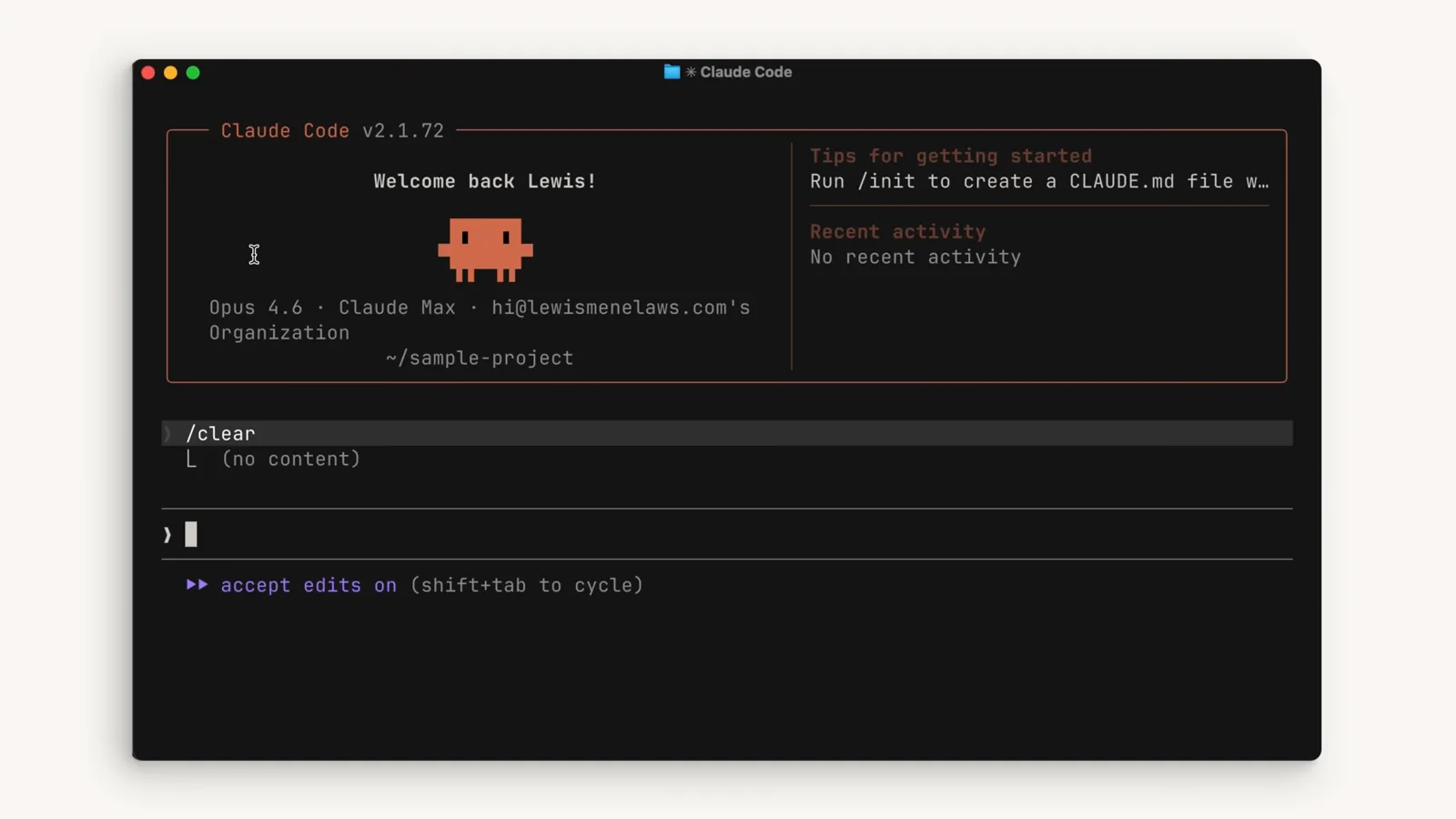
    Claude Code v2.1.72 welcome screen immediately after running /clear, showing (no content) under the command and No recent activity in the session panel, a context window starting from scratch
    /clear 之后:无内容、无活动,一张白纸。看视频 1:54 处

让上下文保持精简的习惯

记忆交给 CLAUDE.md,MCP 按需精简,skills 用时才加载,过程性工作丢给子代理。

  1. 10

    长期记忆写进 CLAUDE.md

    想让 Claude 在其他会话里也记住的事,写进 CLAUDE.md 文件——项目命令、约定、架构说明。这样它不用每次会话从零重新摸索,这些知识也不再依赖对话记录能否扛过一次压缩。
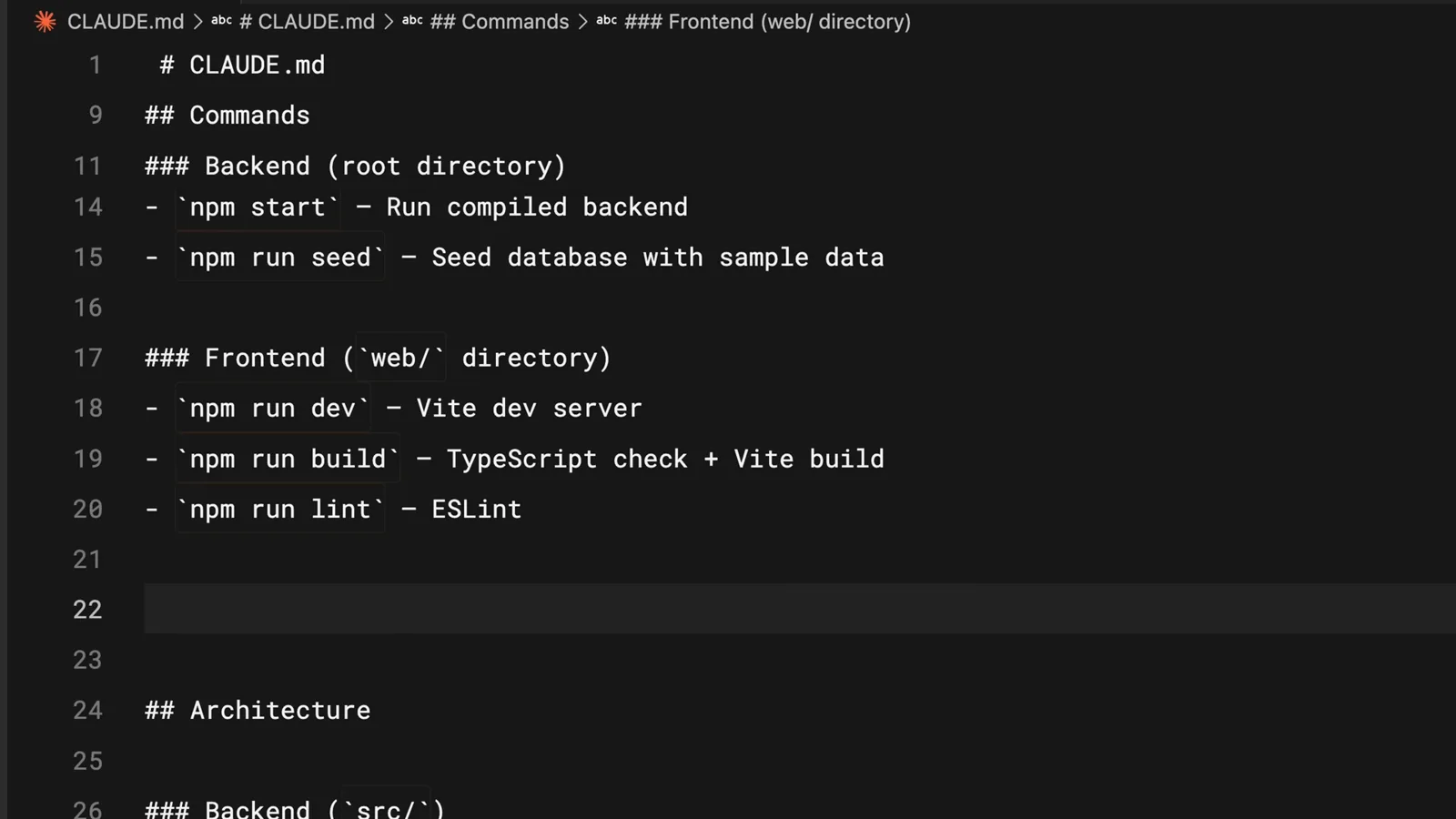
    CLAUDE.md project memory file opened in Claude Code listing Backend and Frontend npm commands plus Architecture headings, the file where facts worth remembering across sessions live so Claude does not rediscover them
    CLAUDE.md 把项目的命令和架构说明带到每一个会话。看视频 2:02 处
  2. 11

    用不上的 MCP 服务器就关掉

    MCP 服务器默认把它的全部工具加载进上下文——这次审计里 Loaded 的 Slack、Notion 工具排了一页又一页。如果有和当前项目无关的 MCP 服务器,关掉它们是最省上下文的操作之一。
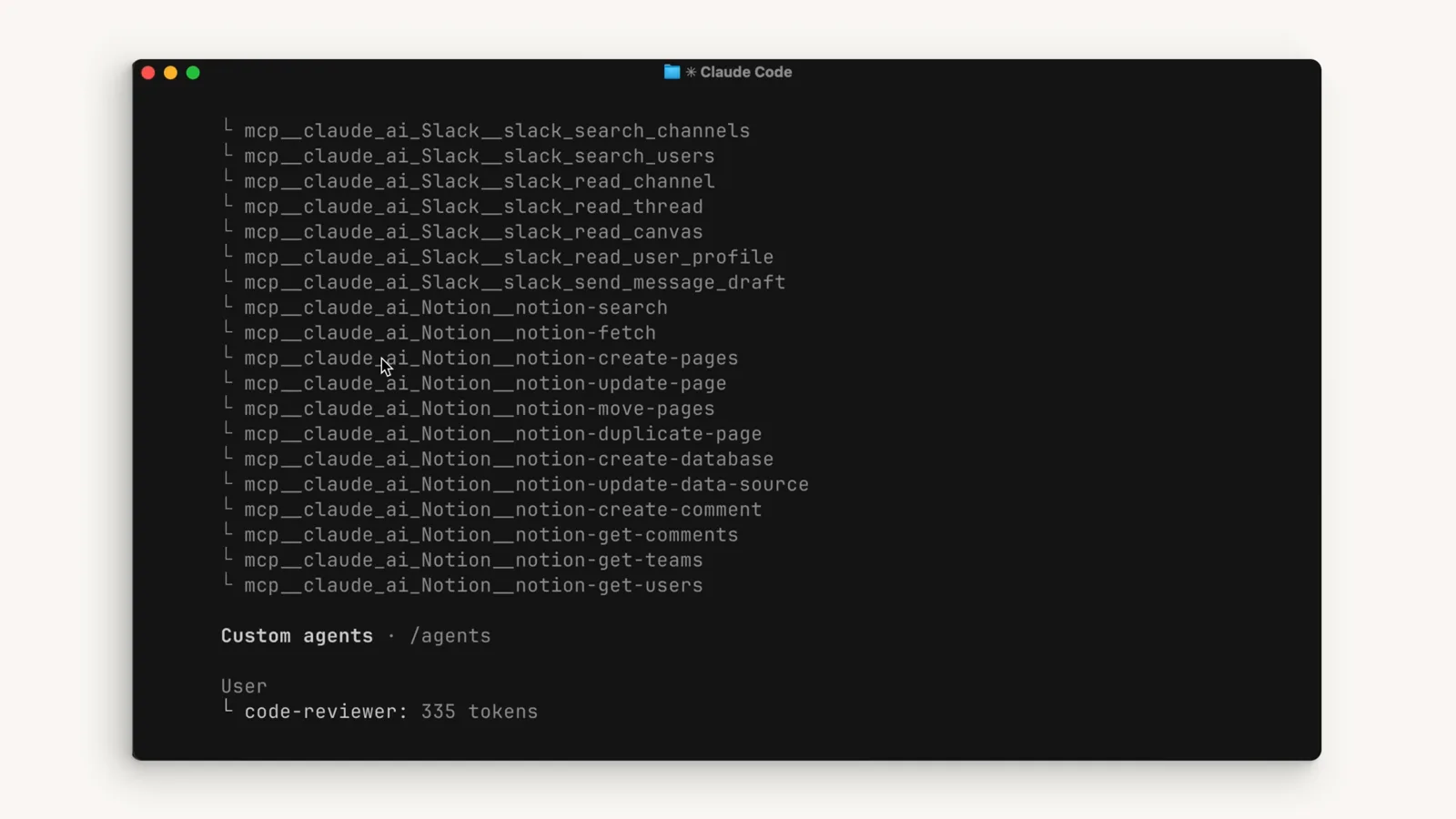
    Claude Code /context output listing dozens of loaded Slack and Notion MCP tools with a code-reviewer custom agent below, showing how MCP servers load all of their tools into context by default
    每个已加载的 MCP 工具都占着上下文,用不用都占。看视频 2:28 处
  3. 12

    能用 skills 就别挂常驻工具

    skills 的作用类似 MCP 服务器,但不会把整个东西塞进上下文——SKILL.md 文件留在磁盘上,直到真正用到才加载。把重复性的工作流从常驻工具迁到 skills,就给真正的工作省出了窗口空间。
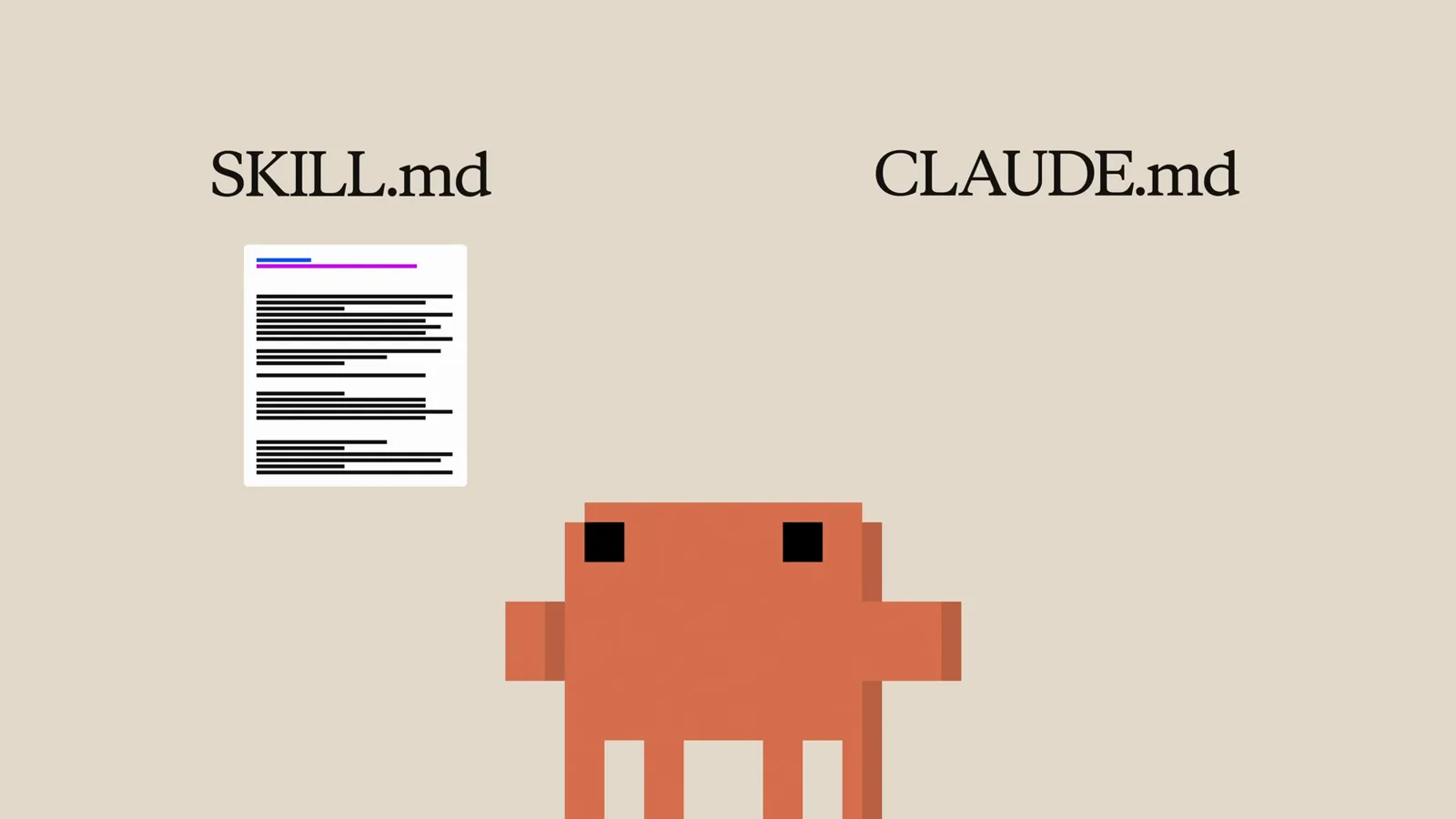
    Claude Code explainer diagram contrasting a SKILL.md file with CLAUDE.md, the pattern where skills stay on disk and are loaded on demand instead of putting everything into the context window
    SKILL.md 与 CLAUDE.md:用时才加载,而不是常驻上下文。看视频 2:43 处
  4. 13

    过程交给子代理,只要结论

    子代理运行在一个完全独立的上下文窗口里,只把摘要返回给主 agent。那些你只要答案、不要过程——比如"认证端点在哪几个文件"——的任务,交给子代理去翻,探索过程就永远不会污染你的主对话。
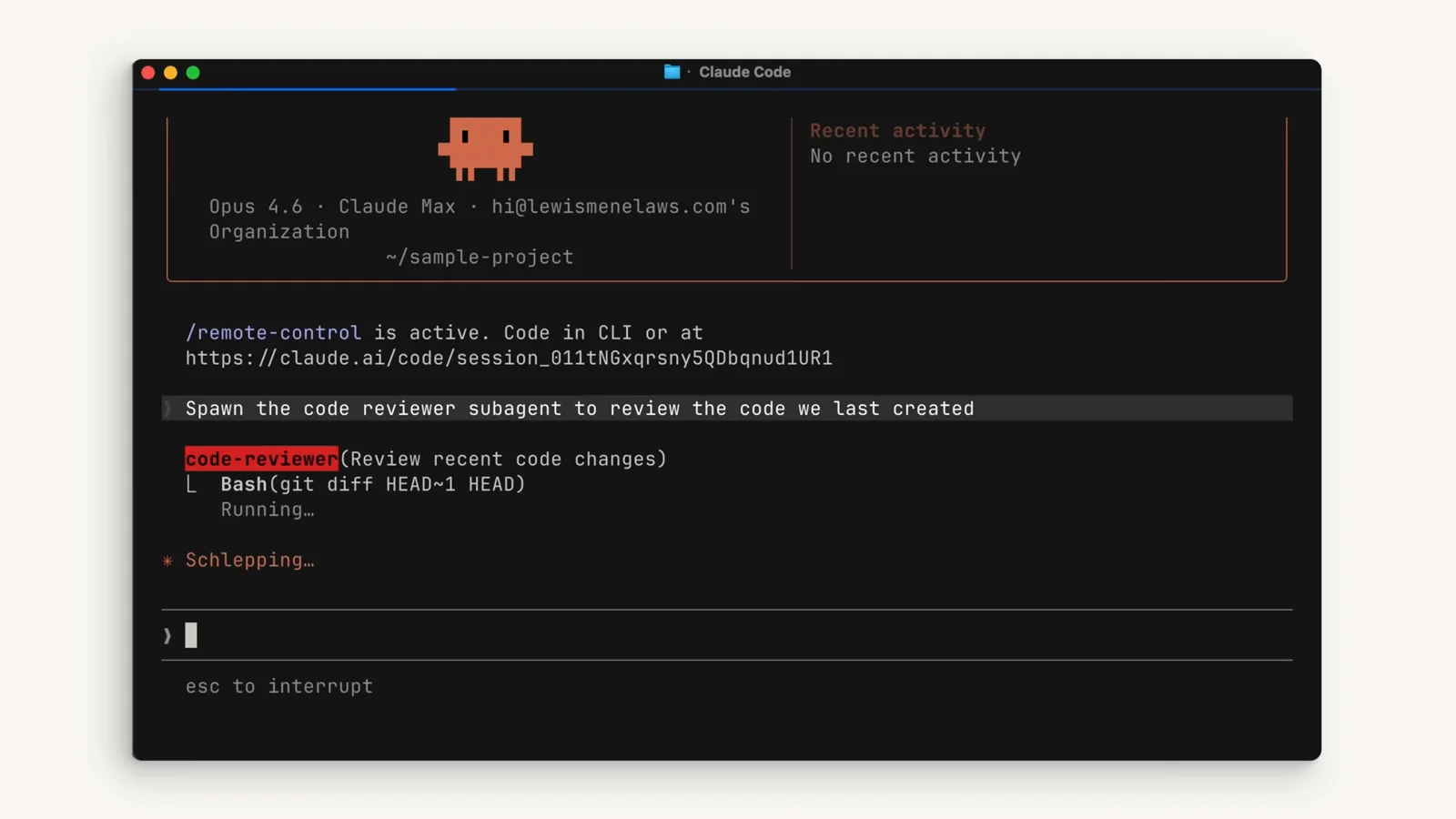
    Claude Code spawning the code-reviewer subagent with the prompt Spawn the code reviewer subagent to review the code we last created while a Bash git diff HEAD~1 HEAD runs in its separate context window
    "Spawn the code reviewer subagent…"——审查在它自己的窗口里跑。看视频 2:52 处

常见问题