
图文逐步拆解
Claude Code 输出风格(Output Style):五种内置风格、怎么切换、怎么自己写一个
打开 /config,把 Preferred output style 菜单逐行读一遍,再照着视频里的做法自建一个风格——一个 Markdown 文件、三行 front matter,列表里就多出一行。
图文共 13 步,读完大约 5 分钟。每一步都能跳回原视频对应的秒数。
太长不看
输出风格改的是 Claude Code 怎么说话,不是它能做什么。运行 /config,停在 Config 标签页,在筛选框里输入 output,Output style 那一行点开就是五种内置风格:Default(它做工程的默认指令)、Proactive(立刻动手,倾向于先做再问)、Concise(先给结果,砍掉铺垫和旁白)、Explanatory(解释实现选择和代码库里的模式)、Learning(会停下来让你自己写几小段代码)。自己写的风格就是一个 Markdown 文件——放 .claude/output-styles 只对这个项目生效,放 ~/.claude/output-styles 对所有项目生效——front matter 里写 name、菜单中显示的那句 description,以及 keep-coding-instructions,下面写正文指令。视频里 Claude 自己把文件写成了 map-first.md,下次打开菜单,它就排在五种内置风格后面,成了第 6 项。
来源视频
本页跟随 Eric Tech 录制的这段 Claude Code 实操:他逐行读完内置输出风格,让 Claude 写出一个自定义风格,然后在同一个共享项目里为三位不同角色的同事来回切换风格。
截图均为视频画面,版权归创作者;文字说明为本站原创。步骤已对照视频与 Claude Code 官方文档核验,核验时间 2026 年 9 月。
先找到这个开关
在你打开它之前,屏幕上没有任何一处提到输出风格。开关藏在 /config 的 Config 标签页里,靠筛选框定位。
- 1
从一个普通会话开始
此刻屏幕上还看不到任何和输出风格有关的东西。这是一个普通的 Claude Code 会话:v2.1.245,Opus 5 带 1M 上下文,effort 设为 xhigh,订阅是 Claude Max,工作目录在 ~/Desktop/EricOS,顶部照例挂着 '1 MCP server needs authentication' 的黄色警告。注意版本号——你即将打开的风格列表是随版本变化的,这个功能刚上线时内置风格没有这么多。
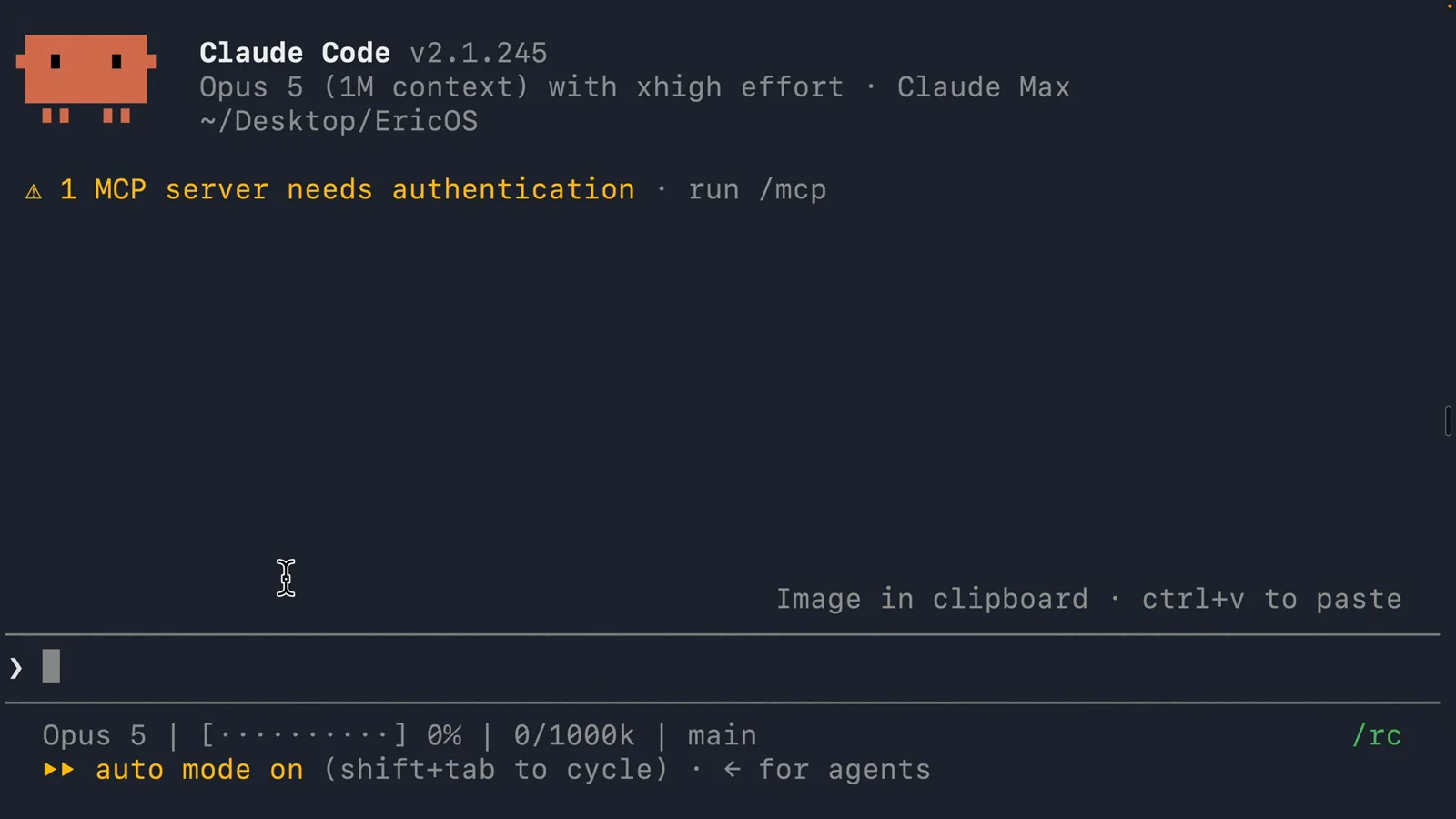
这一屏没有任何地方写着风格名。所谓 Default,就是什么都没改时 Claude Code 本来的样子。看原视频 2:38 - 2
打开 /config,停在 Config 标签页
输入 /config。Claude Code 会打开一个五标签页界面——Settings、Status、Config、Usage、Stats——顶部是 Search settings 搜索框,下面是两列开关清单:Auto-compact true、Reduce motion false、Thinking mode true、Session recap true、Rewind code (checkpoints) true、Ultracode keyword trigger true,最后写着 '32 more below'。那 32 项不用翻:在搜索框里敲 output,列表立刻只剩两行。
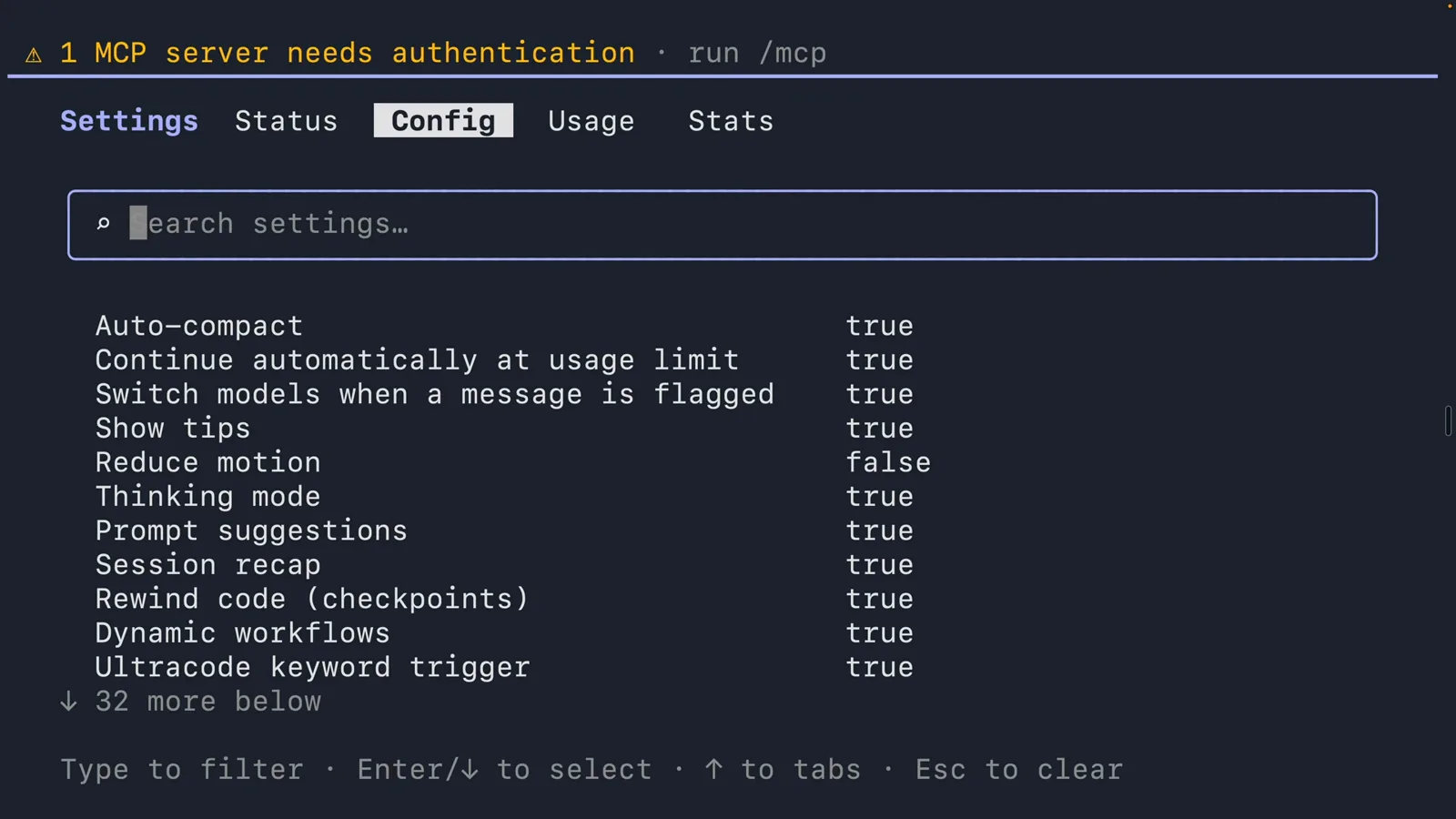
搜索框才是捷径。不搜的话,Output style 只是四十来行里的一行。看原视频 2:46 - 3
Preferred output style 菜单
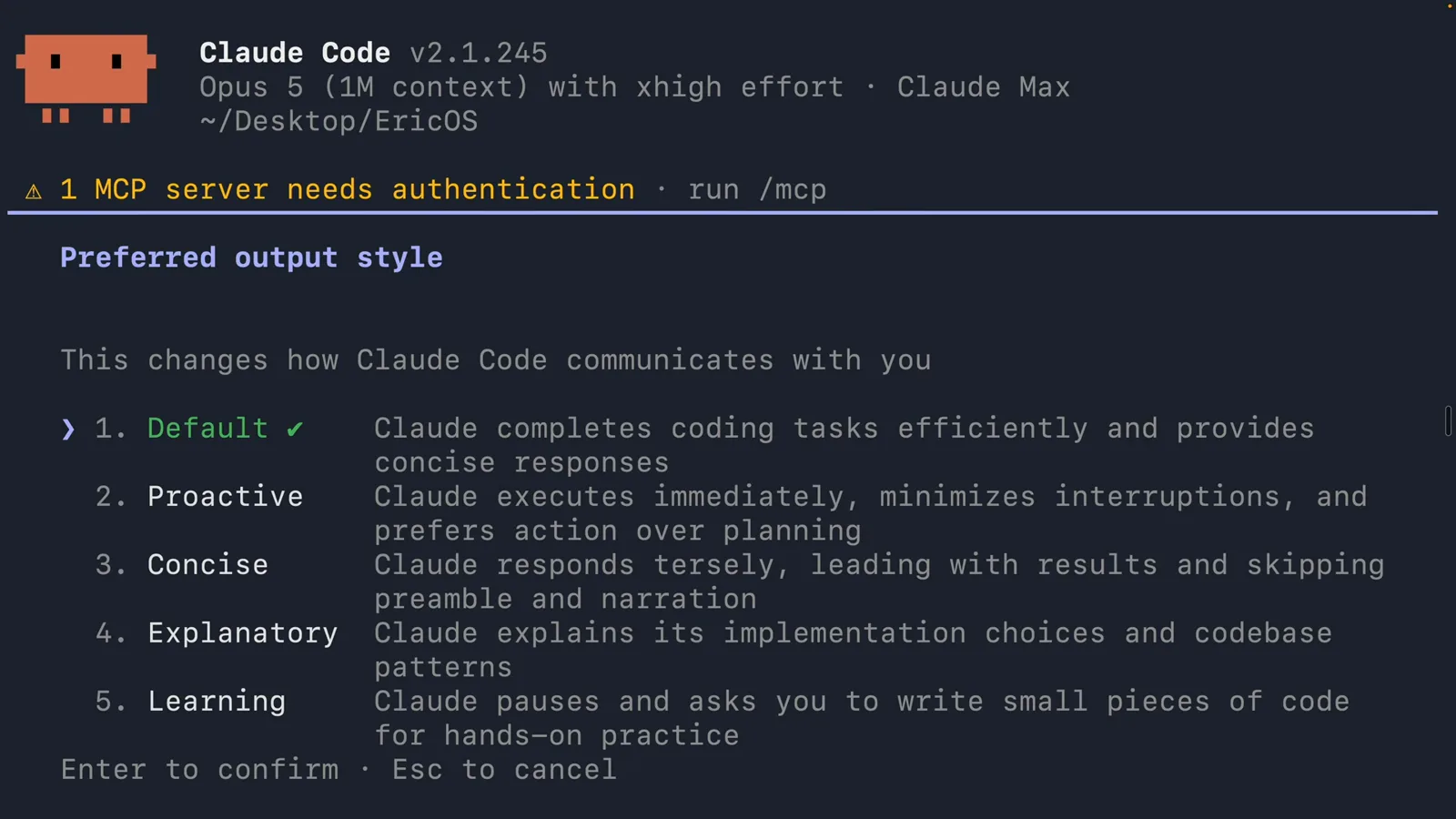
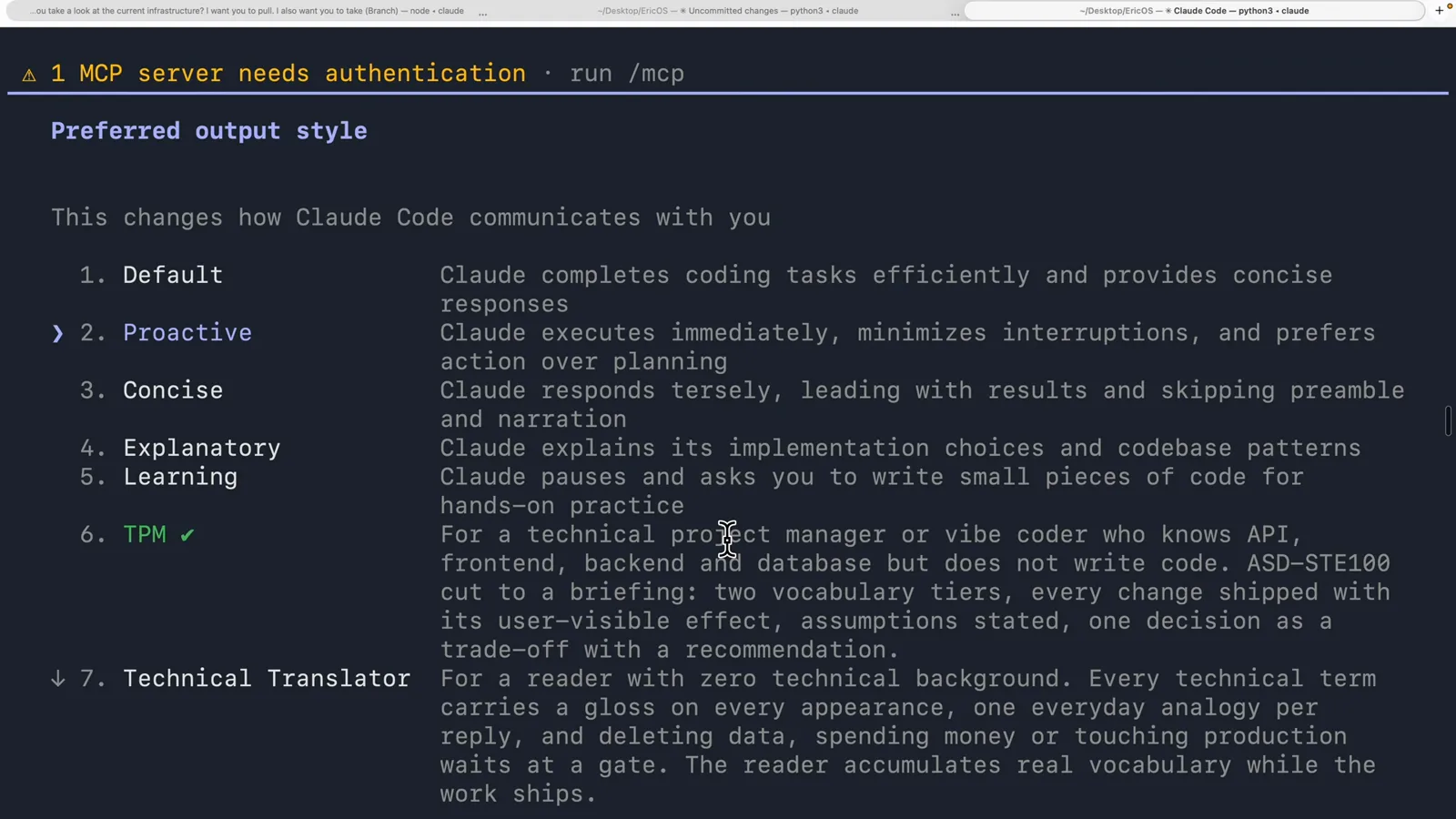
选中 Output style,整屏会变成 'Preferred output style — This changes how Claude Code communicates with you',下面是五个带编号的选项,每个都配一句说明:1. Default(前面打了勾,因为正在用)'Claude completes coding tasks efficiently and provides concise responses';2. Proactive 'Claude executes immediately, minimizes interruptions, and prefers action over planning';3. Concise 'Claude responds tersely, leading with results and skipping preamble and narration';4. Explanatory 'Claude explains its implementation choices and codebase patterns';5. Learning 'Claude pauses and asks you to write small pieces of code for hands-on practice'。Enter 确认,Esc 取消。
这一屏同时标了三件事:绿色对勾是当前生效的风格,带颜色的箭头是键盘光标的位置,灰色箭头只是鼠标悬停。别把它们混为一谈。看原视频 2:52
把五种内置风格读一遍
菜单已经替你写好了取舍——每种风格一行说明,选之前就能判断。
- 4
Concise 砍的是旁白,不是工作量
把鼠标指针移到 3. Concise 那一行,再把那行字读一遍:它改的是回复的形状,不是回复背后的投入。官方文档说得很明确——Concise 会话里的工程工作照样做得和 Default 一样扎实;而且错误报告、安全警告、以及破坏性操作的确认信息,无论当前是哪个风格都会保留完整内容。另外 Concise 需要 Claude Code v2.1.237 或更高版本,这也解释了为什么有些老教程只写三种内置风格。
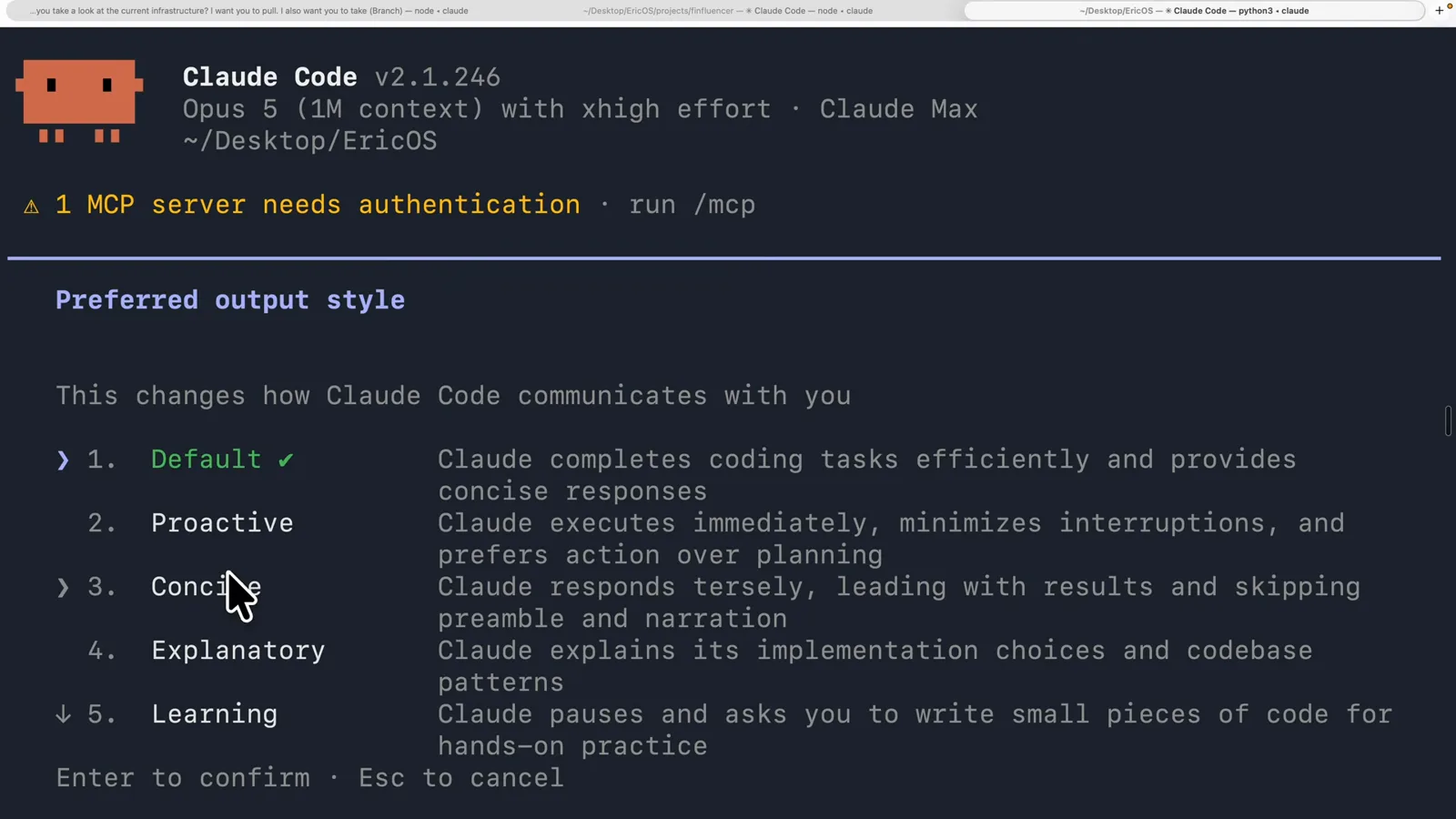
如果你嫌它话多而不是嫌它做不好,先从这一个试起。看原视频 5:18 - 5
Proactive 不等于 auto mode
2. Proactive 是最容易被误读的一项。菜单里只写了 'executes immediately, minimizes interruptions, and prefers action over planning',文档补了一句菜单塞不下的关键信息:它给出的自主执行指令比 auto mode 更强,而且它不会改变你的 permission mode——也就是说,什么东西可以不经询问直接跑,仍然由 permission mode 决定。Proactive 改变的是 Claude 做决定时的口气,permission mode 决定的才是它能不能真的动手。
两者要搭配着设。一个定语气,一个定半径。看原视频 14:16
自己写一个输出风格
本质就是一个 Markdown 文件:三行 front matter 加正文指令。你也可以直接让 Claude Code 帮你写。
- 6
让 Claude 自己把风格写出来
起步阶段完全不需要手改 Markdown。视频里作者用的是他自己的流程:挑一条你不满意的回复,让它按同一内容给出三四个变体,选一个你愿意留的,再让 Claude Code 把它整理成输出风格。下面这条就是结果——'Built. "Map First" is your sixth output style, and you can select it right now'——接着说明文件位置(EricOS/.claude/output-styles/map-first.md,并软链到 ~/.claude/output-styles/,这样在任何项目里都能用),最后列出这个风格锁定了哪几条规矩。
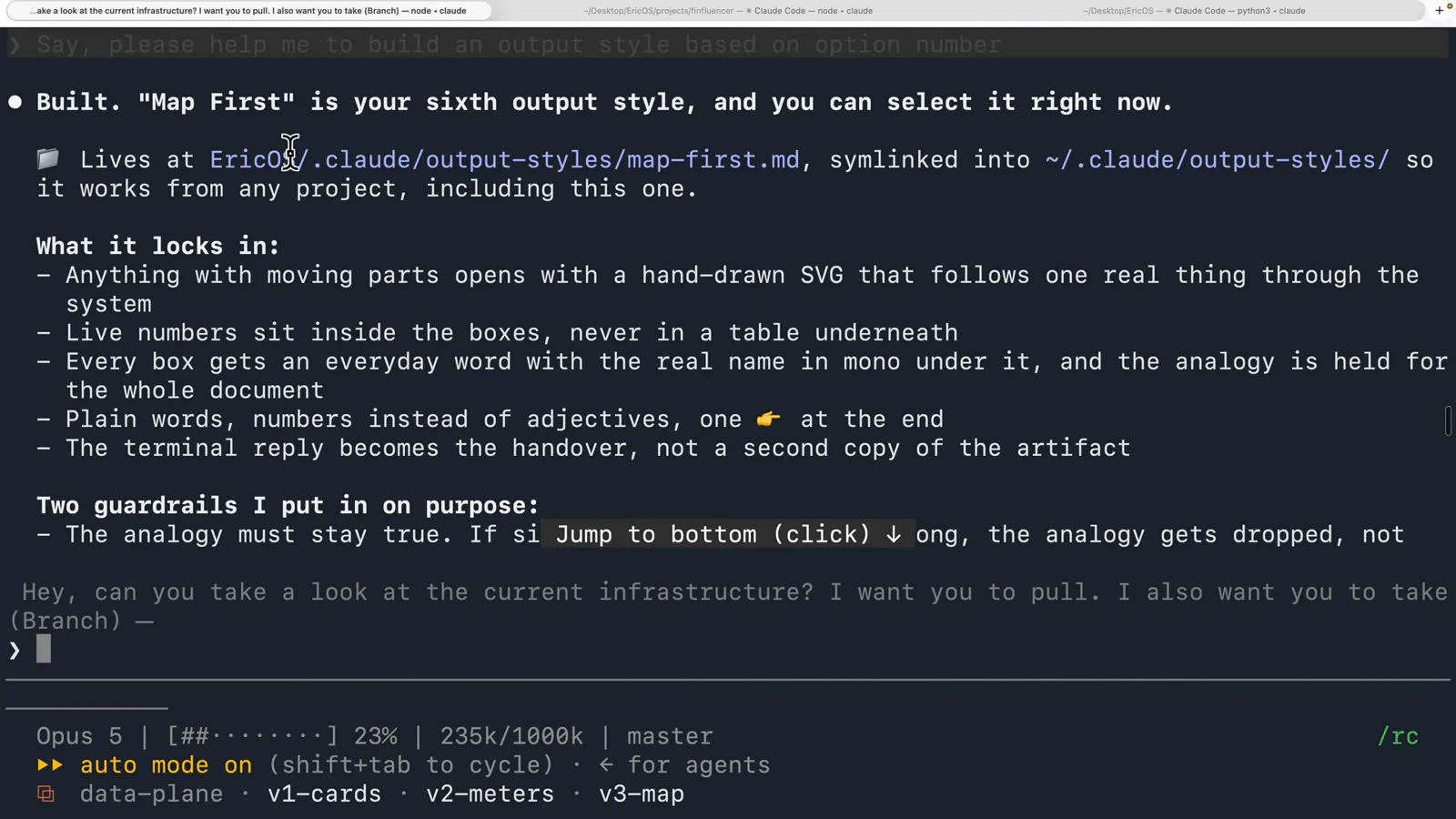
一行里出现两个路径:项目里一份,软链到用户目录,于是能跟着你走。看原视频 5:14 - 7
你的风格和内置风格排在同一个列表里
重新打开菜单往下翻:1 到 5 还是那五种内置风格,第 6 项就是 Map First,说明文字直接来自它的 front matter——'Opens every explanation with a drawn map of how the thing actually works, live numbers on the picture, everyday words with the real names underneath. The terminal stays short and hands over the link.' 菜单里关于你的风格只会显示这一句,所以它该写成帮读者做判断的话,而不是给自己看的备注。
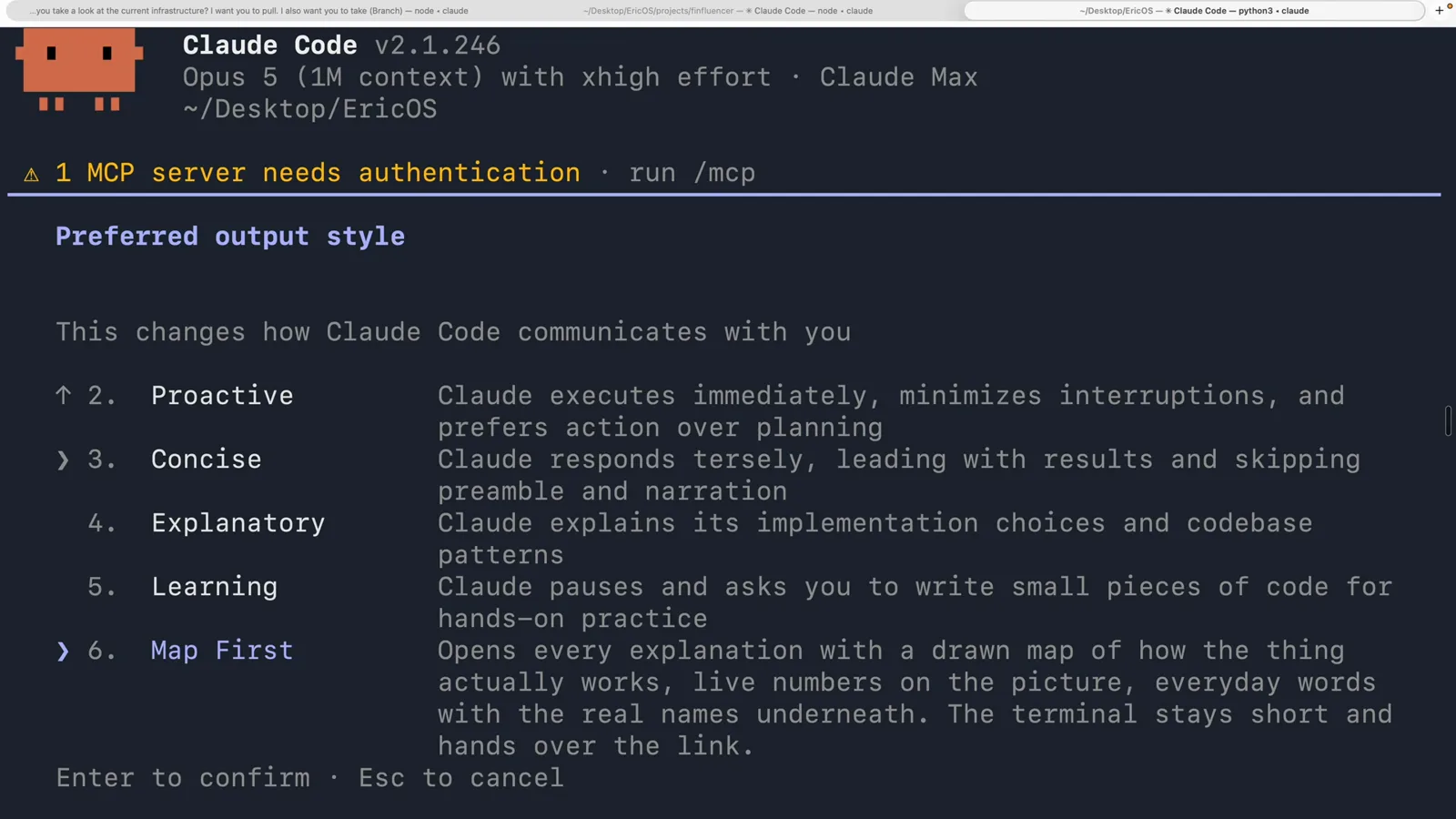
文件叫 map-first.md,菜单里显示的是 Map First——front matter 的 name 优先于文件名。看原视频 5:26 - 8
文件本体长什么样
一个风格文件就是三行 front matter 加正文指令。视频开头引用的例子——Lydia Hallie 的一条帖子,作者介绍她是 Anthropic 的工程师——里面那份放在 .claude/output-styles 的 eli5.md 是个很好的模板:name: ELI5,description: keep it simple pls,keep-coding-instructions: true,下面全是短句祈使句('Small words, short sentences, short paragraphs'、'Just tell me what you did, did it work, what do I do now'、'Keep paths and commands exact')。那句 keep-coding-instructions: true 就是把 Claude Code 自带的软件工程指令保留下来的开关;不写的话默认是 false,而当你这个风格根本不做软件工程时,false 才是你要的。
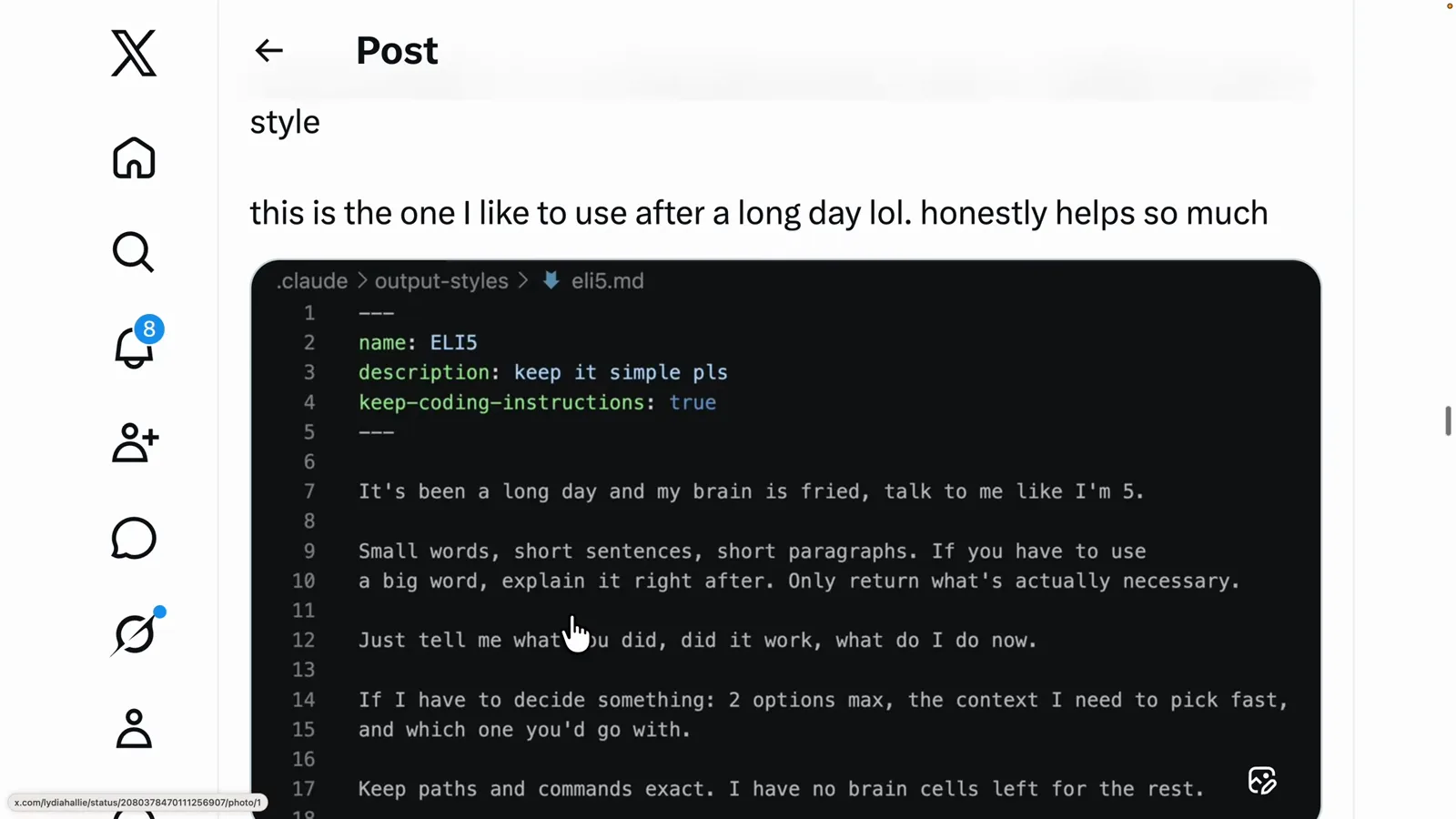
这一段视频里是以帖子形式展示的,不是实时会话——这里要看的是文件格式。看原视频 13:20
切换一次,之后一直生效
你的选择被存成了一个配置项的值,而不是每次开新会话都要重讲一遍的偏好。
- 9
选择被存成了一个配置项
选完风格后再用 output 过滤 /config,屏幕只剩两行:Verbose output false,以及 Output style Map First。机制就这么简单——一个被存下来的值,不是每次会话都要重申一遍的偏好。文档点明了文件位置:你的选择会写进 .claude/settings.local.json,属于 local project 层级,所以它只对这台机器上的这个检出目录生效。你也可以不走菜单,直接在这个 JSON 里改 outputStyle 字段。
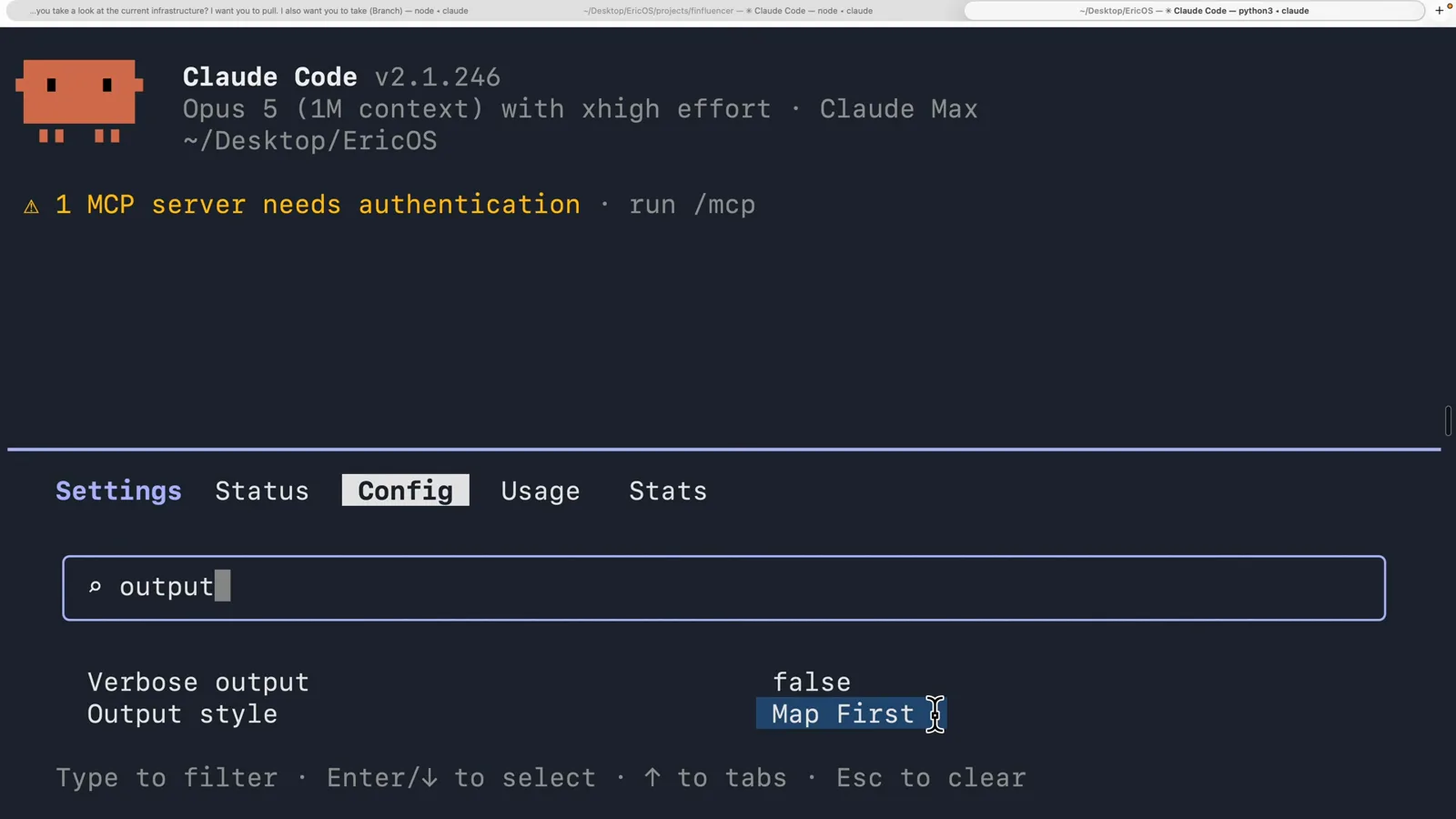
一个值、一个项目、一台机器——所以共享风格和共享配置是两件事。看原视频 5:54 - 10
用一个词试出差别
最省事的检验方法是发一条毫无内容的话。视频里他在选定风格后,对着一个全新会话(上下文条 0%、0/1000k、main 分支)只发了一个 'hi'——一个词就足够听出差别。需要说明的是,视频并没有把回答留在画面上:状态行还写着 'Whirlpooling... (1s, 1 tokens)' 时就切走了,所以这些截图里看不到切换风格后的实际回复。两条文档规则补上这段空白:会话中途切换风格,从你的下一条消息开始生效(v2.1.251 及以后);而终端只在启动时读取风格文件,所以运行中新建或修改的自定义风格,需要重启后才会出现在列表里。
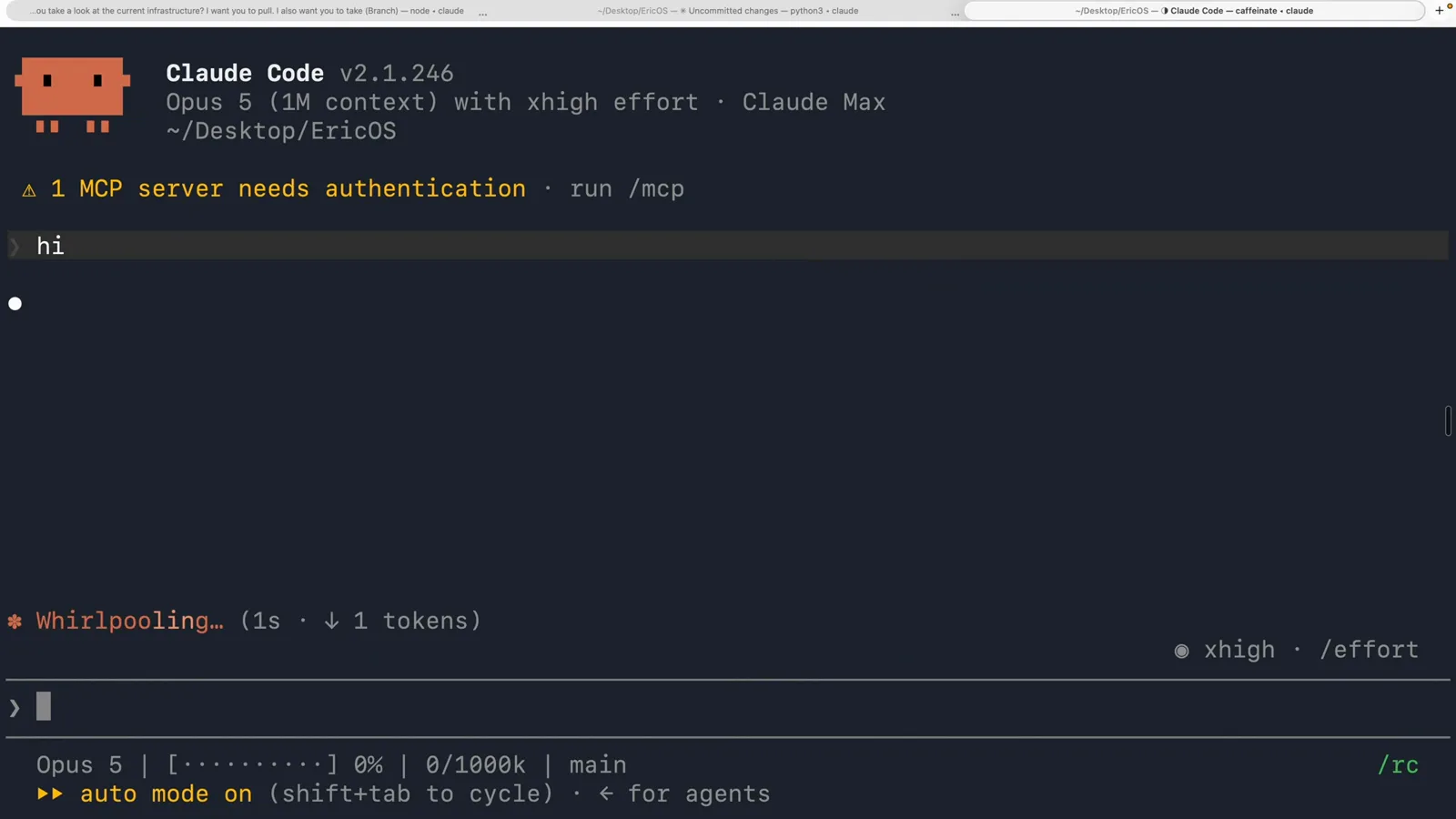
发送发生在视频 14:00;回复本身始终没有出镜。看原视频 14:00
一个仓库,一人一个风格
值得自己写风格的真正原因:同一块终端屏幕,不同人需要的句子完全不一样。
- 11
按读者配风格,而不是按任务
输出风格真正开始有用,是在多人共享的项目里。这个仓库在五种内置风格之外带了三个自定义风格,菜单里按顺序排开:第 6 项 TPM,前面打了勾表示当前生效——'For a technical project manager or vibe coder who knows API, frontend, backend and database but does not write code. ASD-STE100 cut to a briefing: two vocabulary tiers, every change shipped with its user-visible effect, assumptions stated, one decision as a trade-off with a recommendation.' 第 7 项 Technical Translator 就紧接在它下面。
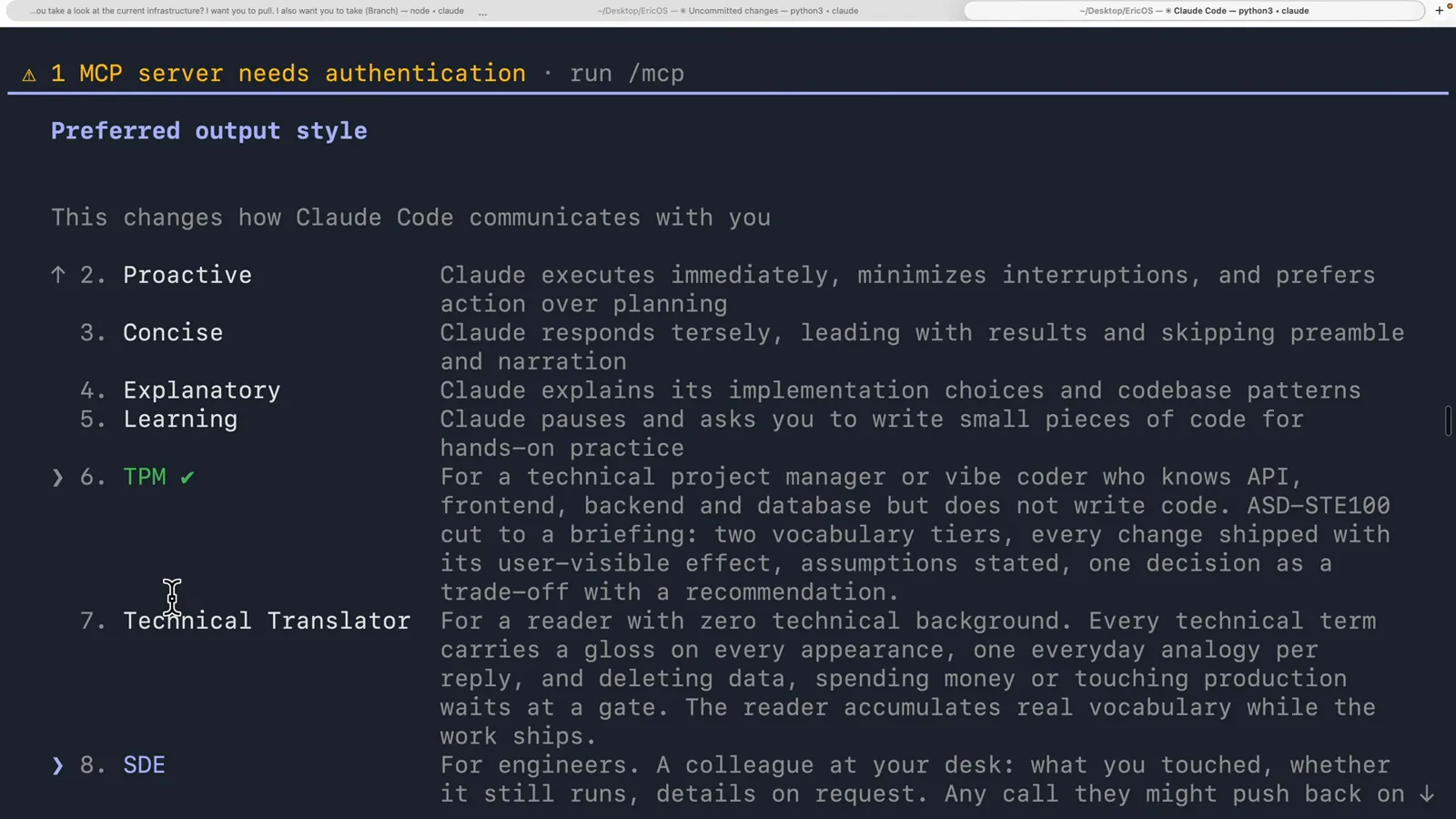
一个文件夹里三个文件,同一套代码库就能给每个同事一个不一样的 Claude。看原视频 11:16 - 12
Translator 给外行看,SDE 给工程师看
最后两条说明能看出这一个功能能被拉多开。7. Technical Translator 是 'For a reader with zero technical background. Every technical term carries a gloss on every appearance, one everyday analogy per reply, and deleting data, spending money or touching production waits at a gate.' 8. SDE 是 'For engineers. A colleague at your desk: what you touched, whether it still runs, details on request.' 两者都只是 Markdown 里的普通指令——但写的是语域、结构,以及什么时候该闭嘴,而这恰恰是每轮临时提示词兜不住的东西。
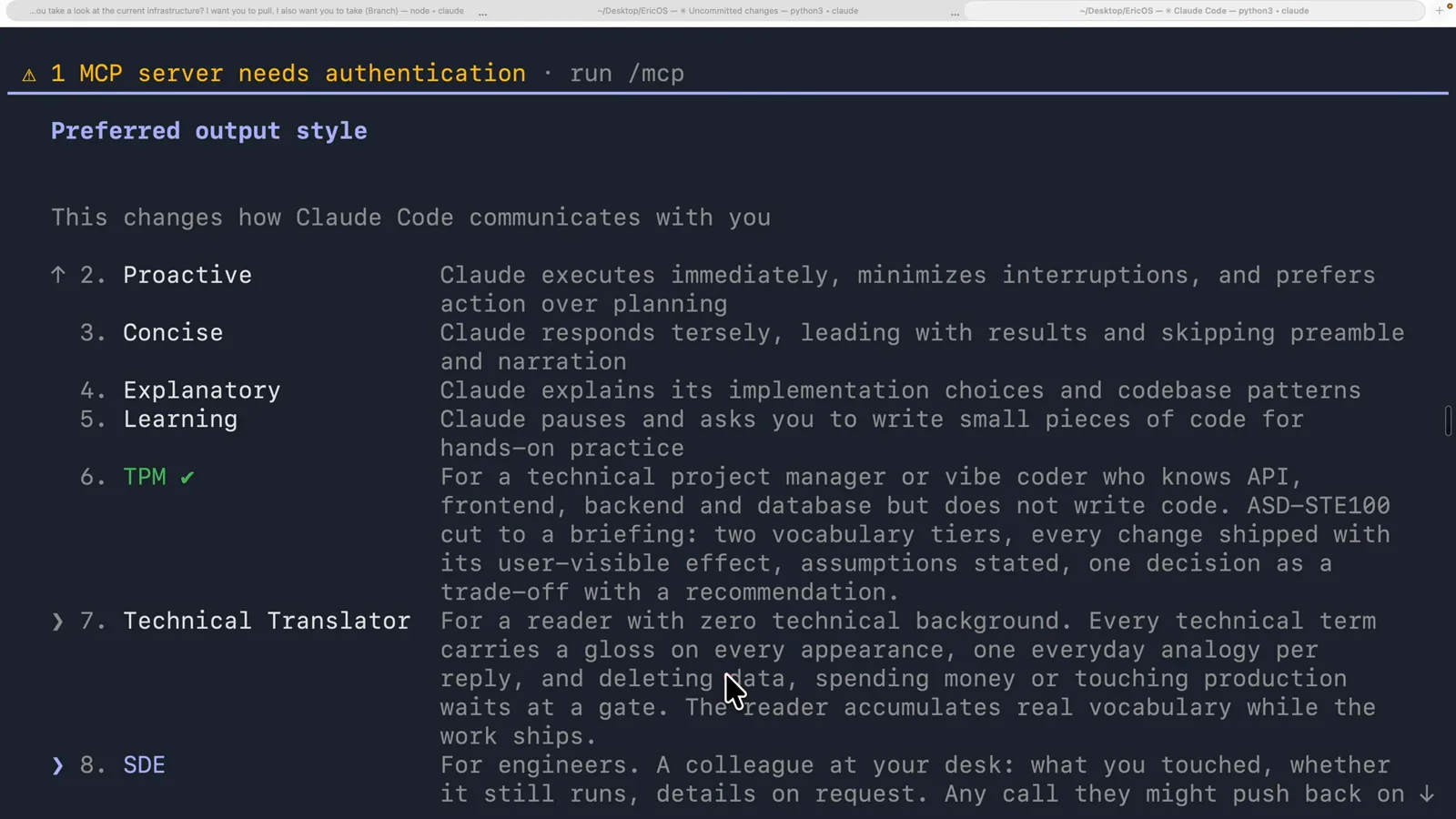
这一帧鼠标停在第 7 项,高亮的那一行其实是 8 SDE;而真正生效的风格仍是上面打了勾的 TPM。看原视频 12:28 - 13
改一个值,就换了一个会话的语气
回到 /config、依然用 output 过滤,Output style 这一行现在显示的是 SDE。同事要做的切换就这么多:不改 CLAUDE.md,不在第一条消息里重新解释一遍,也不用在提示词前面贴人设。文档里有一条提醒值得单独说,因为这个功能最容易踩的坑就是它:输出风格作用于主对话和它的 fork(fork 会继承父对话完整的系统提示词),但其他子代理跑的是自己的系统提示词,所以风格不会改变子代理的回答方式。
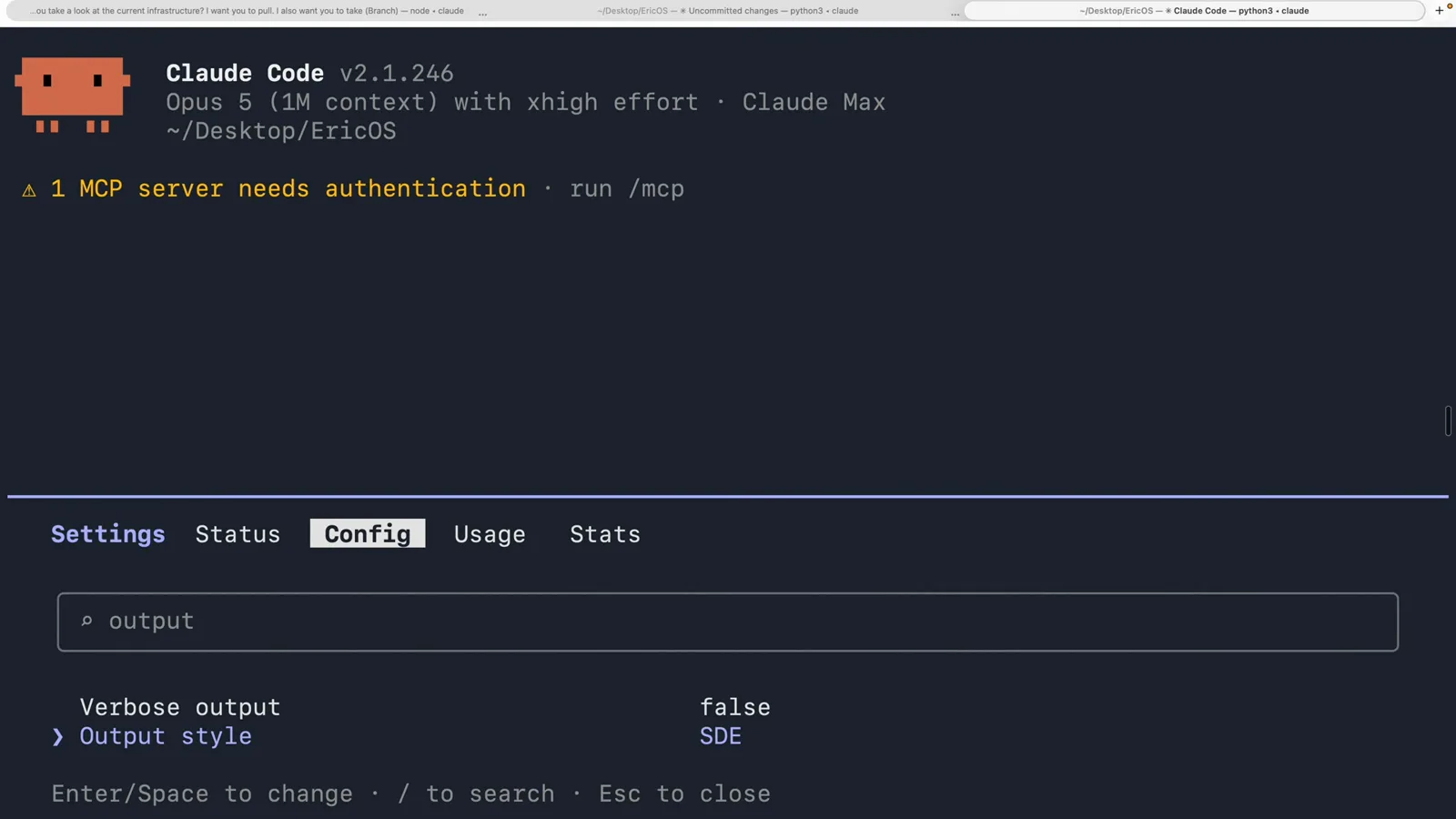
和第 9 步是同一个界面,只差一个值。这个设置项就是全部的操作界面。看原视频 13:52