
Feature deep-dive
Claude Skills: Create, Run, and Share Reusable Prompts, Step by Step
A skill is a single markdown file holding a prompt you reuse. Build one with the built-in skill creator on claude.ai, invoke it with a slash command, run it across chat, Cowork and Claude Code, and pick one of four ways to share it with your team.
An illustrated walkthrough of 15 steps - about 5 minutes to read. Every step links back to the exact moment in the source video.
TL;DR
A Claude skill is one markdown file with a saved prompt: a frontmatter block carrying the name, description and trigger phrases, and a body with the actual instructions. Create it on claude.ai under Customize → Skills with the built-in skill creator, answer its questions, test against a real thread, and hit Save skill. Invoke it by typing / plus its name — more reliable than waiting for Claude to infer it — and the same skill follows you into the desktop's chat, Cowork and Code apps with no reinstall. Claude Code is the exception: it reads skills from folders, so you download the file as a zip, drop the folder into .claude/skills (project) or ~/.claude/skills (global), and start a new session. Share with your team via zip, organization skills on Teams and Enterprise plans, a synced cloud drive with a CLAUDE.md pointer, or git for version history.
Source video
This page follows the Kevin Stratvert recording of building a skill end to end and rebuilds its steps one frame at a time. Every screenshot links to the exact moment it appears.
Screenshots are frames from the video, credited to the creator; the write-up is our own. Steps verified against the video in September 2026.
guide_claude_code_skills.sections.creation_title
guide_claude_code_skills.sections.creation_subtitle
- 1
Open Customize → Skills and click Create skill
Skills live behind the Customize item in the claude.ai sidebar, under the Skills tab — the recording opens an existing dashboard-updater skill first to show the layout. No paid plan is required to create one. Click the plus button, choose Create skill, and the menu fans out into three paths: Create with Claude, Write instructions, and Upload skill. The first one hands the job to Claude's own skill-creator skill.
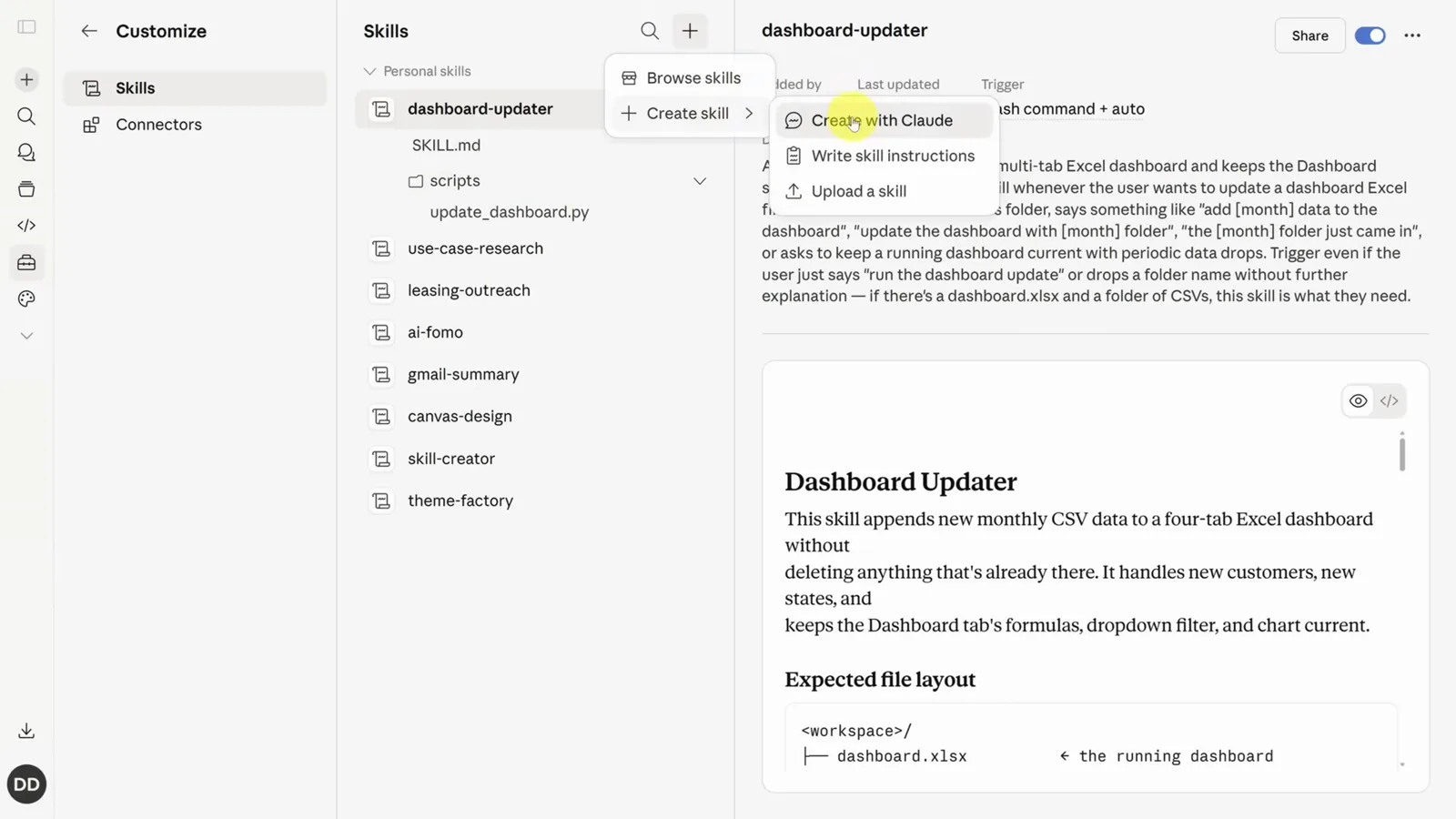
Three ways in; Create with Claude does the interviewing.Watch at 1:20 - 2
Answer the skill creator's questions
Bring a plain description of the job: given a long email or Slack thread among coworkers, summarize the main points, call out action items, and draft a response. The creator comes back with numbered questions — input format (pasted text, forwarded email, Gmail connector), which trigger phrases should invoke it, output shape, whether action items cover only your items, and whether to draft by default or ask first. Adding "what else should I clarify?" to the first message makes it ask instead of assume. The answers become the skill, so respond thoughtfully.
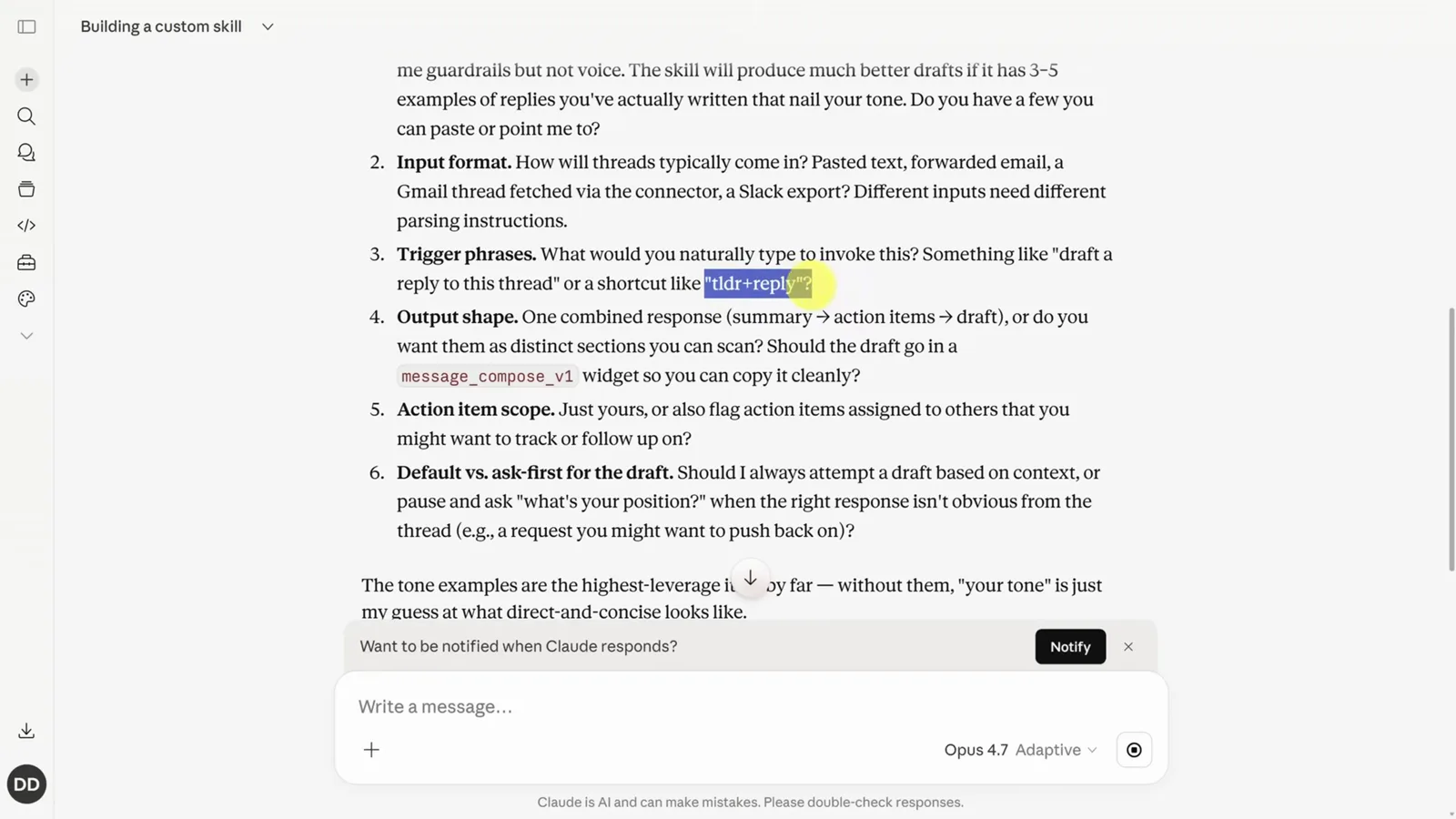
Questions about inputs, triggers and output shape.Watch at 2:45 - 3
Review the draft: frontmatter plus body
The drafted skill is a single markdown file, and the draft names its path (/home/claude/thread-reply/SKILL.md) while splitting it in two. The frontmatter describes the skill: it triggers on the thread-reply shortcut and on natural requests, and its description deliberately leans pushy because Claude tends to undertrigger skills. The body is the prompt itself: produce Summary → Action items for you → Draft, in that order, with the owner's voice, examples and edge cases spelled out. Simple skills stop here; complex ones can also embed code, like a dashboard-updater skill that ships with Python.
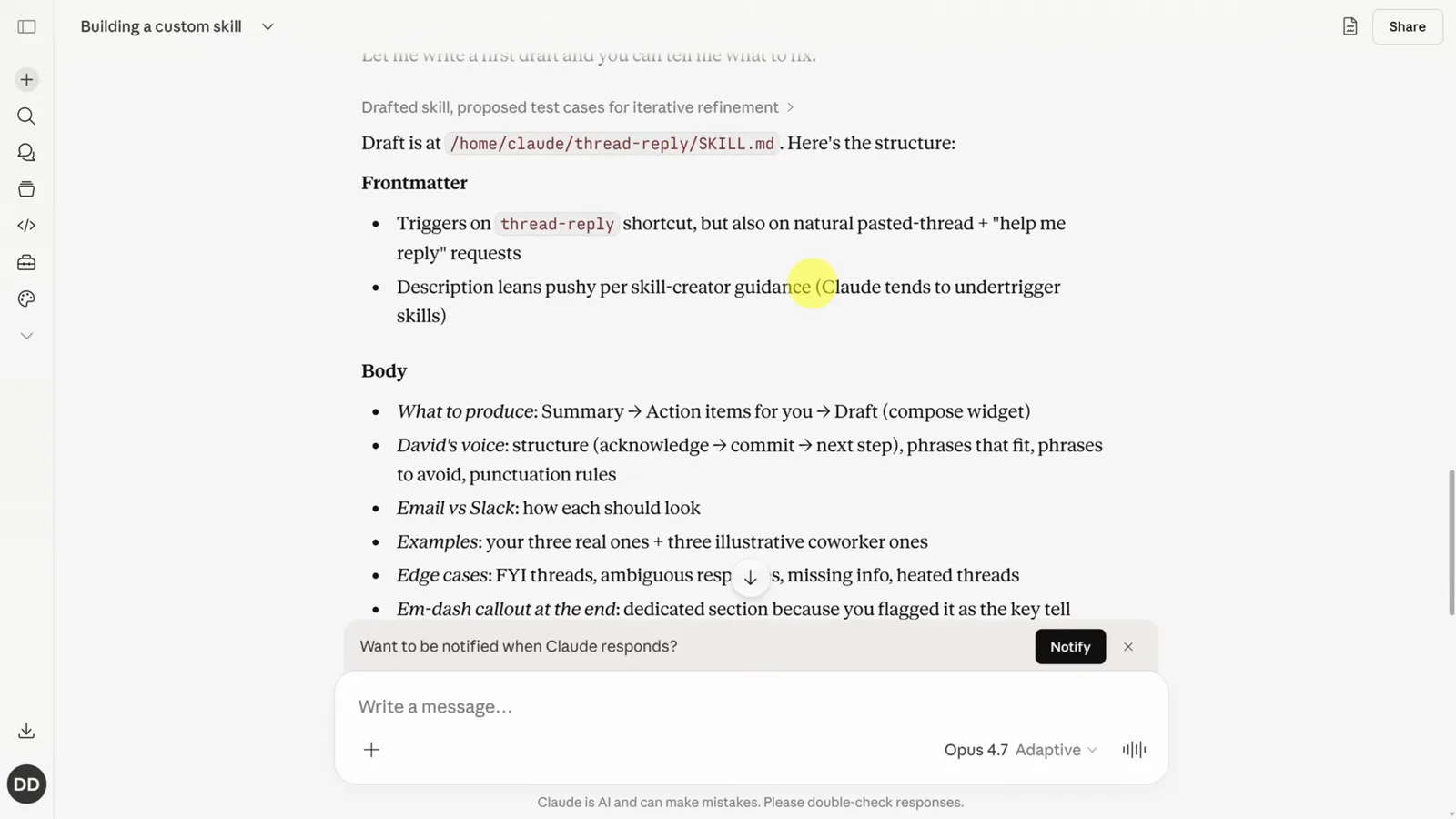
One markdown file, two halves: metadata and prompt.Watch at 2:52 - 4
Test against a real thread, then Save skill
The creator proposes test cases before turning the skill on — paste a real thread and it returns a summary, action items and draft replies. Feedback here is where the real work is, so send corrections as plain prompts. When the tests pass, tell Claude to create the skill (it will otherwise keep asking for feedback), and the finished file lands in the preview pane with a Save skill button at the top. After saving, thread-reply appears in the skills list with its description and trigger settings.
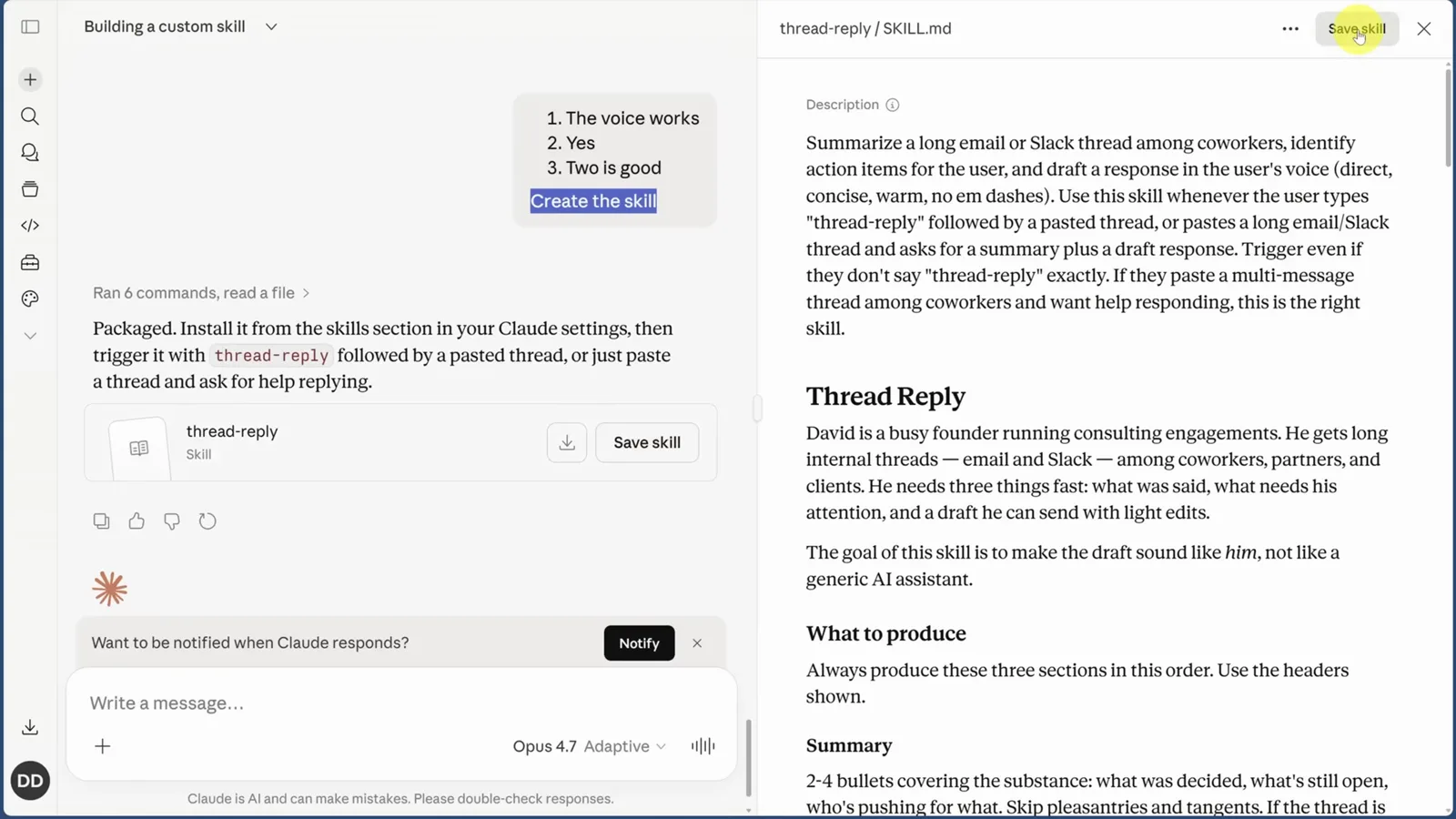
Approved tests, packaged file, one click to install.Watch at 4:18
guide_claude_code_skills.sections.running_title
guide_claude_code_skills.sections.running_subtitle
- 5
Invoke it with / plus the name
A skill fires in two ways: Claude infers from context that it is needed, or you type the name directly. The recording is blunt about which is better — inference keeps improving, but the direct shortcut is more reliable. Type a single forward slash in any chat and an autocomplete window lists every installed skill with its description, so you never have to memorize names. Pick thread-reply, paste the thread, send.
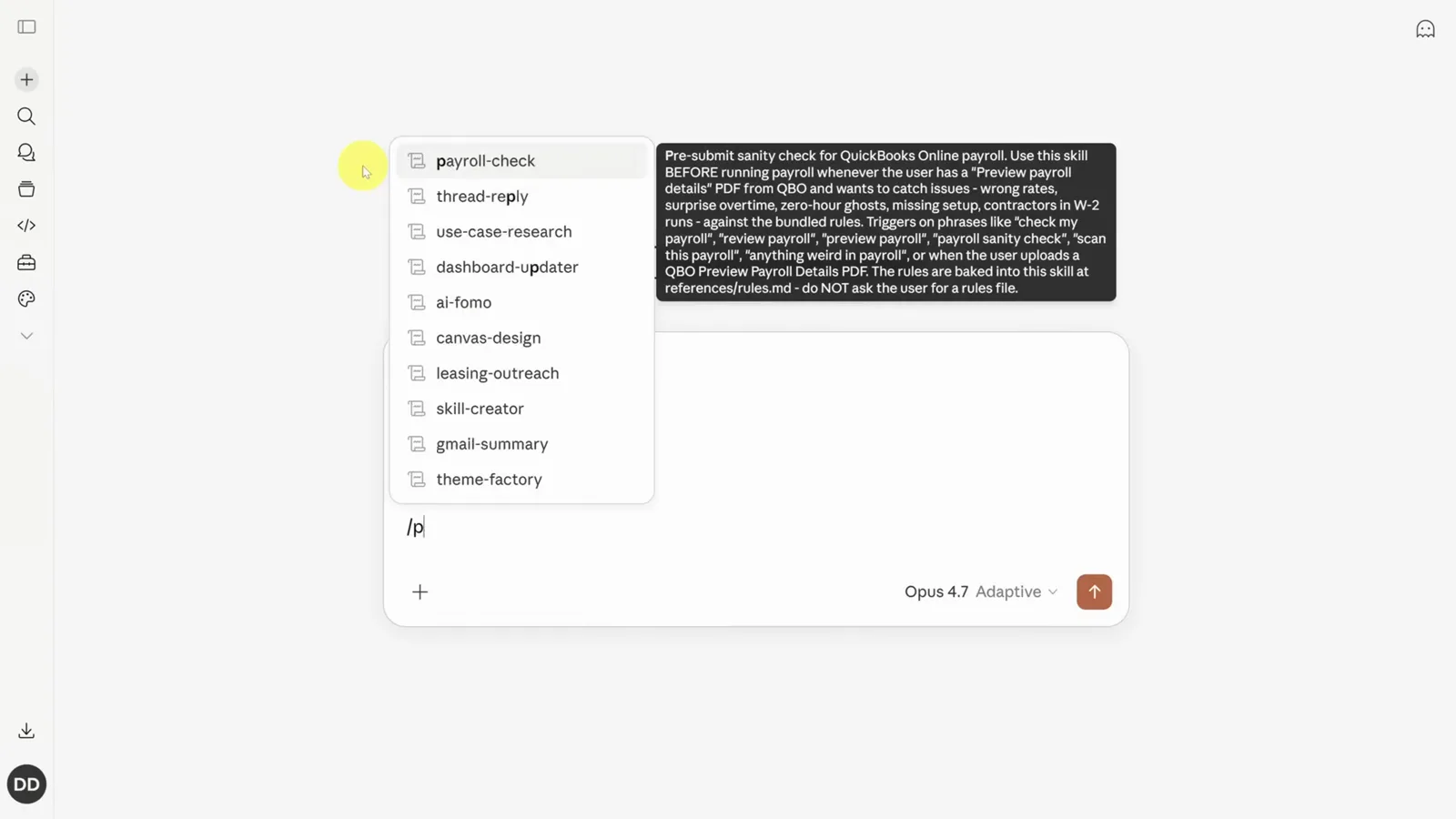
A forward slash lists every skill with its description.Watch at 6:20 - 6
The same skills in the desktop's three apps
Install the Claude desktop app and you get three surfaces in one window: chat, Cowork and Code, switchable from the sidebar. Customize → Skills is there too, and the thread-reply skill created on claude.ai is already in the list — nothing was installed separately. The environments are connected, so a skill saved once follows you across all of them.
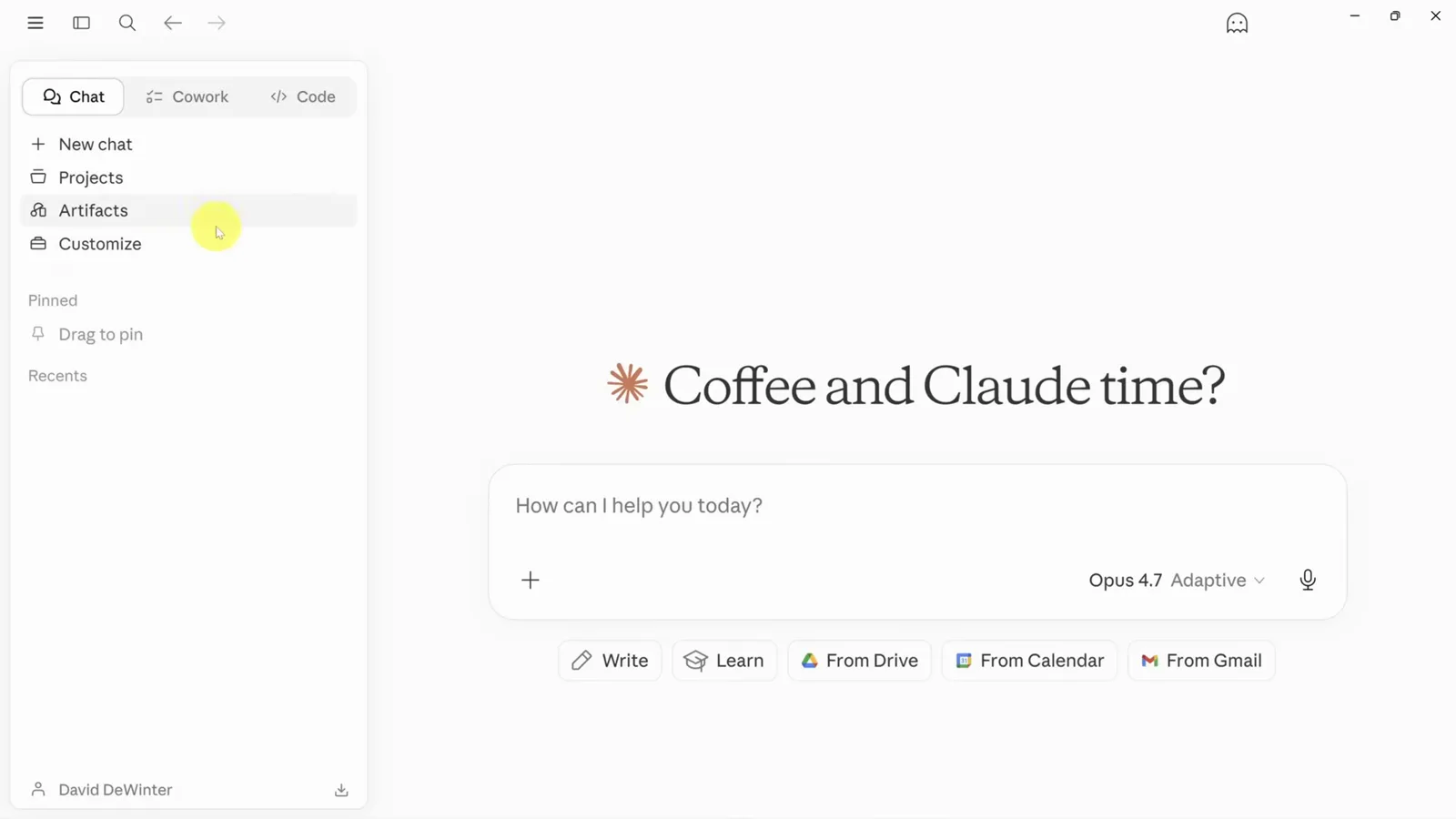
Chat, Cowork and Code under one roof.Watch at 7:17 - 7
Confirm the skill arrived on desktop
Back in Customize → Skills on the desktop app, thread-reply sits under Personal skills with the same description and trigger settings as on the web. From here you can run it in a chat, or let Cowork pick it up when working in a folder — same skill, same behavior, and no sync step to perform.
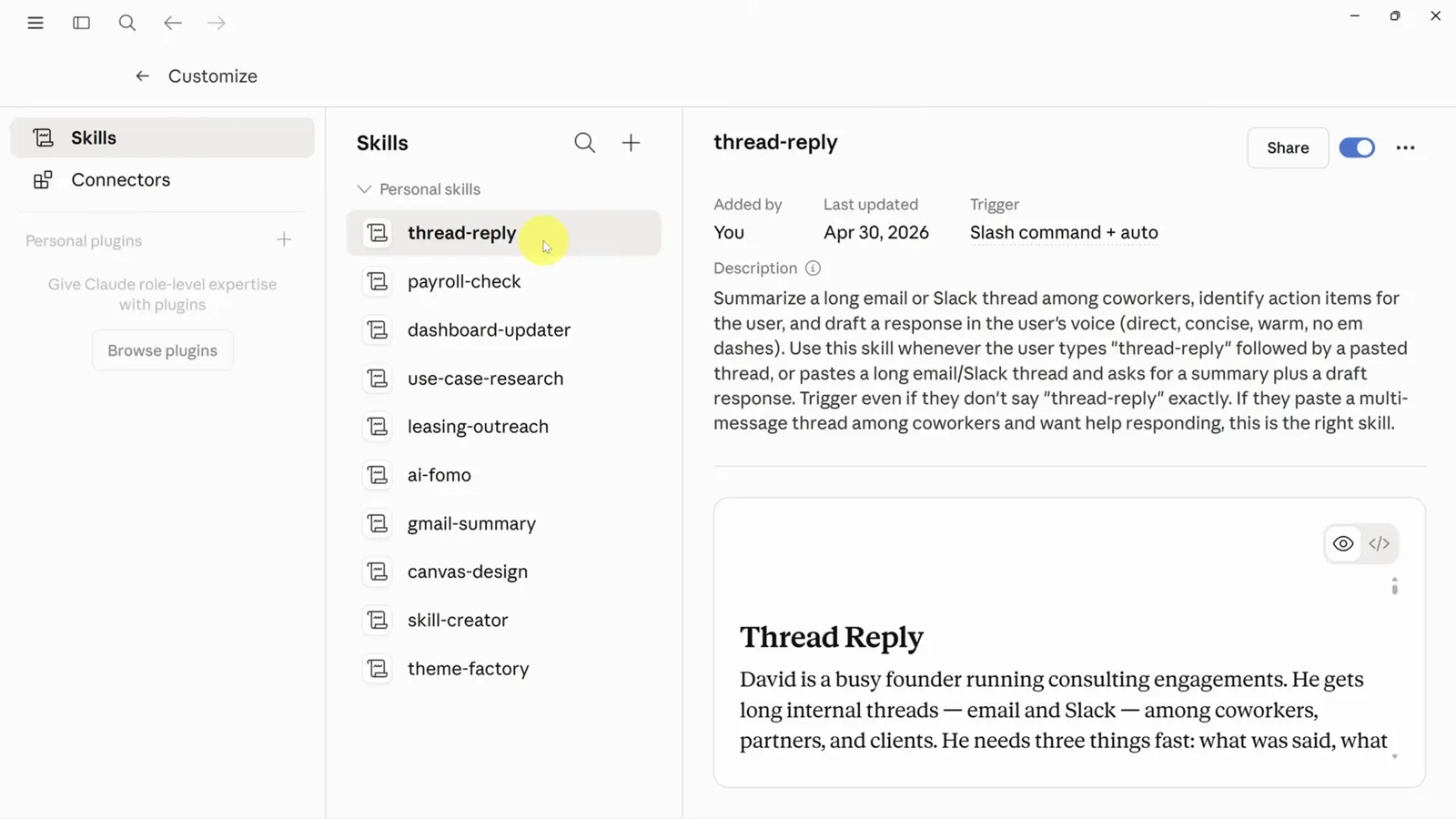
Same skill, same description, zero reinstall.Watch at 7:27
guide_claude_code_skills.sections.claude_code_title
guide_claude_code_skills.sections.claude_code_subtitle
- 8
Claude Code plays by different rules
Open Claude Code inside VS Code — the recording prefers this view because the workspace files stay visible beside the panel, and notes that everything shown works in the terminal too. Type a slash and the skill list does not match what claude.ai showed. Skills are installed differently here, and the fastest way to understand it is to ask Claude Code about global versus project skills.
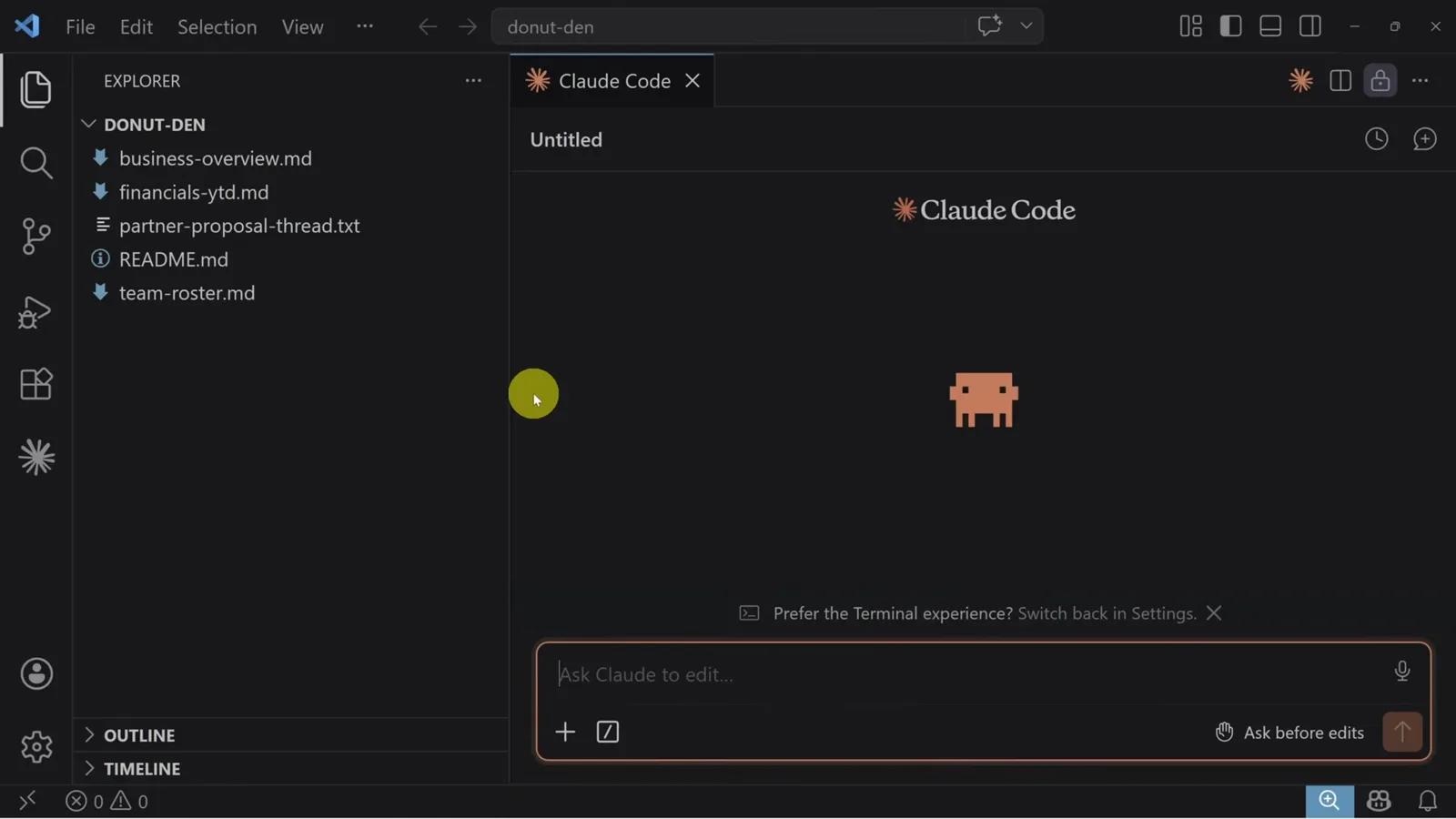
The slash list in Code starts empty for a reason.Watch at 8:40 - 9
Global or project: two folder scopes
Claude Code's answer spells out the paths. Project-level skills go in a .claude/skills/ folder inside the project root, and are only loaded when Claude Code runs in that project. Global ones live under ~/.claude/skills and are available across every project on the machine. Plugin skills bundle under the plugin's own directory instead, and each skill is its own folder containing a SKILL.md with YAML frontmatter plus any supporting files.
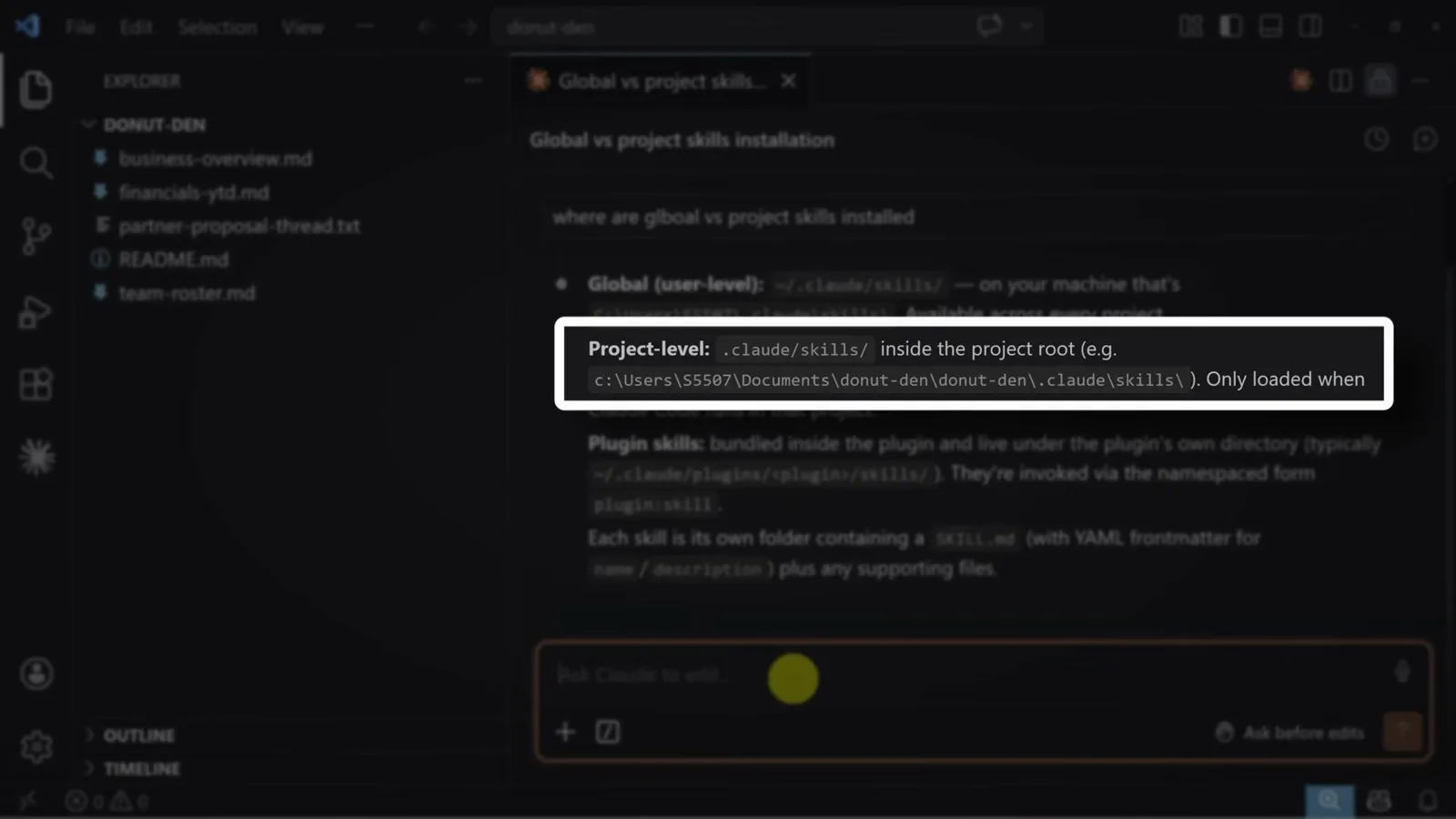
Project scope for team repos, global scope for personal helpers.Watch at 9:16 - 10
Download the skill and rename it .zip
To move a web-built skill into Code, go back to the Skills view on the desktop or web app, select the skill, open its three-dots menu and click Download. When the browser asks for a file name, rename the extension to .zip — the download otherwise arrives as a single skill file. Extract it and you get a folder with the skill file inside.
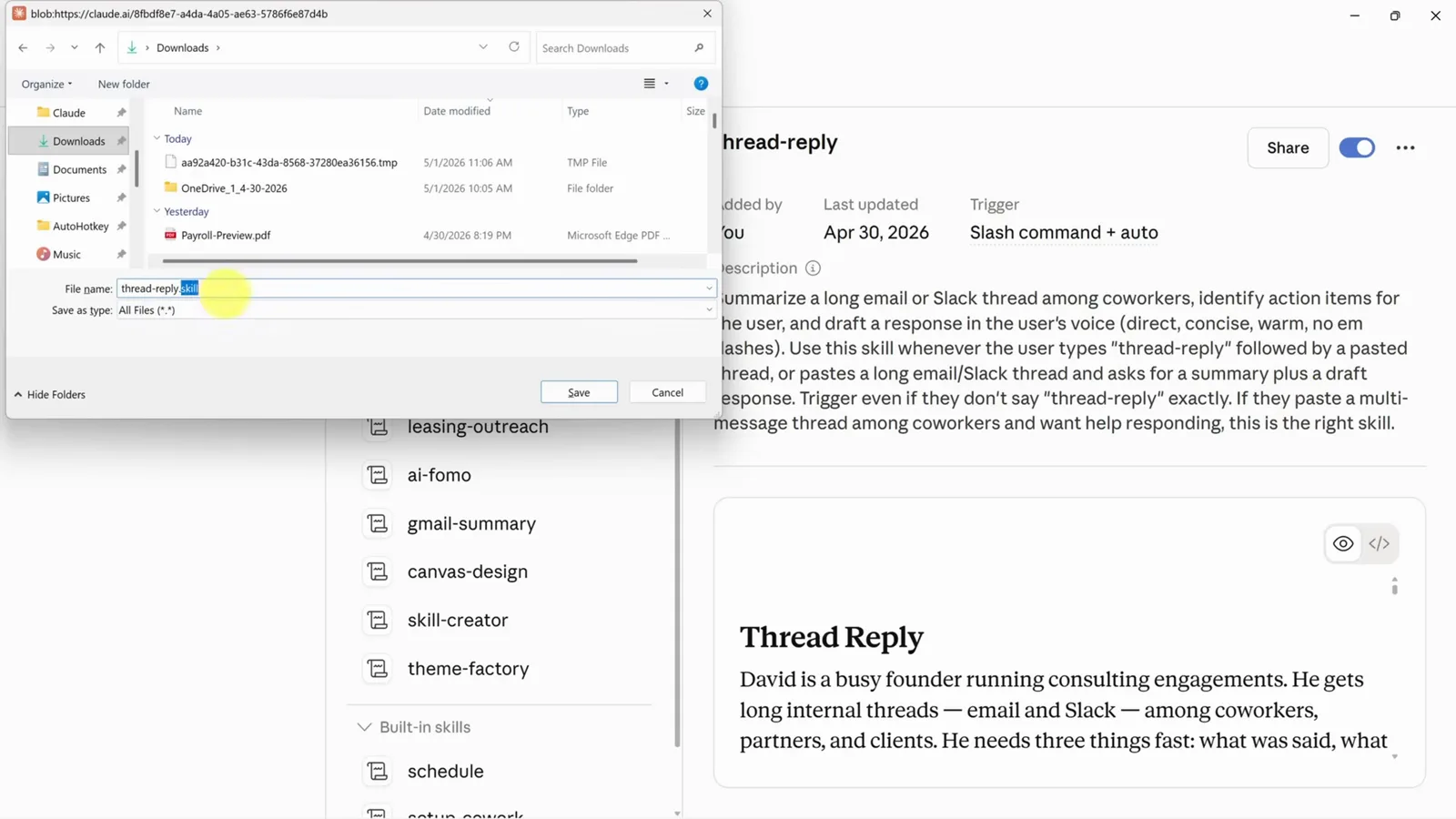
The .zip rename is what makes it extractable.Watch at 9:50 - 11
Drop the folder into .claude/skills
With the project folder open in VS Code, copy the extracted thread-reply folder — the folder, not the skill file alone — into a skills folder inside a .claude folder. The explorer now shows .claude/skills/thread-reply/SKILL.md. The current session will not see it; start a new one, type the skill name after a slash, and it is recognized. The same .claude/skills structure also works within Cowork, so a folder shared with someone can carry its own skills.
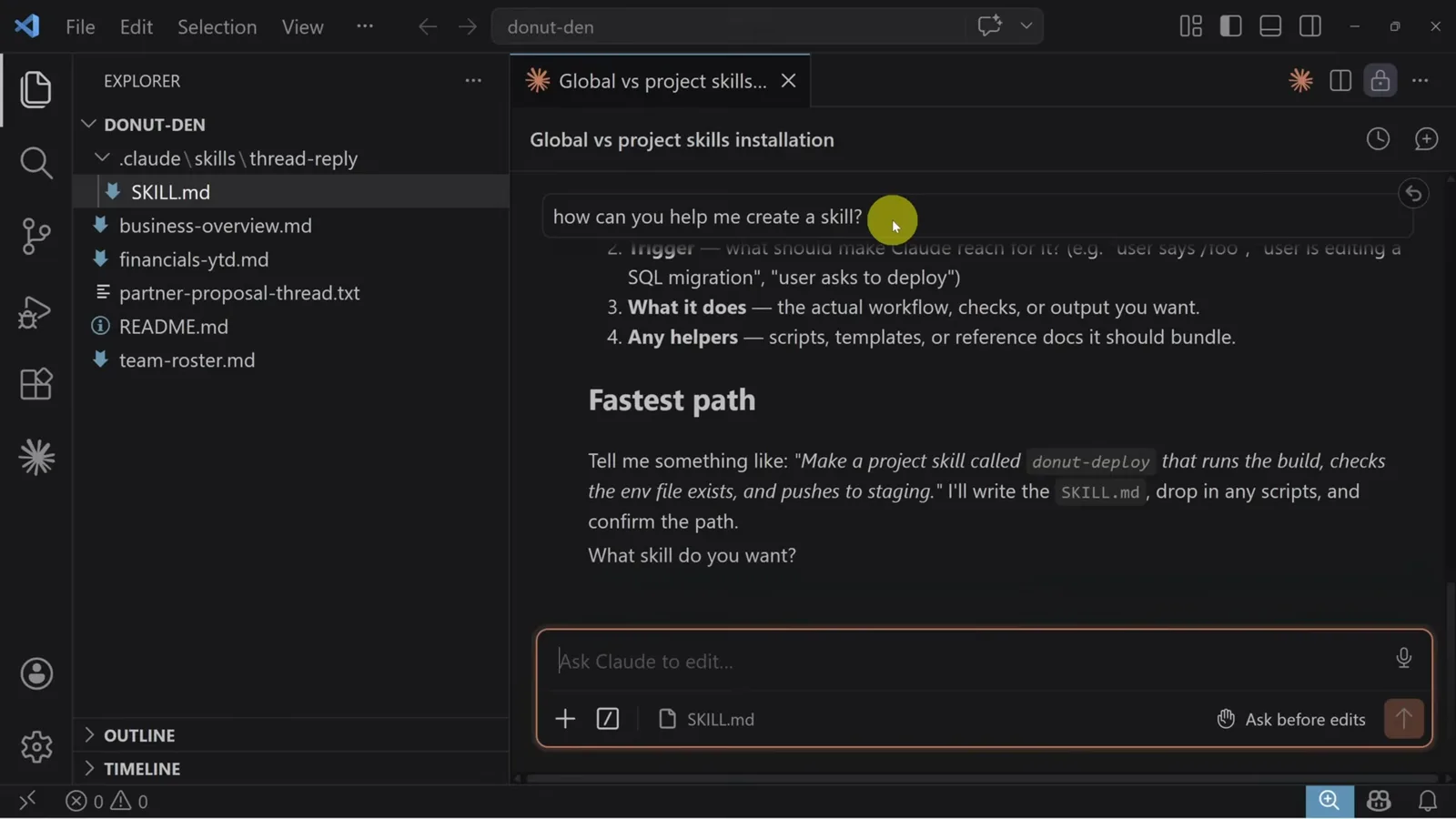
Folder in, new session, slash command recognized.Watch at 10:20 - 12
Read the file you just installed
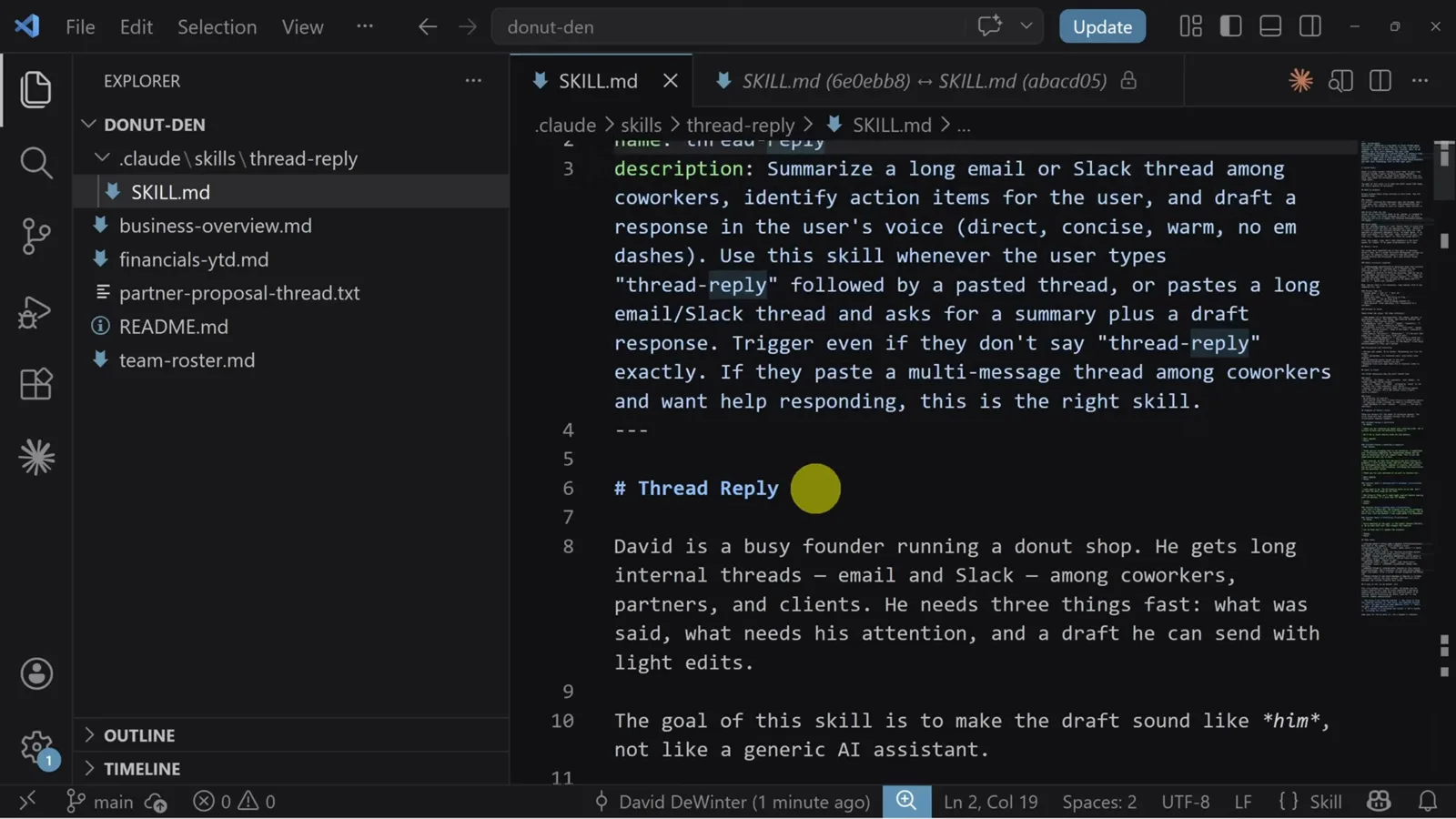
Open SKILL.md and the anatomy from the creation step is now on disk: a YAML frontmatter whose description tells Claude when the skill applies — summarize a long email or Slack thread, trigger even if the user never says "thread reply" exactly — then a markdown body carrying the sections to produce, the reply structure, and phrases that fit the owner's voice. This file is the whole skill, and you can edit it like any text file.
Frontmatter says when; the body says how.Watch at 13:45
guide_claude_code_skills.sections.sharing_title
guide_claude_code_skills.sections.sharing_subtitle
- 13
Teams and Enterprise: publish org-wide
The zip route works but forks versions: two copies exist, and once one is updated you are running two different skills. On Claude Teams or Enterprise, admins get an organization settings view with a Skills section. Upload the skill at the bottom, under Organization skills, and it becomes available to everyone in the workspace, with its own section in Customize → Skills. Members can use these skills but not edit them — ask the admin to download and send the file when a change is needed.
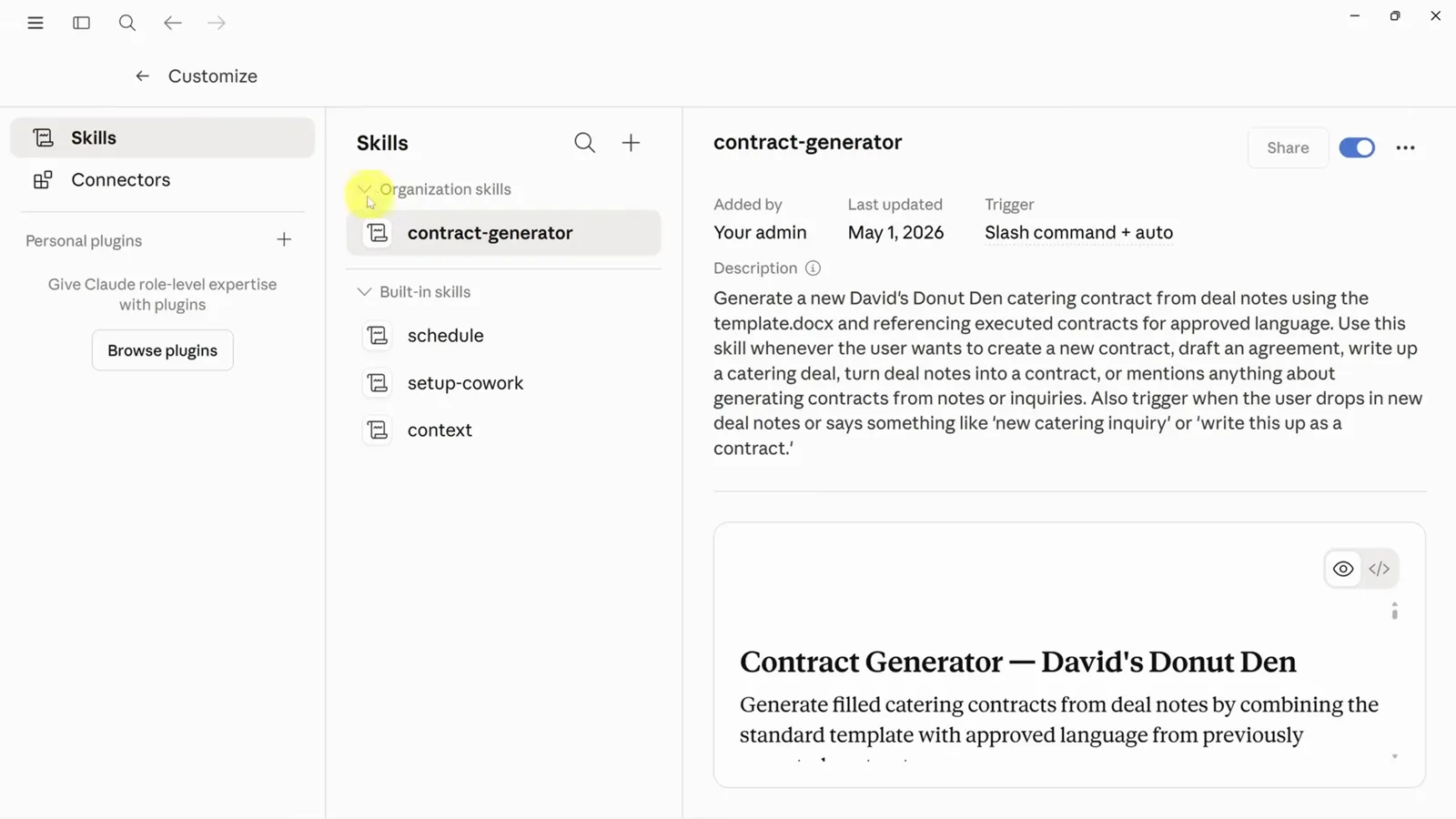
Uploaded once by the admin, usable by the whole org.Watch at 12:00 - 14
No Teams plan: a synced drive and CLAUDE.md
An experimental workaround for teams on a shared OneDrive or Google Drive. Sync the drive locally, then right-click the working folder and choose the option that keeps it always on this device. Inside sit a .claude folder holding the skill, a CLAUDE.md file that preloads it, and the files the skill works on. OneDrive refuses folders starting with a dot, so the recording settles for a plain claude folder and leans on CLAUDE.md to point Cowork at the skills — advanced, but it shares skills through a drive the team already uses.
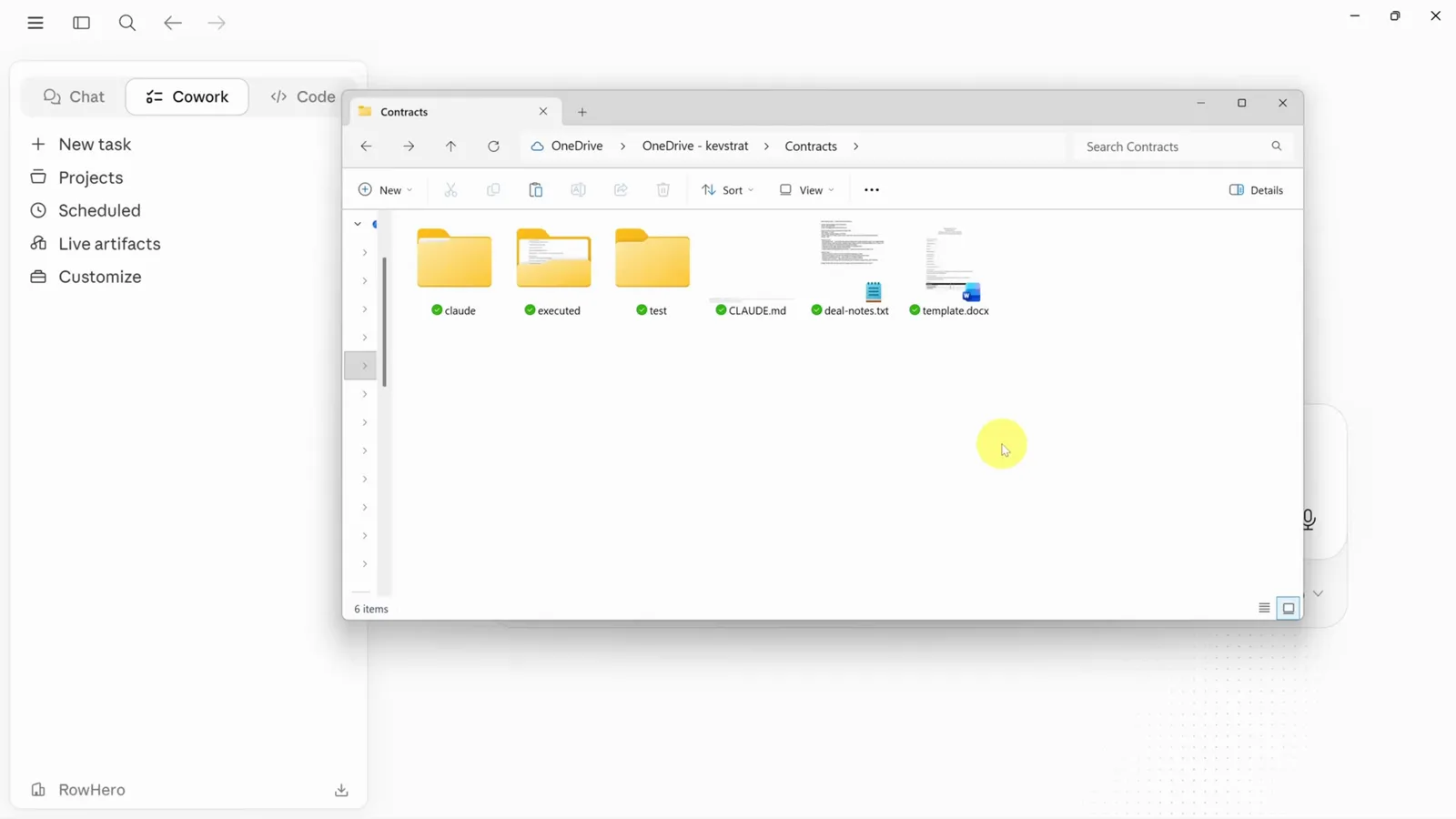
CLAUDE.md loads the skill from the shared folder.Watch at 12:46 - 15
Run it from the folder in Cowork
Select the synced Contracts folder in Cowork and prompt: run the contract-generator on the deal-notes file. Cowork checks the CLAUDE.md instructions, reads SKILL.md from the skills folder, and follows the workflow — read the deal notes, scan executed contracts for similar deals, read the template, build the contract — while the Contracts panel tracks the instructions, SKILL.md and deal-notes.txt as context. The skill was never installed anywhere; the folder was enough.
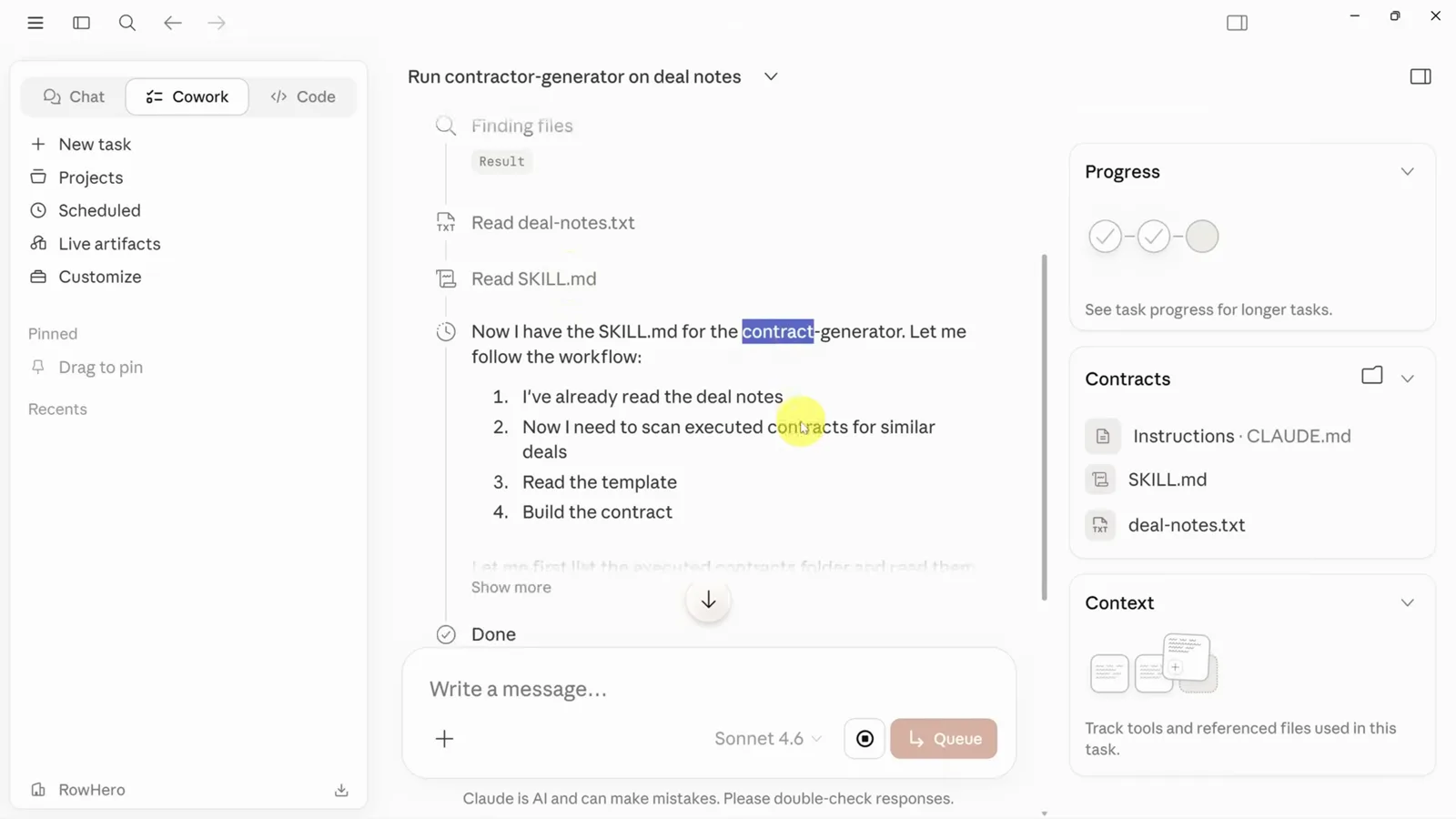
The Contracts panel shows CLAUDE.md and SKILL.md at work.Watch at 13:35