
Feature deep-dive
Claude Code Permissions: Which Tools Ask First, and How to Allow Them
Claude Code does everything through a fixed set of built-in tools, and some of them stop and ask before they run. Here is every permission prompt from one real session, screenshot by screenshot — including the option that writes your project's allow list.
An illustrated walkthrough of 13 steps - about 5 minutes to read. Every step links back to the exact moment in the source video.
TL;DR
Claude Code works through built-in tools - Read for files, Edit for changes, Bash for commands - and you never name them in a prompt. Anthropic's docs mark each tool with a Permission Required flag: Read, Grep, LS and TodoWrite run silently, while Bash, Edit, MultiEdit, Write and the web tools stop and ask. An edit prompt gives three answers: Yes, Yes and don't ask again this session (alt+m), or No plus an explanation of what to do differently. Approving a Bash command through its 'don't ask again' option writes a rule such as Bash(git add:*) into permissions.allow inside .claude/settings.local.json, and that file is personal - you do not commit it. To skip prompts for the rest of a session instead, press alt+m until the indicator reads 'accept edits on'.
Source video
This page follows lesson 4 of Net Ninja's Claude Code series, which walks through the built-in tools and their permission prompts in one live session. Every screenshot links to the exact moment it appears.
Screenshots are frames from the video, credited to the creator; the write-up is our own. Steps verified against the video in September 2026.
The tools Claude Code already has
A fixed built-in set, plus the docs column that tells you which ones ask first.
- 1
Anthropic's tool list marks which calls need permission
Before you type anything, Claude Code already has a fixed set of built-in tools: Read for opening files, Edit for changing a single file, Bash for running commands, and TodoWrite for the checklists it draws while working through a task. The Claude Code settings docs list them all with a Permission Required column - Bash, Edit, MultiEdit, NotebookEdit, Write, WebFetch and WebSearch say Yes; Read, Glob, Grep, LS, NotebookRead, Task and TodoWrite say No. The same page adds that permission rules can be configured with /allowed-tools or in permission settings.
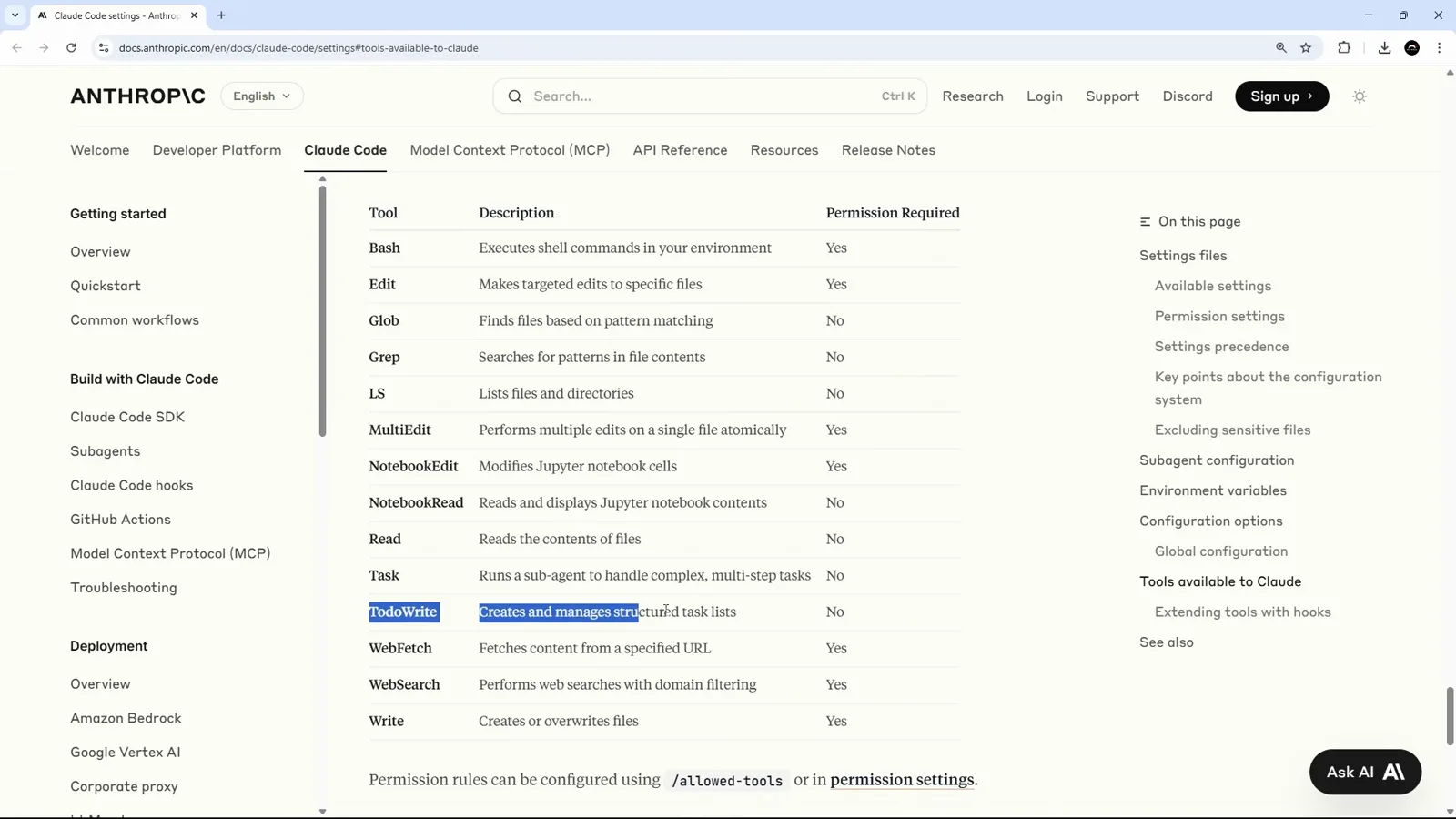
Bash and Edit require permission; Read does not.Watch at 1:19 - 2
The read goes through, the edit stops
The difference is visible in a single screen. Claude Code read layout.tsx - 43 lines - without asking anything, then called Update on the same file and immediately stopped with 'Do you want to make this edit to layout.tsx?'. The diff is already open in the editor on the left, so what you are approving is a change you can actually look at before you approve it.
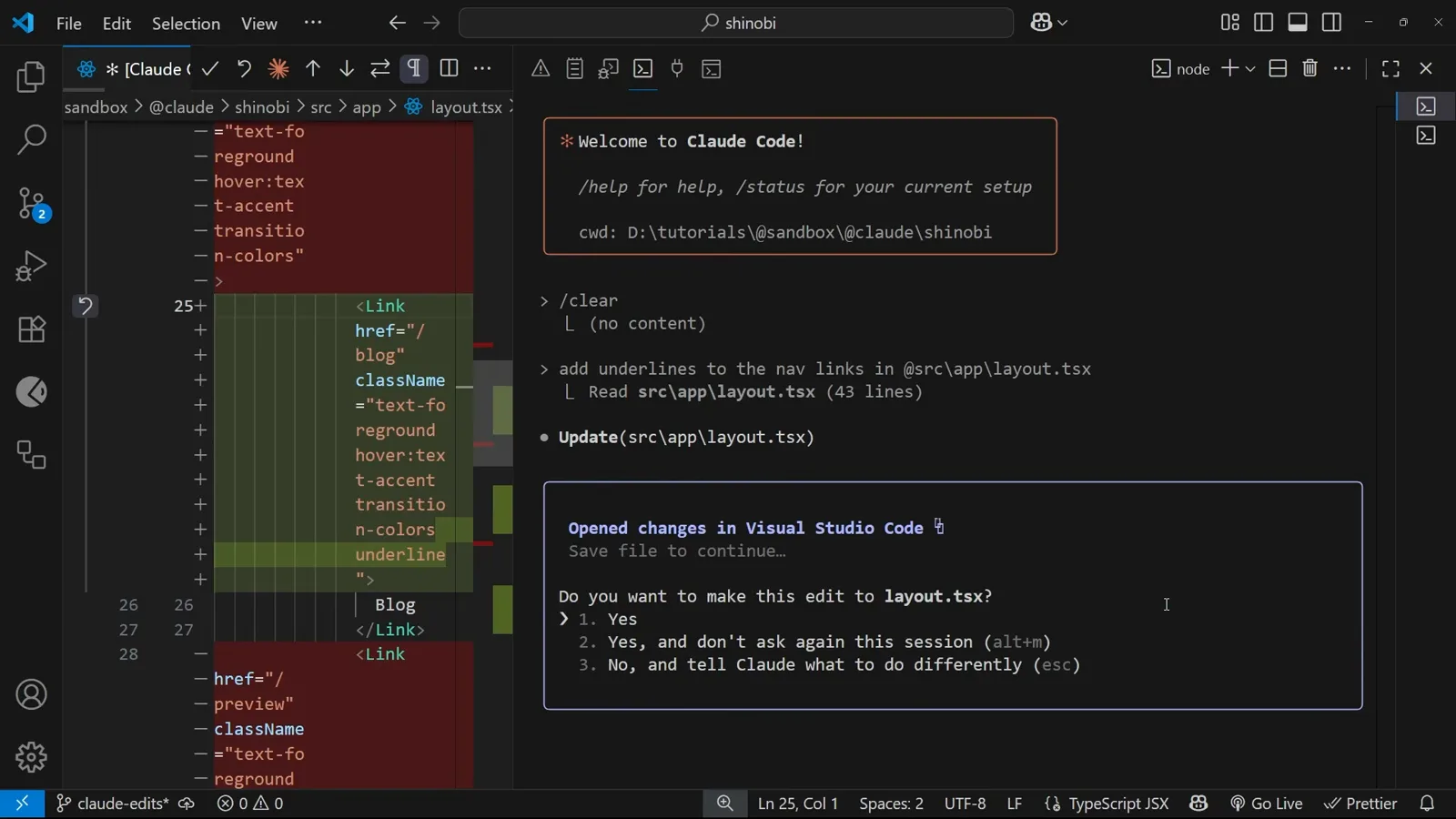
Read finished silently; Update waits for an answer.Watch at 0:46
Approving file edits, one at a time
One small change to one CSS file produced three separate permission prompts.
- 3
Ask for something that needs an edit
The demo asks for one new theme variable: '@src/app/globals.css Add another theme variable to the CSS file called highlight, and make it a pastel yellow'. The @-mention pulls the file in as context, and Claude Code reads all 66 lines of it - no prompt - before it starts thinking.
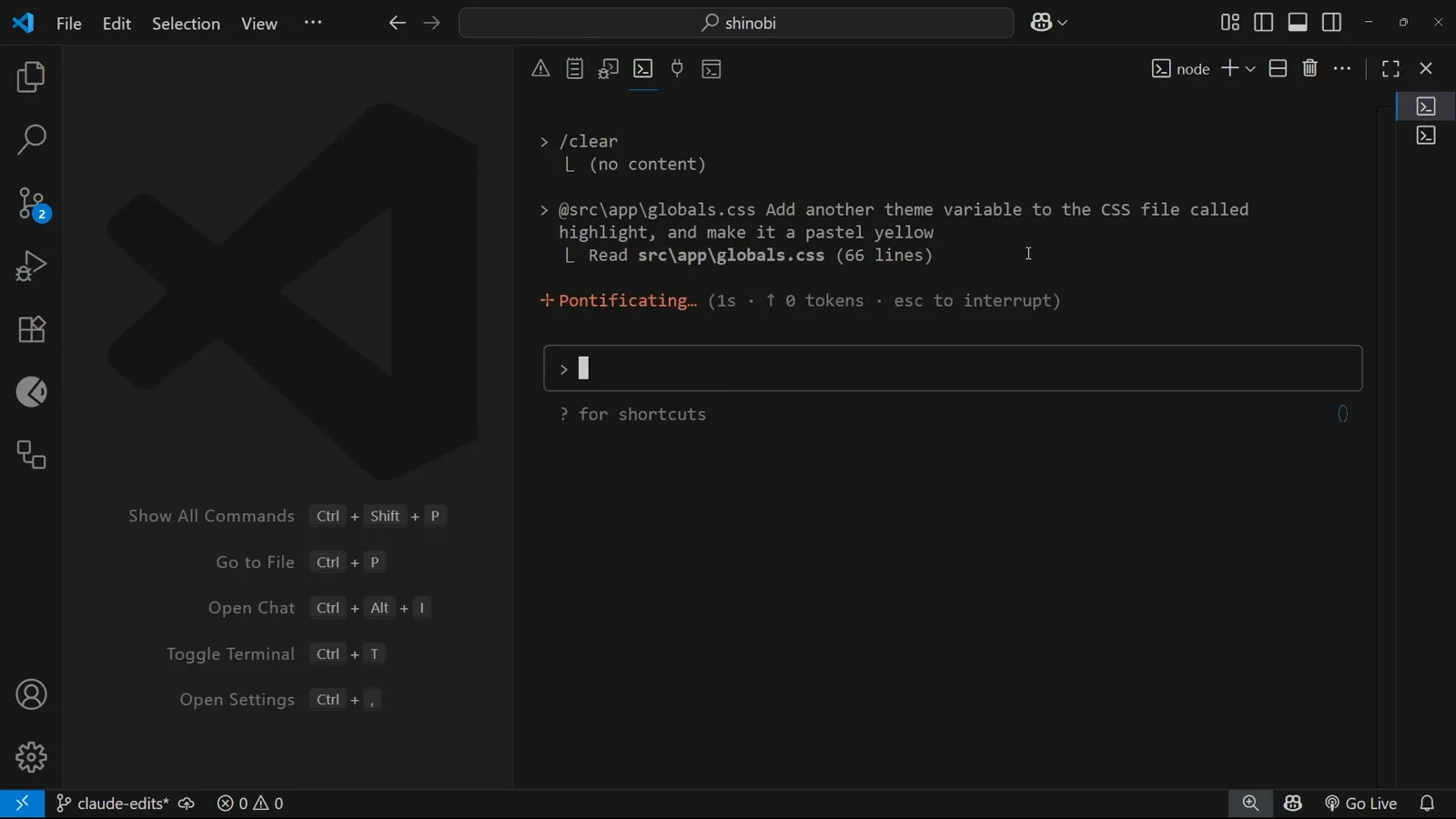
An @-mention supplies the file; the Read is free.Watch at 2:02 - 4
Three answers to an edit prompt
'Do you want to make this edit to globals.css?' offers exactly three choices: 1. Yes, 2. Yes, and don't ask again this session (alt+m), and 3. No, and tell Claude what to do differently (esc). The proposed --highlight: #fef3c7 line is already showing in the editor, and the box notes the changes were opened in Visual Studio Code with 'Save file to continue...'. The author picks plain Yes here so the flow stays visible.
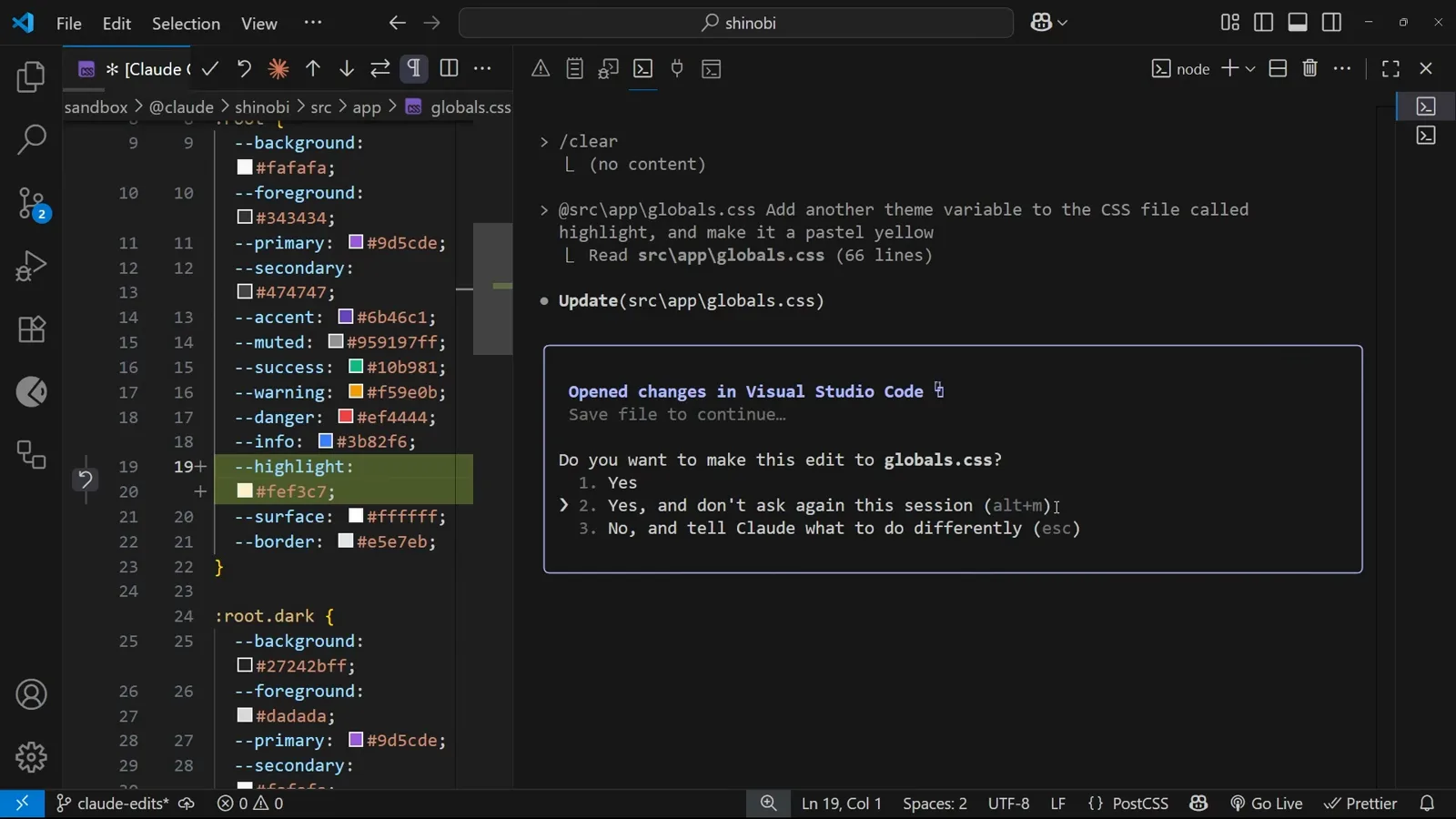
Yes, yes-for-the-session, or no-with-feedback.Watch at 2:23 - 5
One file, second approval
The first addition lands - 'Updated src/app/globals.css with 1 addition' - and Claude Code moves somewhere else in the same file, so it asks again. This is the part that surprises people: permission is granted per edit, not per file. The light-mode variable is already in; the dark-mode one is queued behind a prompt.
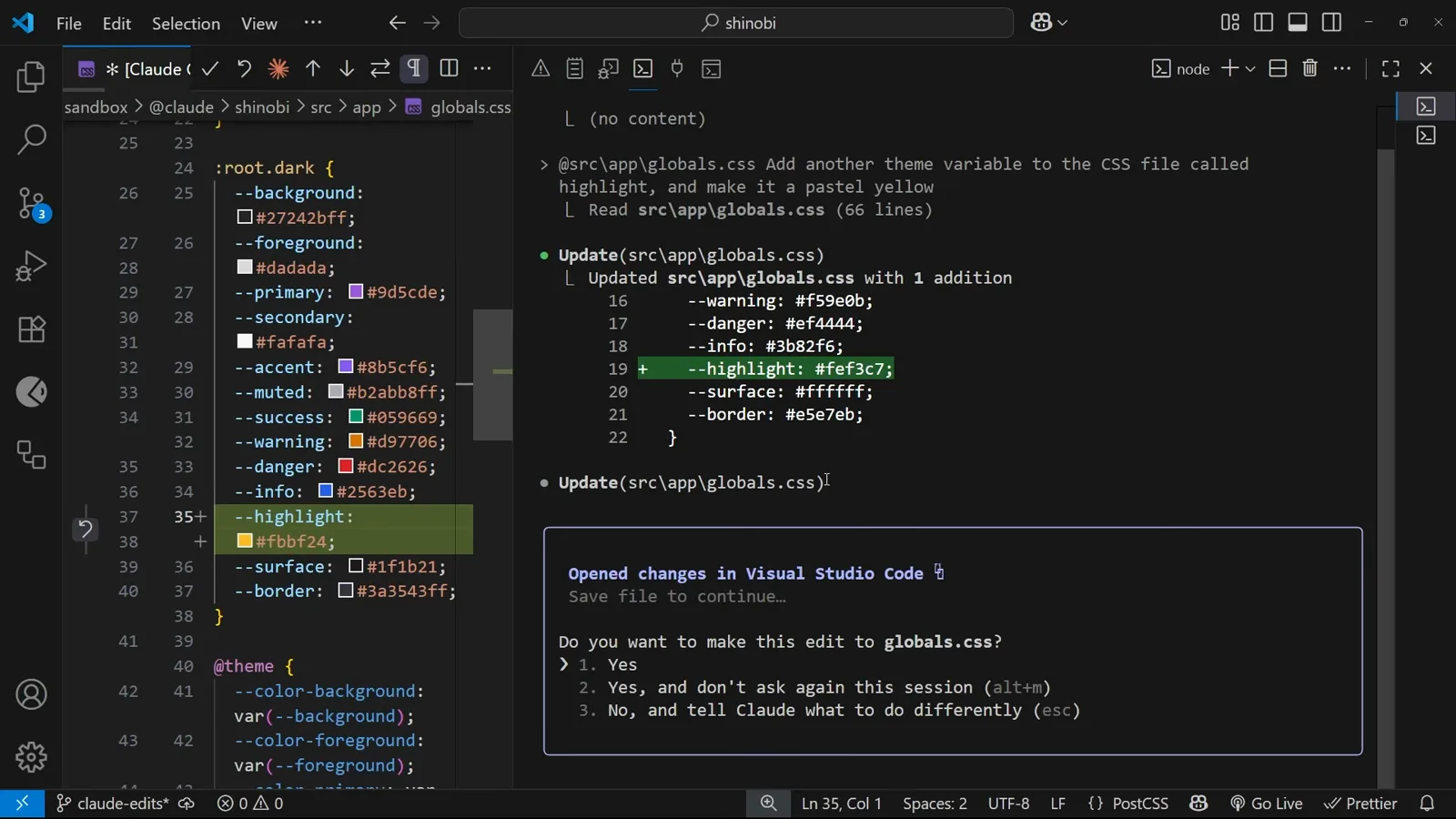
A new hunk in the same file means a new prompt.Watch at 2:38 - 6
Three grants for one small change
After the third approval, the mapping --color-highlight: var(--highlight) goes in and Claude Code summarises the job: pastel yellow for light mode (#fef3c7) and dark mode (#fbbf24), plus the corresponding mapping in the theme section. Three yes-clicks for one CSS variable - which is exactly the friction the allow list exists to remove.
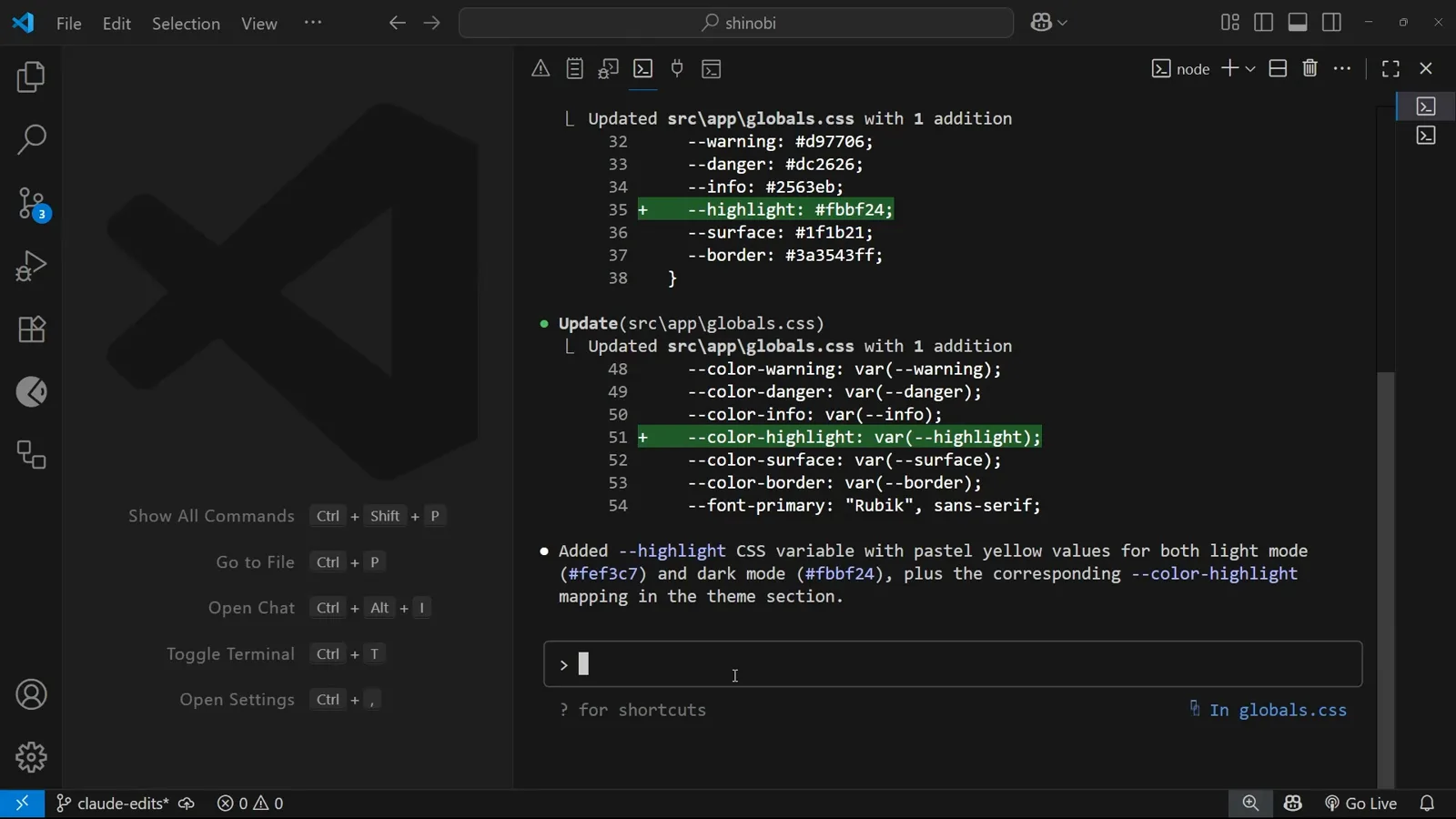
Three yeses, one CSS variable.Watch at 2:56
Allowing a Bash command for the project
The second option on a Bash prompt writes settings.local.json for you.
- 7
Bash inspects the repo without asking
The next request is simply 'can you make a commit'. Claude Code calls Bash three times in a row - git status, git diff, git log --oneline -5 - and none of them stop for approval; each result is collapsed behind 'ctrl+r to expand'. It is gathering information about what changed before it touches anything, and the read-only part of the Bash tool costs you no prompts at all in this session.
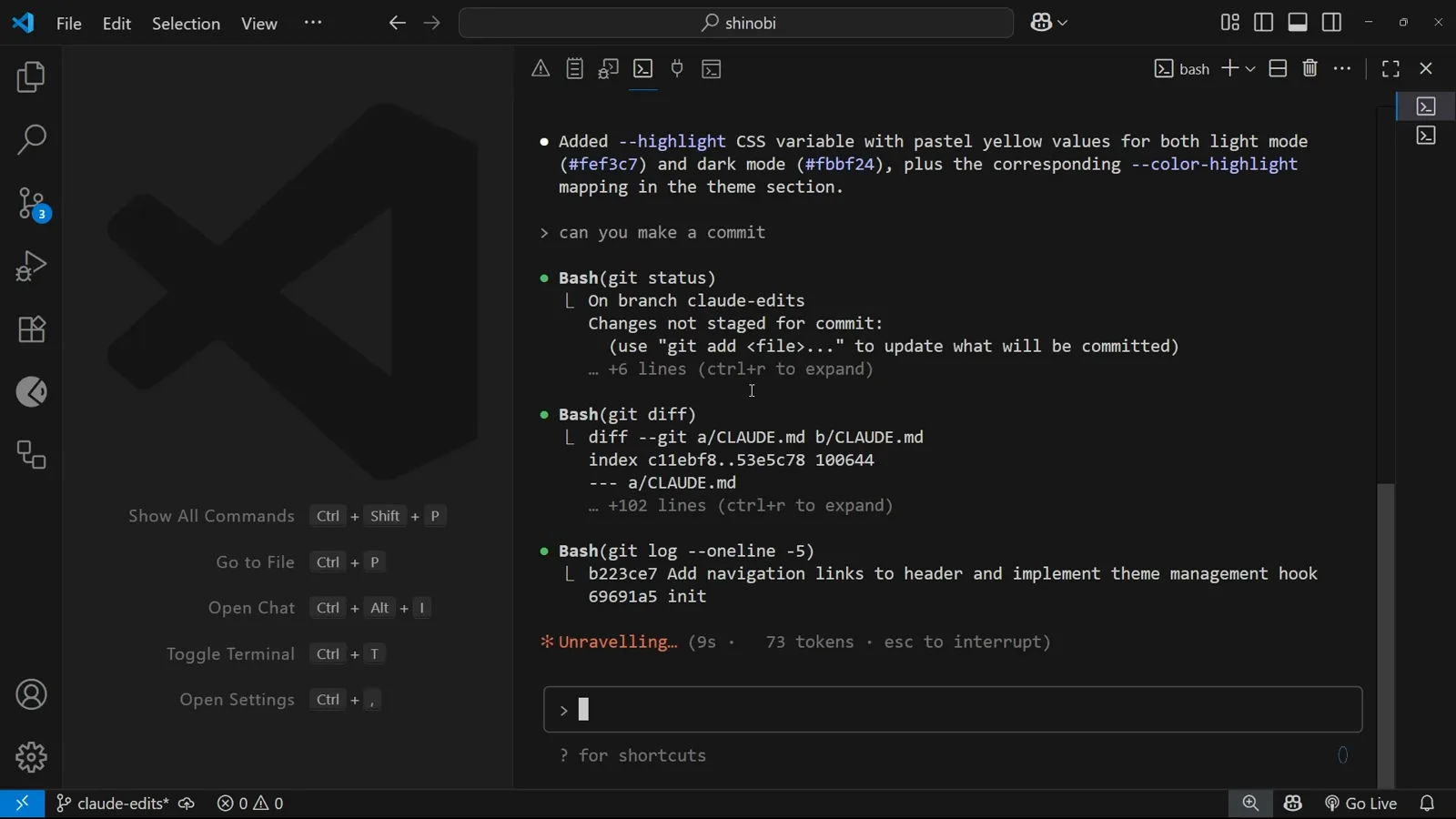
status, diff and log run straight through.Watch at 3:13 - 8
The prompt that builds your allow list
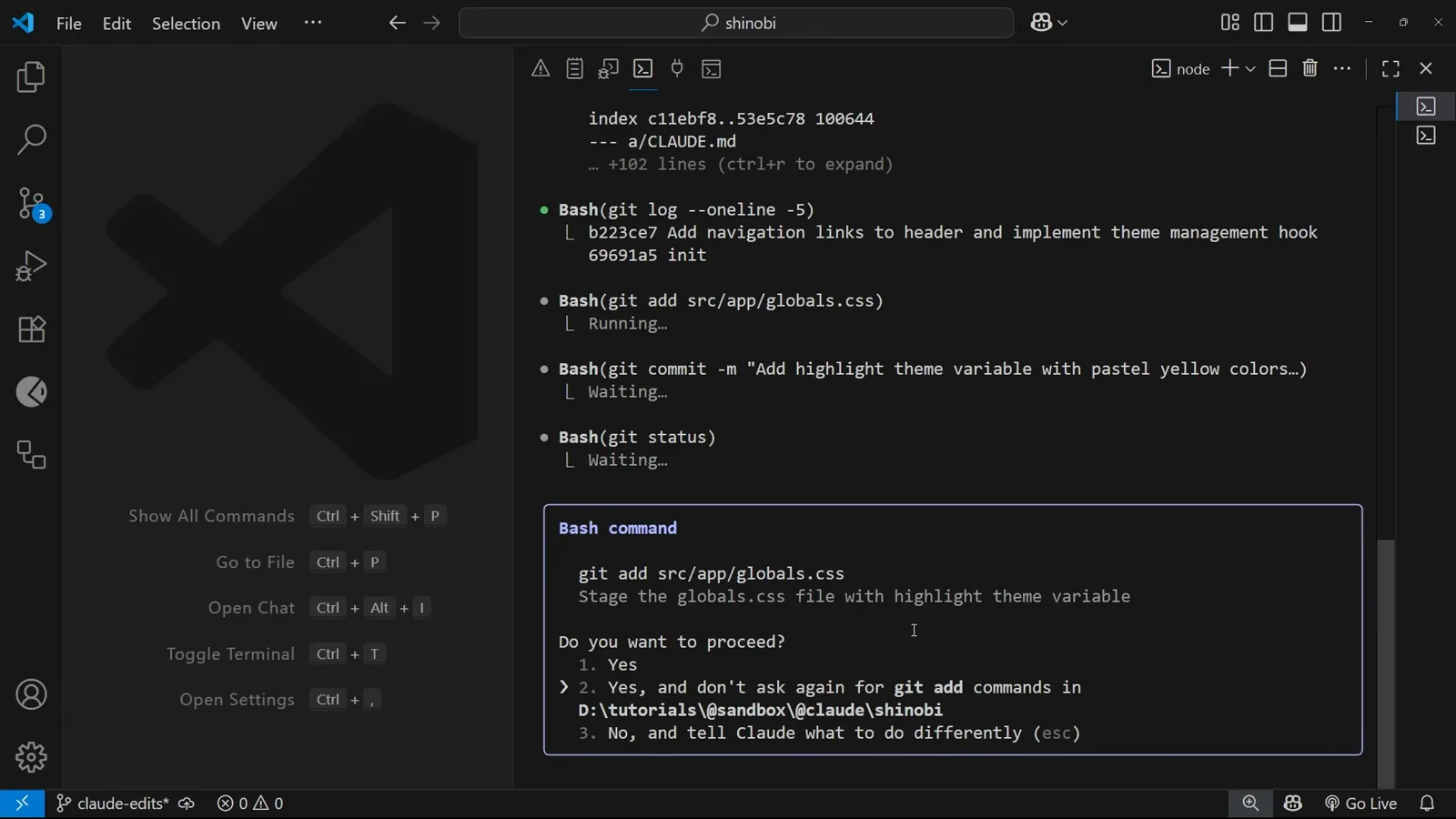
Then it wants to run git add src/app/globals.css, and this time it asks. The dialog shows the command itself, Claude's one-line description of it ('Stage the globals.css file with highlight theme variable'), and three options: 1. Yes, 2. Yes, and don't ask again for git add commands in D:\tutorials\sandbox\@claude\shinobi, and 3. No, and tell Claude what to do differently (esc). Notice how specific option 2 is - the command name and the project directory are both spelled out inside the option.
'Don't ask again for git add commands in <project dir>'.Watch at 3:26 - 9
The rule takes effect immediately
Choosing option 2 runs the command at once and the allowance is live in the same session: git add completes with nothing but a CRLF warning from Git. The next command in the queue, git commit, still asks on its own with 'Do you want to proceed?' - the new rule covers git add and nothing else.
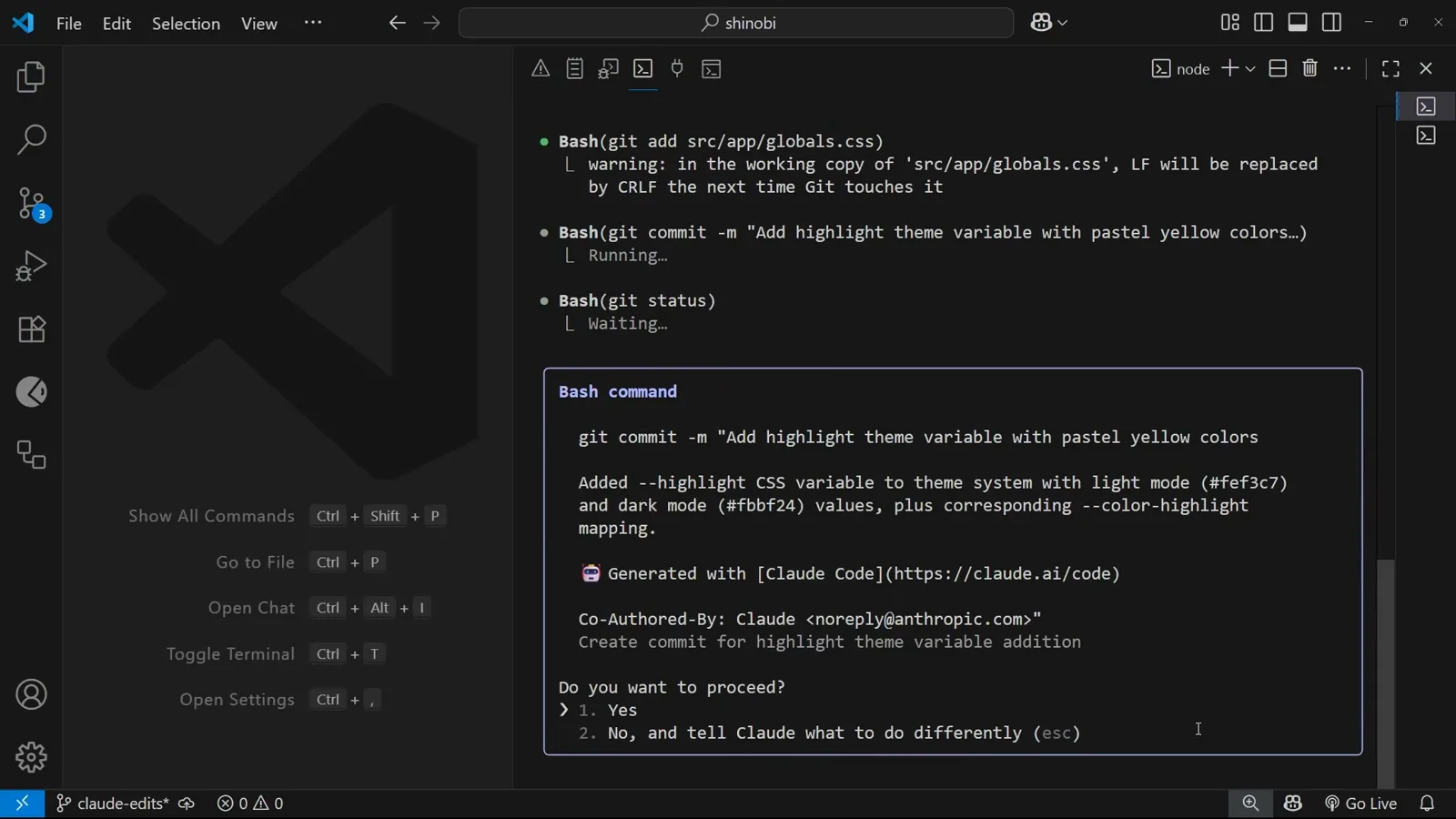
git add is allowed; git commit still asks.Watch at 3:34 - 10
Where that permission was written
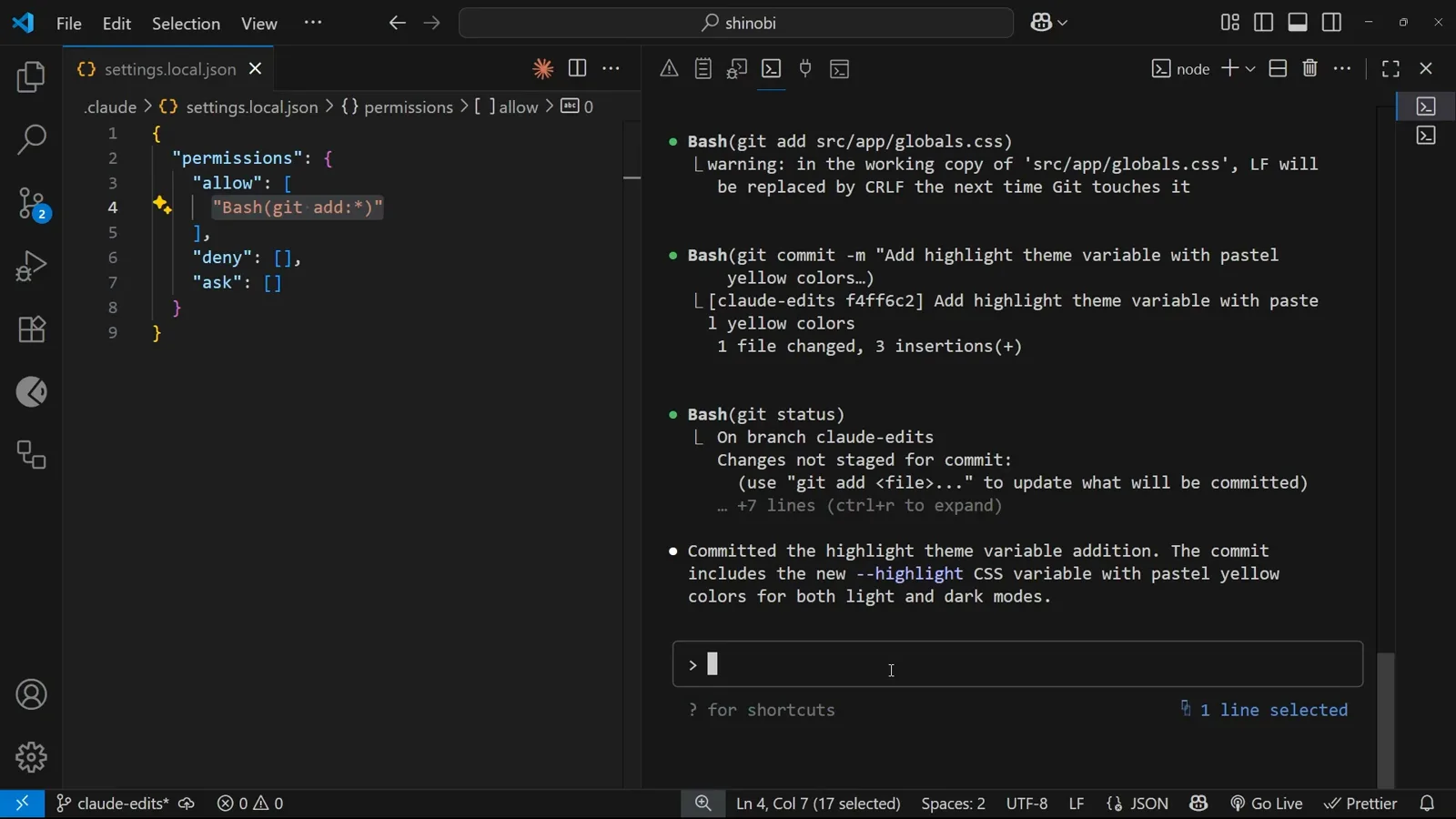
Picking 'don't ask again' creates .claude/settings.local.json at the project root - you can see it in the explorer next to the modified globals.css. There is nothing to configure beforehand and no template to copy: the file appears the moment you grant a standing permission, and the editor opens it straight away.
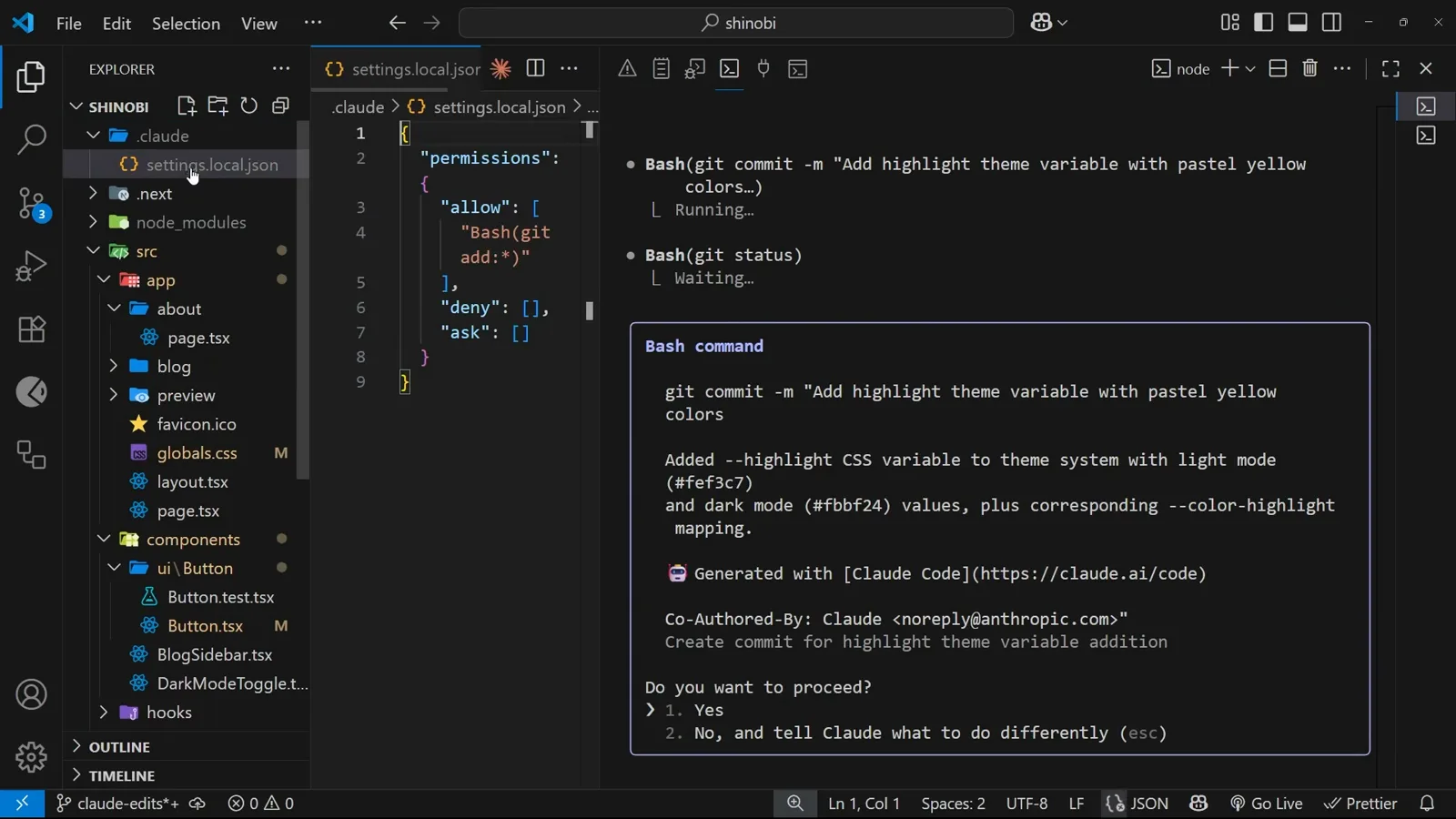
Claude Code creates .claude/settings.local.json for you.Watch at 3:40 - 11
The allow array, key by key
The file is tiny: a permissions object holding three arrays - allow, deny and ask. The rule Claude Code wrote is the string 'Bash(git add:*)': the tool name, the command prefix, then a colon and a star meaning 'anything after this'. The empty deny and ask arrays are the same mechanism pointed the other way. You can also add entries by hand - the dialog is just a faster way to type them, and the author's point is that the list is yours to edit.
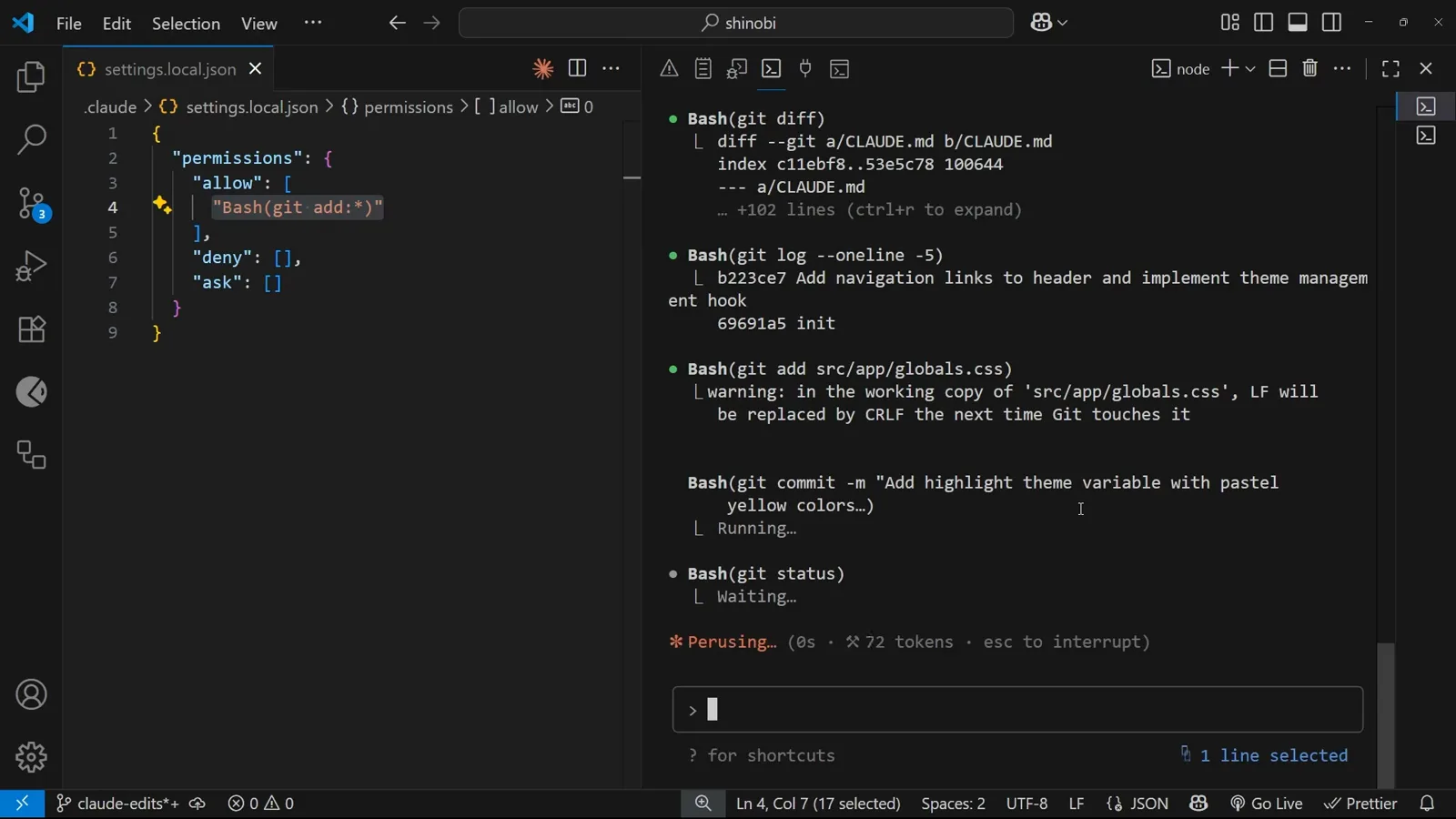
permissions.allow holds Bash(git add:*).Watch at 4:10
Accept edits mode
Stop the prompts for the rest of the session, then turn them back on.
- 12
Turn prompts off for the whole session
The third way to stop being asked is a mode rather than a rule. Press alt+m - on Windows; the author notes it may be ctrl+m on a Mac - and the indicator under the input box lights up: 'accept edits on (alt+m to cycle)'. From then on Claude Code edits files in this chat without asking. It is session-scoped, so a new session starts prompting again, and it says 'to cycle' because alt+m walks through the available modes rather than flipping a single switch.
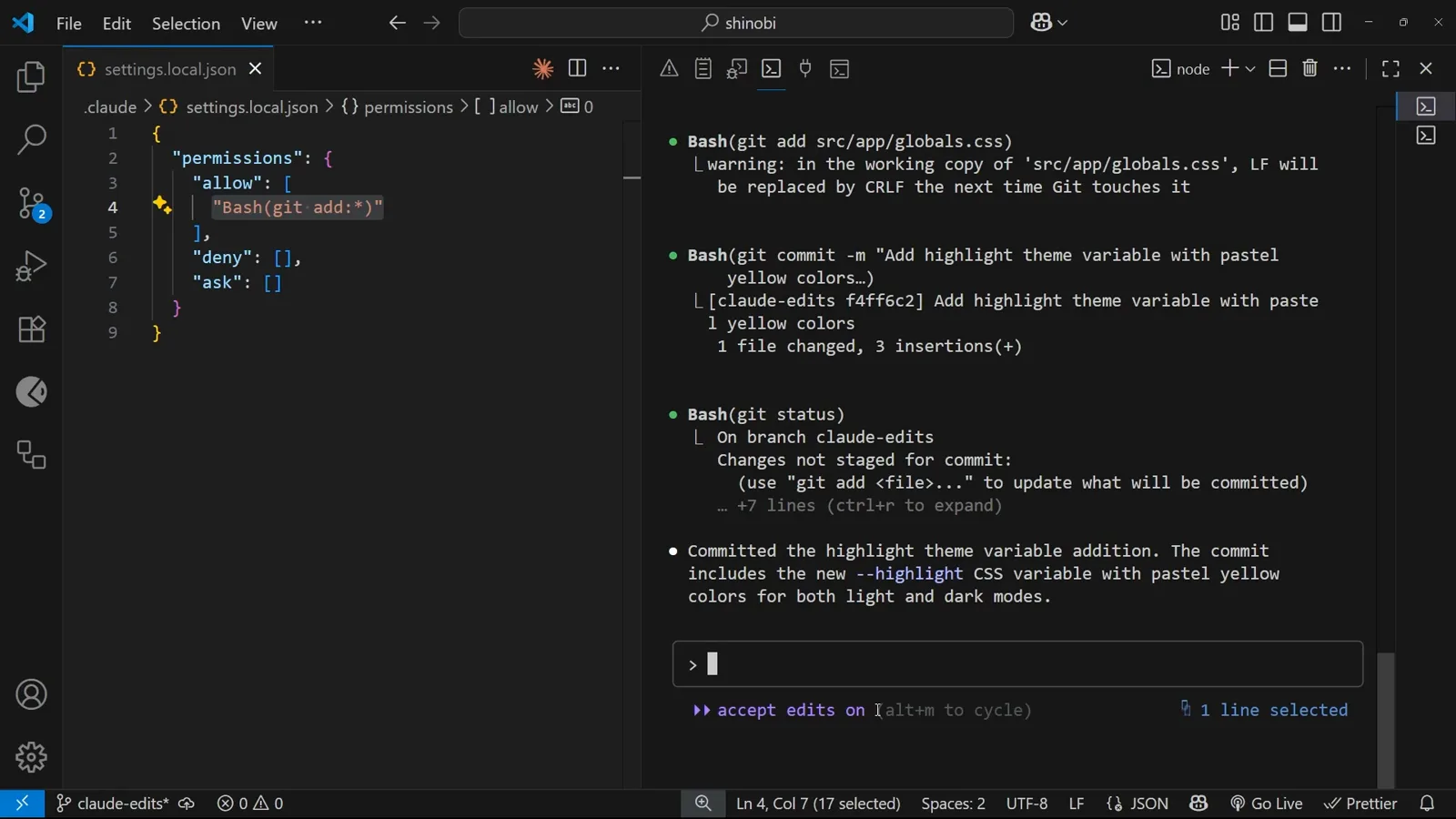
'accept edits on (alt+m to cycle)' under the prompt.Watch at 4:22 - 13
Cycle back to asking
Press alt+m again and the indicator disappears from the input area, which is your cue that edits are back under per-change approval. Nothing about the allow list changes - the standing Bash(git add:*) rule in settings.local.json is still there and will still be there next session.
Indicator gone, prompts back.Watch at 4:42