
Memory & context guide
Claude Code Memory: CLAUDE.md, /init and the # Shortcut
CLAUDE.md is the file Claude Code reads before it touches your code. Here is the whole loop, screenshot by screenshot: generate it with /init, hand-edit one line so new files land in the right folder, and save new rules mid-session with the # shortcut.
An illustrated walkthrough of 16 steps - about 6 minutes to read. Every step links back to the exact moment in the source video.
TL;DR
Run /init the first time Claude Code touches a project. It lists the repo, reads package.json, tsconfig and the README, writes a structured CLAUDE.md into the project root and asks before saving. That file then rides along in every session as context, which is why Claude suddenly knows your scripts, your stack and where a folder lives. Start a message with # to append a rule without leaving the chat, and Claude asks whether the note belongs in project memory (./CLAUDE.md), project memory (local) (./CLAUDE.local.md) or user memory (~/.claude/CLAUDE.md). /memory opens any of the three in your editor. The one thing the video is emphatic about: a memory file you never re-read is a memory file that starts lying to Claude.
About the source video
This page follows lesson #2 of Net Ninja's Claude Code course and rebuilds its CLAUDE.md walkthrough step by step.
Screenshots are frames from the video, credited to the creator; the write-up is our own. Steps verified against the video in September 2026.
Generate CLAUDE.md with /init
One command, one read of the whole repo, one file at the project root.
- 1
Run /init in the project root
Open Claude Code from the folder that holds package.json and type /init. The autocomplete line spells out the job - “Initialize a new CLAUDE.md file with codebase documentation” - and the welcome panel lists the same advice as tip number one. Run it before you ask for any feature: the video's framing is that /init is what you do when Claude Code first arrives in a project, not something you catch up on later.
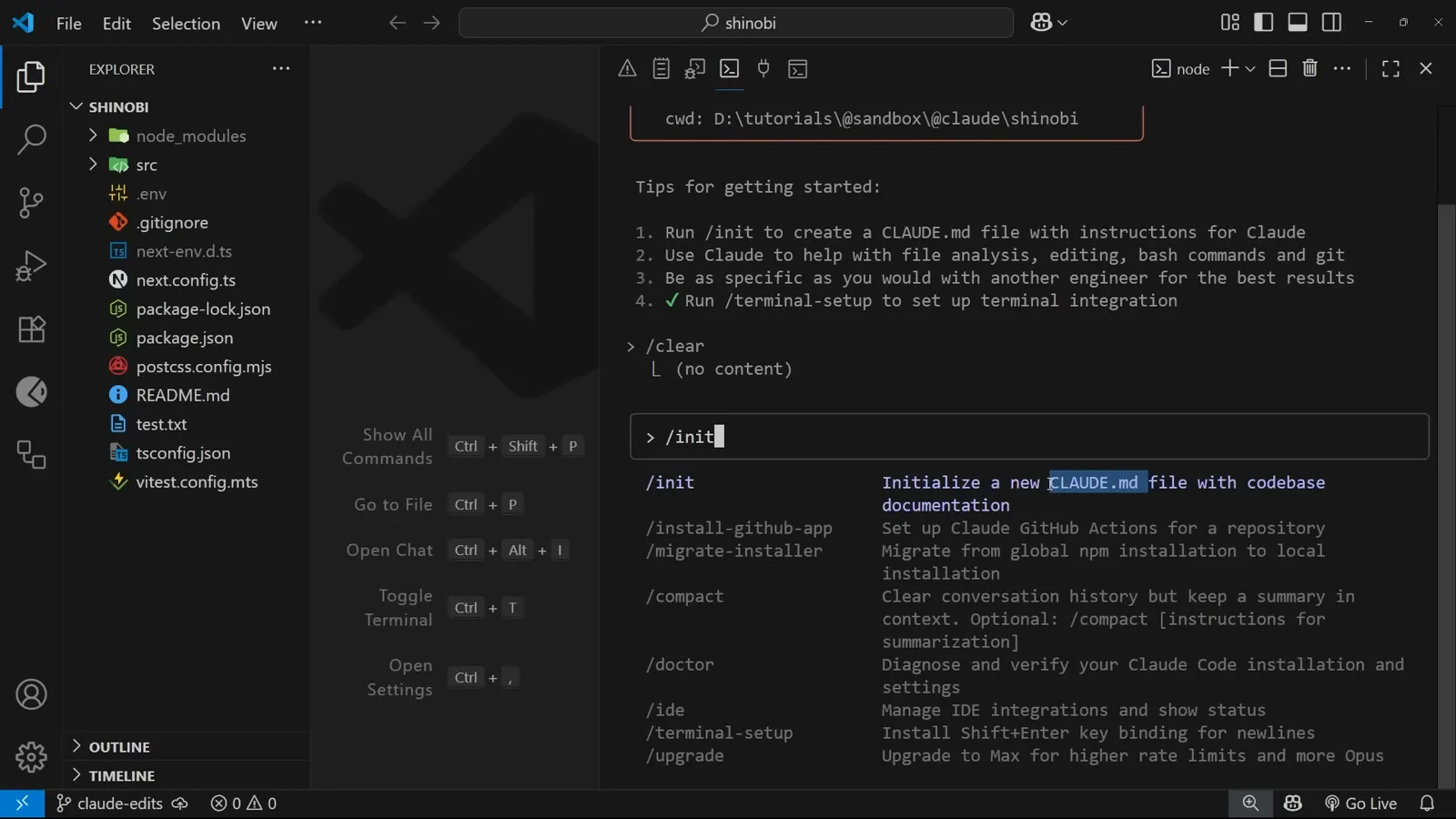
/init, straight off the welcome screen's own tip list.Watch at 0:40 - 2
Watch it read the repo, item by item
Claude writes itself a to-do list and works down it: explore repository structure and identify key files, analyze package.json and build configuration, examine source code architecture, check for existing documentation files, create CLAUDE.md with findings. Underneath, the tool calls scroll past - List() on the project folder, Read(package.json), Search(pattern: “README*”), Read(tsconfig.json) - and each finished checkbox gets struck through. It is a long task; the progress list is what makes it readable.
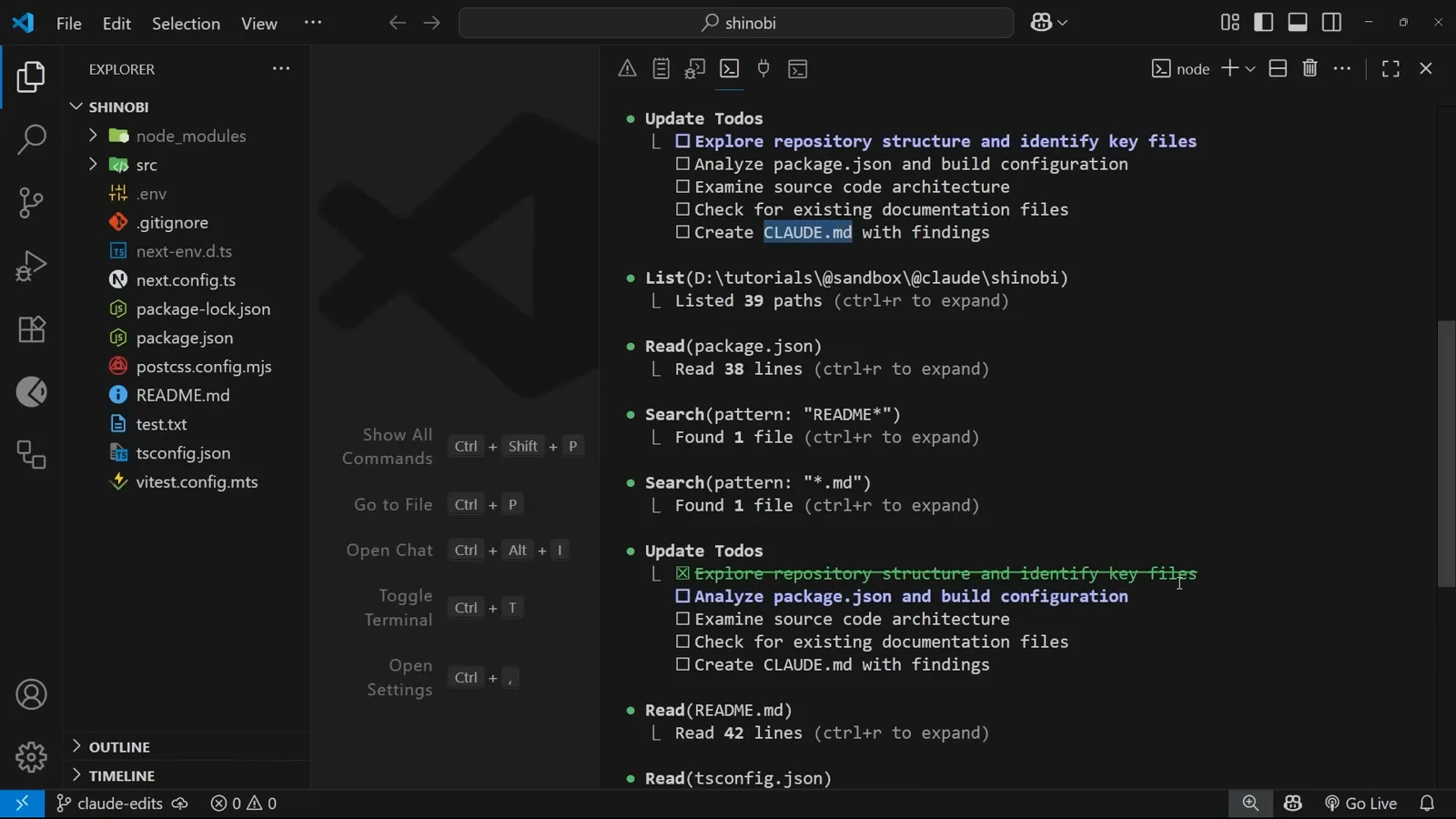
Five planned steps, one already crossed off.Watch at 1:28 - 3
Approve the file before anything is written
When the scan ends, Claude shows the draft and asks “Do you want to create this CLAUDE.md?” with three answers: Yes, “Yes, and don't ask again this session”, or “No, and tell Claude what to do differently”. Take the third one seriously - it is the cheapest moment in the whole workflow to say “skip the styling section, focus on the data layer”. Choose Yes and CLAUDE.md appears in the explorer at the project root as a new, untracked file.
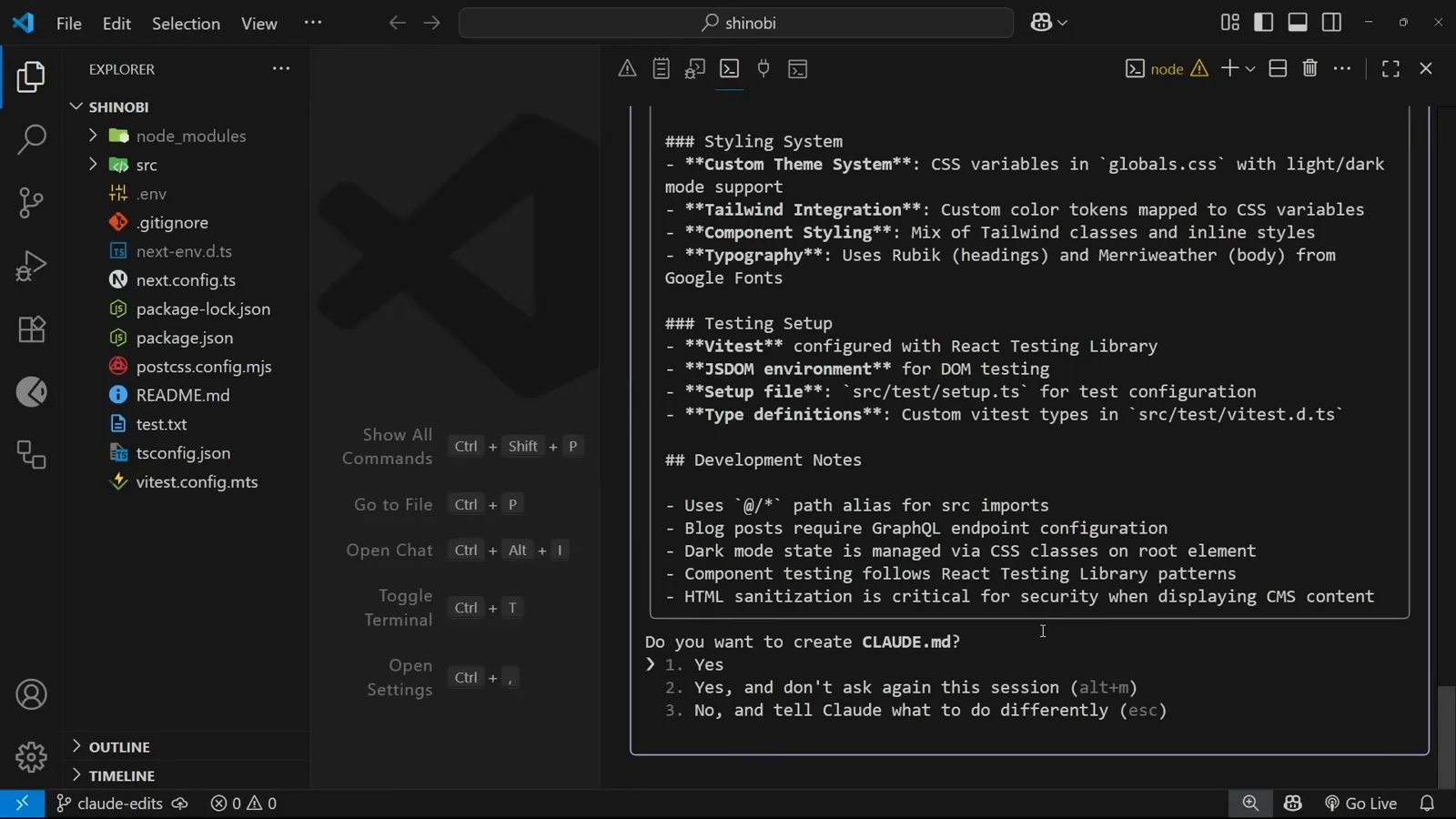
Nothing touches disk until you pick an option.Watch at 1:52
What /init actually wrote
The generated file is a summary of the codebase in Claude's own words - commands, stack, folders and the conventions it inferred.
- 4
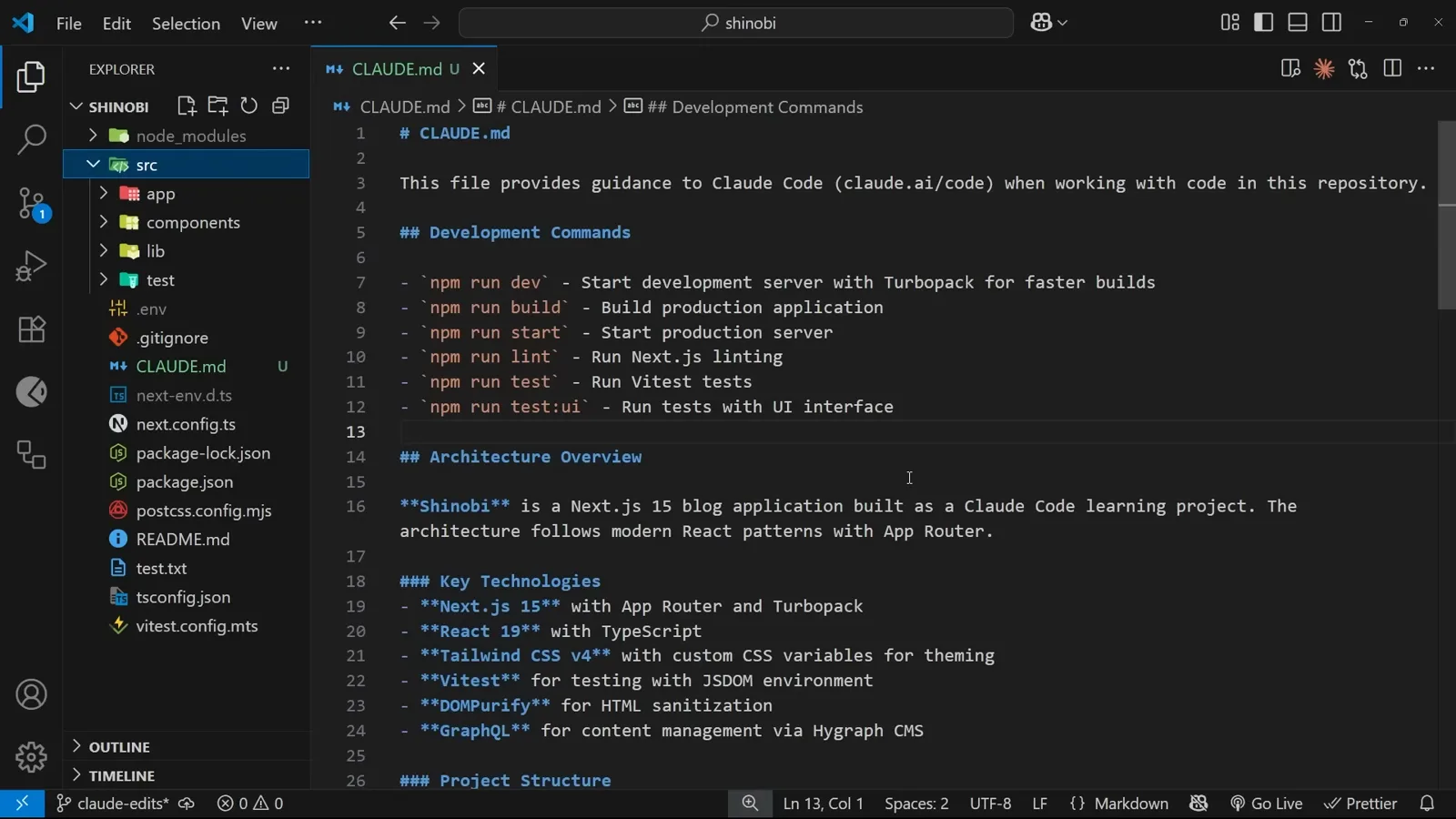
Read the top of the file: purpose, then commands
The first line states what the file is for - “This file provides guidance to Claude Code (claude.ai/code) when working with code in this repository” - and then comes the useful part. The Development Commands section lists every script pulled out of package.json: npm run dev with Turbopack, build, start, lint, test and test:ui. This is the section that stops Claude inventing a command that does not exist, and the first one worth eyeballing after /init finishes.
Every script name, already correct.Watch at 3:25 - 5
Architecture, stack and the folder tree
Architecture Overview describes the project in a sentence - a Next.js 15 blog application following App Router patterns. Key Technologies lists the stack with the reason each piece is there: Next.js 15 with App Router and Turbopack, React 19 with TypeScript, Tailwind CSS v4 with CSS variables for theming, Vitest with a JSDOM environment, DOMPurify for sanitization, GraphQL for a headless CMS. Project Structure then draws the src tree as an ASCII diagram with a comment on almost every line.
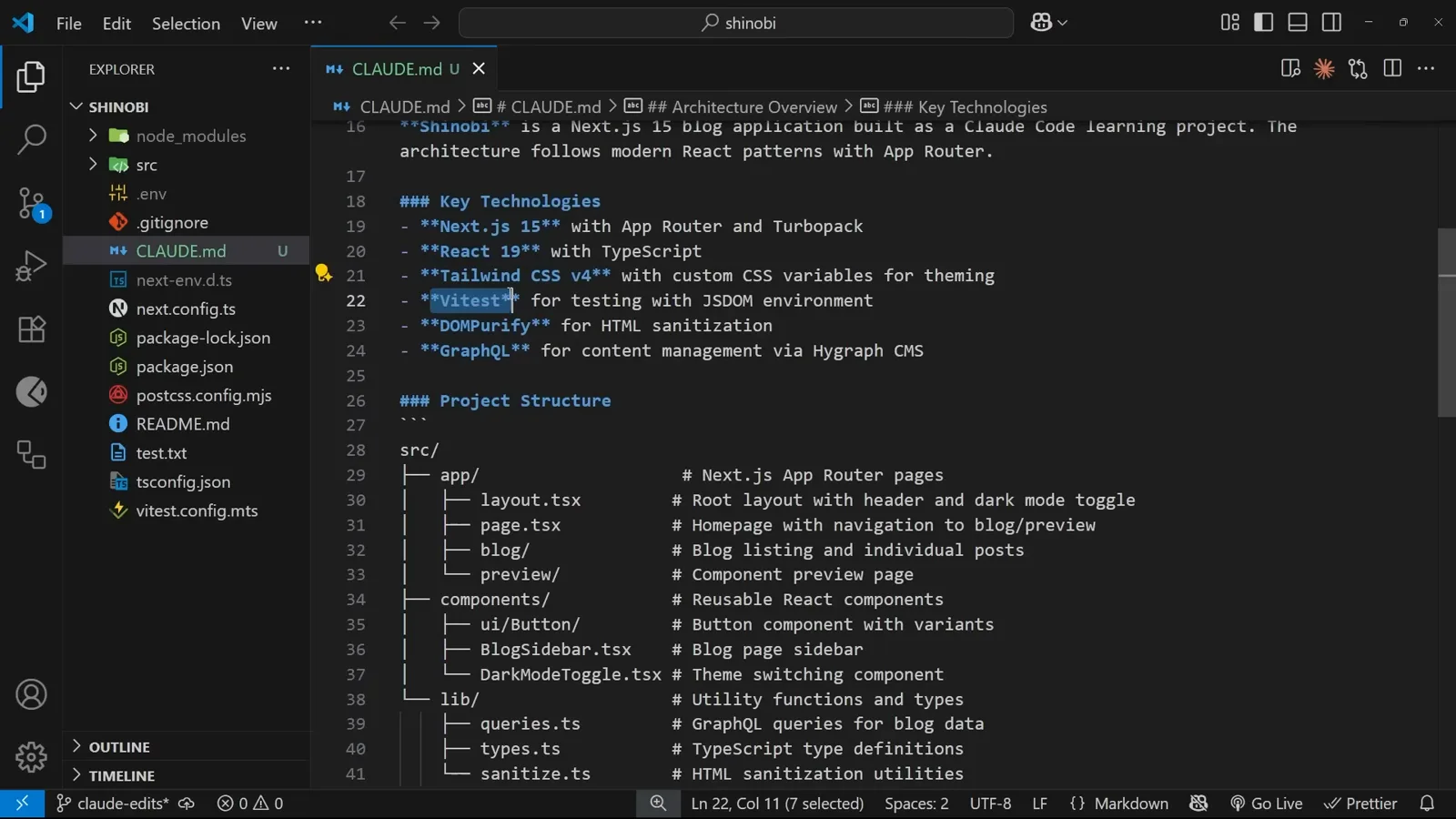
The folder map is what Claude leans on hardest.Watch at 2:26 - 6
The sections that stop Claude guessing
Styling System records how theming works, Testing Setup names the Vitest config and the setup file, and Development Notes collects the small things that cost a wrong turn: the @/* path alias for src imports, dark mode living in a CSS class on the root element, sanitization being mandatory for CMS content. None of it is exotic information. It is information Claude would otherwise re-derive - or get wrong - every single session.
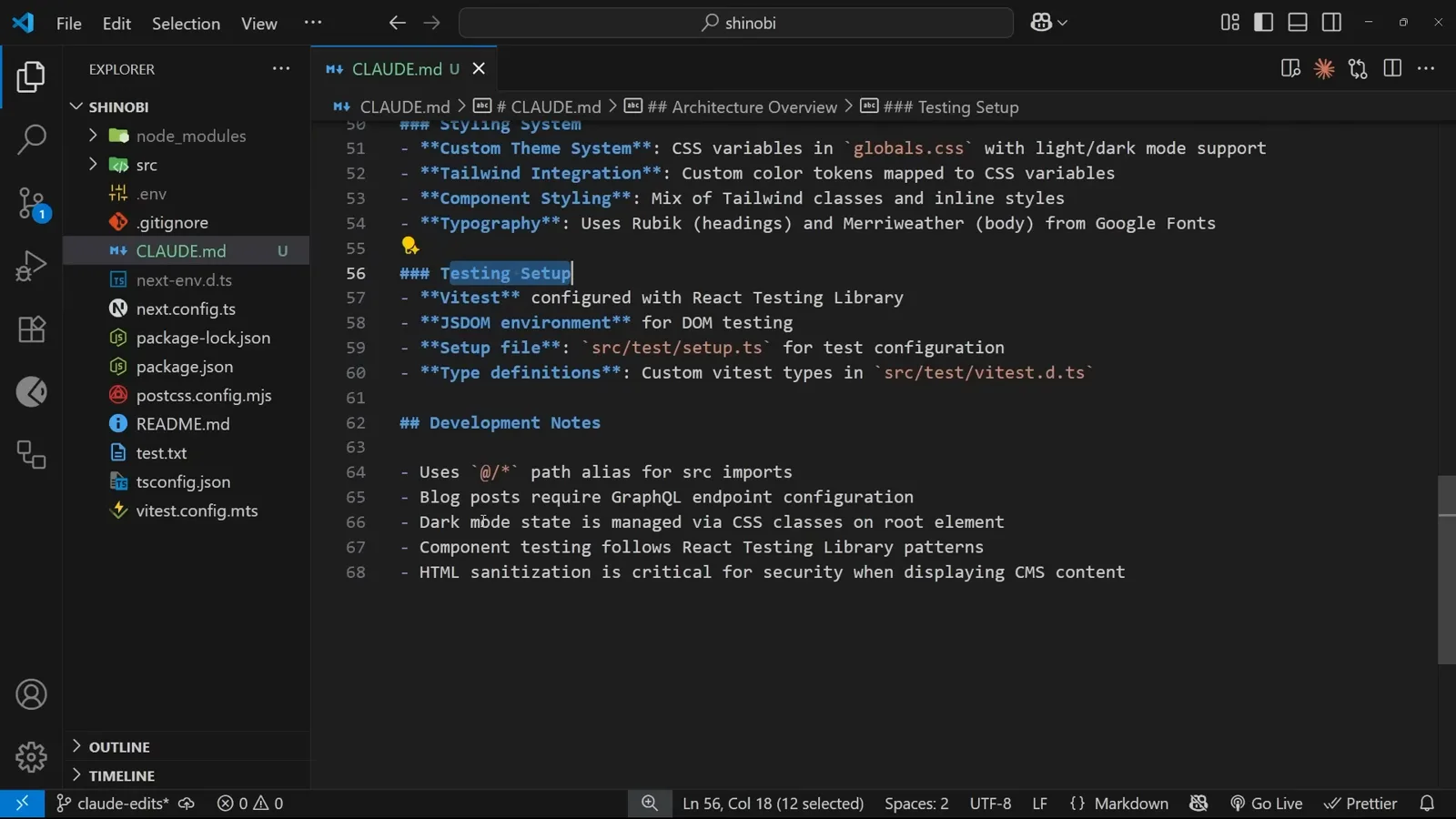
Path aliases and security notes, written once.Watch at 2:48
Edit the file, and Claude follows it
CLAUDE.md is a plain markdown file. A line you type by hand carries the same weight as anything /init inferred.
- 7
Add the folder /init never saw
The generated tree has no entry for hooks, so Claude has nowhere obvious to put one. Scroll to the Project Structure block and write the line yourself - hooks/ with the comment “Reusable hooks” - then save. That is the whole argument for treating CLAUDE.md as a normal file: a hand-typed line is as authoritative as anything /init inferred, and it is how you teach a project a convention the code does not contain yet.
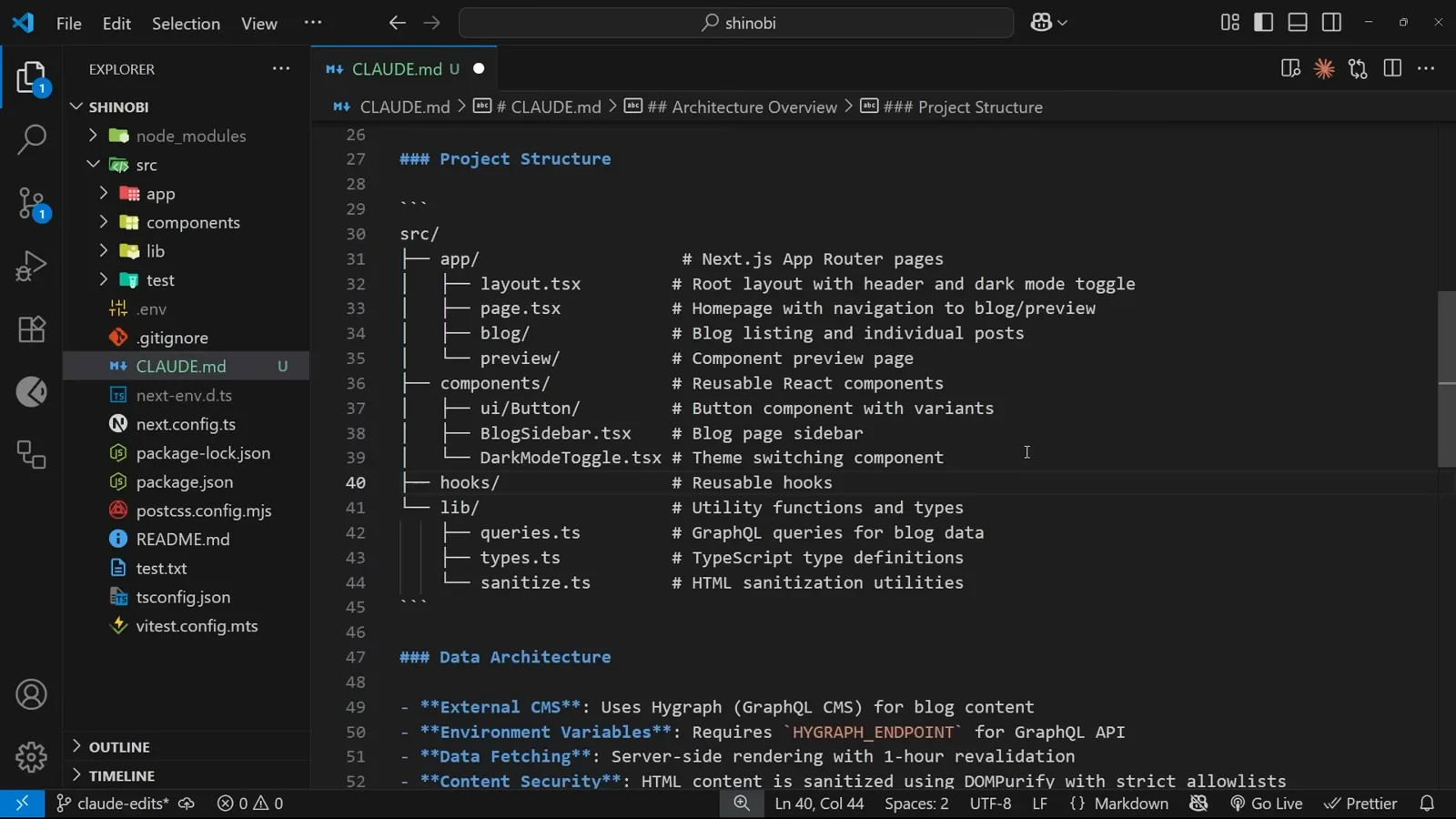
One added line, cursor still on it, unsaved dot in the tab.Watch at 4:38 - 8
Ask for a hook, say nothing about where
Clear the session, then ask: “Can you create a hook to store the user's theme pref in, when they toggle the theme on the site? Store the value in local storage for next time. Don't use the hook anywhere yet!” The last sentence is a habit worth stealing on its own - the video notes Claude Code likes to wire up any new hook, component or utility it creates, so if you only want the file, say so out loud. The folder question is the actual test.
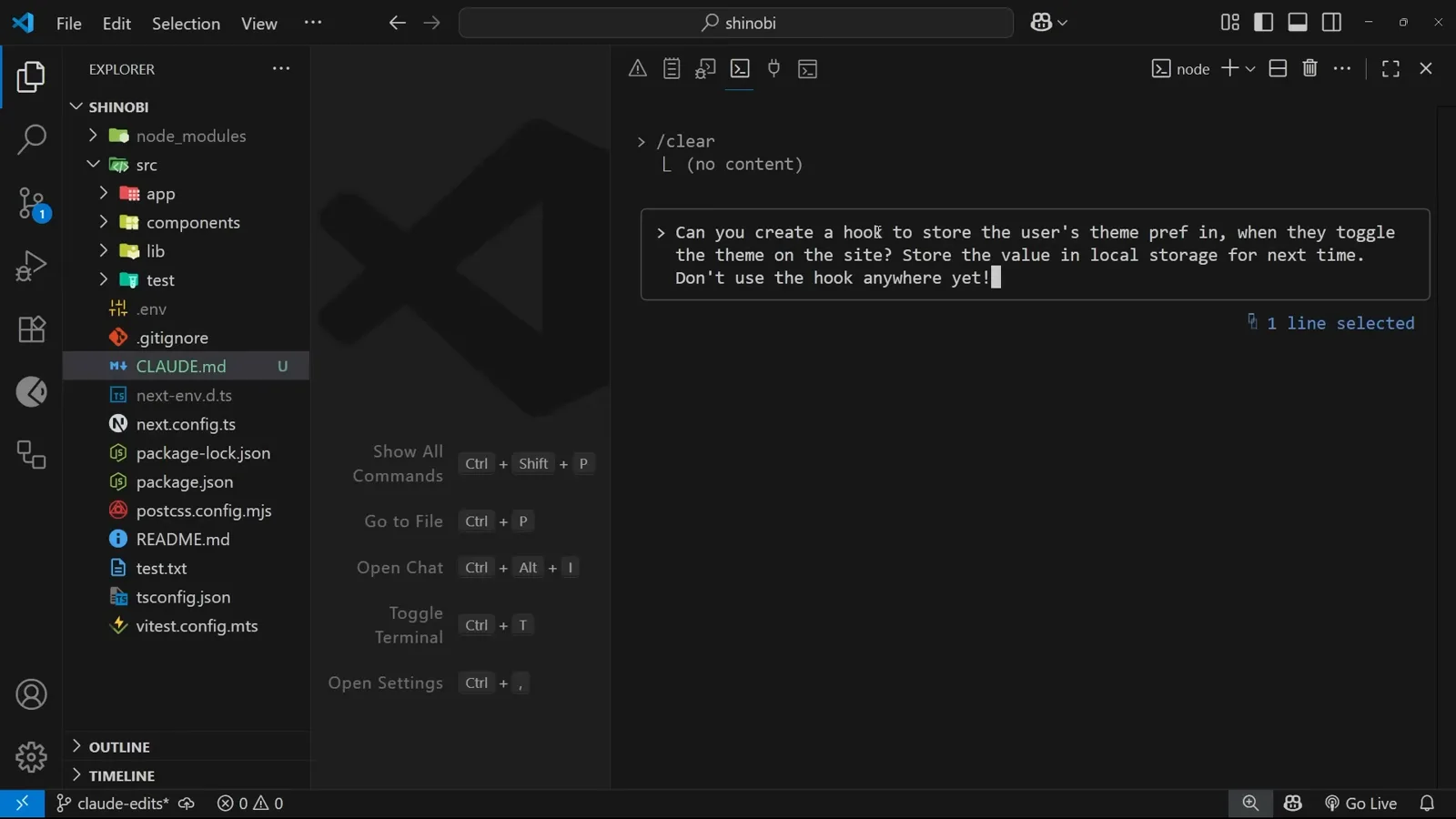
No path appears anywhere in the prompt.Watch at 5:36 - 9
Claude files it where the memory said
The plan comes back as “Now I'll create the useTheme hook in the hooks directory”, the tool call reads Write(src/hooks/useTheme.ts), and the approval dialog - “Do you want to make this edit to useTheme.ts?” - opens over a diff of the new file. Accept it and both the hooks folder and useTheme.ts appear in the explorer. Nothing in the prompt named a path; the single line added to CLAUDE.md did the work.
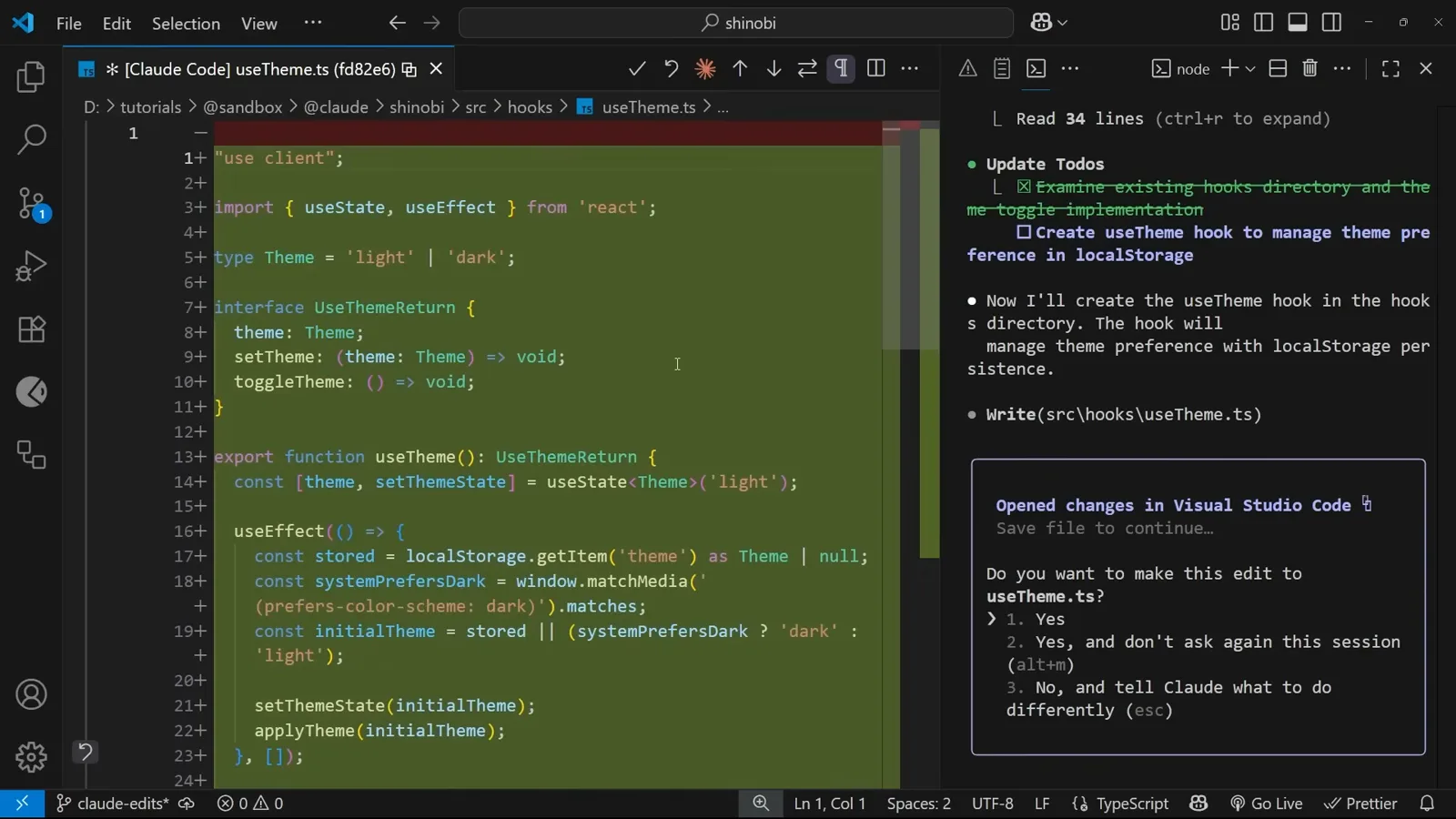
src/hooks/useTheme.ts, in a folder that did not exist an hour ago.Watch at 6:10
Save a rule with the # shortcut
The moment you notice Claude making the same assumption twice, prefix the correction with # and it becomes memory.
- 10
Prefix a rule with # to memorize it
Mid-session, take a convention you keep repeating and start the message with the hash character: “when making new page components, always add a link to that page in the header”. As you type, Claude Code labels the input box “# to memorize” - the hash turns the message into a memory instead of a request. It is the fastest way to catch a rule while you still remember why it matters.
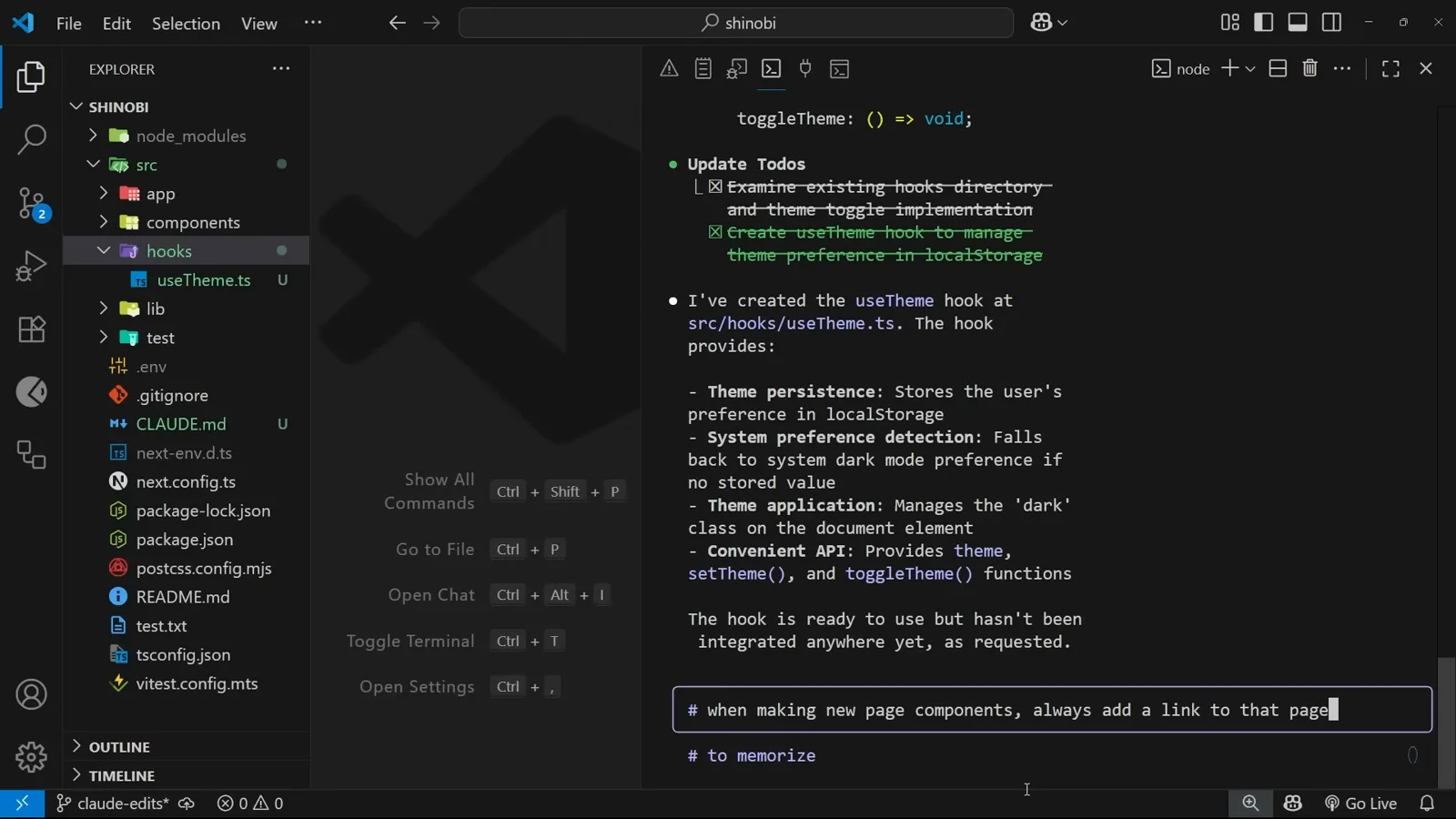
The hint appears while you are still typing.Watch at 6:44 - 11
Pick which memory file gets the line
Press enter and Claude asks “Where should this memory be saved?” with three choices: Project memory, checked in at ./CLAUDE.md; Project memory (local), gitignored in ./CLAUDE.local.md; and User memory, saved in ~/.claude/CLAUDE.md. The split is by audience, not by topic. Project memory is version-controlled, so it should hold what is true for everyone on the repo - folder structure, naming, frameworks, tests. User memory is your machine's file for every project: personal tooling, code style. The local option is the awkward one, and the docs table below covers why.
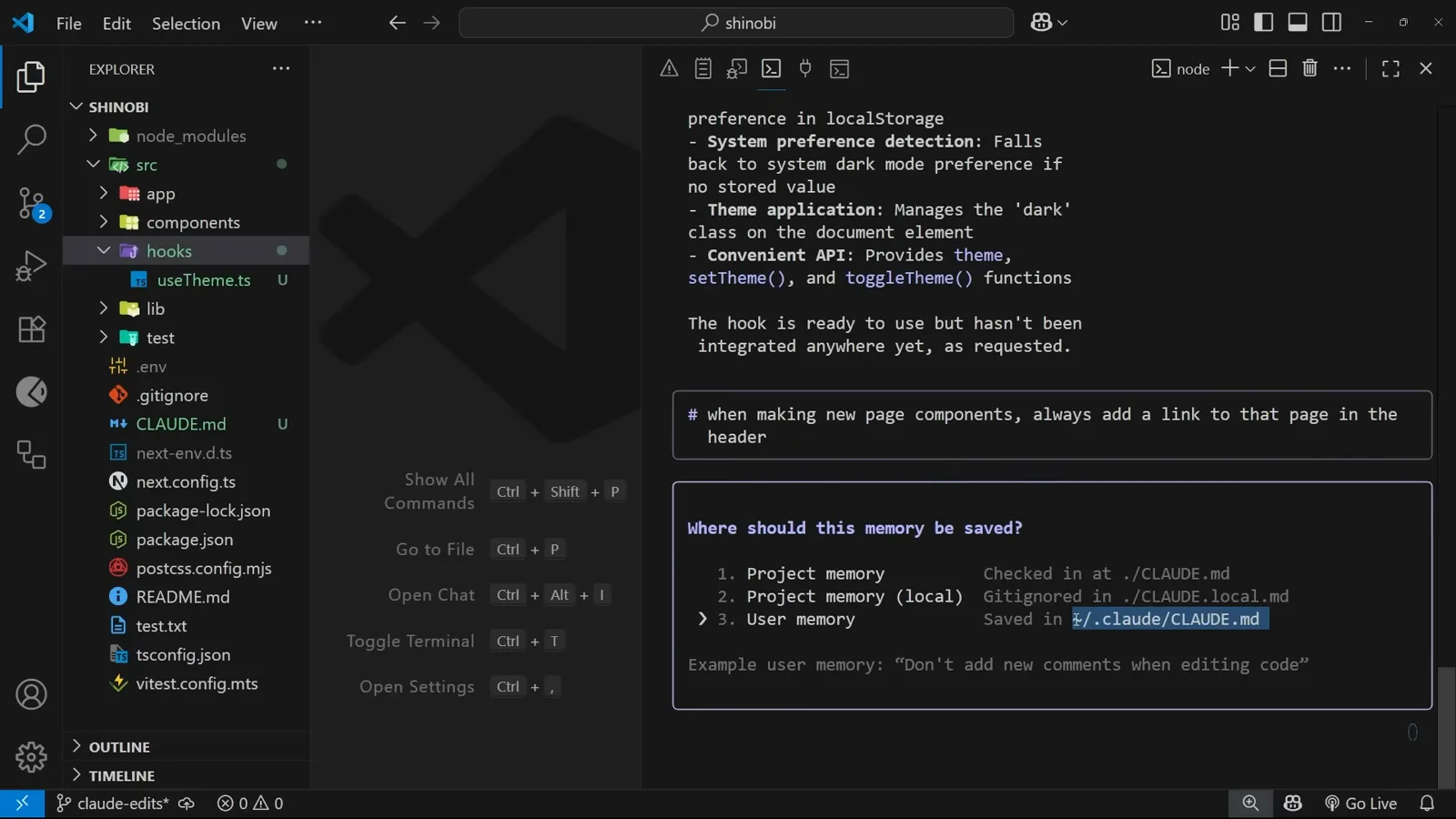
Three destinations for one sentence.Watch at 7:20 - 12
It writes the file and tells you it did
Choose Project memory and the session echoes the rule back with a single “Got it.” Underneath, Claude Code drops a tip worth handing to anyone new to the tool: “Want Claude to remember something? Hit # to add preferences, tools, and instructions to Claude's memory.” The sentence is appended to CLAUDE.md, in the same file you already have open, so a memory you are unsure about is one /memory away from being checked.
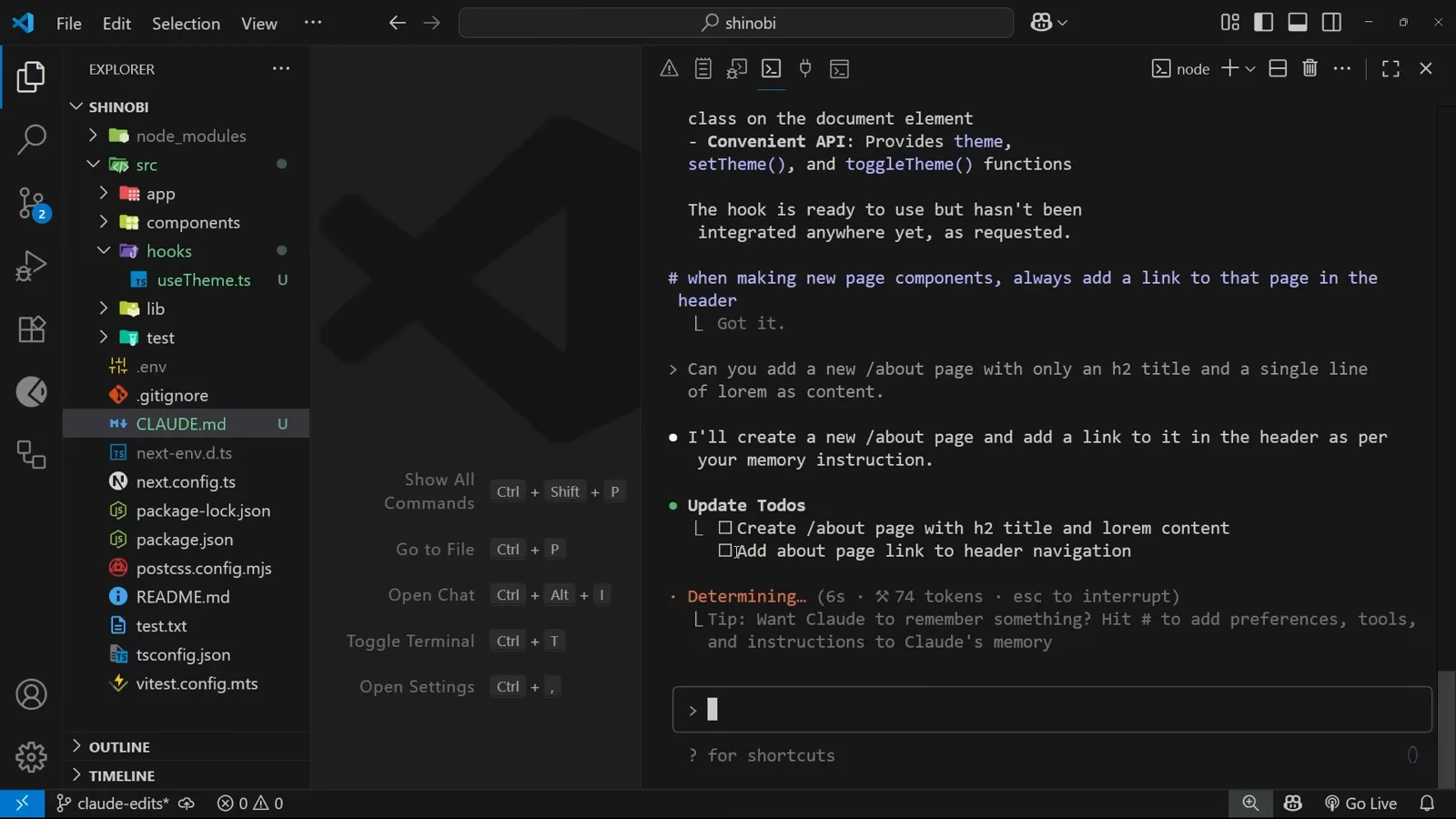
“Got it.” plus the built-in reminder of what # does.Watch at 9:12
Three memory files, and how to open them
Where a note lands decides who else sees it - your team, this repo only, or every project on your machine.
- 13
The memory comes back in the next task's plan
Ask for something unrelated - “Can you add a new /about page with only an h2 title and a single line of lorem as content” - and Claude answers “I'll create a new /about page and add a link to it in the header as per your memory instruction.” Its to-do list now carries a second item nobody requested: Add about page link to header navigation. That is memory doing its job - it is loaded into the session as context, so it changes the plan without being repeated.
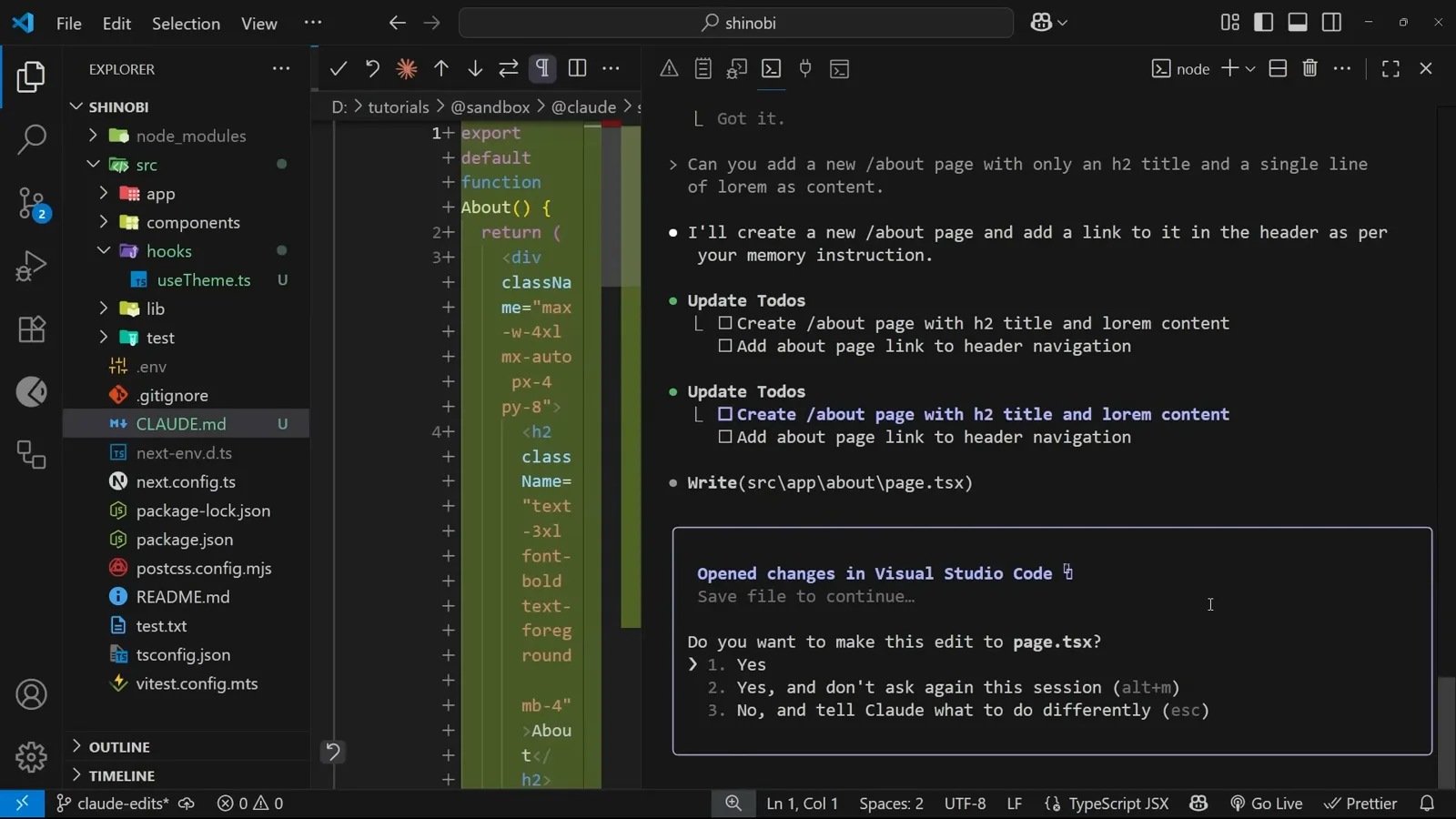
Two to-dos, one of them straight out of CLAUDE.md.Watch at 9:20 - 14
Check the result in the browser
Start the dev server and open localhost:3000/about. The page is the h2 plus the single lorem line, and the header now reads Blog, Preview, About - the last link added because the memory told Claude to add it. Mind the extra two: the video calls this out as Claude Code's habit of working beyond the request, and the fix is the same # shortcut, this time with something like “don't touch anything outside the file I named”. Rules of that shape belong in CLAUDE.md too.
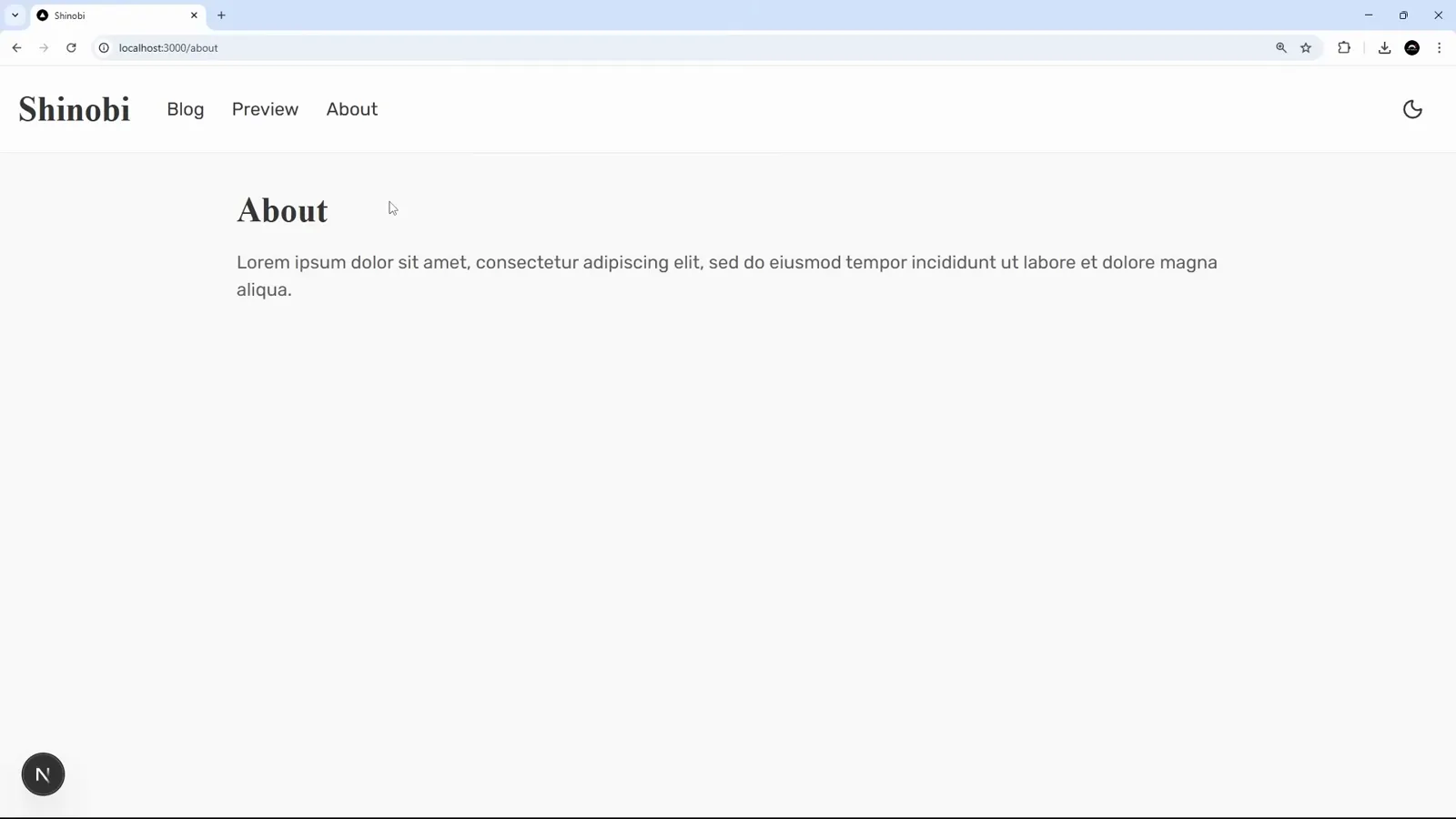
The About link is there. So are two others nobody asked for.Watch at 10:12 - 15
What the docs say about the local file
The memory-management page on docs.anthropic.com lays the whole map out: enterprise policy files managed by IT, project memory at ./CLAUDE.md shared through source control, user memory at ~/.claude/CLAUDE.md for you across all projects, and project memory (local) at ./CLAUDE.local.md marked “(Deprecated, see below)”. The video flags the same thing - local memory is being retired in favour of importing untracked files from inside the project-level memory. At the time of recording the option is still in the # menu, so read it as a compatibility entry rather than a recommendation.
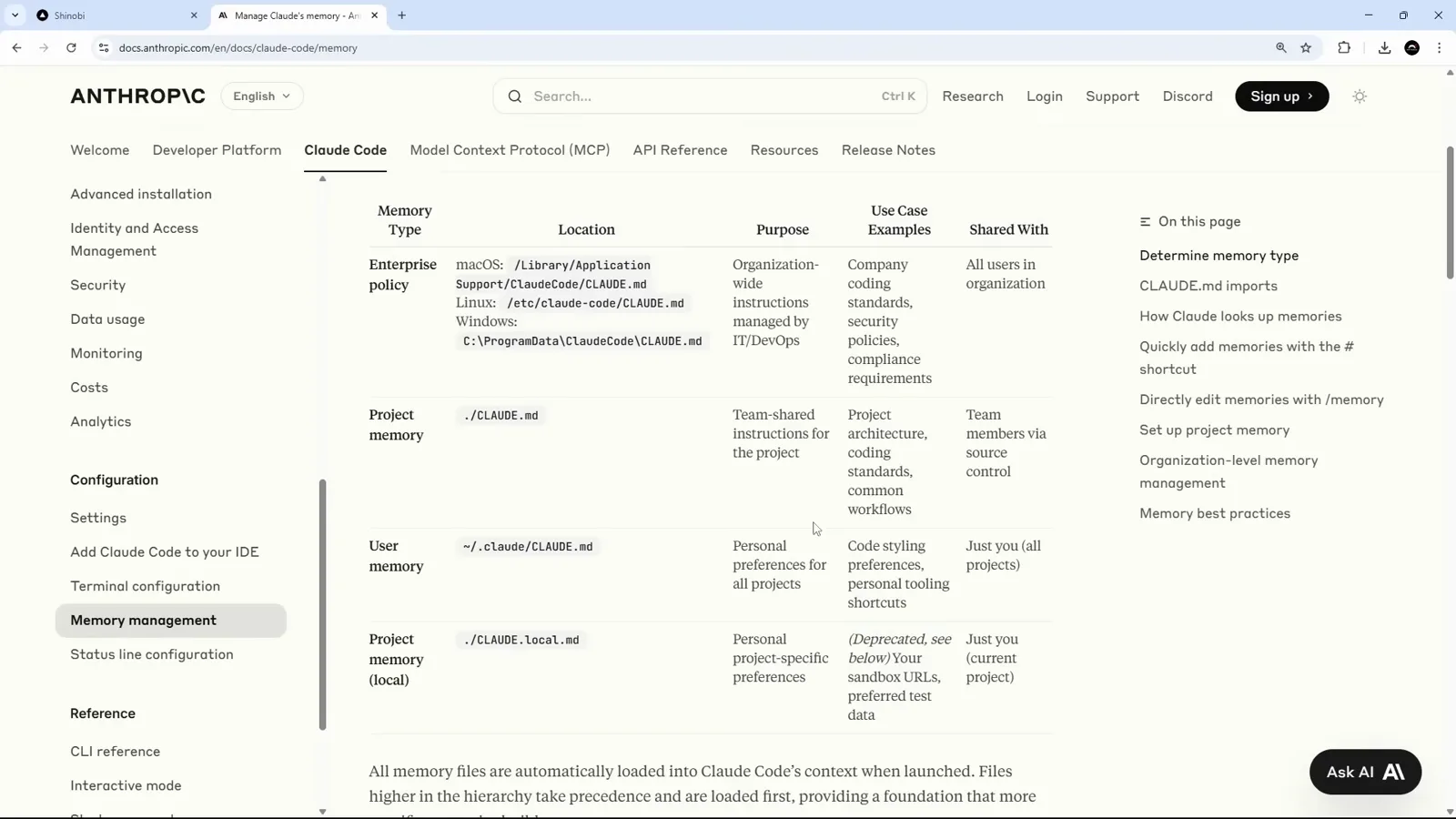
The table the terminal menu is summarising.Watch at 10:40 - 16
Open any memory file with /memory
Type /memory and Claude lists what it can reach - “Memory Files: project: CLAUDE.md”, a link to the docs page, then “Select memory to edit” with the same three scopes and a count of how many memories currently live in ./CLAUDE.md. Pick one and it opens in your editor. If the built-in one is not yours, the terminal tells you to set $EDITOR or $VISUAL. This is the maintenance loop: /memory, read what has accumulated, delete what has gone stale.
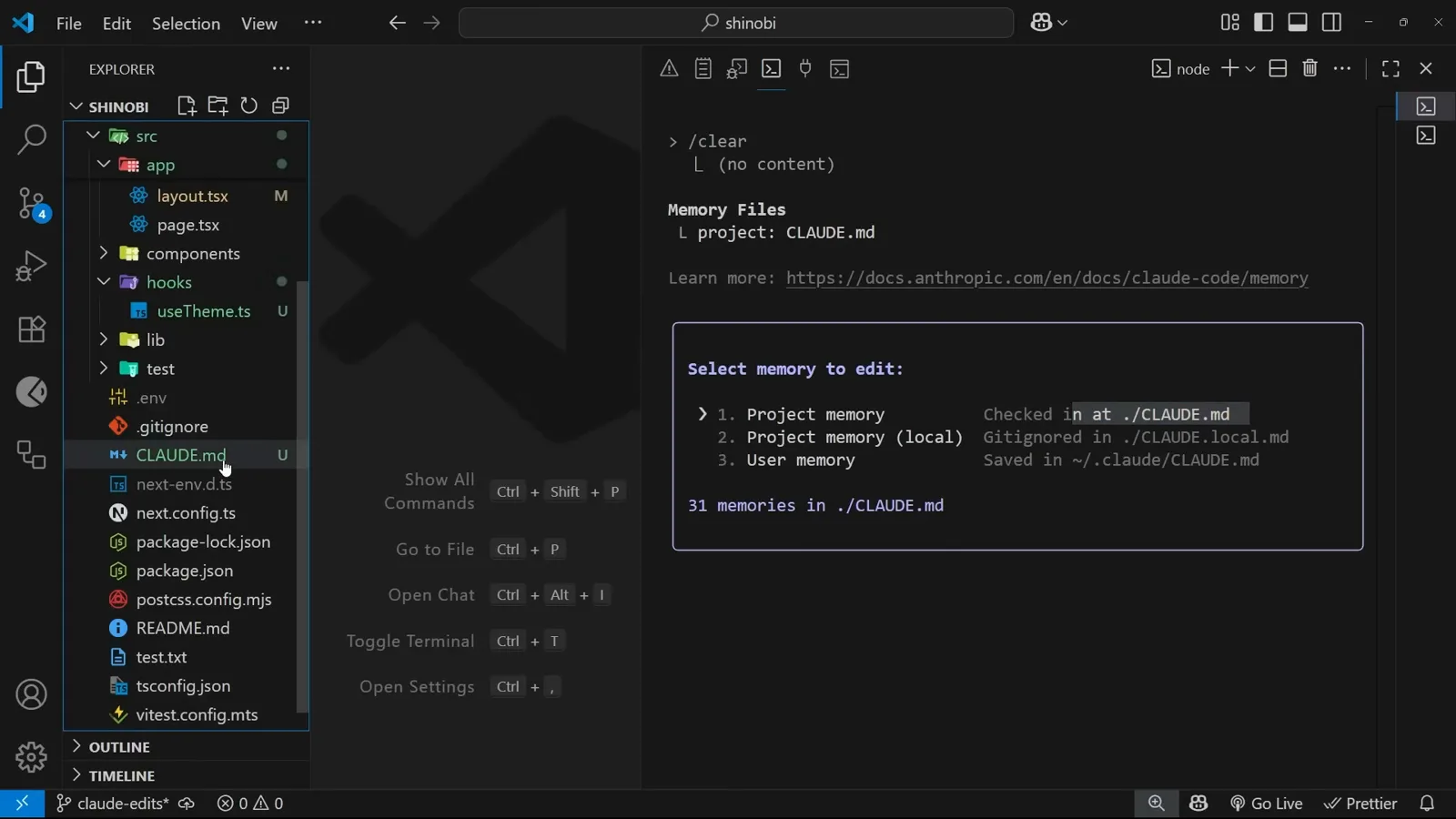
/memory, with the memory count for this project.Watch at 11:24