
Гид по управлению контекстом
Управление контекстом в Claude Code: /compact, /clear и как читать остаток контекста
Чем заполняется контекстное окно, когда срабатывает автосжатие, что после него остаётся — и привычки (CLAUDE.md, отключение лишних MCP, skills, субагенты), которые держат Claude Code быстрым и собранным.
Иллюстрированный разбор из 13 шагов — чтение займёт около 5 минут. Каждый шаг ссылается на точный момент исходного видео.
Коротко
Каждое ваше сообщение, каждый прочитанный Claude файл и каждый результат инструмента попадают в контекстное окно. Команда /context покажет, что его занимает. У предела Claude Code сжимает контекст автоматически — оставляет суть, выбрасывает лишнее, — но вы можете запустить /compact сами в удобный момент. Переходите к новой задаче? /clear стирает всё. Долговременные факты пишите в CLAUDE.md, ненужные MCP-инструменты отключайте, а работу, где нужен только результат, отдавайте субагенту.
Исходное видео
Эта страница следует за официальной записью команды Claude и восстанавливает её сценарий управления контекстом кадр за кадром. Каждый скриншот ведёт на точный момент в видео.
Скриншоты — кадры из видео официального канала Claude, авторство принадлежит создателям; текст — наш собственный. Шаги сверены с видео и документацией Claude Code в сентябре 2026 года.
Что такое контекстное окно и как оно расходуется
Контекст — рабочая память Claude. Каждый промпт, чтение файла и результат инструмента откусывают от неё кусок.
- 1
Окно с жёстким лимитом
Контекстное окно — это объём памяти, который Claude может удерживать, работая над вашим проектом. Влезает лишь конечное количество, поэтому так важно оптимизировать то, что в него попадает.
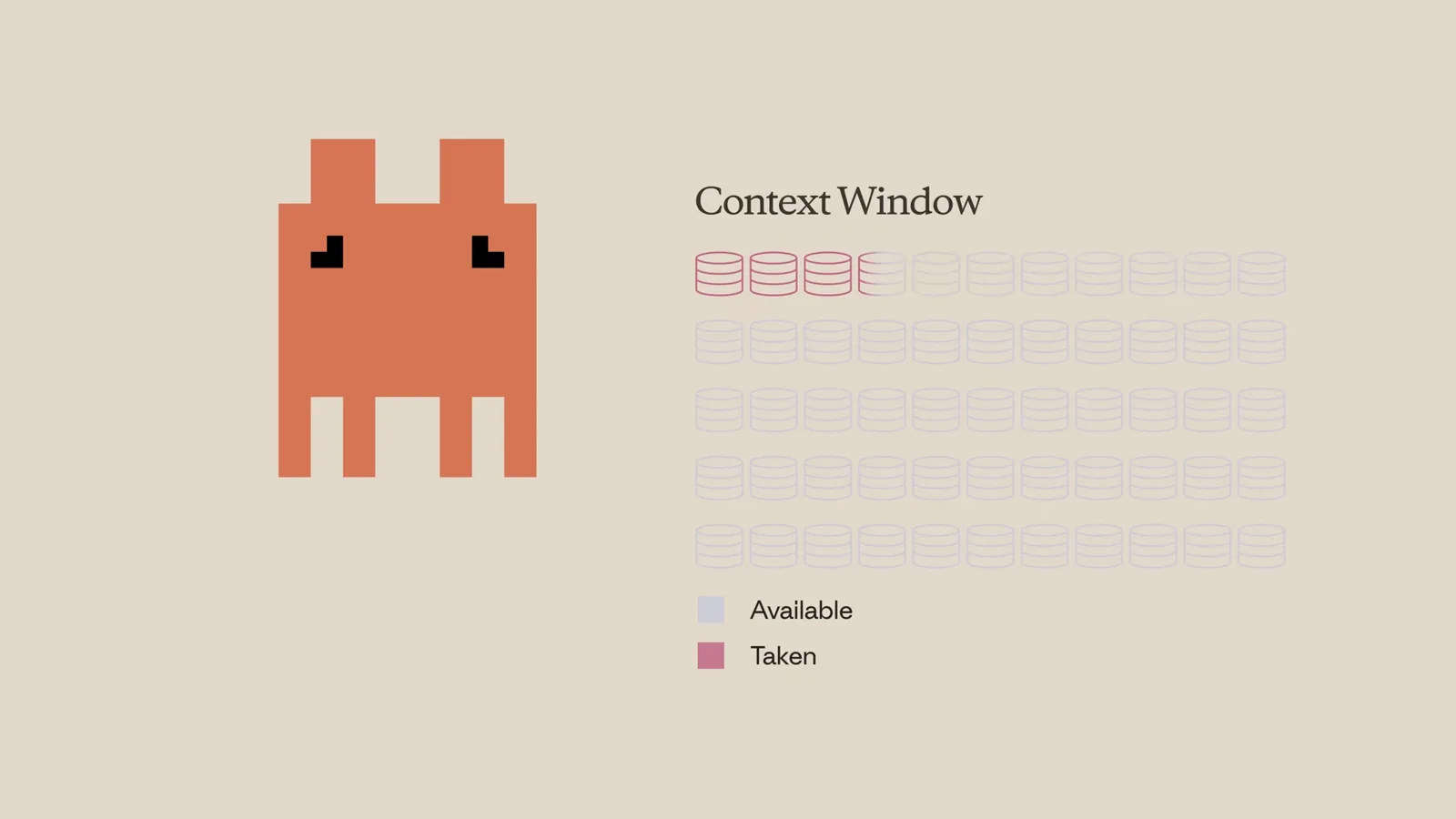
Официальная схема: часть окна уже занята (Taken), остальное ещё доступно (Available).Смотреть с 0:32 - 2
Всё, что делает Claude, добавляется сюда
Каждый ваш промпт, каждое чтение файла, каждый вызов инструмента и его результат добавляются в контекстное окно. Один проход ревью — вроде списка проблем безопасности и прочитанного файла на скриншоте — уже измеримый расход контекста.
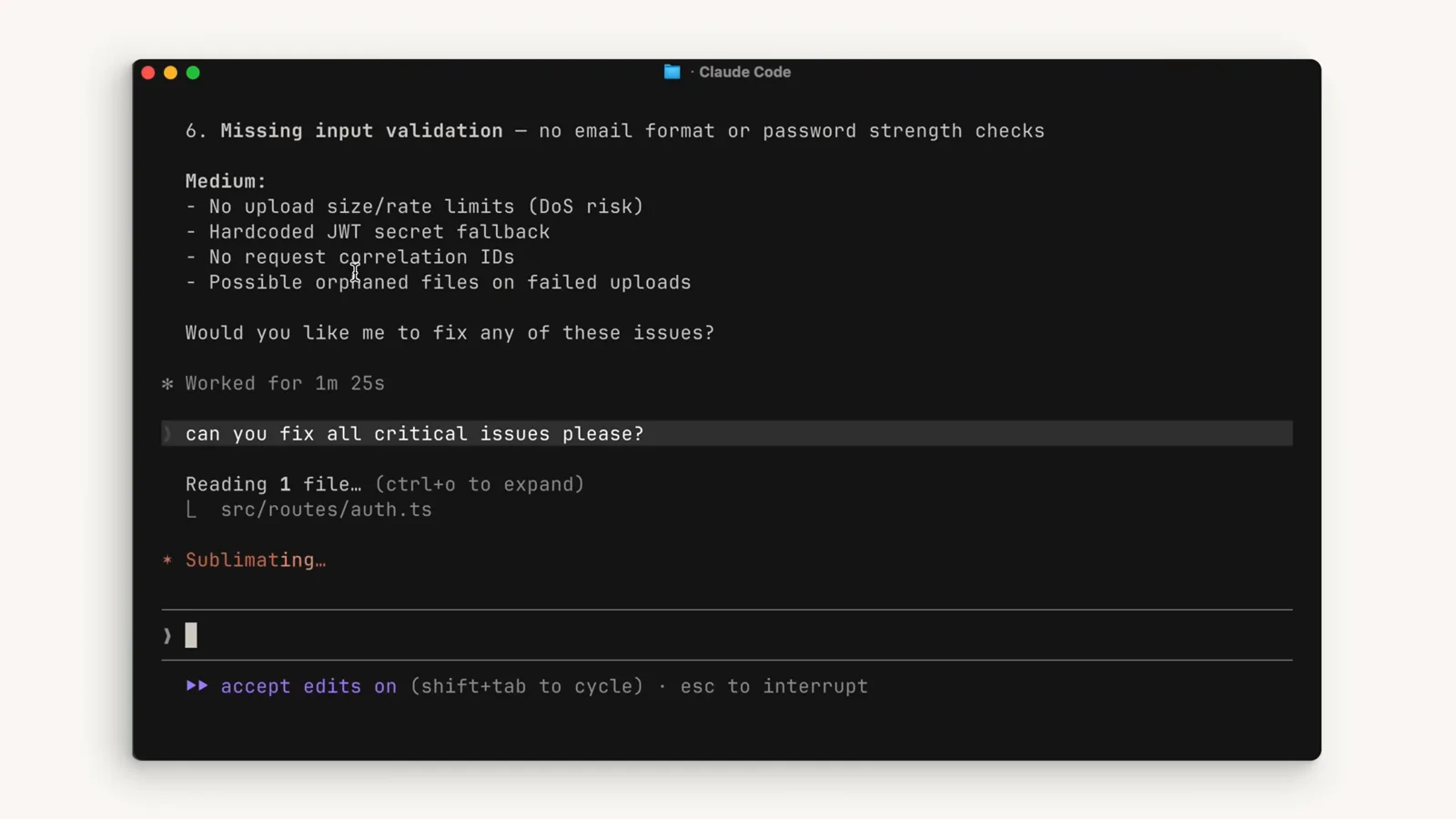
Ревью в процессе: список проблем, прочитанный файл и статус — всё уже в окне.Смотреть с 0:22 - 3
Проверьте счётчик командой /context
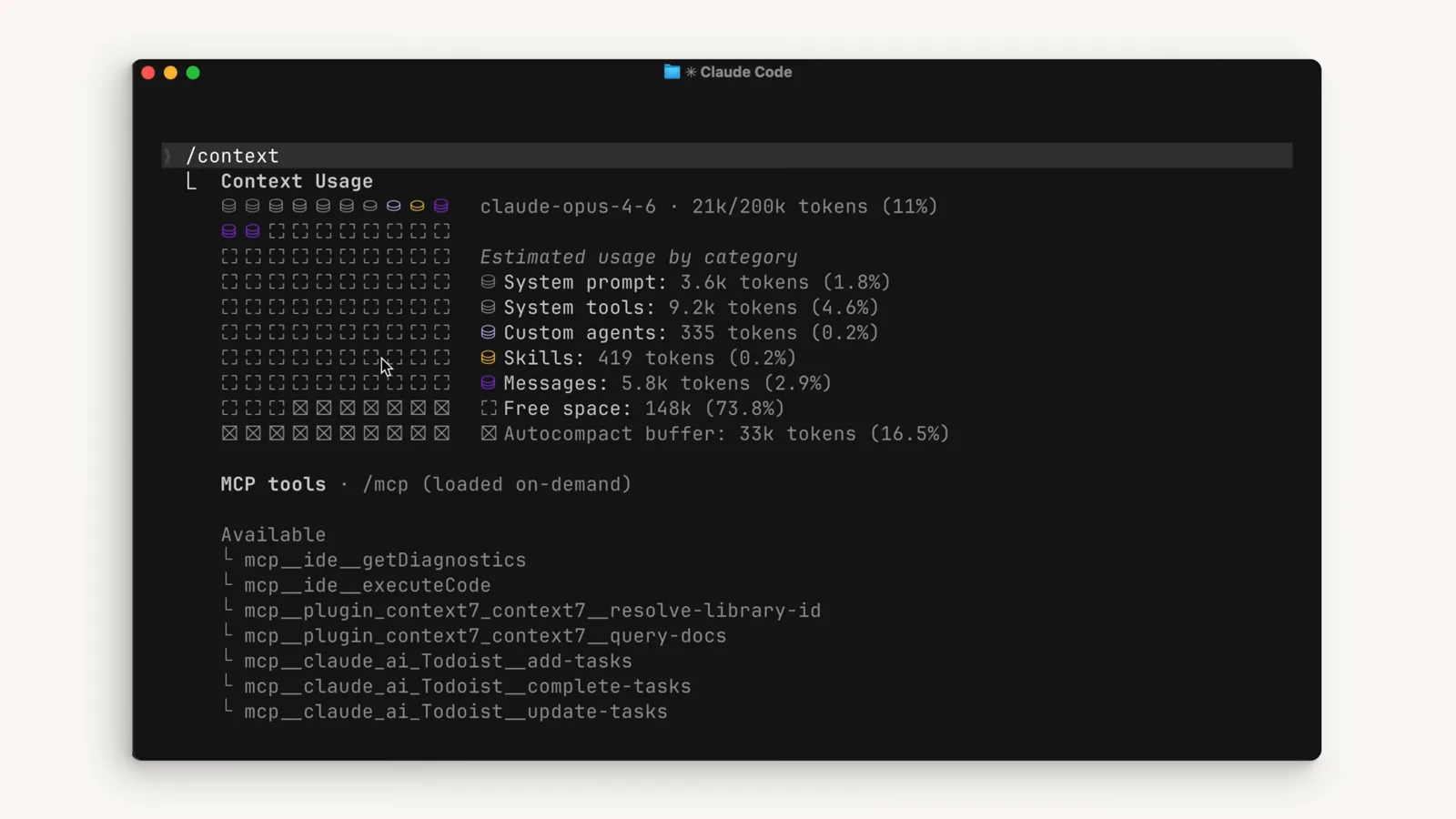
Команда /context даёт общую картину размера контекста: цветную сетку, суммарный расход — здесь 21k из 200k токенов, то есть 11% — и разбивку по категориям: системный промпт, системные инструменты, кастомные агенты, skills, сообщения, свободное место и резерв под автосжатие.
21k из 200k токенов (11%), буфер AutoCompact отложен — ещё 16,5%.Смотреть с 1:32
Автосжатие и ручной /compact
Когда окно кончается, Claude Code делает сводку. Ту же чистку можно запустить вручную командой /compact в выбранный вами момент.
- 4
У предела срабатывает автосжатие
При приближении к лимиту контекстное окно сжимается автоматически: важные детали сводятся в резюме, ненужные результаты инструментов удаляются, освобождается много места. Важная оговорка из видео: при сжатии могут потеряться детали из начала разговора.
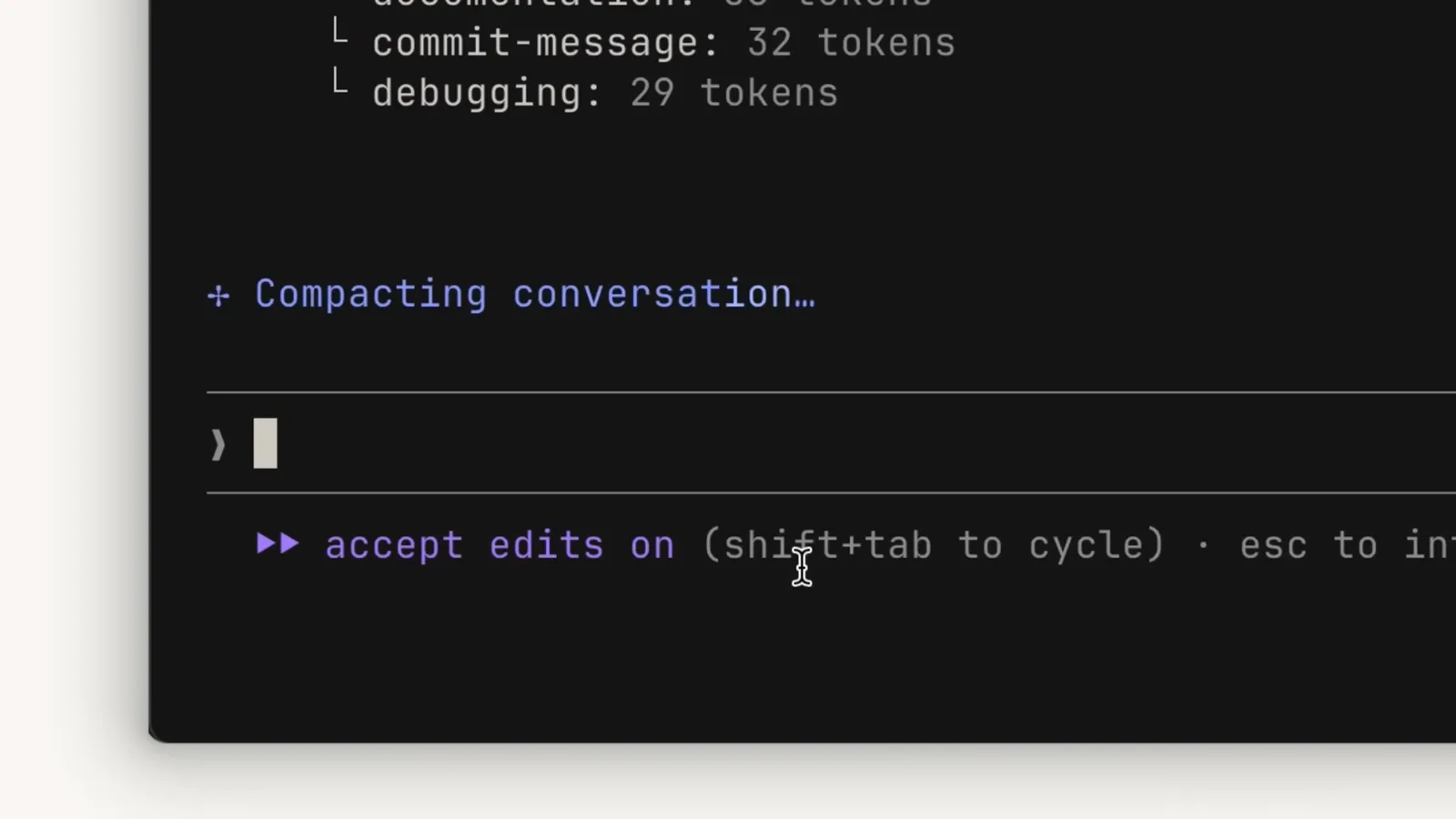
"Compacting conversation…" — автоматическая сводка запустилась сама.Смотреть с 0:44 - 5
Сжимайте вручную командой /compact
Сжатие можно запустить и самому — командой /compact. Она уплотняет всё сделанное к этому моменту: удобно, когда нужно освободить контекст, но сохранить память о проделанной работе. Выбрать момент самому лучше, чем получить автосжатие посреди задачи.
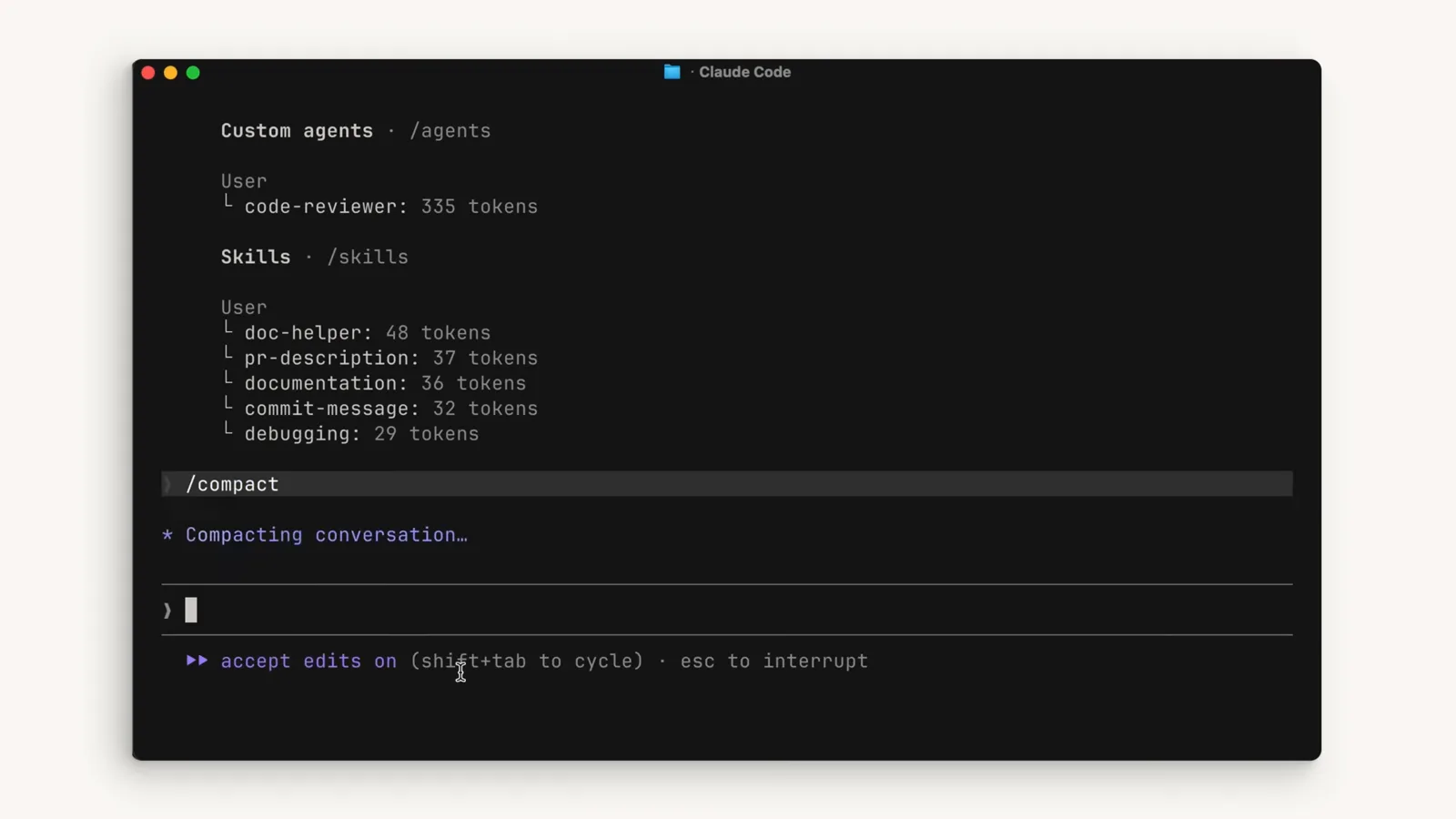
/compact набрана в строке ввода — сводка начинается сразу.Смотреть с 1:04 - 6
Что остаётся после сжатия
После сжатия в переписке остаётся сводка положения дел: раздел Current Work, Optional Next Step и путь к полному файлу-транскрипту .jsonl на диске — на случай, если понадобятся точные фрагменты кода или сообщения об ошибках до сжатия.
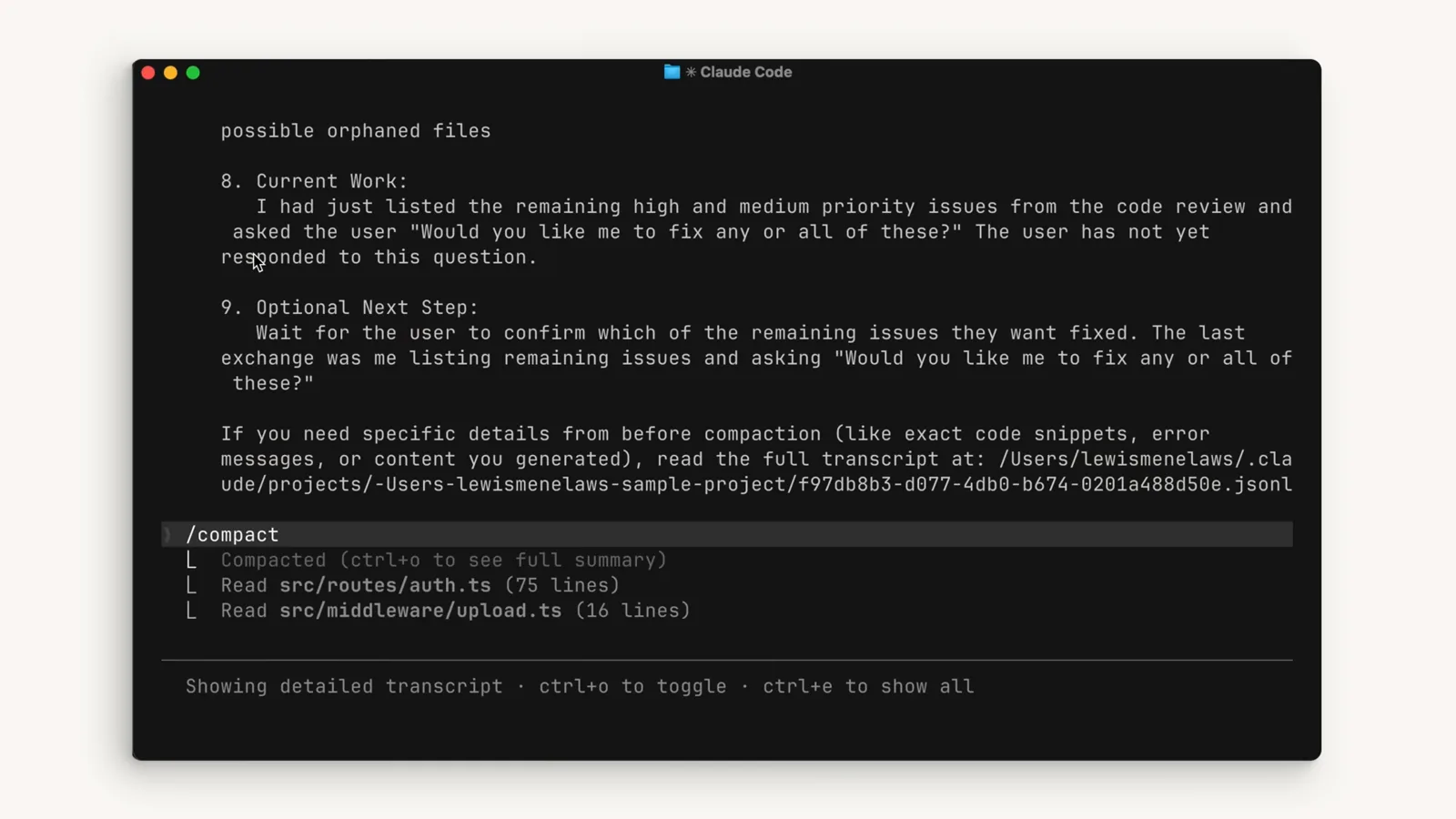
Послесжатая сводка; полный транскрипт сохранён в .jsonl.Смотреть с 0:52 - 7
Продолжайте поверх сводки
Сессия продолжается сразу после сводки: "Conversation compacted (ctrl+o for history)", блок /compact со списком прочитанного — и Claude сразу спрашивает, что осталось сделать. Функция сохраняет темп, а окно избавлено от балласта старых результатов.
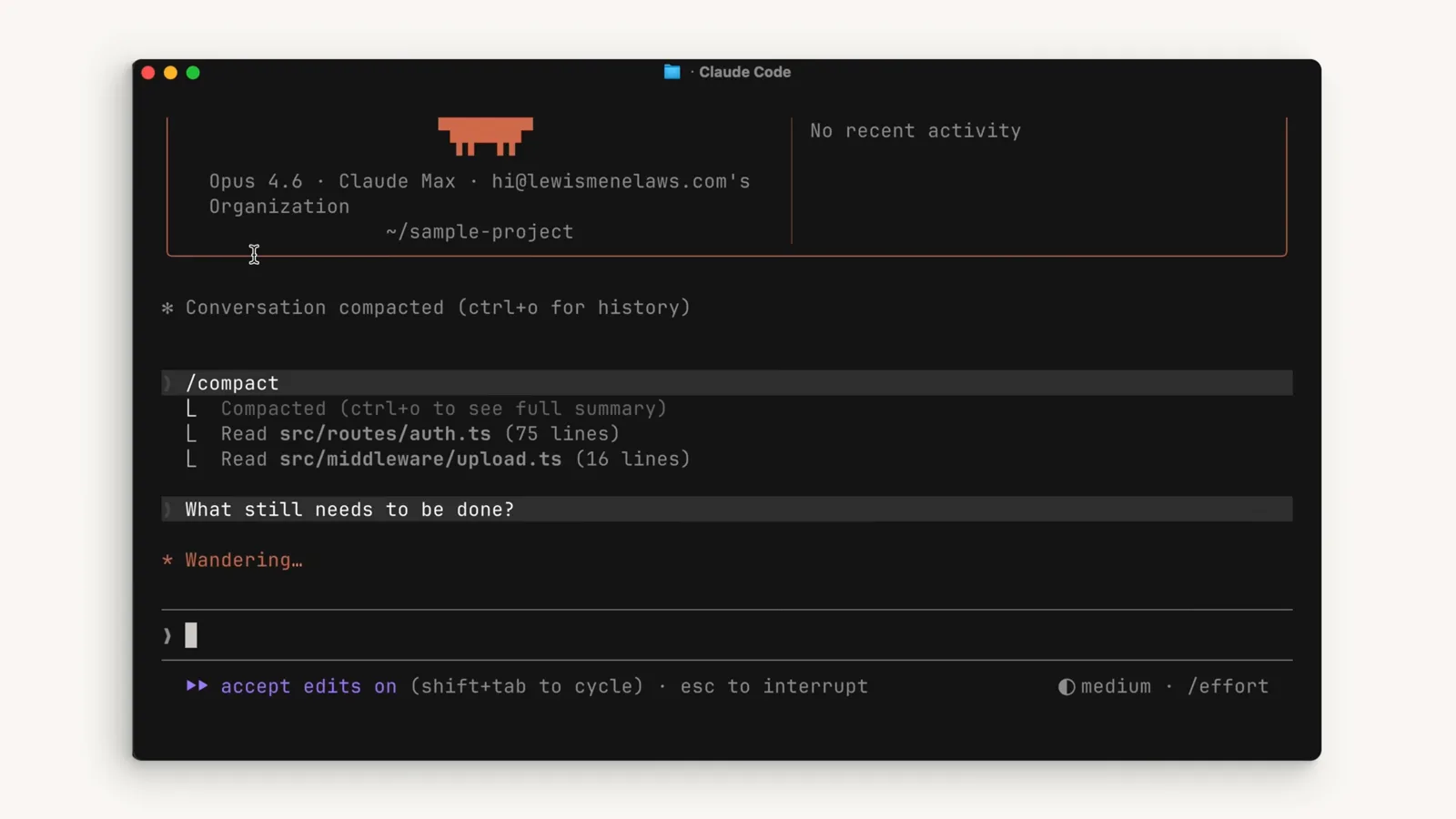
"What still needs to be done?" — та же задача, но окно легче.Смотреть с 1:46
Когда лучше очистить
Новому функционалу нужен чистый лист — старый контекст только вносит искажения.
- 8
Две команды — два замысла
Слэш-меню формулирует разницу прямо: /compact очищает историю, но оставляет в контексте сводку, а /clear освобождает контекст целиком. Правило из ролика: продолжаете ту же функцию и упёрлись в лимит — сжимайте; закончили и начинаете новое — очищайте, чтобы старый разговор не искажал новую работу.
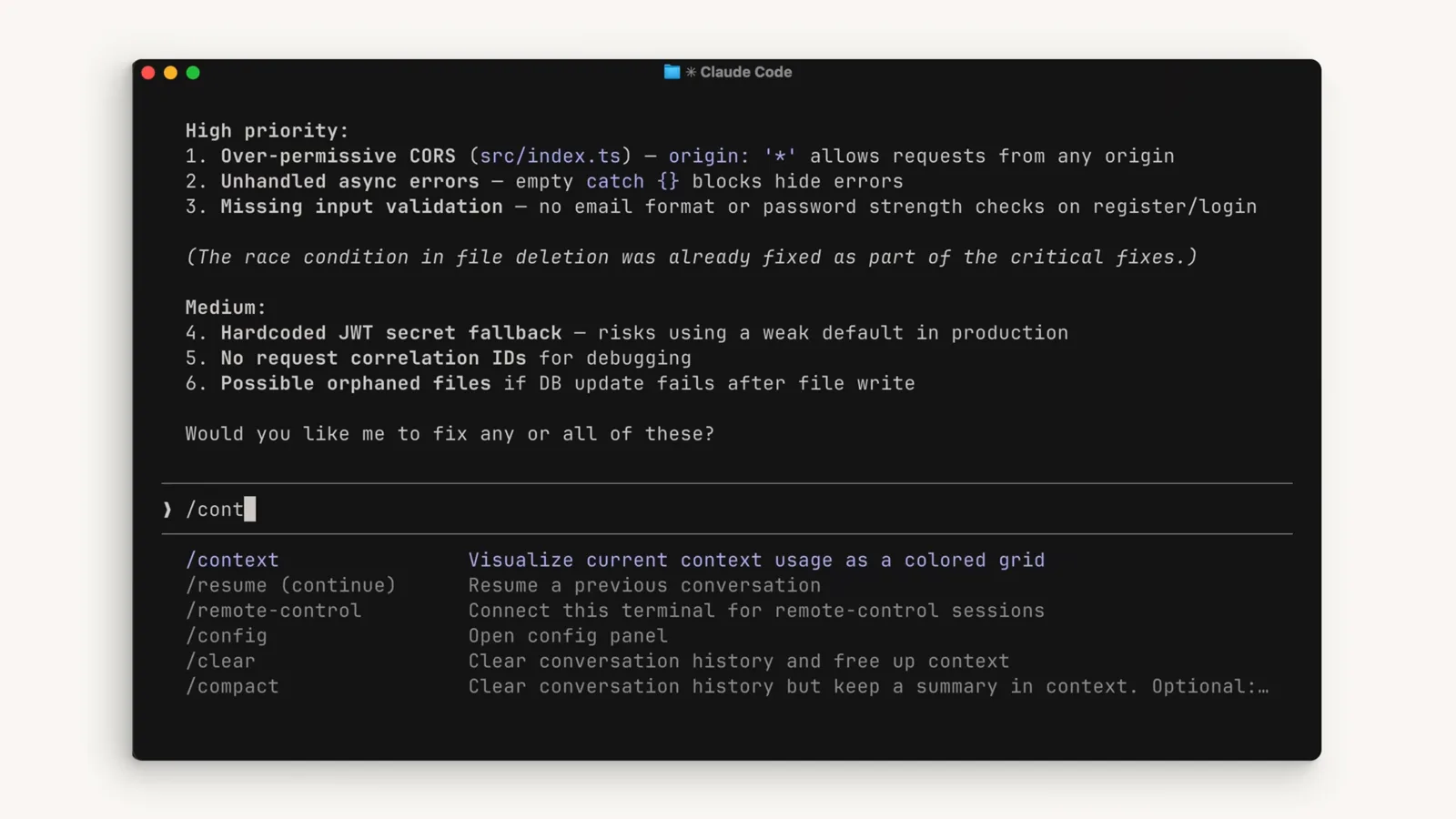
Описания команд всё объясняют: сводка сохраняется или всё стирается.Смотреть с 1:24 - 9
/clear запускает с чистого листа
После /clear удаляется всё — сессия возвращается на экран приветствия без содержимого и без недавней активности. Ничего из прошлого разговора не просочится в то, что вы будете делать дальше.
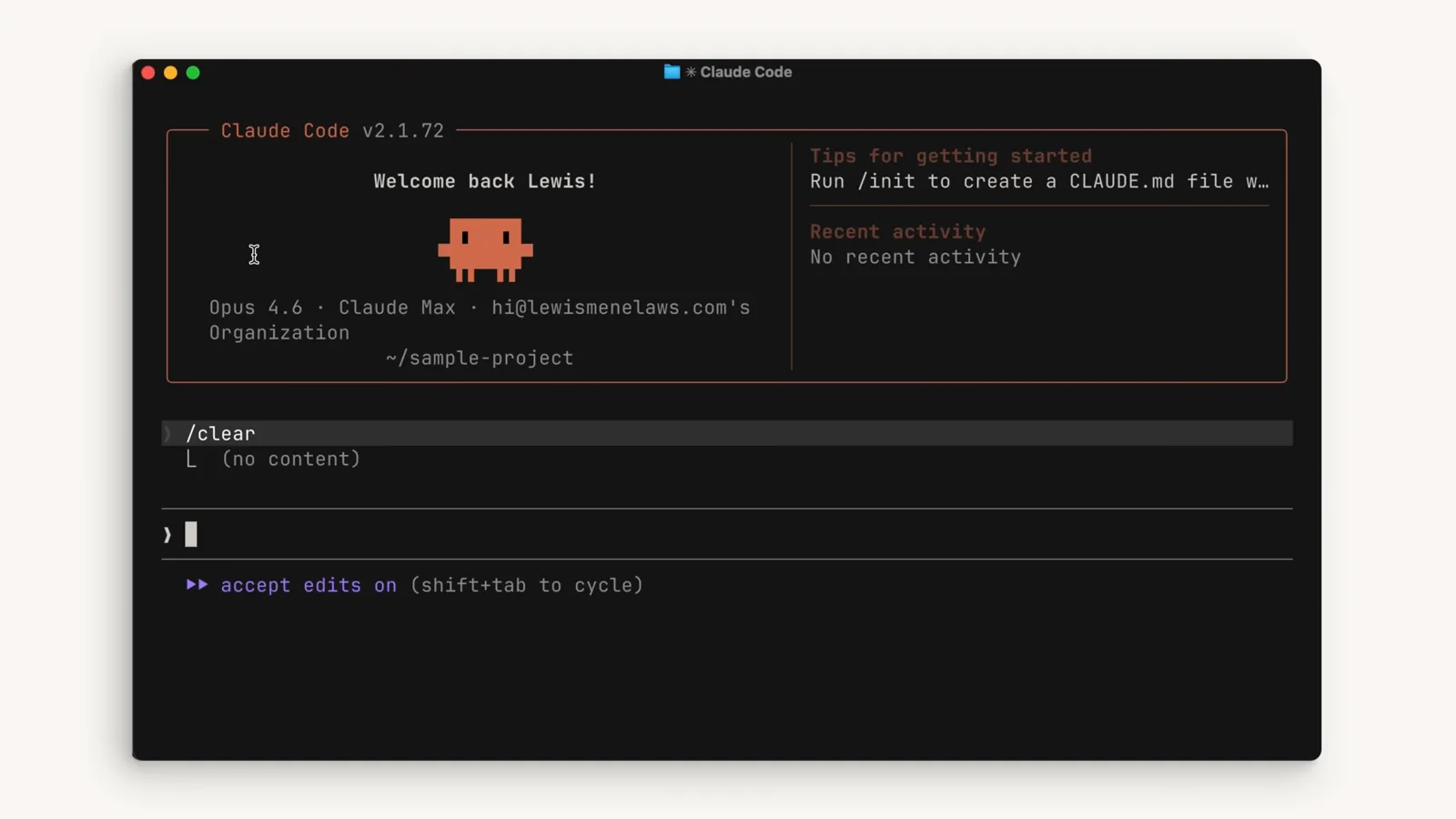
Сразу после /clear: без содержимого, без активности — пустое окно.Смотреть с 1:54
Привычки, которые держат контекст компактным
CLAUDE.md для памяти, меньше MCP-инструментов, skills по требованию и субагенты для «путешествий», которые вам не нужны.
- 10
Долговременную память — в CLAUDE.md
То, что Claude должен помнить и в других сессиях, пишите в файл CLAUDE.md — команды проекта, договорённости, заметки по архитектуре. Тогда ему не придётся заново открывать их с нуля каждую сессию, а знание не зависит от того, переживёт ли историю разговора очередное сжатие.
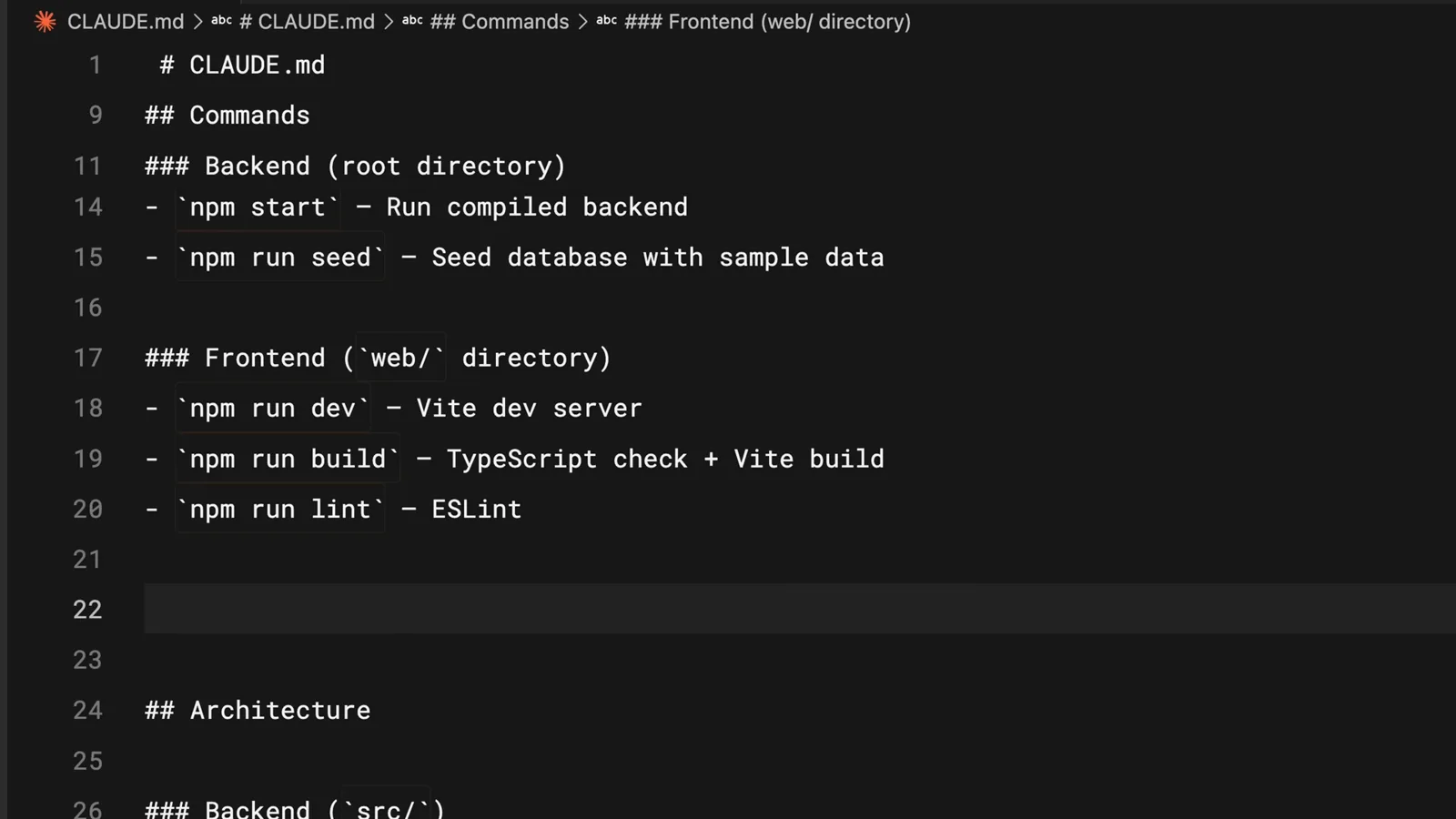
CLAUDE.md переносит команды и архитектуру проекта из сессии в сессию.Смотреть с 2:02 - 11
Отключайте ненужные MCP-серверы
MCP-серверы по умолчанию загружают в контекст все свои инструменты — в этом аудите страницы подряд заняты инструменты Slack и Notion. Если у вас подключены MCP-серверы, не относящиеся к проекту, их отключение — одна из самых дешёвых экономий контекста.
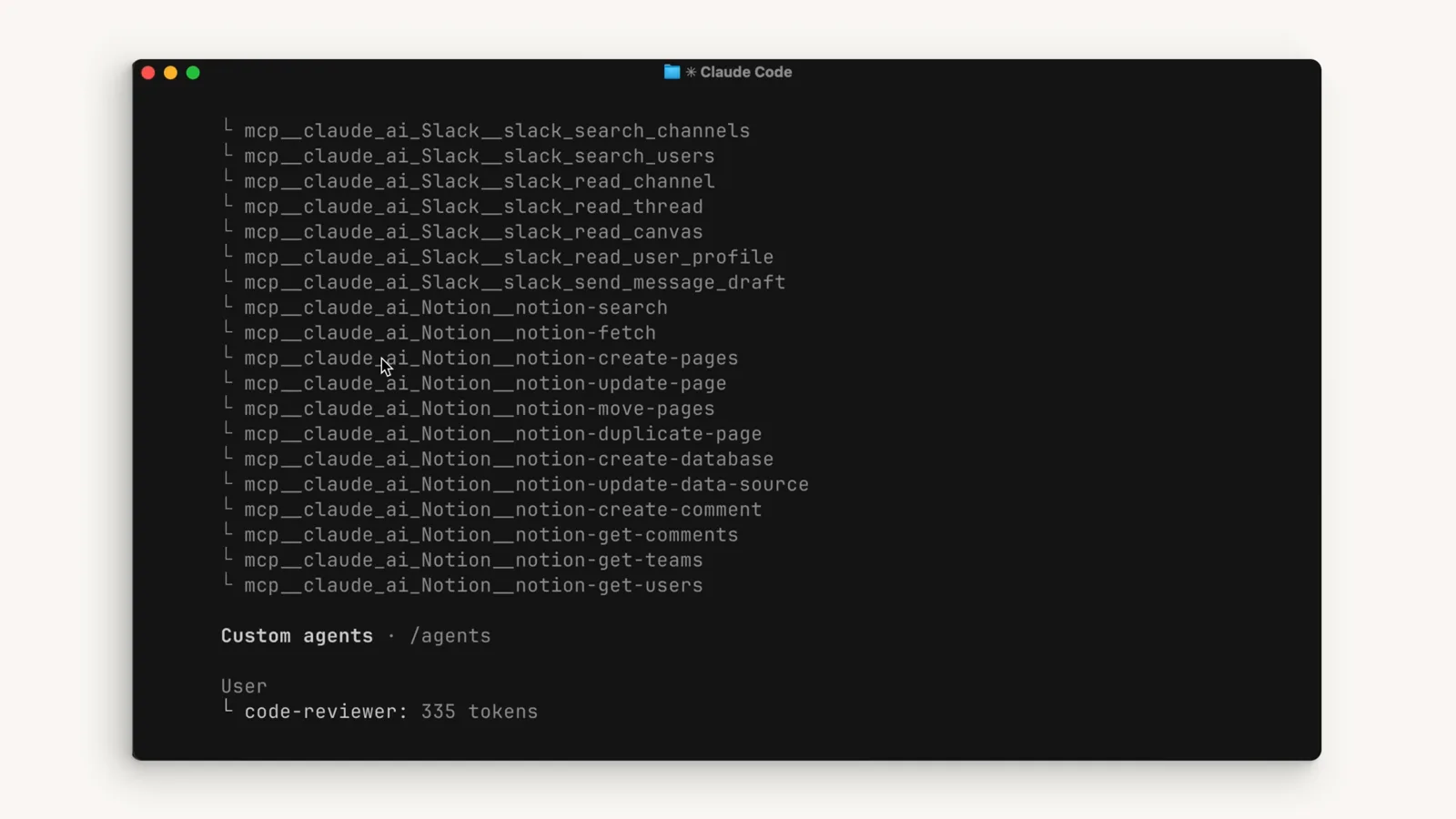
Каждый загруженный MCP-инструмент занимает контекст — используете вы его или нет.Смотреть с 2:28 - 12
Выбирайте skills вместо постоянно включённых инструментов
Skills работают похоже на MCP-серверы, но не загружают всё содержимое в контекст: файл SKILL.md лежит на диске, пока skill действительно не понадобится. Перенос повторяющихся сценариев из всегда загруженных инструментов в skills освобождает окно для самой работы.
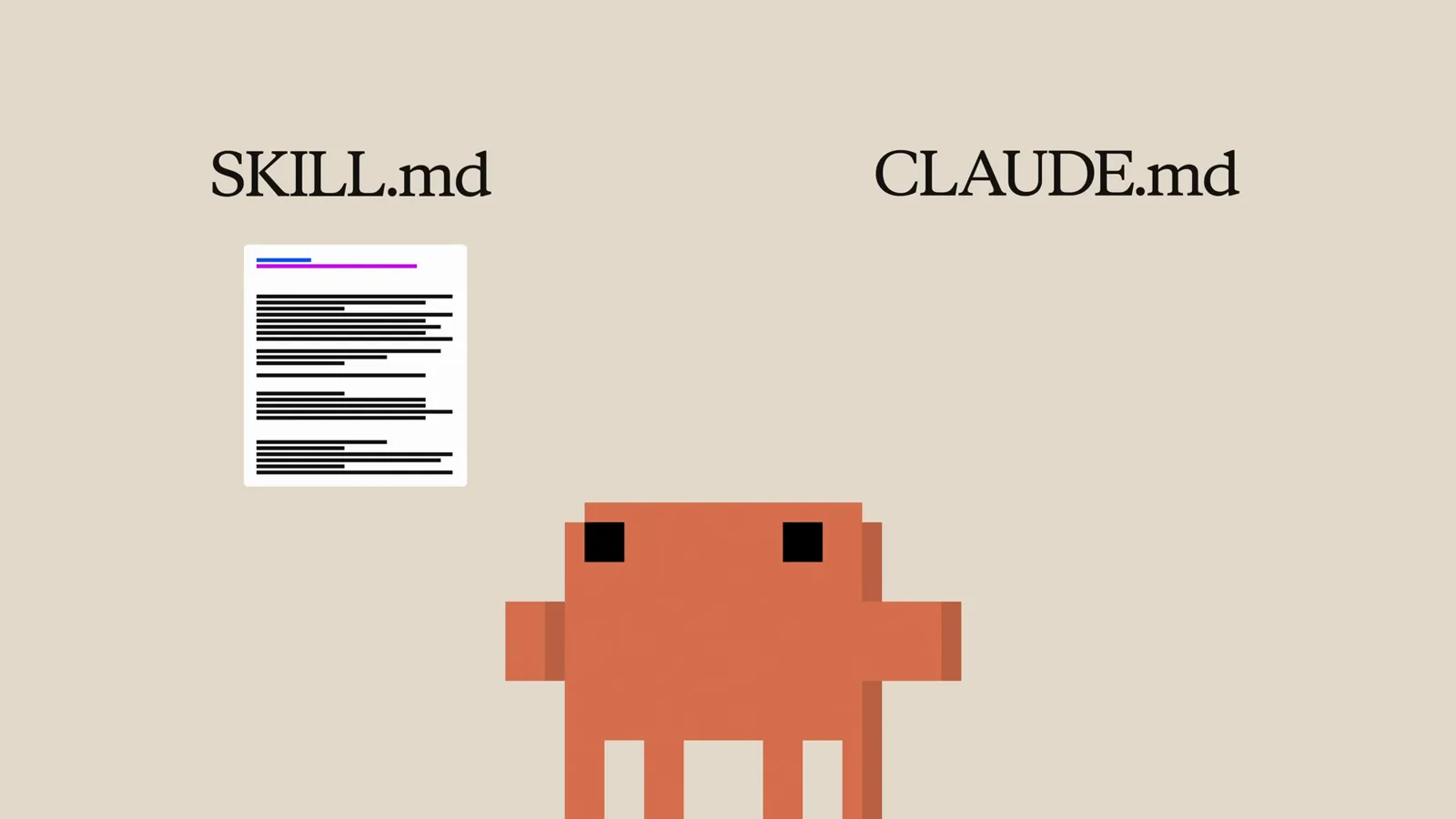
SKILL.md против CLAUDE.md: загрузка по требованию вместо постоянного присутствия.Смотреть с 2:43 - 13
Отдавайте «путь» субагенту
Субагенты работают в полностью отдельном контекстном окне и возвращают основному агенту только сводку. Если вам нужен лишь ответ — «где находятся эндпоинты аутентификации?» — пусть копается субагент: тогда исследование никогда не засорит основной разговор.
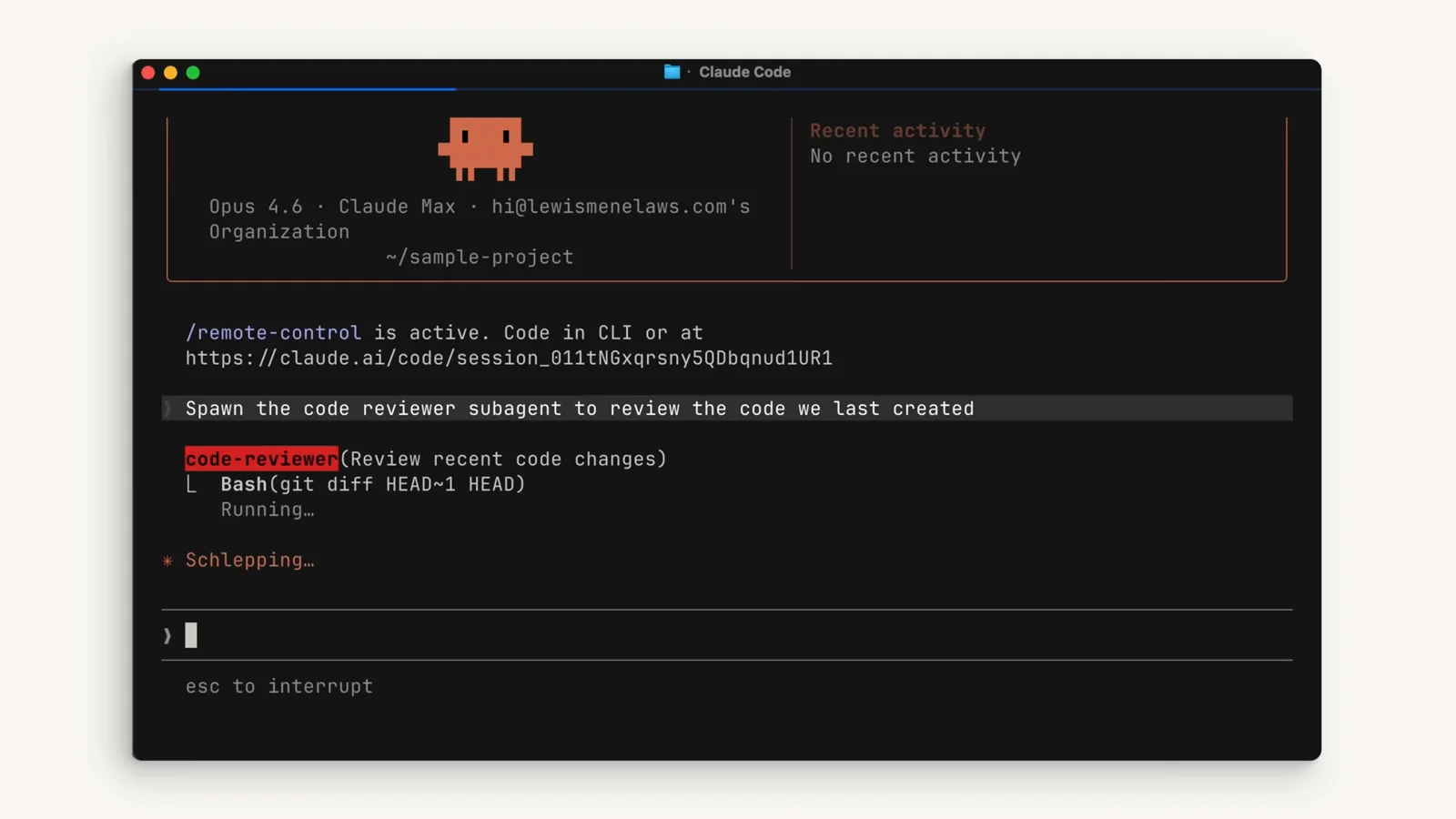
"Spawn the code reviewer subagent…" — ревью идёт в собственном окне.Смотреть с 2:52