
Illustrated walkthrough
Install Claude Code on Windows (WSL): From wsl --install to Your First Session
A step-by-step illustrated walkthrough of setting up Claude Code inside WSL on Windows 11 - enabling WSL 2, installing the CLI in Ubuntu, signing in and choosing a plan, trusting your project folder, and reading the usage meters.
5 min read · 14 illustrated steps
The short version
Run wsl --install in PowerShell to get WSL 2 with Ubuntu, then inside Ubuntu install Claude Code with one command: curl -fsSL https://claude.ai/install.sh | bash. First run picks a theme, a login method and a plan in the browser, and the authorization code comes back to the terminal. Trust your project folder - Claude Code can read Windows files through /mnt/c - and check your usage any time with /cost. The docs also list a native Windows install (irm https://claude.ai/install.ps1 | iex) if you do not want WSL.
Source video
Every frame on this page comes from Draeger-IT's screen recording - a Windows 11 machine with German UI, WSL 2 and Ubuntu, Claude Code 2.1.198 at install time, recorded in July 2026.
Frames are used with attribution and each step links back to the exact second in the video. The German narration is not quoted - the text above was written from the screen contents and cross-checked against code.claude.com/docs.
Part 1 · Prepare WSL on Windows 11
Claude Code runs inside the Linux subsystem, so WSL 2 comes first. The recording's Windows UI is German - menu wording on your machine may differ slightly.
- 1
Run wsl --install
Open PowerShell and type wsl --install. On a machine without WSL this pulls the Windows Subsystem for Linux; the recording's machine already had partial components, so the German output explains which optional feature to enable.
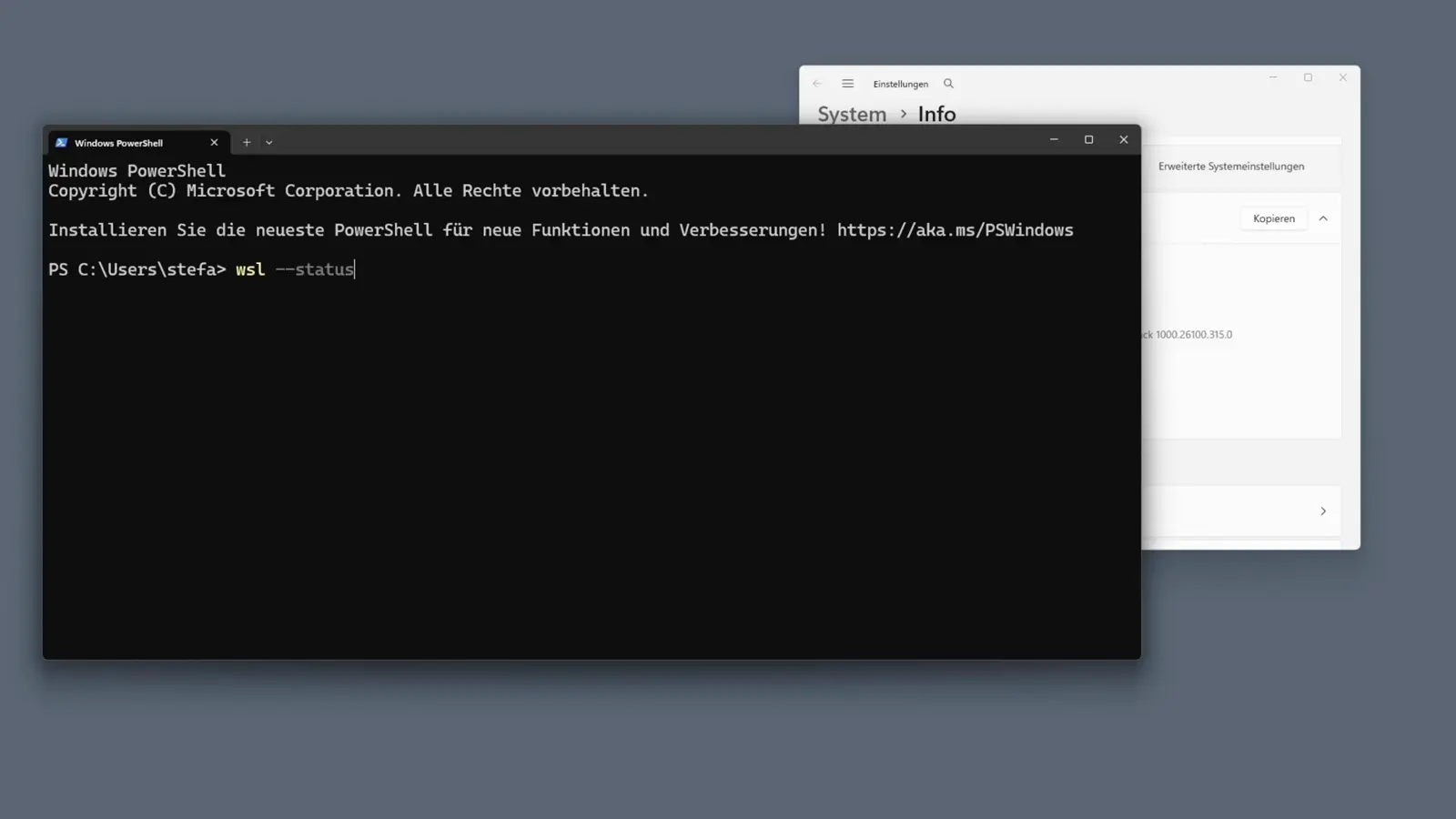
The prompt shows PS C:\Users\stefa> - PowerShell, not CMD.Watch at 0:15 - 2
Confirm WSL 2 is the default
The output names the default WSL version - 2 - and, on the recording's machine, suggests wsl --install --web-download to fetch the components. WSL 2 is what gives you a real Linux kernel, which is what Claude Code and tools like Docker expect.
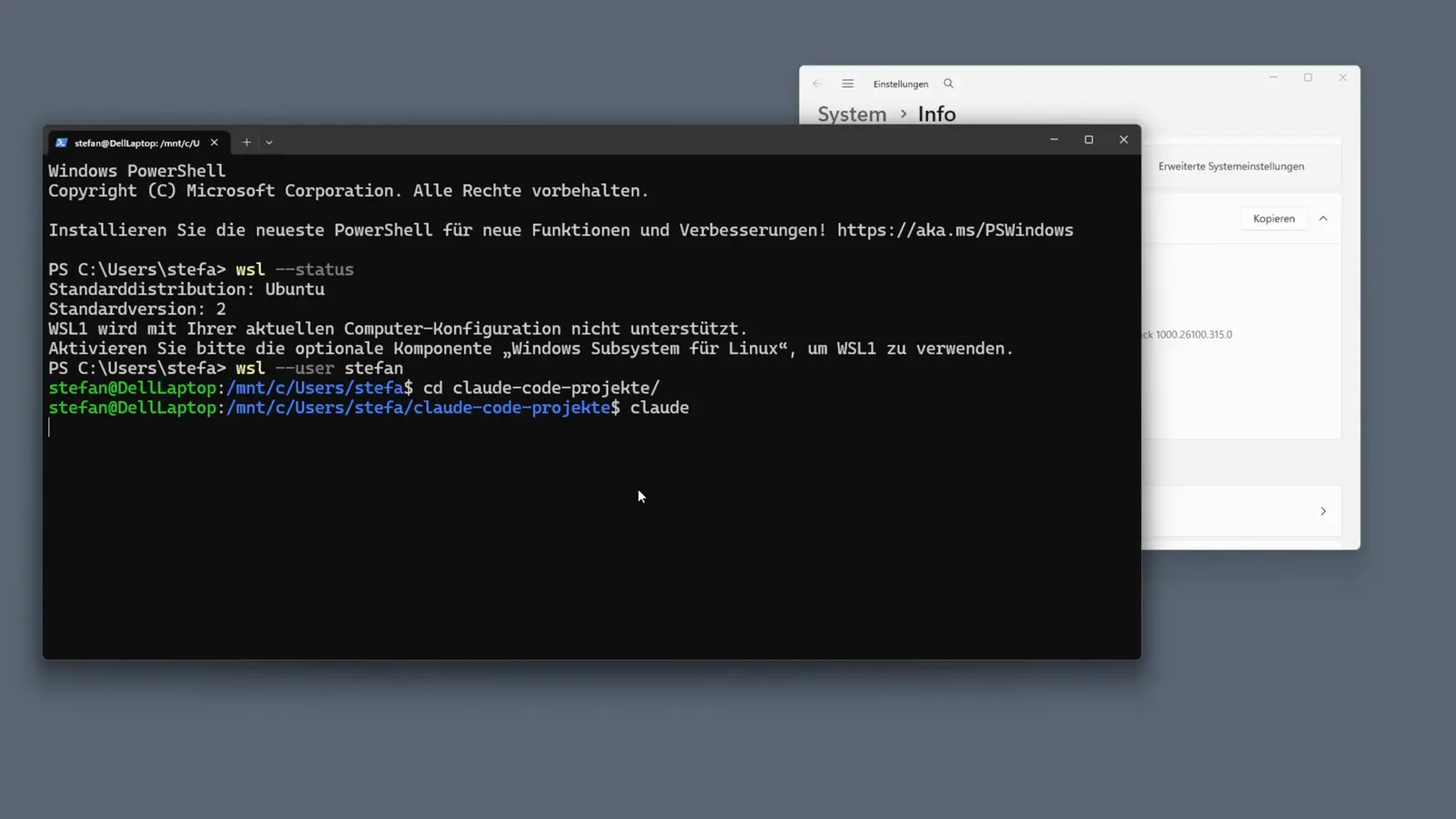
If WSL is already installed, wsl --version prints the version instead - both outcomes are fine.Watch at 0:45 - 3
Pick the install method in the docs
The quickstart's Step 1 lists one command per platform: macOS, Linux and WSL share curl -fsSL https://claude.ai/install.sh | bash, while Windows PowerShell uses irm https://claude.ai/install.ps1 | iex and Windows CMD has its own curl line. Inside WSL you want the macOS/Linux one.
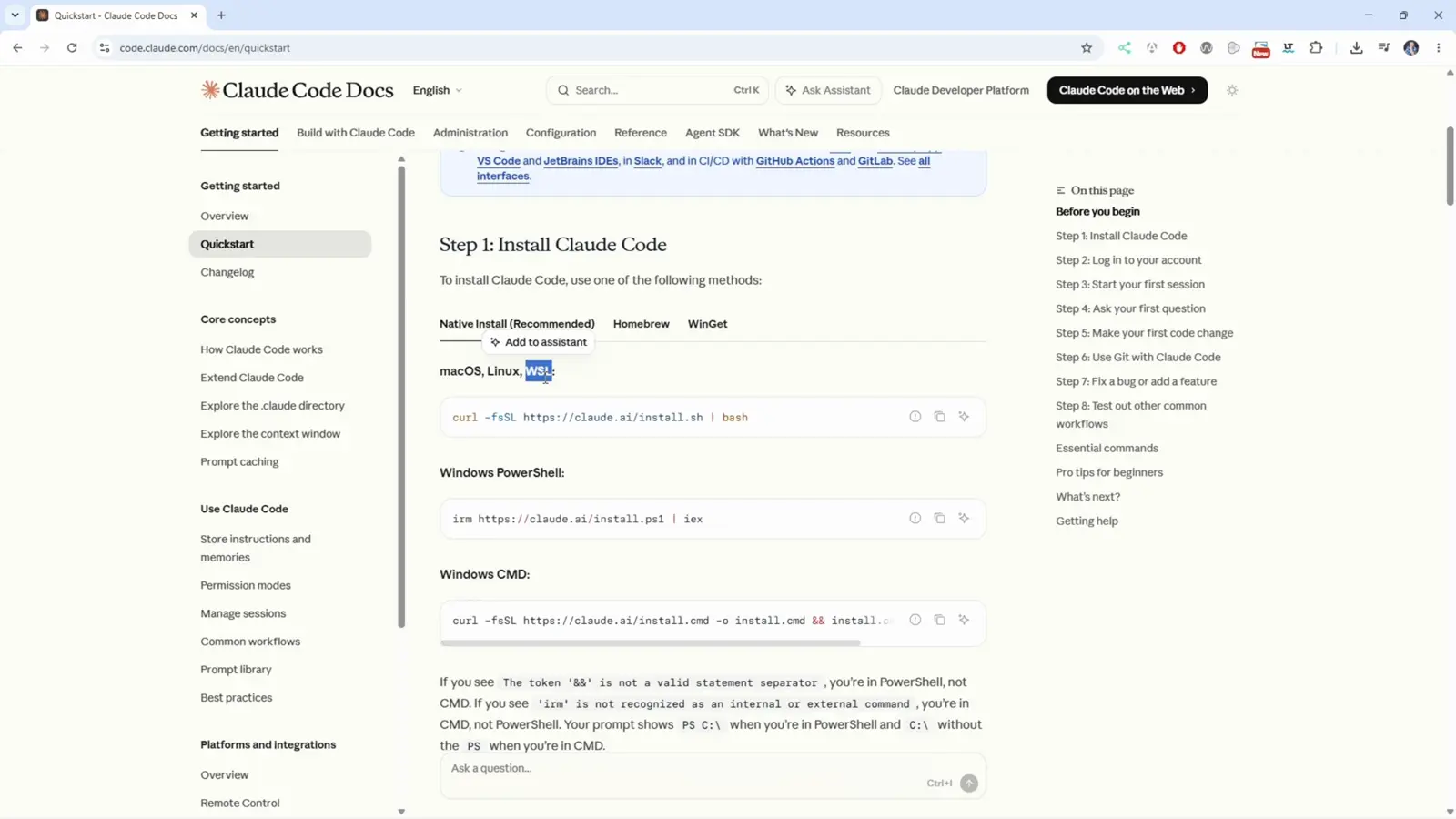
The docs also link VS Code and JetBrains IDE integrations for later.Watch at 2:35
Part 2 · Install the CLI inside Ubuntu
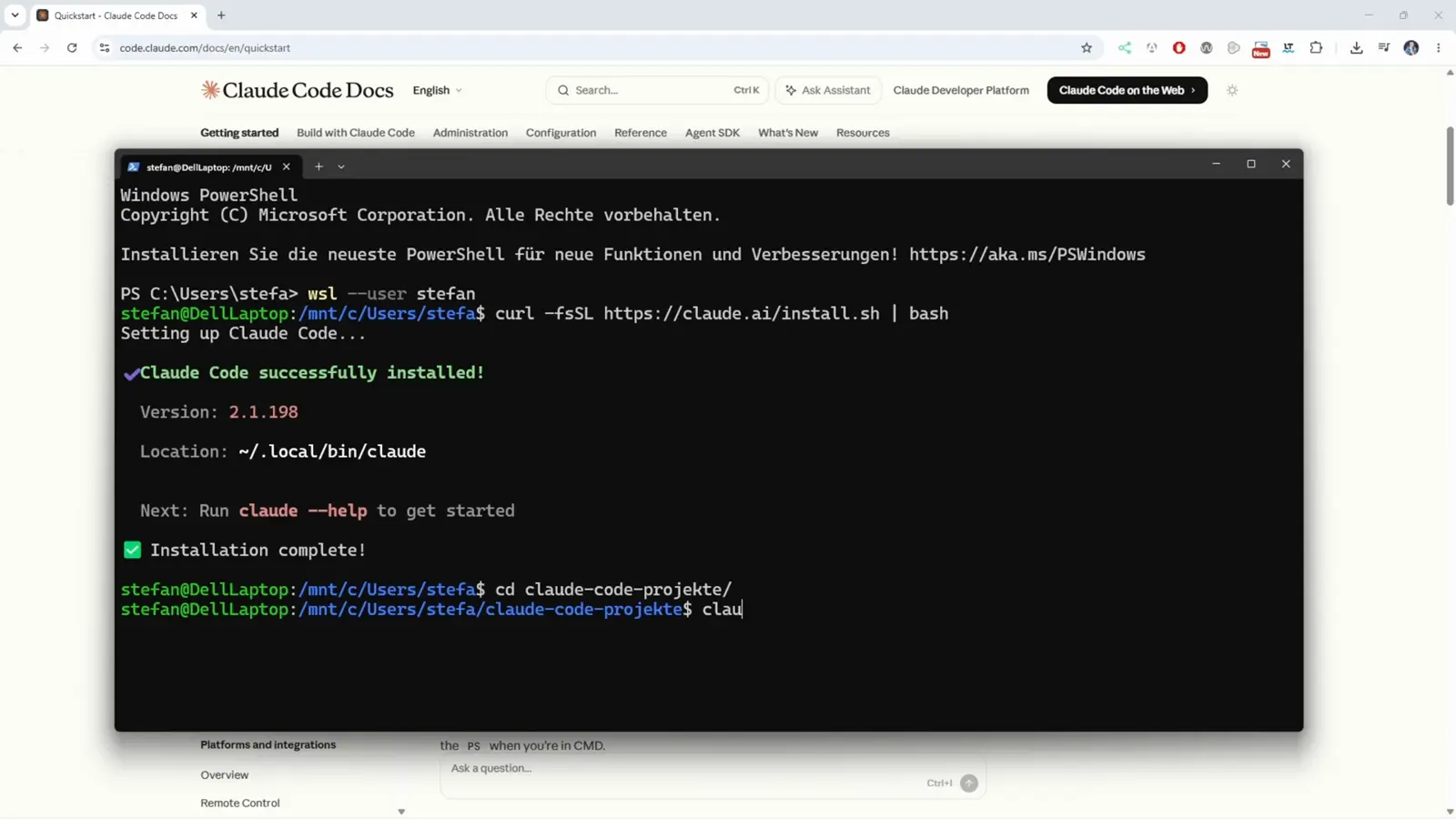
The quickstart lists one command per platform; inside WSL you use the same macOS/Linux curl line.
- 4
Run the curl script inside Ubuntu
In the Ubuntu terminal the recording runs curl -fsSL https://claude.ai/install.sh | bash and gets the full success banner: Claude Code successfully installed, Version 2.1.198, Location ~/.local/bin/claude, Next: Run claude --help to get started, Installation complete! Then it changes into a project folder, claude-code-projekte.
The prompt stefan@DellLaptop:/mnt/c/Users/stefa shows Ubuntu working on the mounted Windows drive.Watch at 2:55 - 5
Pick the terminal theme
First claude run opens the theme picker - Choose the text style that looks best with your terminal - with Dark mode preselected and a live Hello World preview. The recording keeps Dark mode and presses Enter.
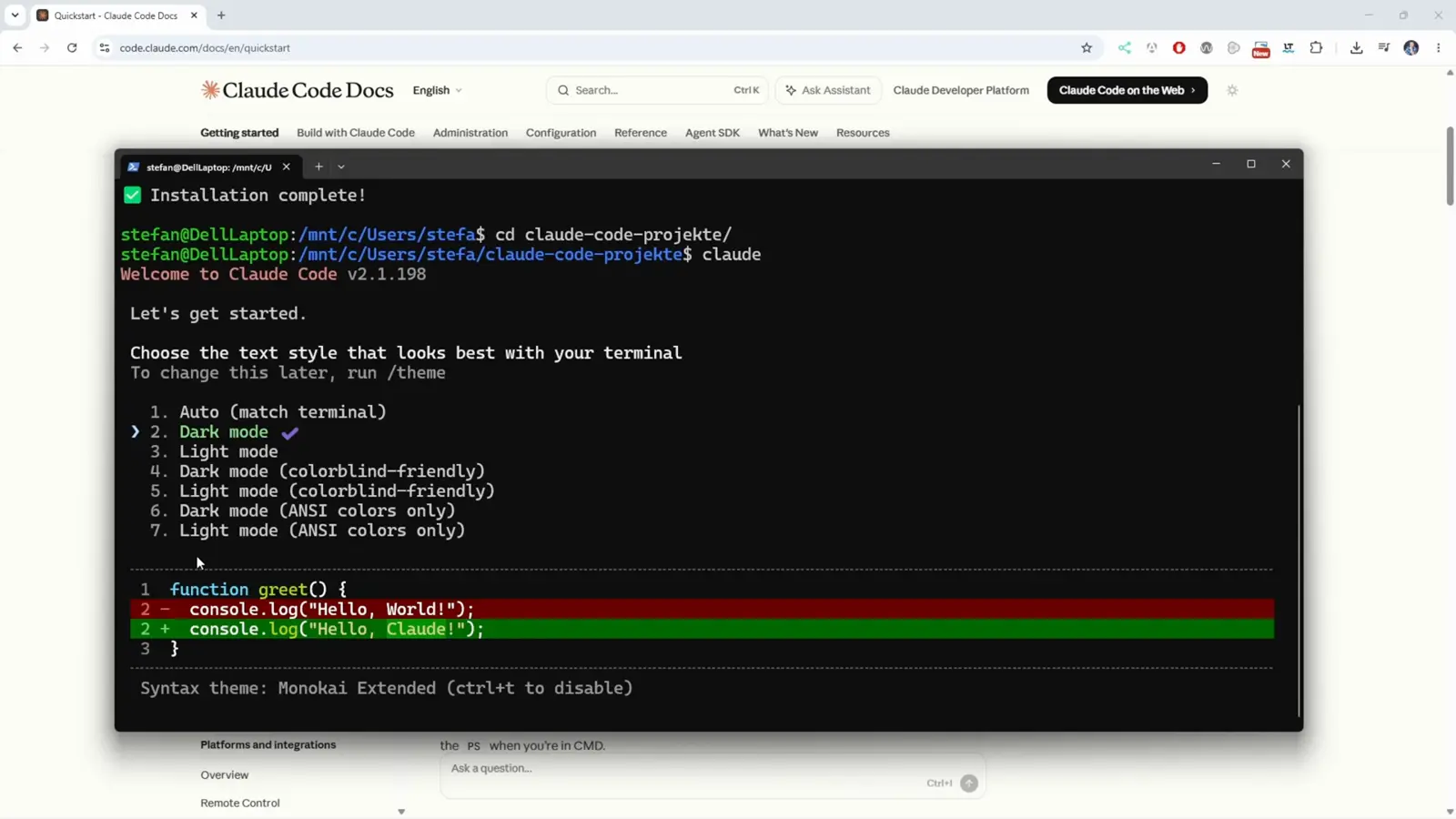
Six styles cover light, colorblind-friendly and ANSI-colors-only terminals.Watch at 3:10
Part 3 · Sign in and choose a plan
The first claude run walks you through a theme, a login method, a browser sign-in and a plan - then hands an authorization code back to the terminal.
- 6
Select the login method
Next screen: Claude Code can be used with your Claude subscription or billed based on API usage through your Console account. The three options are 1. Claude account with subscription (Pro, Max, Team, or Enterprise), 2. Anthropic Console account (API usage billing), 3. a 3rd-party platform (Amazon Bedrock, Microsoft Foundry, or Vertex AI). The recording picks option 1.
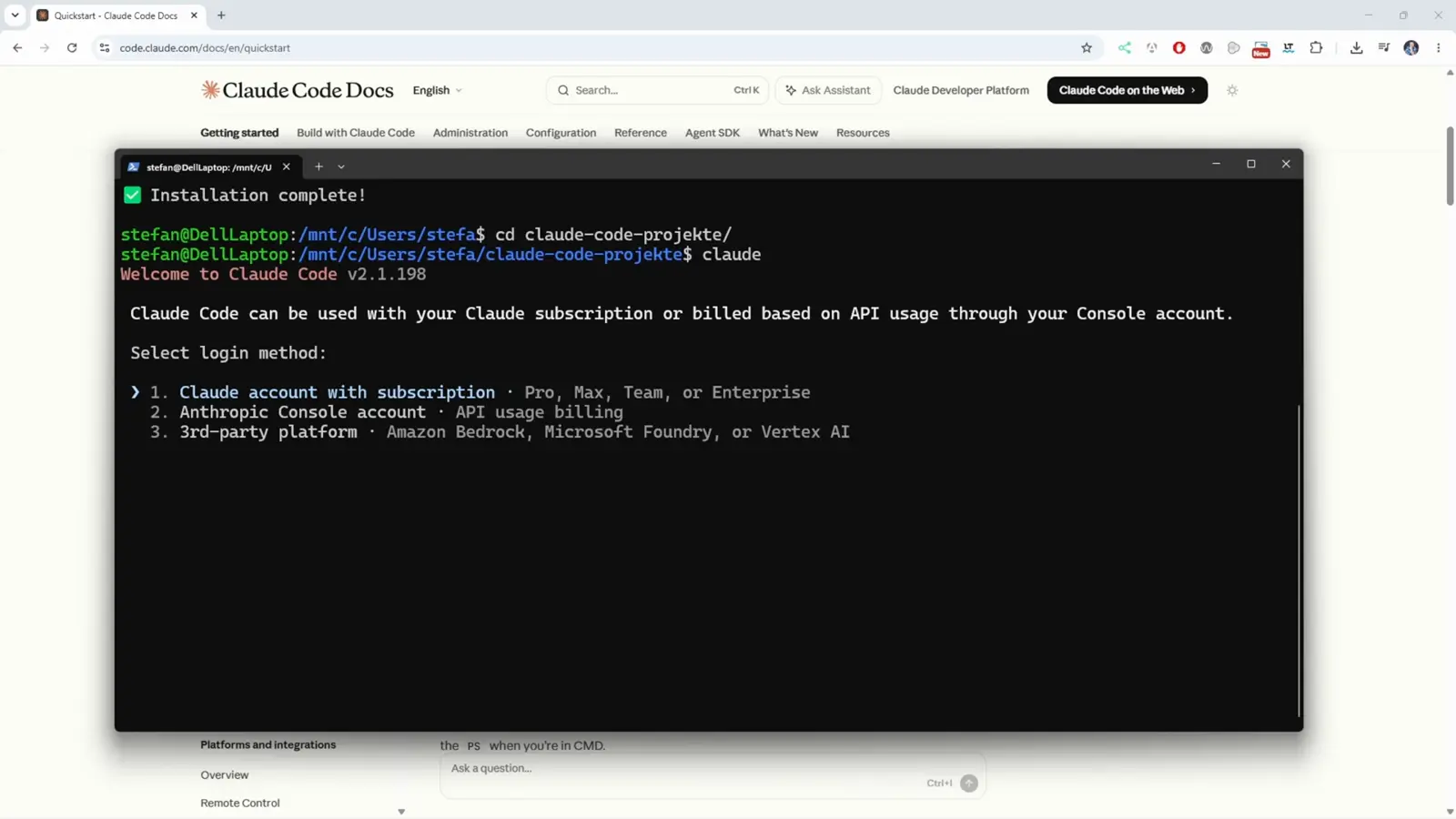
Subscription accounts are the common path; Console billing is for API-only usage.Watch at 3:15 - 7
Approve in the browser, paste the code back
Claude Code prints a browser URL and waits: Paste code here if prompted. Open the URL, sign in - the recording's German browser shows Anmelden with Mit Google fortfahren and Mit E-Mail fortfahren - and Claude hands you a one-time authorization code to paste into the terminal.
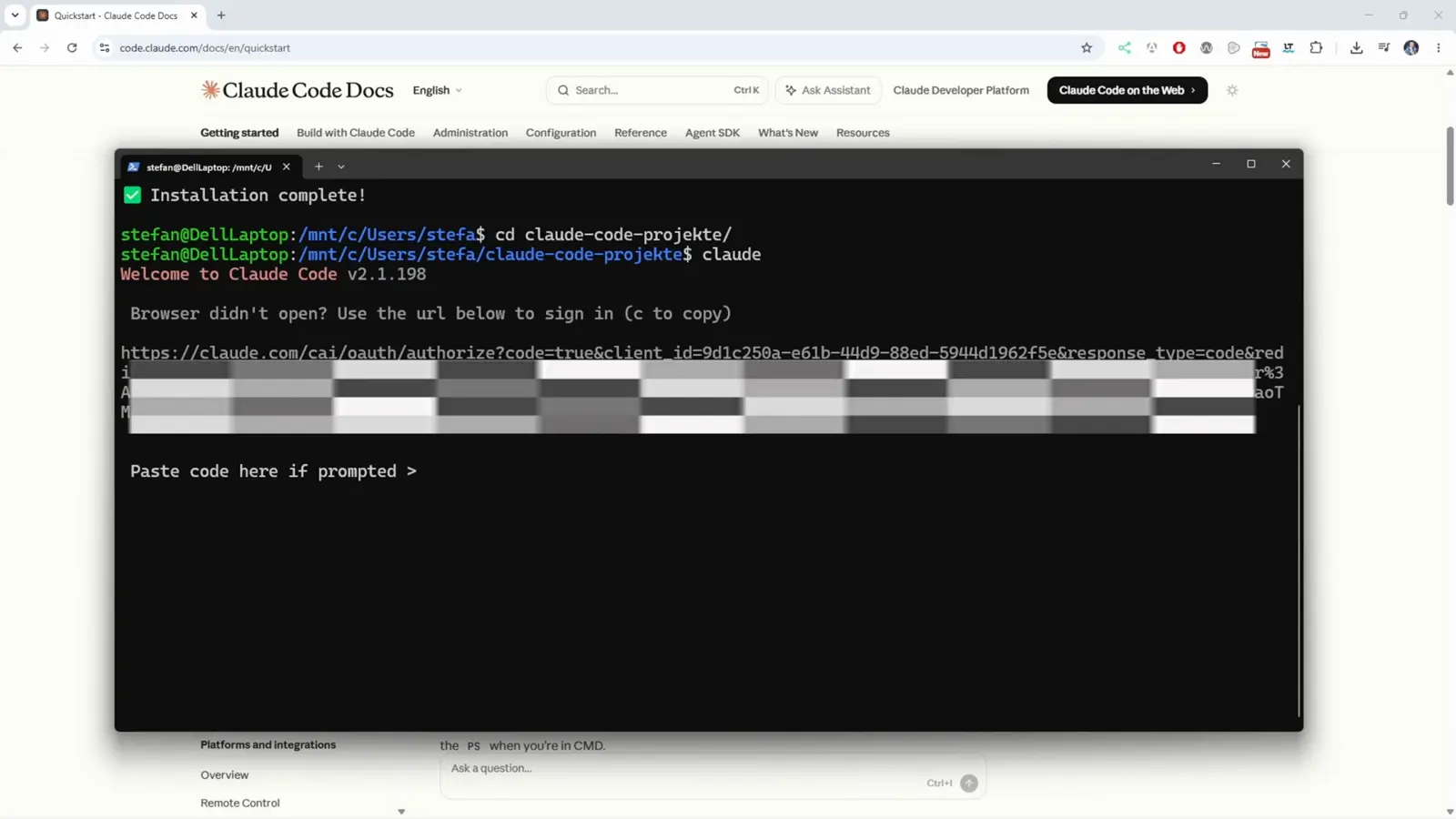
The recording pixelates the URL and code - both are session-specific, so yours will differ.Watch at 3:25 - 8
Sign in with your account
The browser login page offers your usual sign-in methods - in the recording, a Google account. After signing in you land on the plan chooser.
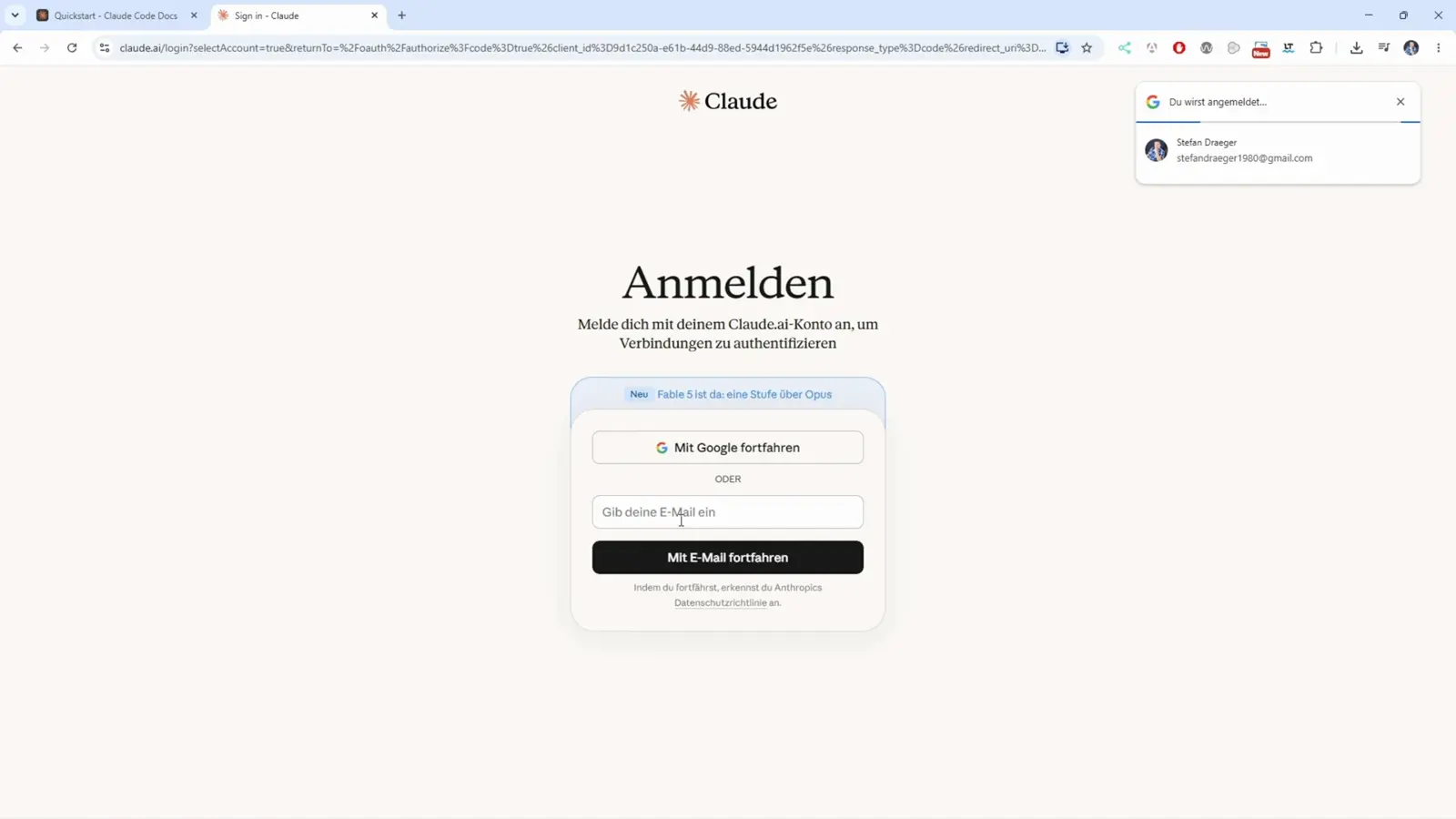
The account chooser popup appears because the browser already had a session.Watch at 3:40 - 9
Choose a Claude plan
The plan page lines up Free ($0, limited capacity, occasional use), Pro ($20/month or annual, Standard capacity, regular use) and Max ($200, 5x Pro capacity per session, frequent users who work with Claude on a variety of tasks). Existing subscribers skip this - the recording only walks through it once.
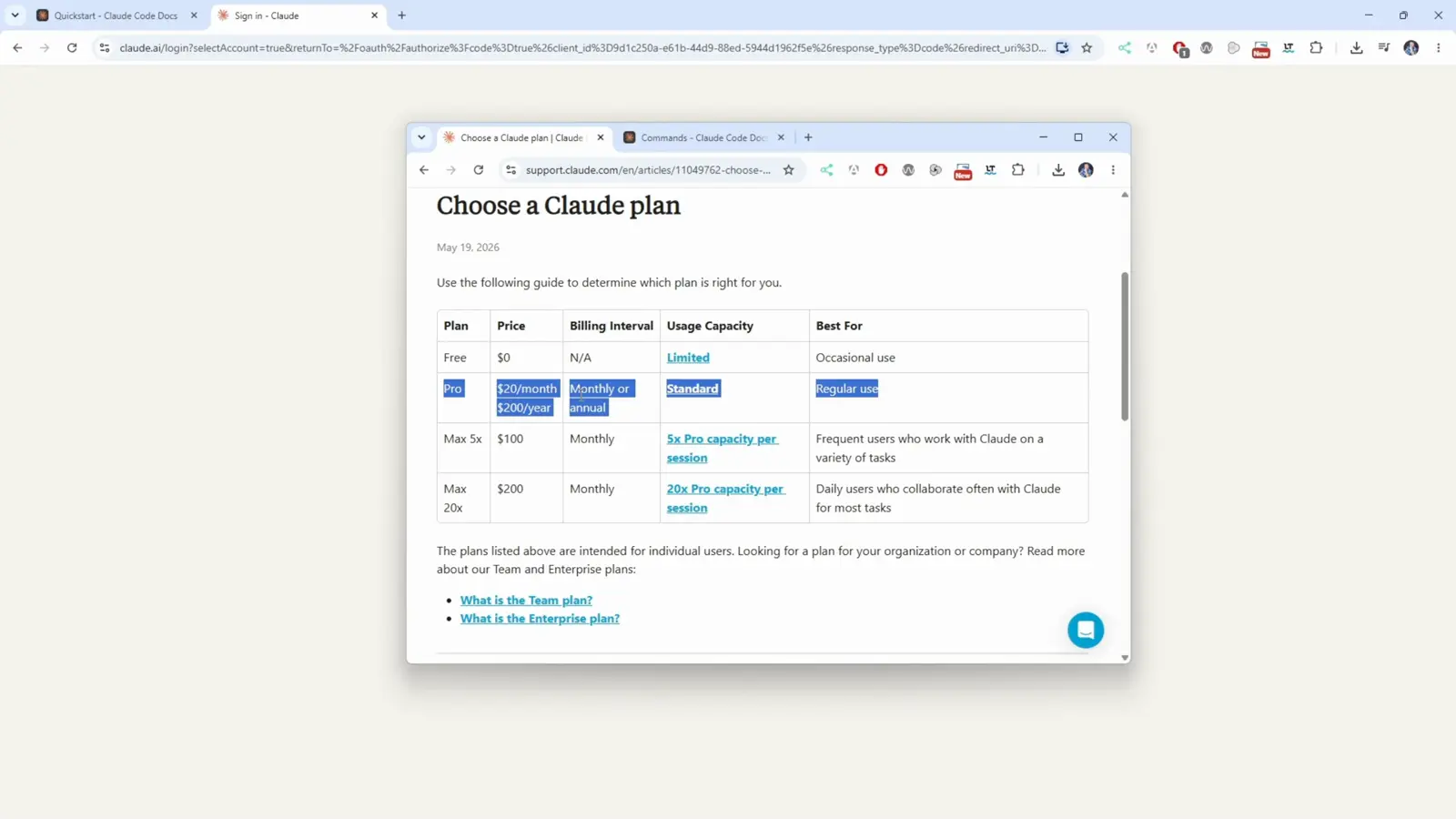
You can start on Free and upgrade when the limits bite.Watch at 4:05 - 10
Copy the authorization code
After the plan, the browser shows the authorization page - in the recording's German UI, Authentifizierungscode with the instruction Füge dies in Claude Code ein (paste this into Claude Code). Copy the code and paste it at the waiting terminal prompt from two steps ago.
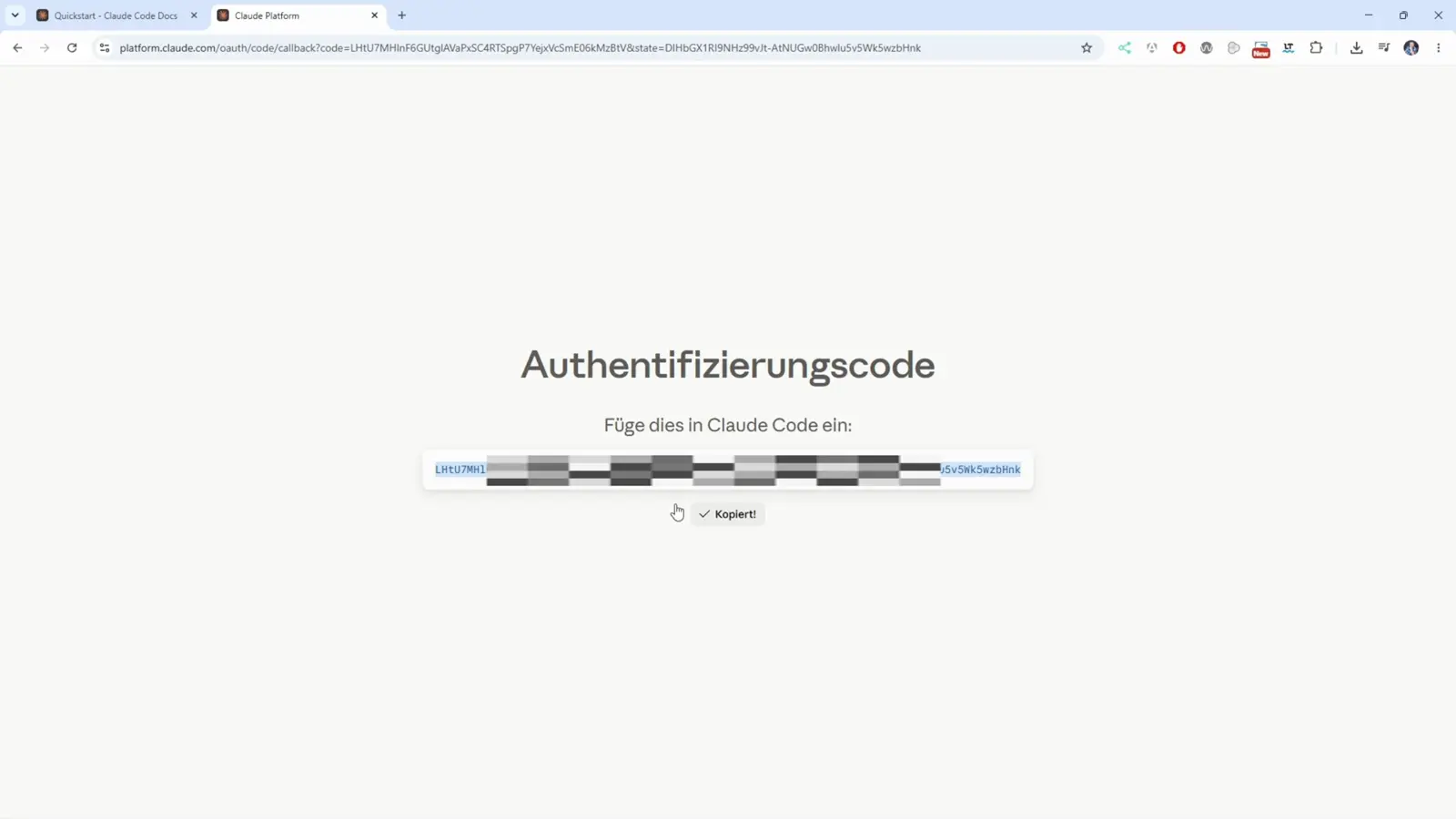
The code is one-time - if it expires, restart claude and sign in again.Watch at 5:00
Part 4 · First session and usage
Security notes, a folder trust prompt, and the usage meters you can check any time.
- 11
Read the security notes
Before the first prompt, Claude Code shows two warnings: Claude can make mistakes - always review responses, especially when running code - and due to prompt injection risks, only use it with code you trust, with a link to the security docs. Press Enter to continue.
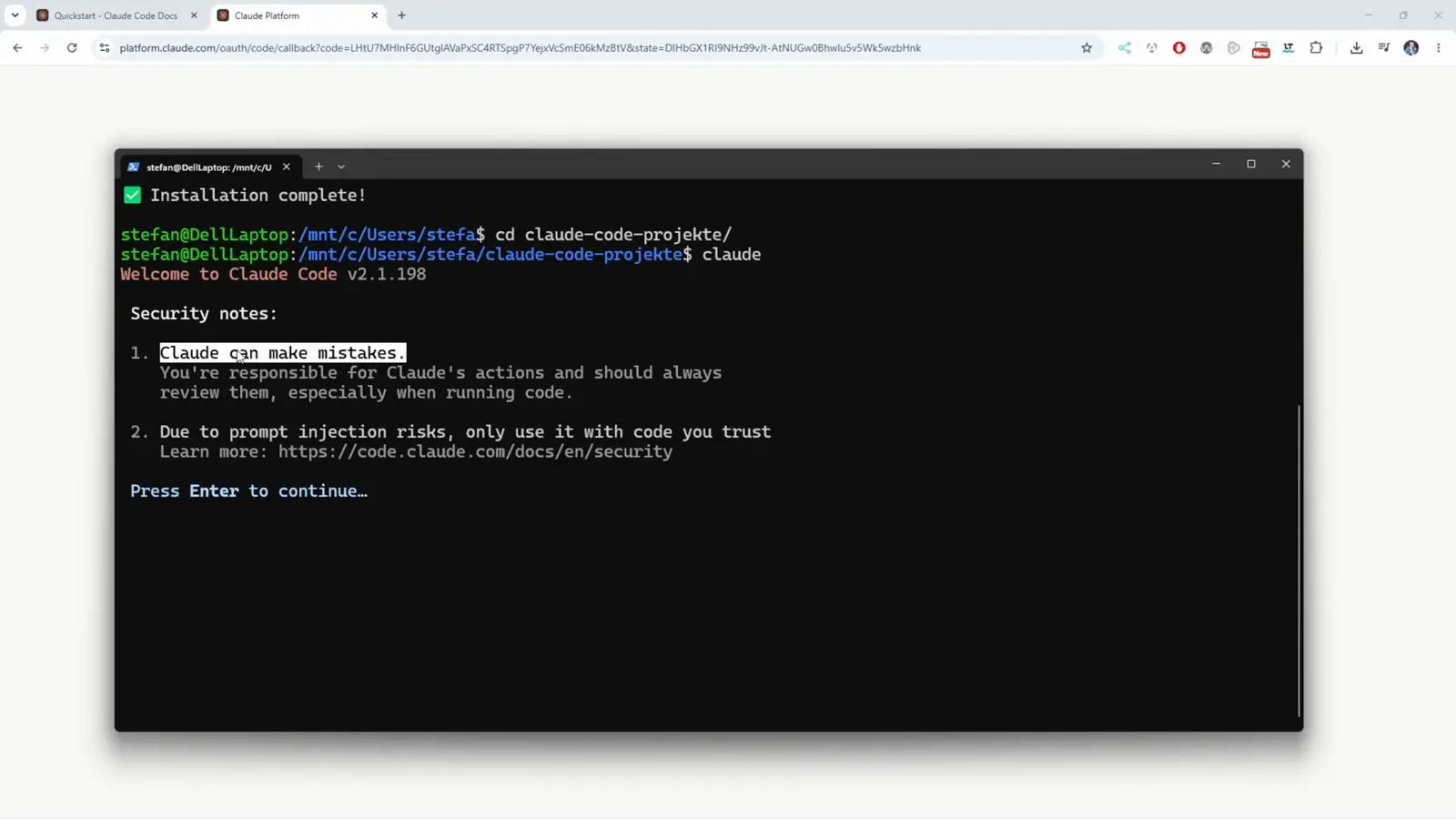
The same notes appear on every fresh install, on any OS.Watch at 5:15 - 12
Trust your project folder
The Accessing workspace check names the folder - /mnt/c/Users/stefa/claude-code-projekte on the recording - warns that Claude Code'll be able to read, edit, and execute files here, and asks: Is this a project you created or one you trust? Pick 1. Yes, I trust this folder for your own code.
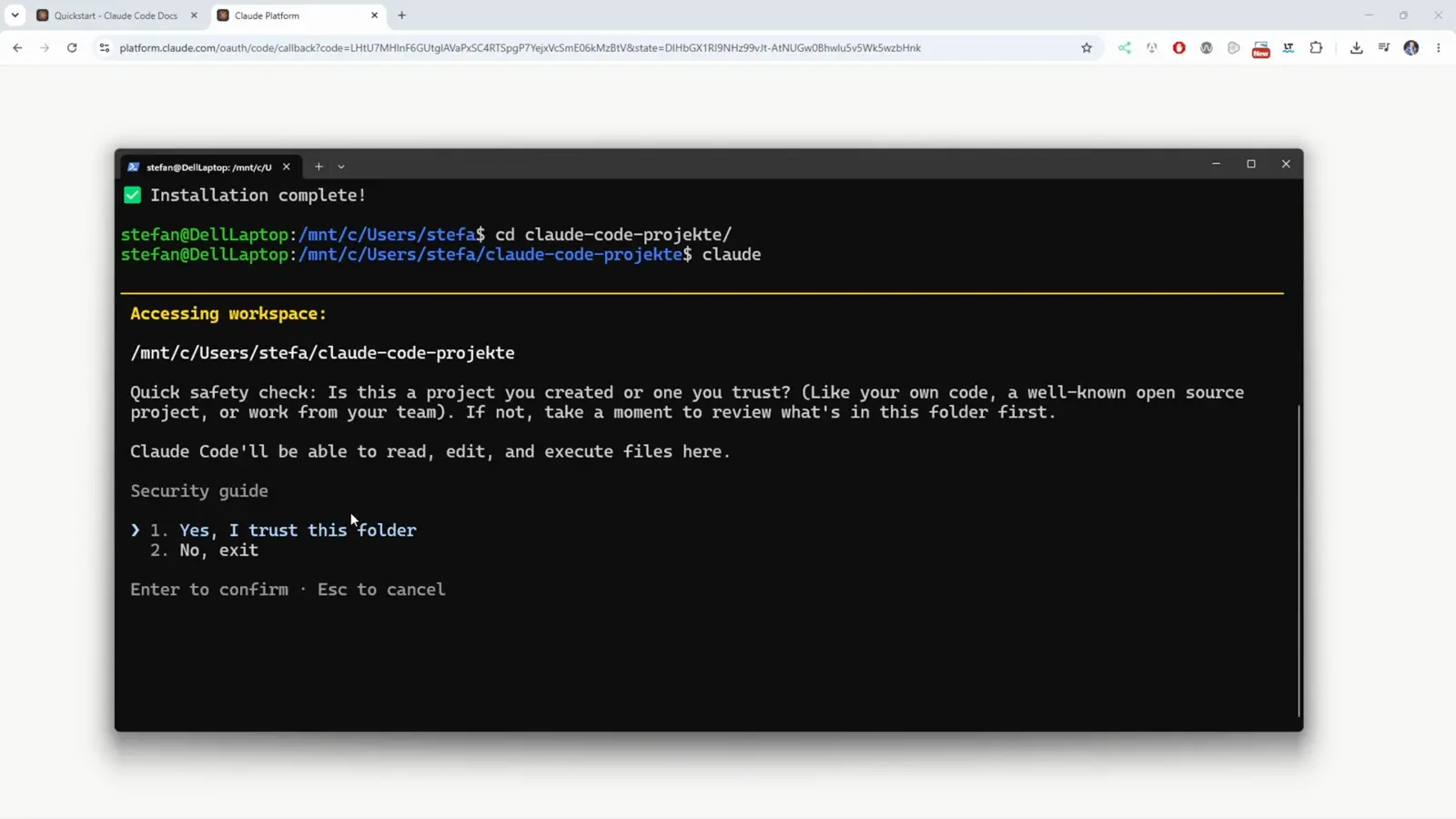
The /mnt/c/ path is how WSL reaches your Windows drive - your files stay where they are.Watch at 5:30 - 13
Your session is live
With the folder trusted, Claude Code greets you - Welcome back Stefan, on Sonnet 5 · Claude Pro in the recording - with tips (run /init to create a CLAUDE.md file), a What's new panel, and the input box ready for your first prompt.
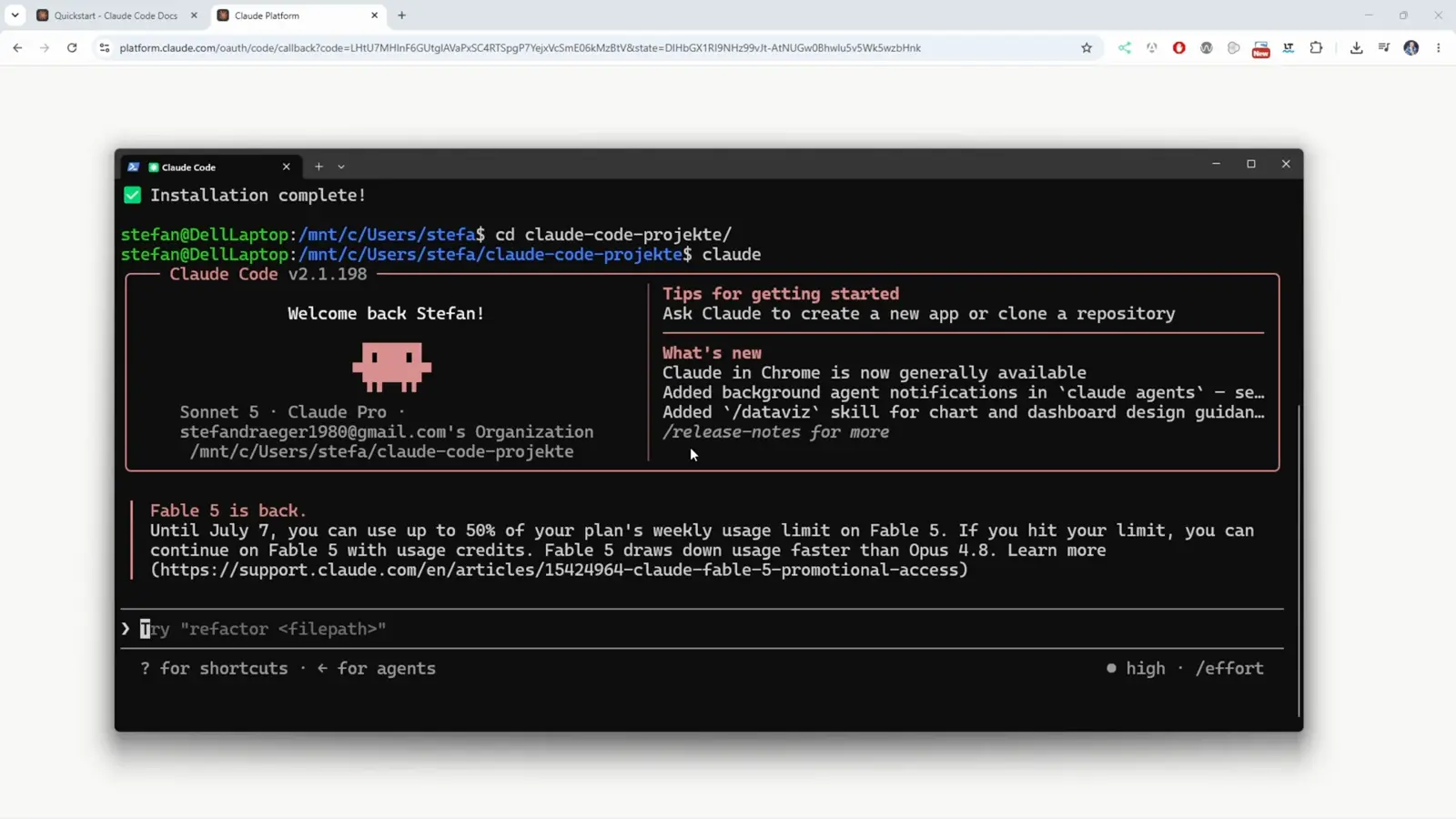
From wsl --install to a working prompt is one reboot-free sitting.Watch at 5:40 - 14
Check your usage with /cost
Any time, /cost opens the usage screen (the recording runs it on Claude Code v2.1.201): total cost by model - claude-sonnet-5 and claude-haiku-4-5 on this account - plus Current session, Current week (all models) and Current week (Fable) meters with their reset times in your timezone.
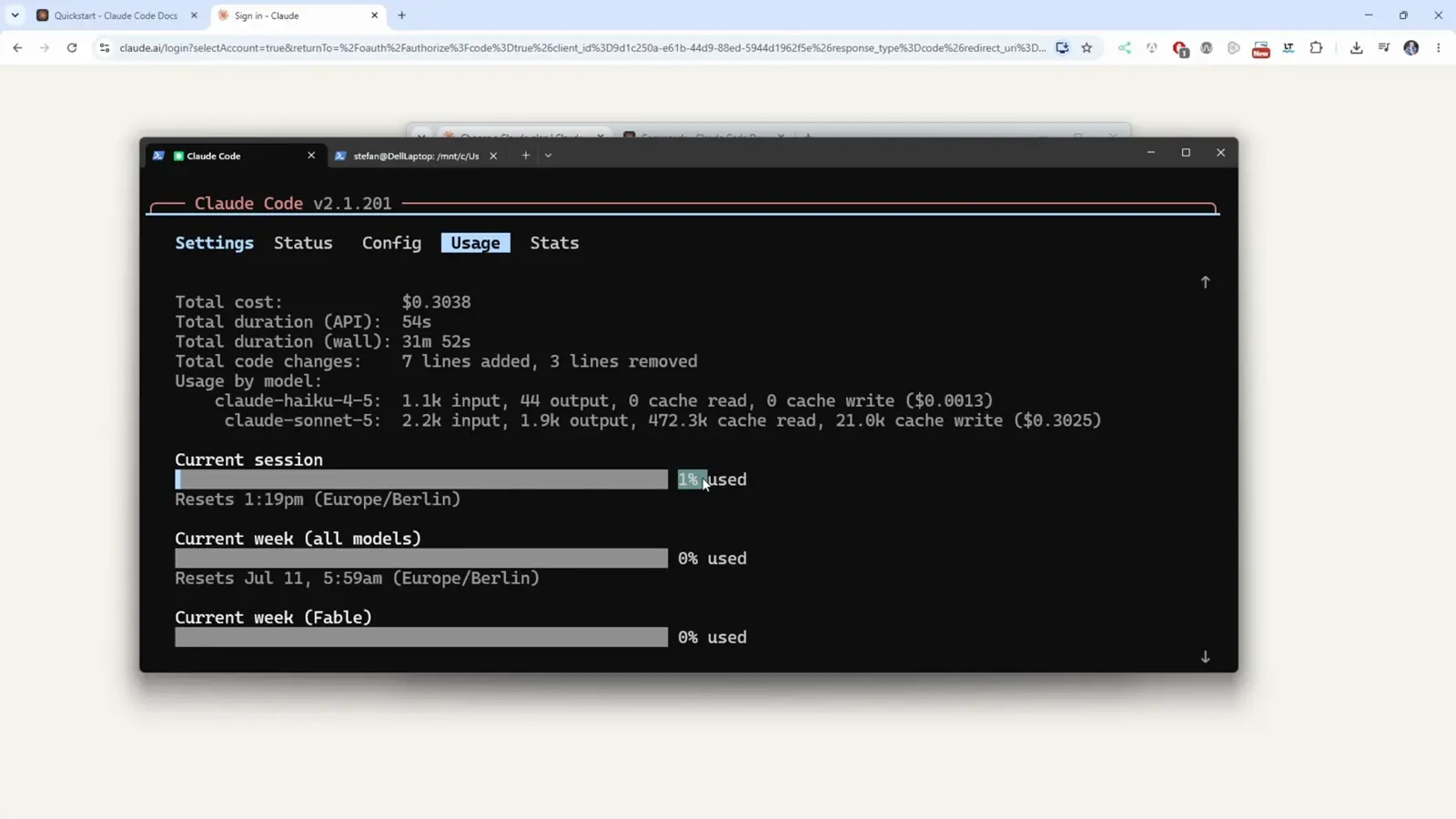
The recording's session sat at 1% used with the week at 0% - meters reset weekly.Watch at 4:30