
Illustrated walkthrough · 15 frames from one recording
Claude Code on the Web: Cloud Sessions in Your Browser
How Claude Code's browser surface works end to end — authorise GitHub once, point a cloud environment at a single repository, watch the task commit to a branch of its own, open the pull request that was already written for you, and teleport the same conversation into your terminal when you want to take over.
About 5 min · 15 steps, each linked to the exact second of the source video
TL;DR — what Claude Code on the web actually is
Claude Code on the web runs the same agent in a managed cloud sandbox instead of on your machine. You authorise GitHub once, choose one repository per session, and describe the task in plain language; the session clones the repo, works on a branch of its own (claude/initialize-project-… here), commits, pushes and offers a pull request that is already written. The two surfaces are not separate products: the 'Open in CLI' button copies a claude --teleport command that reopens the identical conversation in your local terminal, so you can review it with your own tooling — and a plain git pull on main brings the merged result back down.
Source video
Every screenshot on this page comes from a screen recording by Eric Tech — a browser-only walkthrough of Claude Code on the web, captured in October 2025 when the surface was still labelled 'Research preview'.
Frames are used only to illustrate our own written instructions. The recording shows Claude Code v2.0.24 with Sonnet 4.5, and interface details may have changed since. The channel's sponsor segment is not used anywhere on this page.
Connect a repository
One GitHub authorisation, then one repository per session.
- 1
Start at claude.ai/code and connect GitHub
Open claude.ai/code — here it lands on /onboarding, tagged 'Research preview'. One line on the page describes the whole product: run multiple coding tasks in the cloud from your browser, terminal or mobile. Press 'Connect to GitHub' to begin.
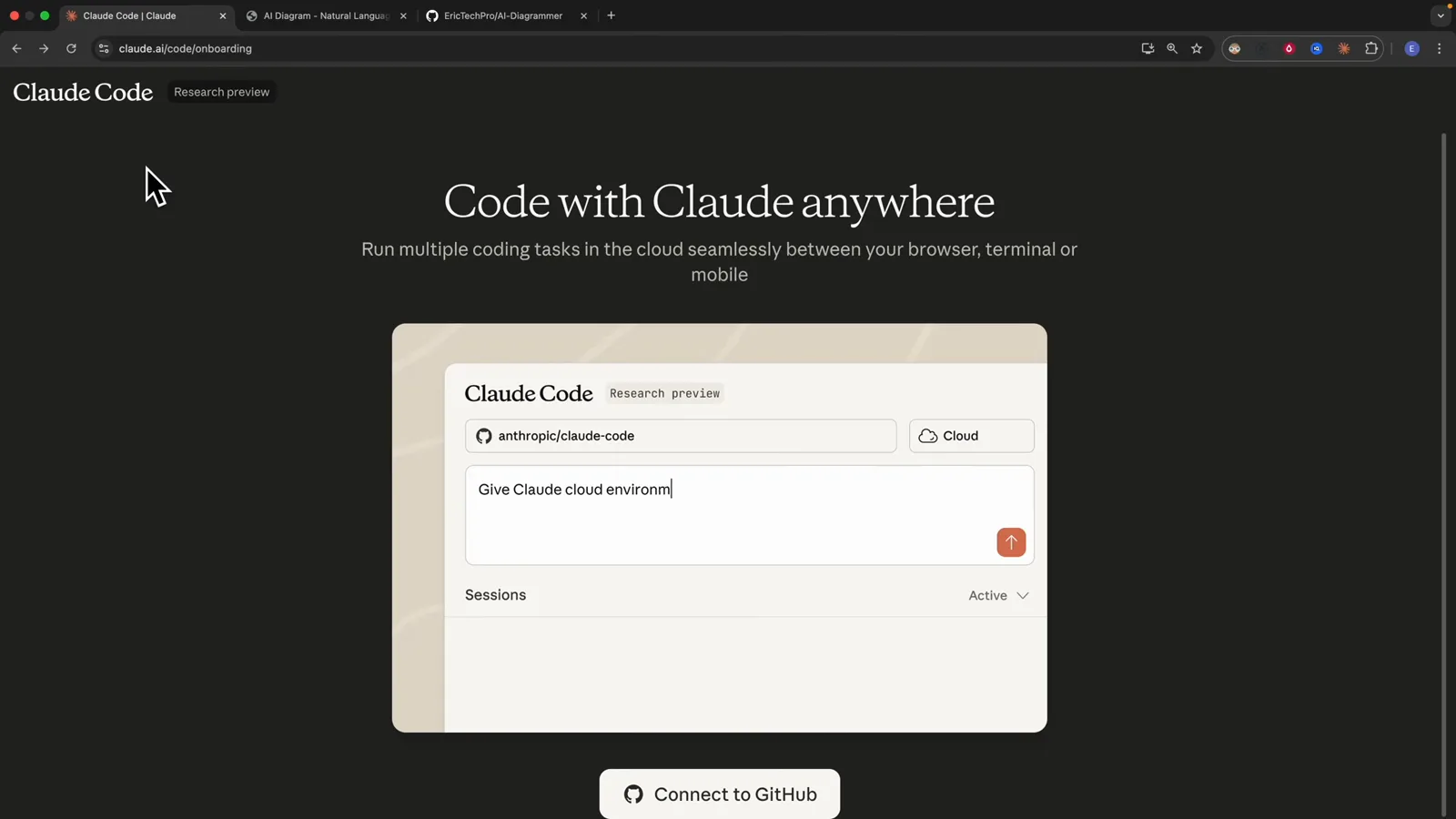
The entry point, claude.ai/code/onboarding, offers GitHub as the only way to connect.Watch at 0:40 - 2
Approve three GitHub permissions
GitHub asks you to confirm the Claude app. The scope list is short and specific: verify your GitHub identity, know which resources you can access, and act on your behalf. 'Authorize Claude' completes the round trip back to claude.ai.
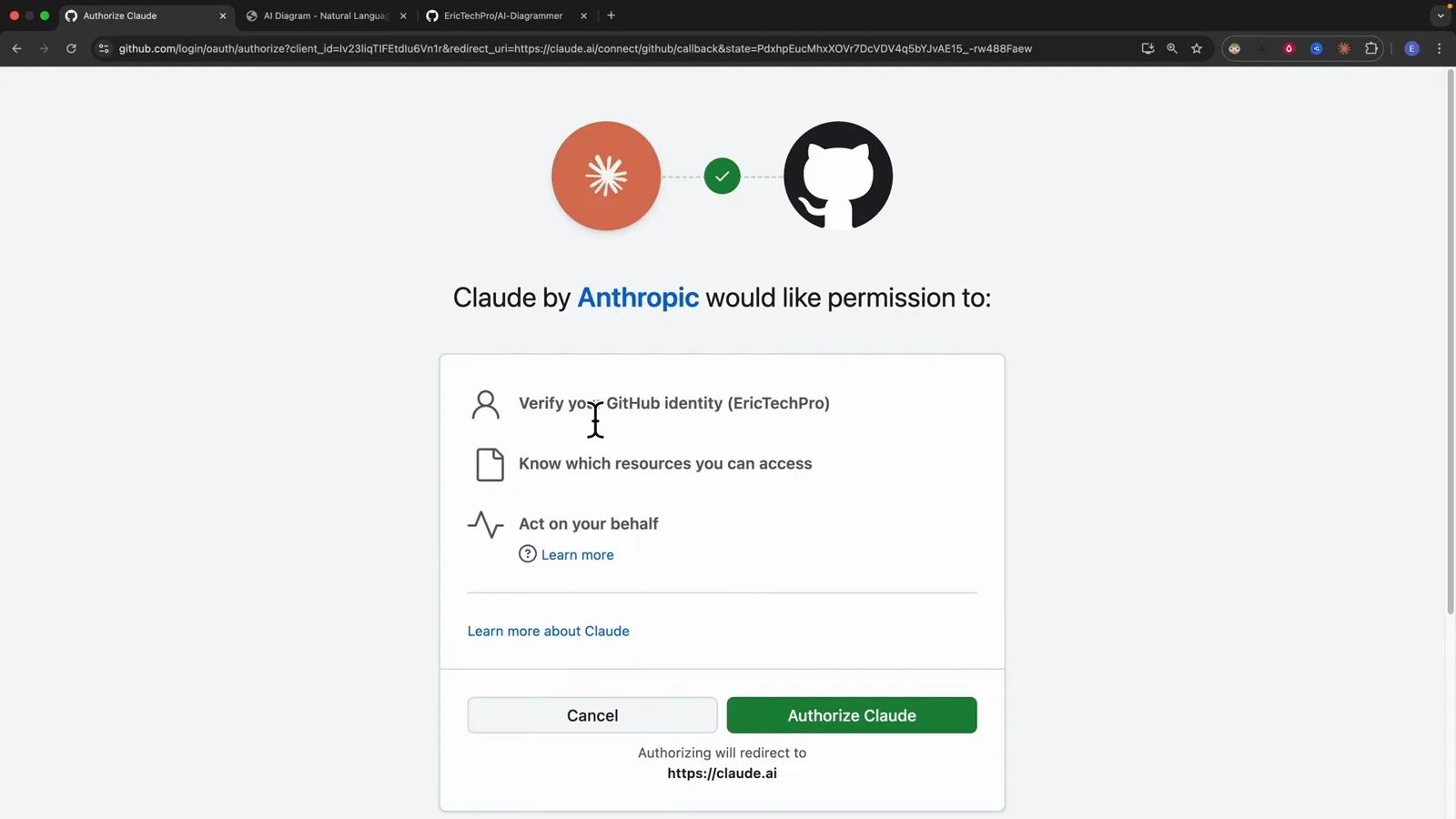
Read the scopes before authorising — 'Act on your behalf' is what lets a session push a branch.Watch at 0:52 - 3
Meet the cloud session composer
With GitHub connected you get the session home: a prompt box, a 'Select repository' control, an environment chip reading 'Default', and an empty session list. Nothing runs until a repository is named, so the first move is always the repository.
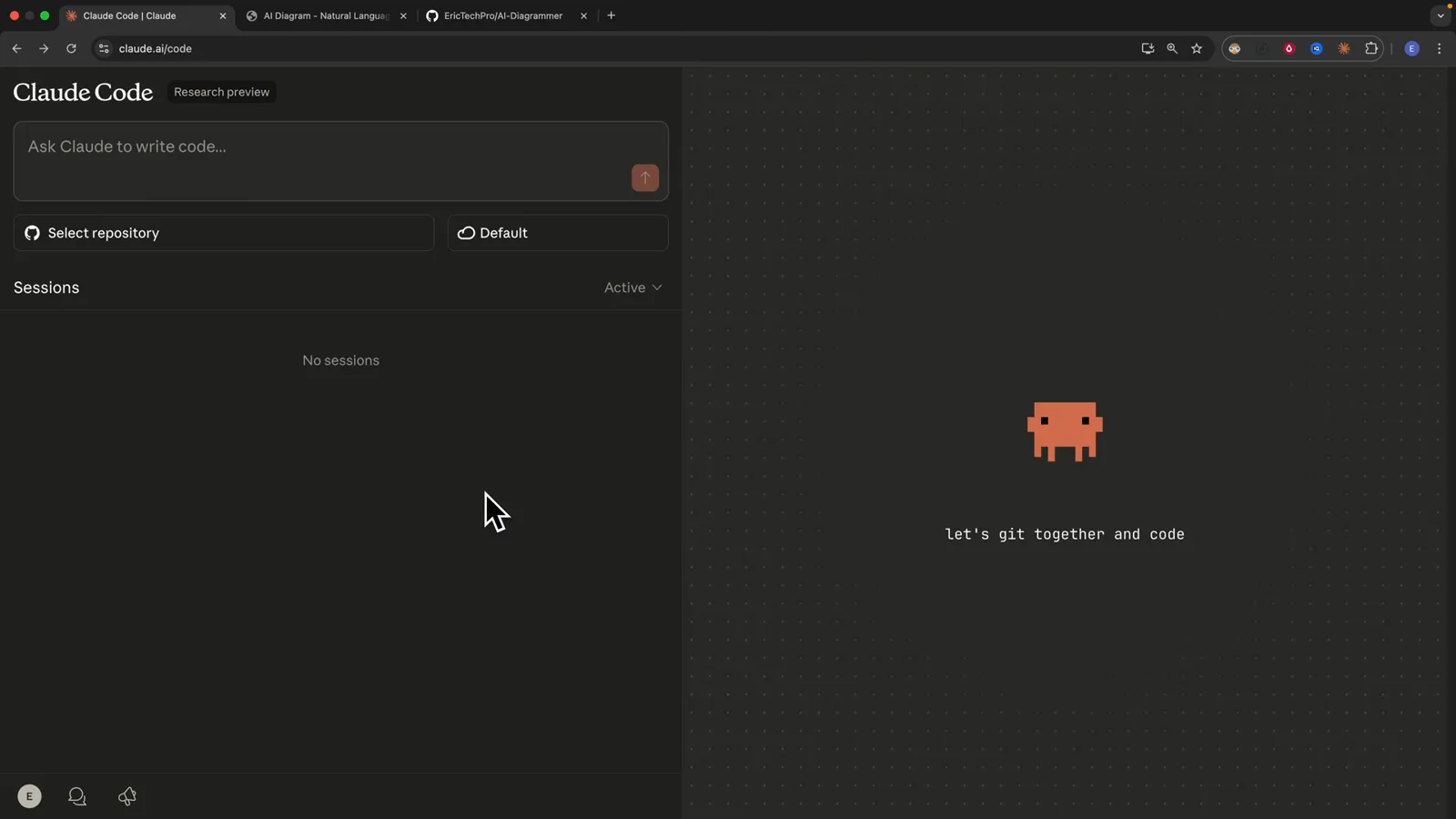
The composer bundles the three things a cloud session needs: task, repository and environment.Watch at 1:02 - 4
Choose the repo and type /init
Here the repository chip reads EricTechPro/AI-Diagrammer and the environment is still 'Default'. The task typed in is the one-line slash command /init — the cheapest way to test a new cloud environment, because the only thing it produces is a CLAUDE.md the agent writes from reading the code.
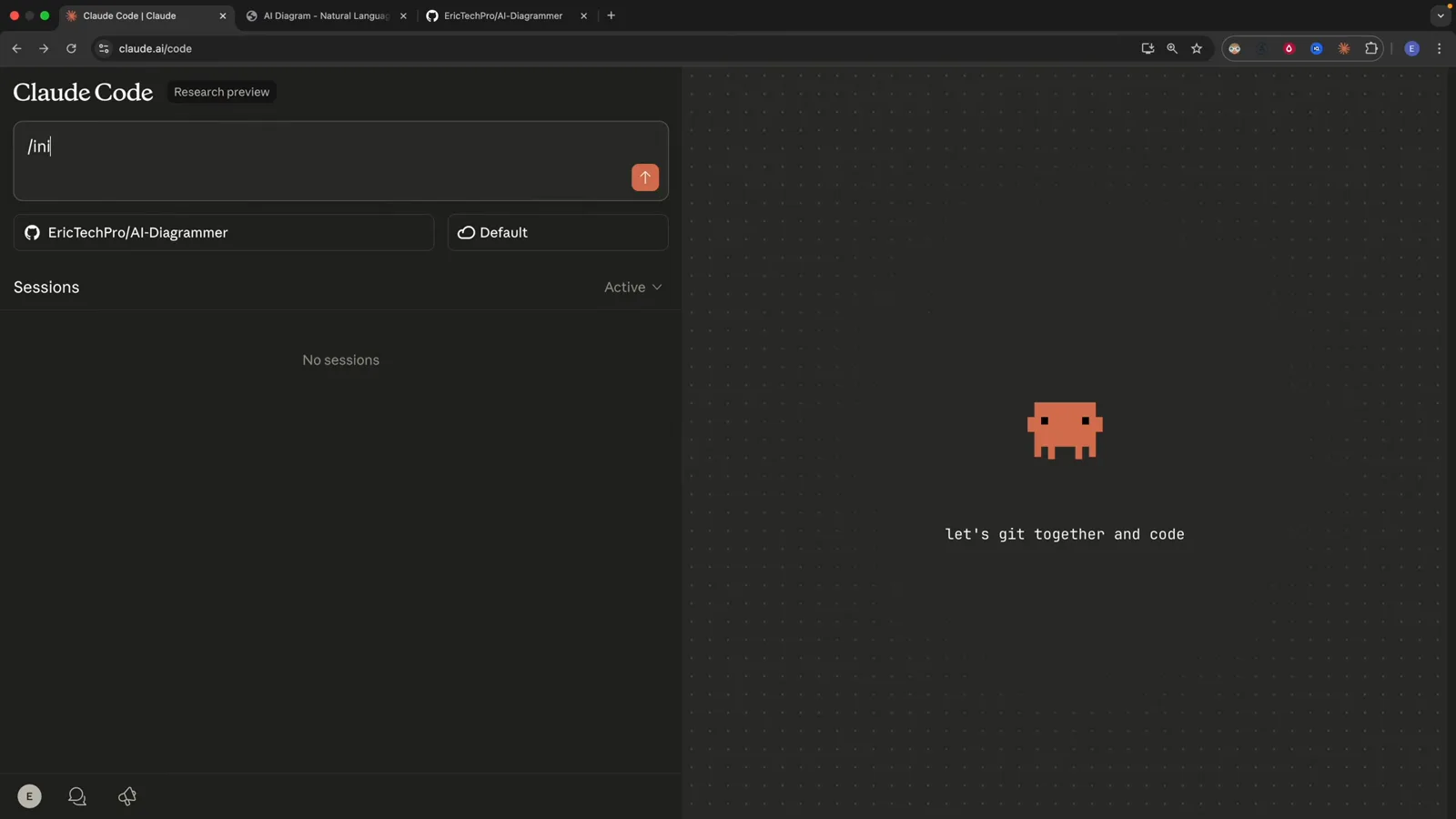
The entire first task is three characters long: /init.Watch at 2:20
Configure the cloud environment
Name the sandbox, decide what its network may reach, and paste in any secrets it needs.
- 5
Define the cloud environment
'New cloud environment' is just three fields. Name the sandbox — Default is enough when you only have one. Pick a network policy. Then paste secrets in .env format; the recording uses API_KEY=hunter2 and DATABASE_URL=bondi as stand-ins. None of this lives on your machine, it belongs to the sandbox.
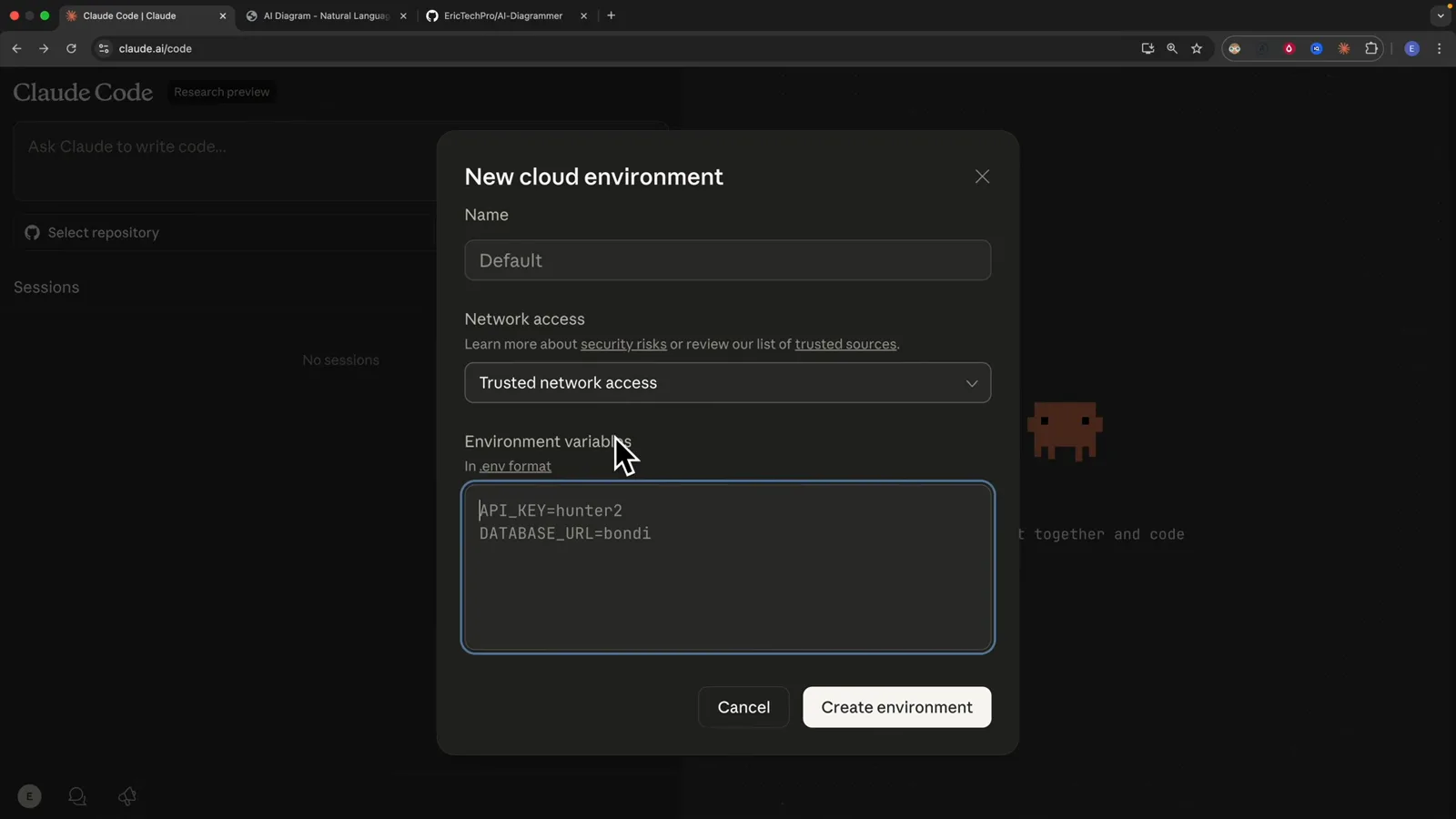
Environment variables are entered as one .env block, so a whole app config can be pasted at once.Watch at 1:25 - 6
Pick the network policy deliberately
The network menu is the one security decision on this screen. 'Trusted network access' downloads packages from verified sources while balancing security and performance. 'No network access' blocks the internet for maximum security with reduced functionality. 'Custom access' lets you write your own list of allowed or denied domains.
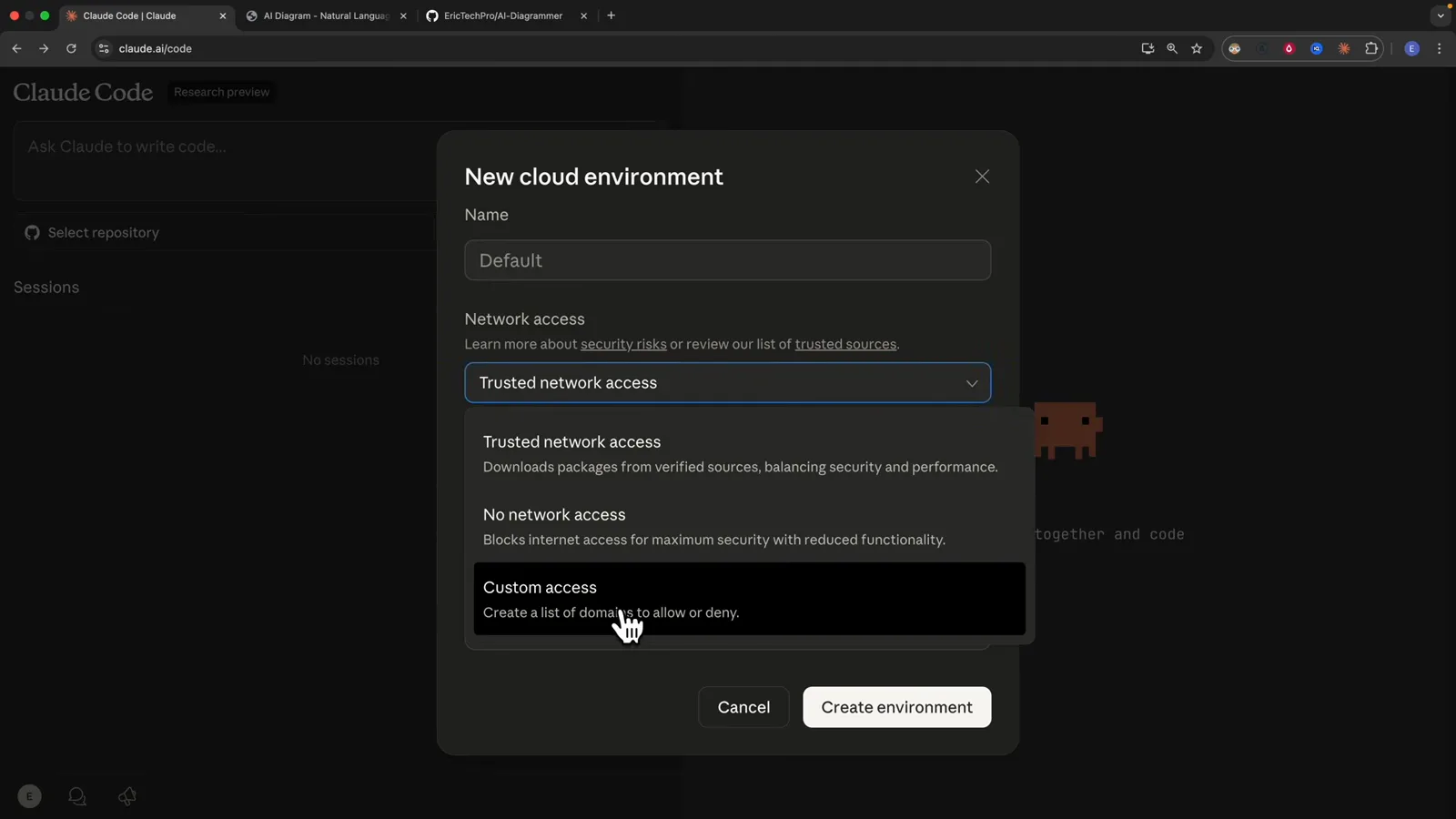
Trusted is the default, No network access the strictest option, Custom the most precise.Watch at 1:34
Run the first task
Describe the job and let the session commit, push and draft the pull request.
- 7
The session does its own git work
The transcript shows the agent running git add CLAUDE.md, then a commit whose body credits Claude as co-author, then git push -u origin claude/initialize-project-011CUK5b4bEuwLiG2a6MdzrR. The branch is created for the session — you never had to name it or touch main.
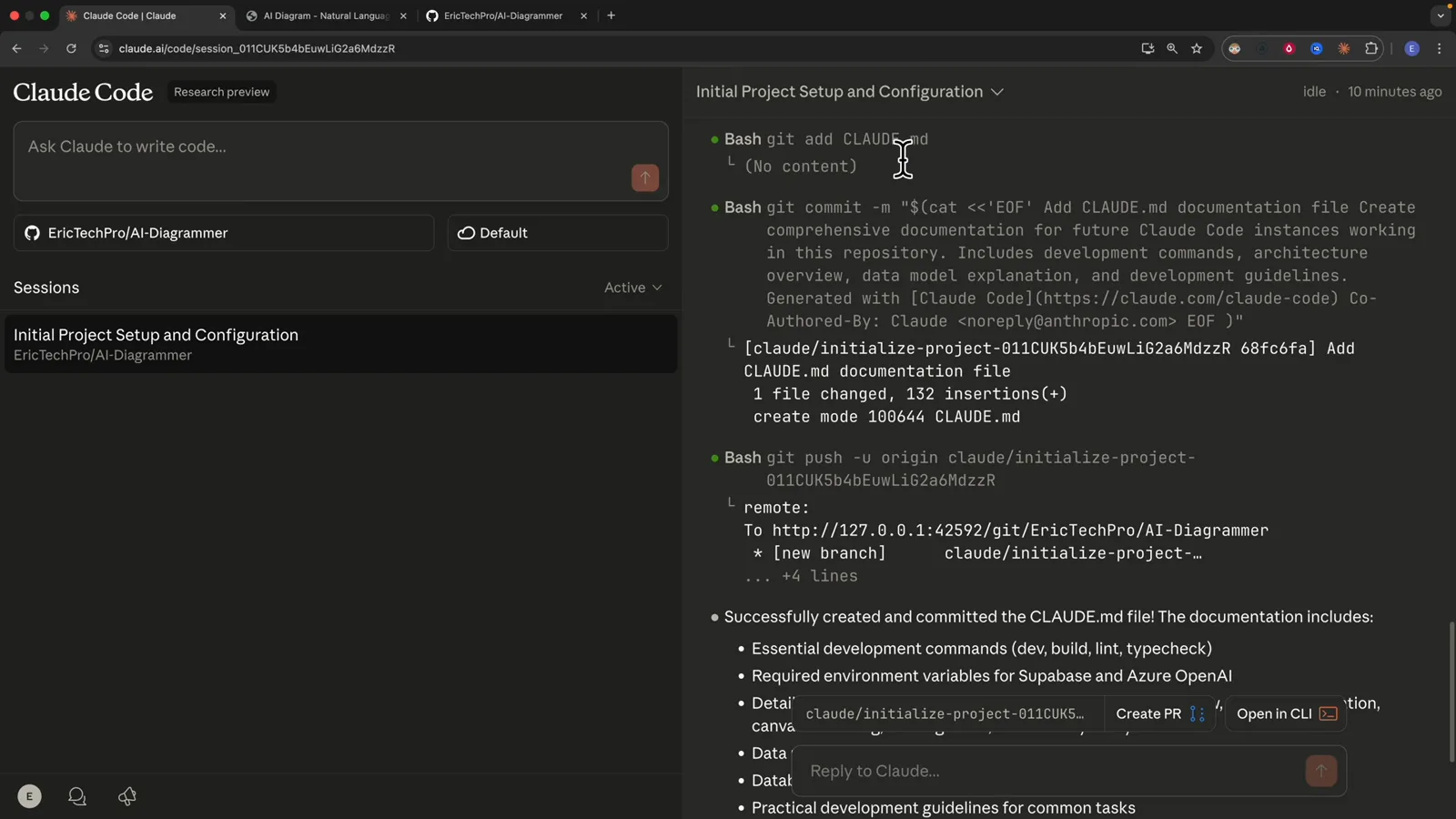
One file changed and 132 insertions, on a branch the session created and pushed itself.Watch at 4:01 - 8
Read the handback summary
When the task stops, the session summarises what it did and what the file contains: development commands, the environment variables needed for Supabase and Azure OpenAI, an architecture walkthrough, the data model, the database schema and practical guidelines for common tasks. Two buttons sit underneath it, 'Create PR' and 'Open in CLI'.
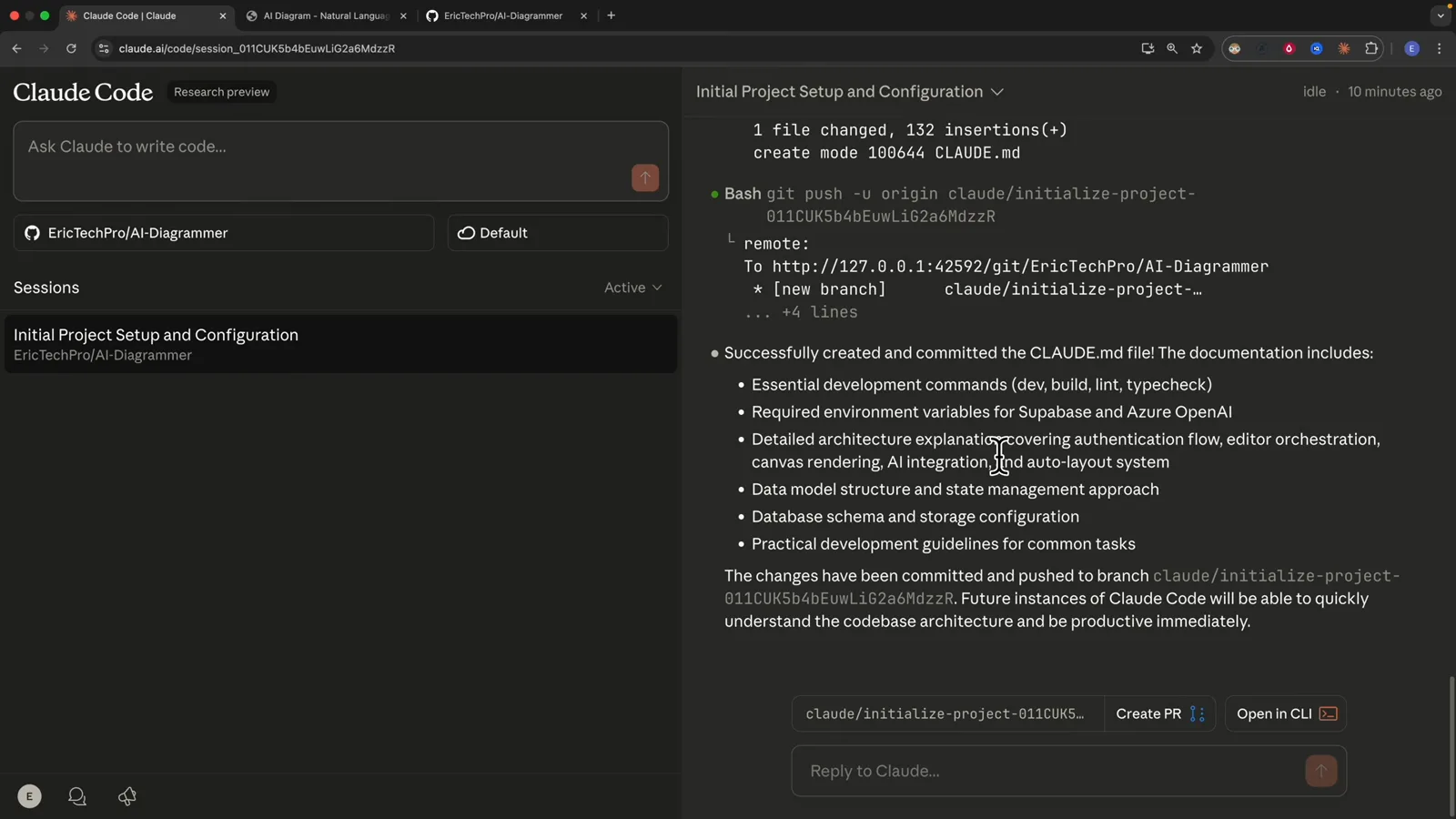
That summary doubles as a review checklist for the CLAUDE.md that was just committed.Watch at 3:38 - 9
Land on a pull request that is already written
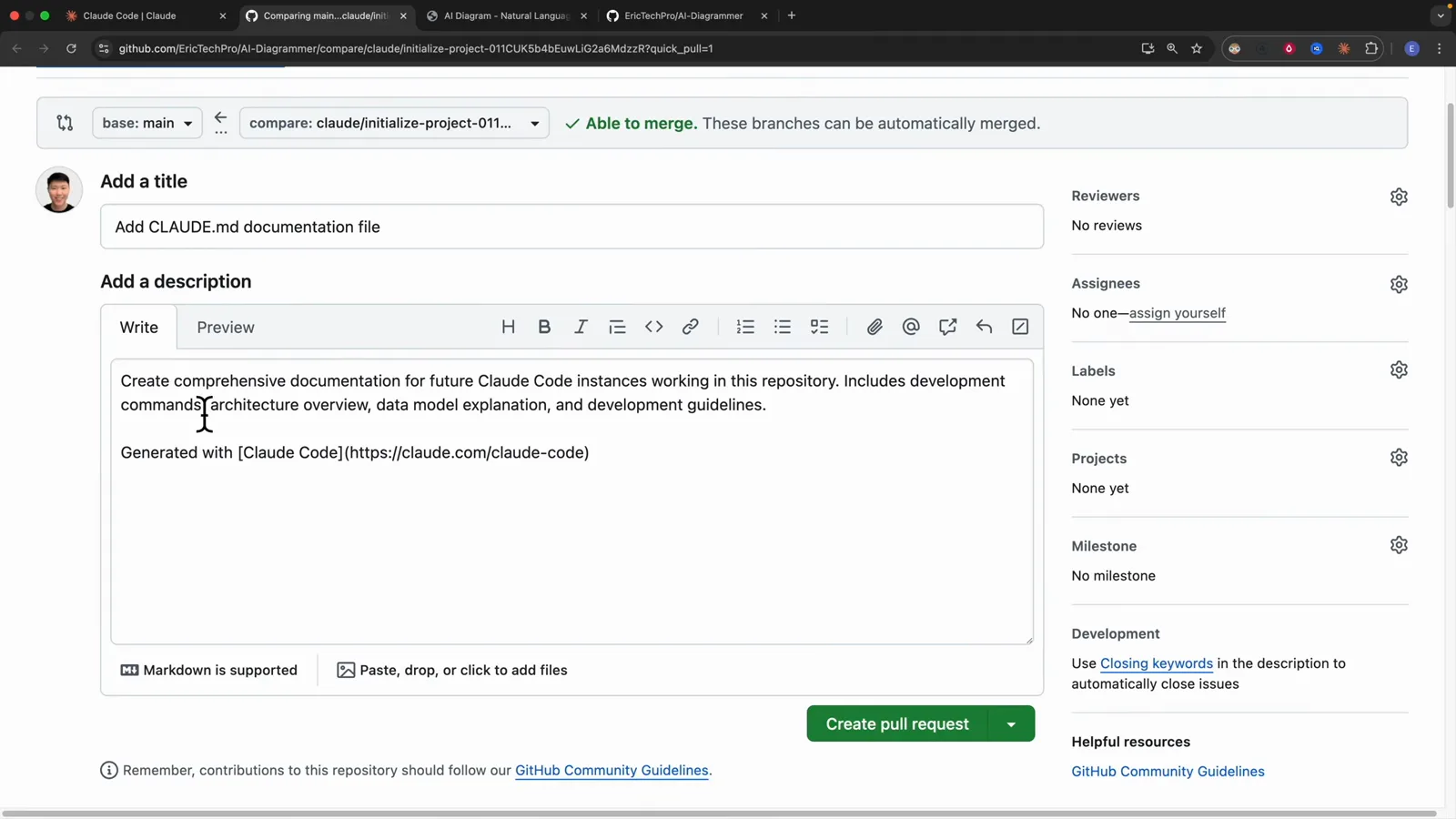
'Create PR' opens GitHub's compare page with a green 'Able to merge' notice, the session branch preset as the compare side, a filled-in title and a real description ending in 'Generated with [Claude Code](https://claude.com/claude-code)'. You can edit the prose, or press 'Create pull request' as it stands.
Title, body and branch comparison all arrive pre-filled from the cloud session.Watch at 4:24
Hand the session to your terminal
Jump from the browser into the very same conversation on your own machine.
- 10
Teleport the session into your terminal
'Open in CLI' copies a command. In the project folder on your own machine you run claude --teleport session_011CUK5b4bEuwLiG2a6MdzrR and the same conversation reopens locally — same banner, same model, and the /init analysis still streaming exactly as it did in the browser. This is a hand-off, not a restart.
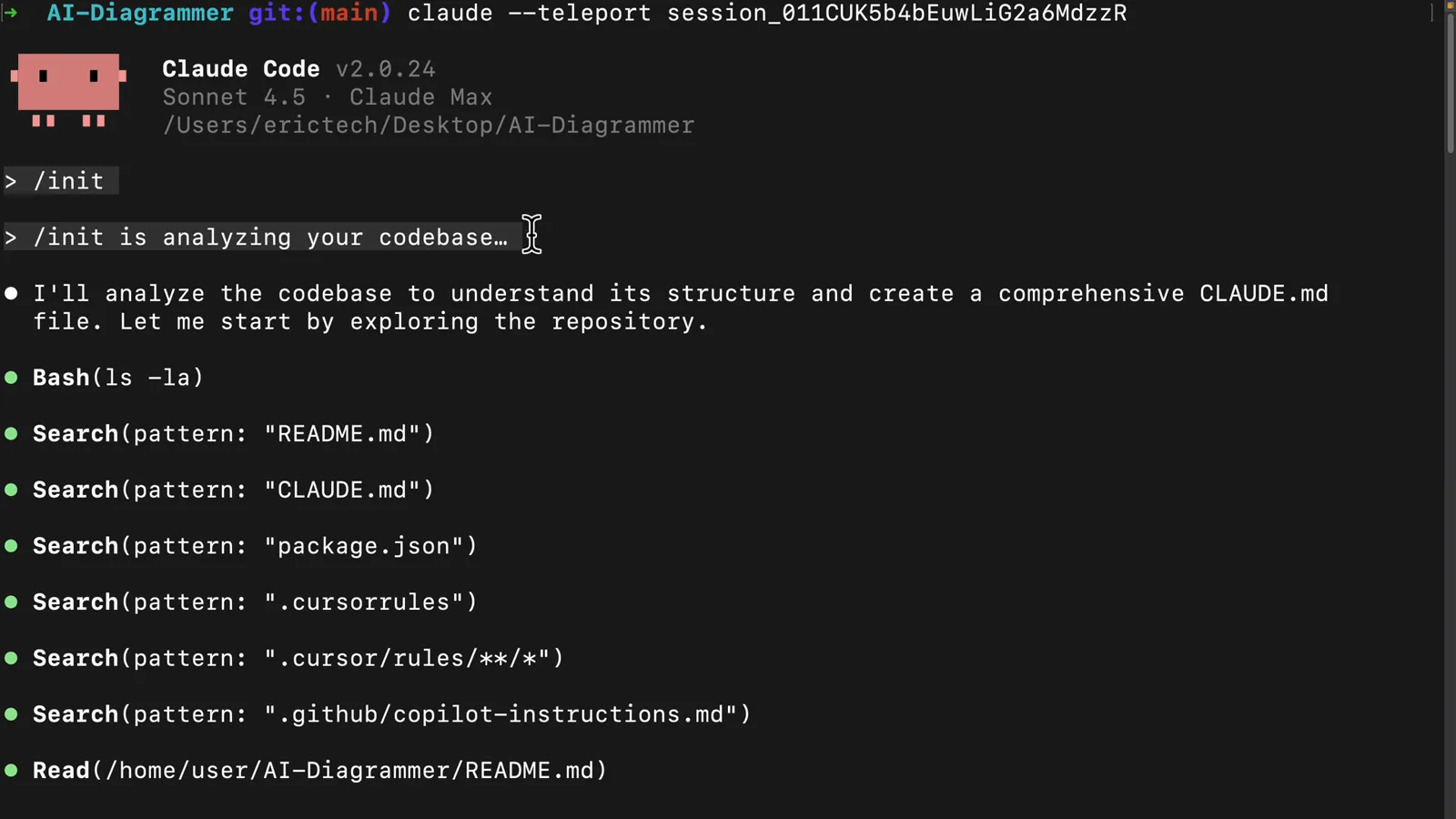
claude --teleport reopens the browser conversation in your own terminal.Watch at 5:42 - 11
Ask for a diagram, get a rendered one
Back in the session, a plain-language request for a README with Mermaid visuals produces a real architecture diagram in the pulled repository: Diagram Editor and Auth Form at the top, then Canvas Rendering, AI Input, Supabase, History Hook and Toolbar, down to Azure OpenAI, storage and the auto-layout module. GitHub renders it on the README preview tab.
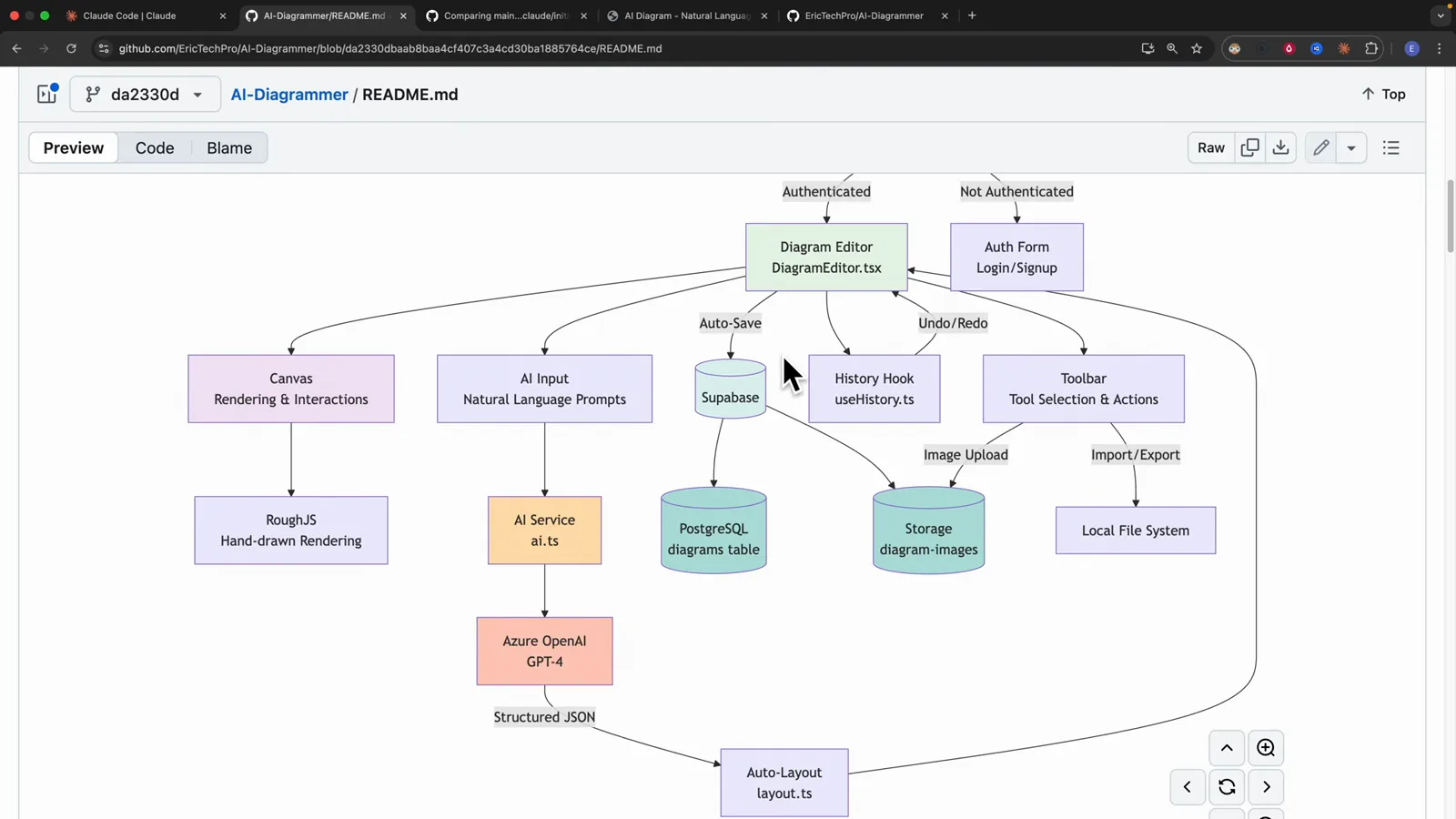
Claude wrote the Mermaid source; GitHub drew the diagram.Watch at 6:21
Merge and sync back
Merge on GitHub, pull on main, and the local repo matches the cloud session.
- 12
Merge it without leaving GitHub
Pull request #1 is titled 'Initialize project documentation with CLAUDE.md and comprehensive README' and merges two commits into main. Once merged, GitHub confirms it and offers a 'Delete branch' button for the session's branch — the tidy-up step most people forget.
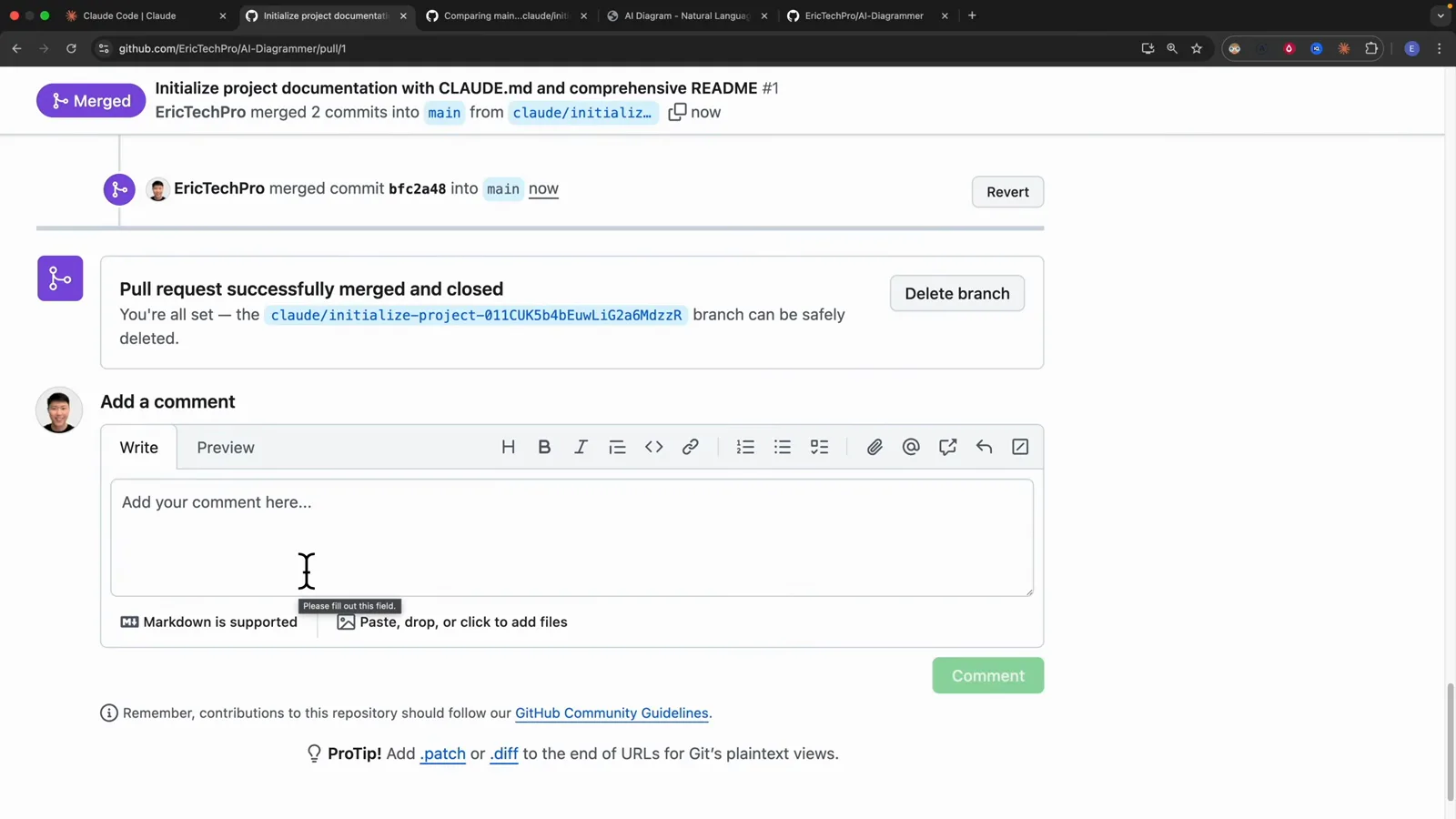
Merged and closed, with the session branch offered up for deletion.Watch at 7:19 - 13
Pull the merged work back down
A single git pull on main fast-forwards to the merge commit and reports 2 files changed, 391 insertions(+), 1 deletion(-): CLAUDE.md with 132 added lines and README.md with 260. The cloud session's output is now on your machine, reviewed by you before it mattered.
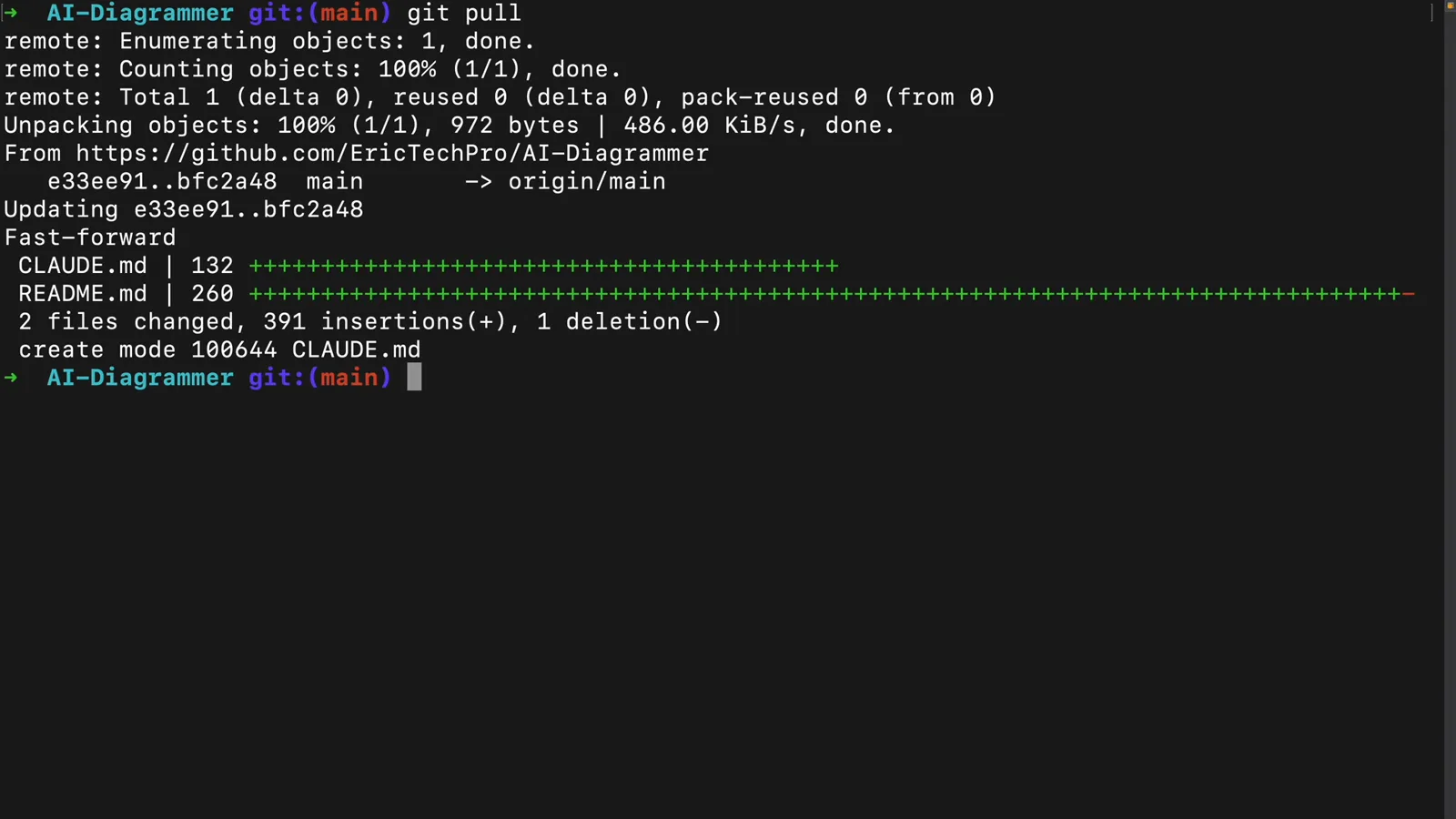
Fast-forward to the merge commit: two files, 391 insertions and one deletion.Watch at 7:37
Run sessions in parallel
Why the cloud surface changes the workflow: every session gets its own branch and its own sandbox.
- 14
The old shape: one environment per developer
The recording draws the workflow this replaces. Dev 1 and Dev 2 each run their own Claude Code in their own environment, each on its own branch of the same project, and both eventually merge into main. One environment means one task at a time — you wait for the branch in front of you before starting the next one.
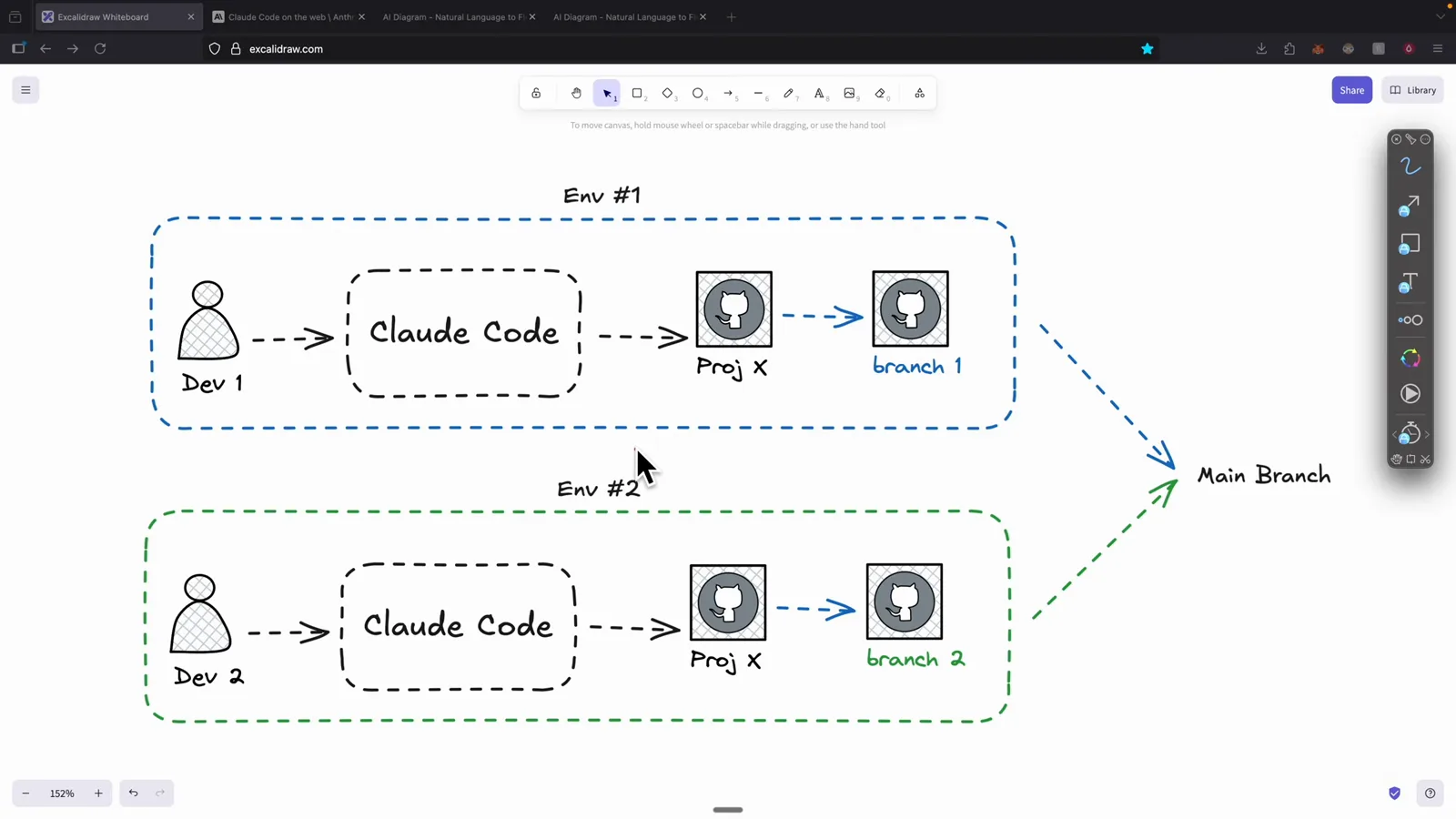
Two developers, two environments, two branches: serial by construction.Watch at 7:53 - 15
The new shape: many cloud sessions, one developer
The same developer fans out to three Claude Code Web sessions. Each has its own sandbox, its own branch and its own pull request, and all three come back through GitHub for testing in any order. The bottleneck moves from 'how many machines do I have' to 'how well can I review'.
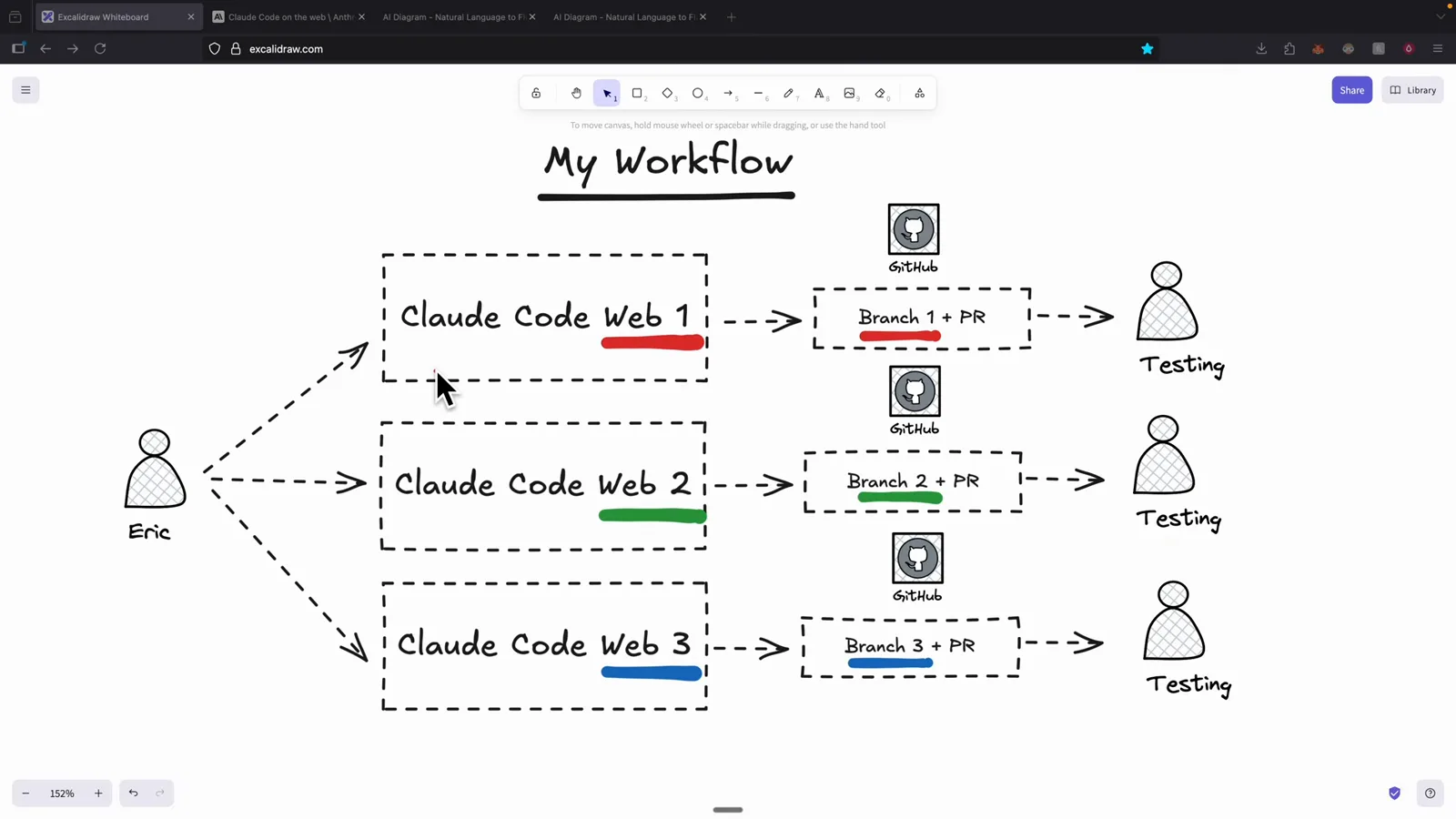
Three sessions, three branches and three pull requests, with no conflicts between sandboxes.Watch at 8:30