
Sandboxed Bash
Claude Code Sandboxing: Enable the Bash Sandbox Step by Step
Install the sandbox runtime, describe the file and network boundaries in .claude/settings.json, then watch Claude Code refuse a read outside the project and ask once - and only once - per new domain.
Thirteen screenshot steps - about 5 minutes to read. Every step links to the exact second of the source video.
What the sandbox actually changes
Sandboxing moves the permission decision from you to the operating system. On Linux - and on Ubuntu under WSL2 - Claude Code runs Bash commands inside bubblewrap with a proxy in front of the network; on macOS it uses Seatbelt and installs nothing. You declare two boundaries in .claude/settings.json: which paths the shell may read and write, and which domains it may reach. Commands inside those boundaries run without prompting, so the yes/no dialog stops appearing for ls and git status. Anything that crosses a boundary either fails outright, or raises one specific prompt: Network request outside of sandbox, with the host named. And it only covers the Bash tool - Read, Edit and Write still go through Claude Code's permissions.
Where these screenshots come from
This page follows Shelly Systems's screen recording of Claude Code's built-in sandbox: the dependency install, the sandbox object in settings.json, then live probes of the file and network boundaries from bash mode.
Frames are taken from the video and credited to its creator; the write-up is our own. The recording runs Ubuntu under WSL2, so the terminal frames show the Linux path (bubblewrap plus socat) - macOS reaches the same startup banner through Seatbelt with nothing to install. Checked against the video and Claude Code's sandboxing docs in September 2026.
Give the sandbox something to enforce with
On Linux the boundary is real operating-system machinery: bubblewrap jails the process and socat carries traffic out to the proxy. macOS already ships the equivalent, so skip this section there.
- 1
Install bubblewrap and socat
In the Linux distro you will actually run Claude Code in, install the two packages the sandbox needs: sudo apt-get install bubblewrap socat. apt resolves three here - bubblewrap, libwrap0 and socat - and reports 472 kB of archives. On macOS, skip the whole step: Seatbelt is part of the operating system.
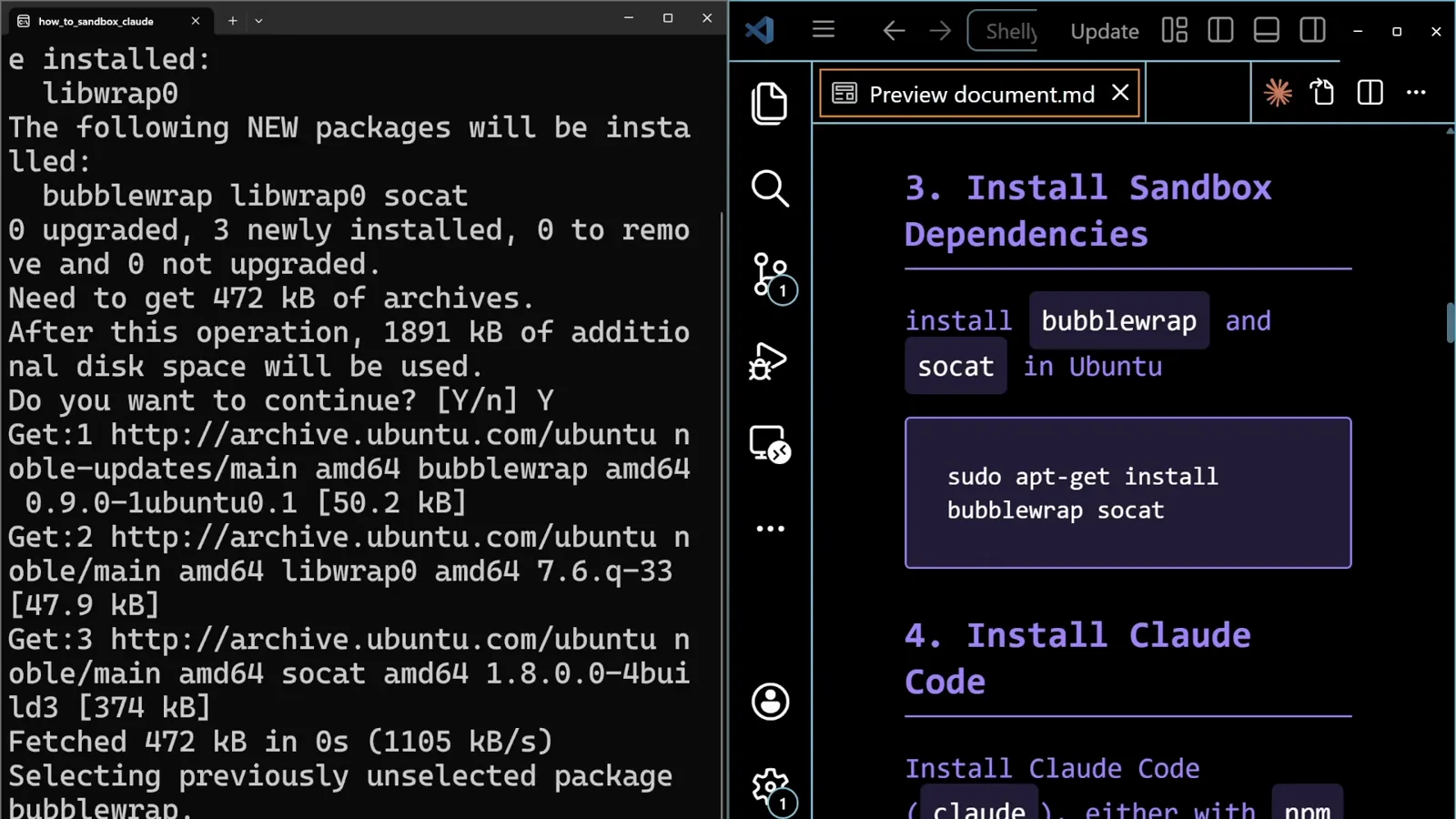
Three packages and 472 kB. None of it is Claude-specific - bubblewrap is the same technology Flatpak apps run in.Watch at 1:52 - 2
Install Claude Code with the native installer
With the dependencies in place, install the CLI: curl -fsSL https://claude.ai/install.sh | bash. The recording uses the native installer rather than npm; the accompanying notes say both routes work, and that sandboxing needs a Claude Code build new enough to ship it.
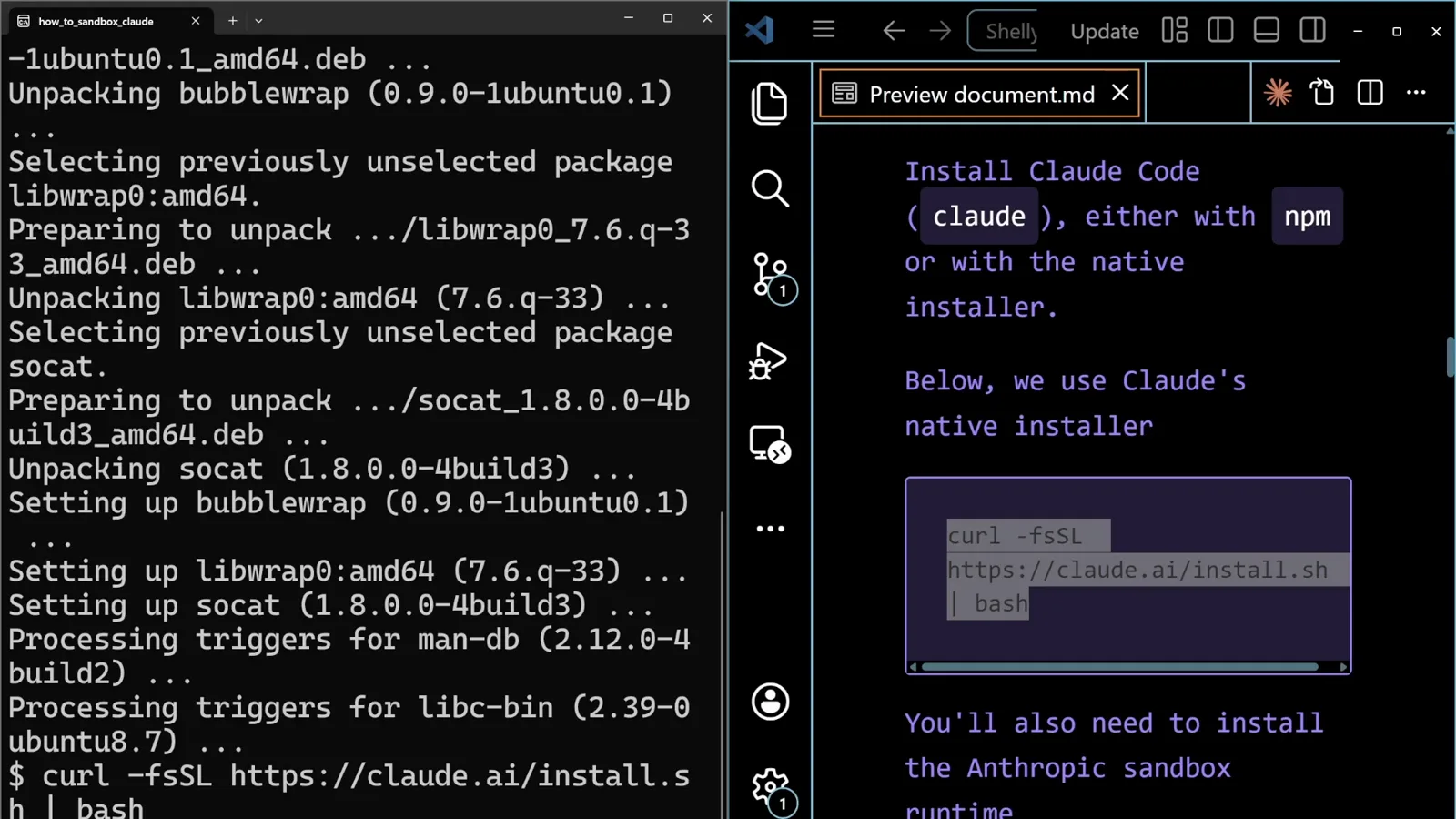
The apt run ends in Setting up bubblewrap and Setting up socat, with the installer command already typed underneath it.Watch at 2:16 - 3
Add the Anthropic sandbox runtime
The same guide adds one more package: npm install -g @anthropic-ai/sandbox-runtime. That is the runtime Claude Code wraps its Bash tool in, and it is usable on its own around other tools - an MCP server you want fenced to one folder, for example. The frame catches the moment before the project settings exist: .claude/settings.json is open and empty.
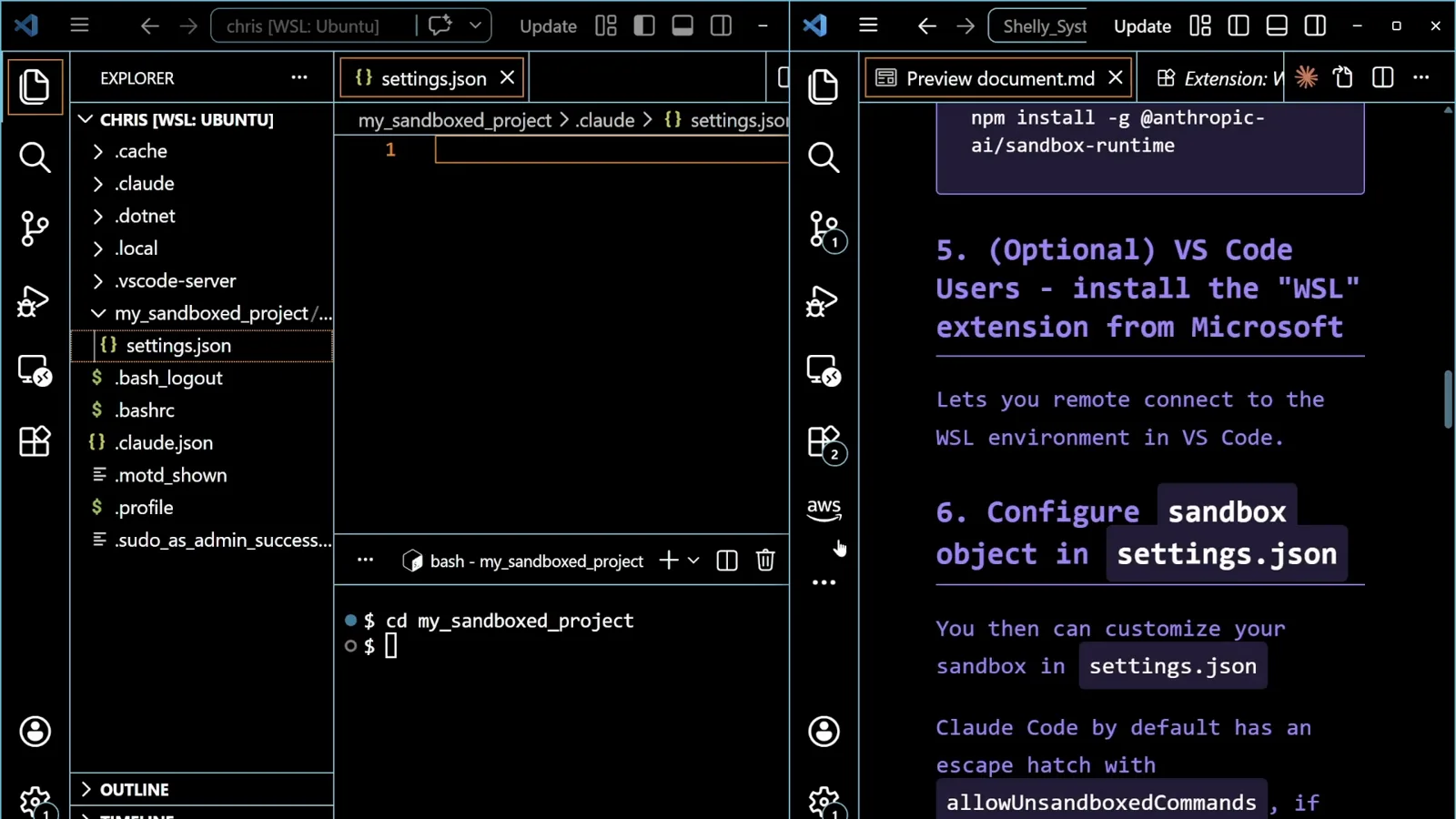
An empty settings.json is the honest starting point. The next section fills it in.Watch at 3:10
Describe the boundaries in settings.json
One sandbox object, two sub-objects - filesystem and network. Everything the session does later follows from what you write here.
- 4
Write the sandbox object
Create .claude/settings.json inside the project and add a sandbox key. The recording sets enabled: true and failIfUnavailable: true, so a session that cannot get a sandbox refuses to start instead of quietly running unsandboxed. Under filesystem it puts denyRead: ["../"] and allowRead: ["."] - the project is readable, its parent directory is not. The values on the two lines above (allowUnsandboxedCommands, autoAllowBashIfSandboxed) sit under the editor minimap in this frame, so they are not quoted here.
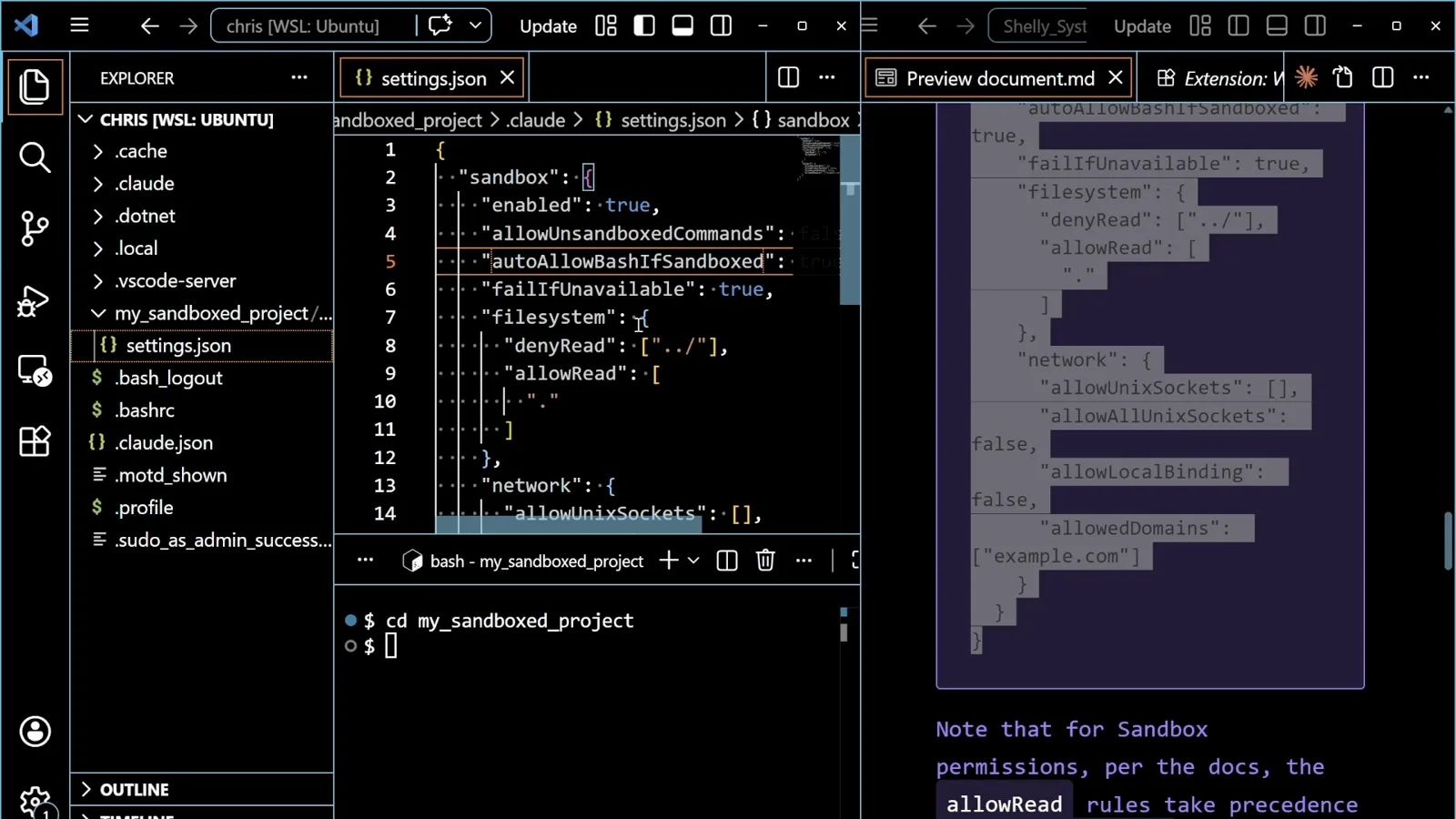
Two arrays, one entry each: allowRead "." and denyRead "../" - the entire file boundary of this walkthrough.Watch at 4:12 - 5
List the domains you actually need
The network sub-object is where the approval behaviour comes from. The recording leaves allowUnixSockets empty, sets allowAllUnixSockets: false and allowLocalBinding: false, and puts exactly one entry in allowedDomains: example.com. Traffic goes out through a proxy outside the jail, and a domain that is not on the list is not silently dropped - it is asked about.
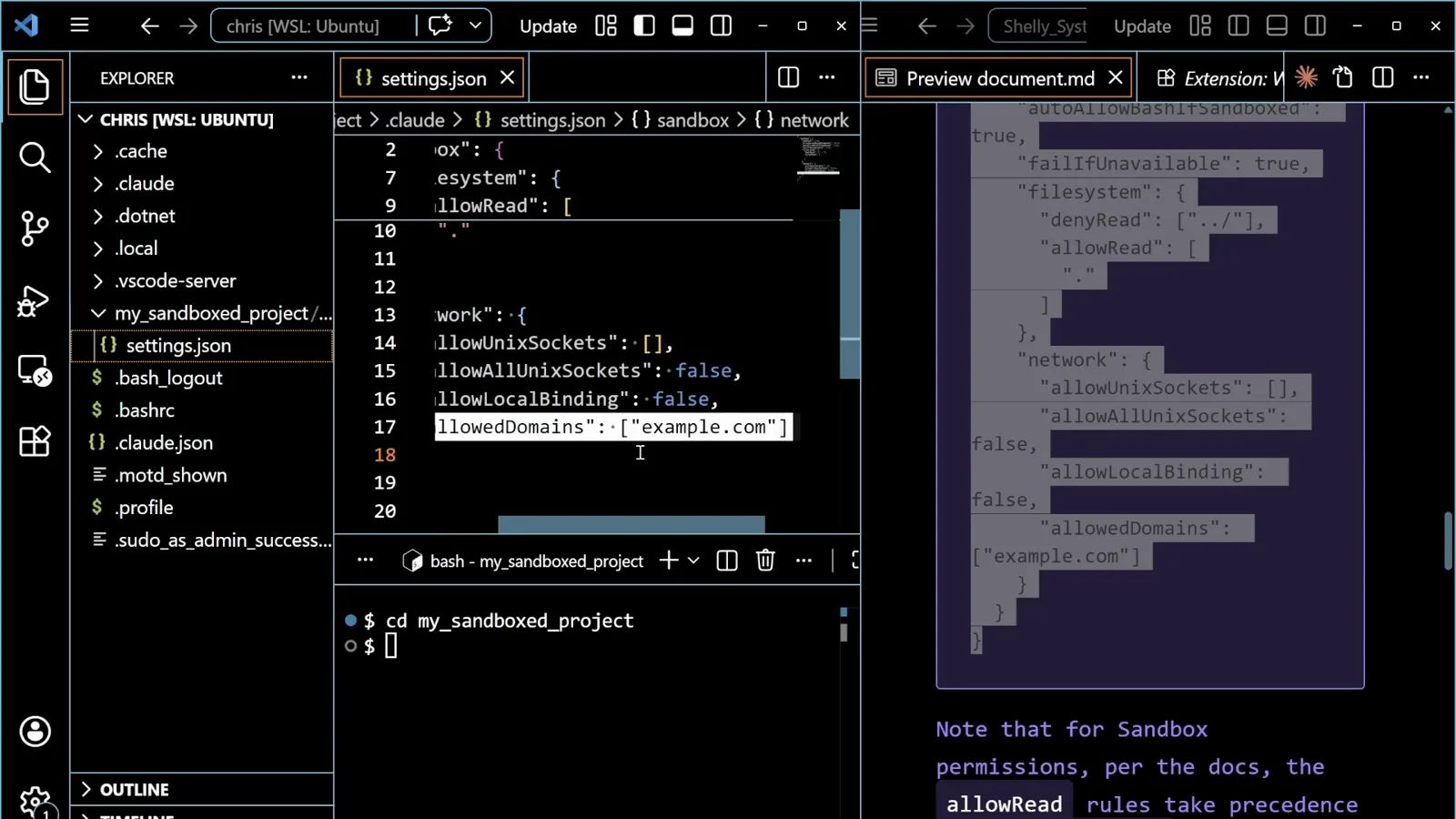
One allowed domain is enough to demonstrate both outcomes: the fetch that succeeds and the one that stops.Watch at 4:20 - 6
Know which way the defaults run
The guide's notes spell out the starting position: reads are allowed anywhere in the machine by default, writes only inside the project, minus a few critical files Claude Code needs to run at all. denyRead and allowRead exist to narrow the first of those, because that is the half that touches your SSH keys and .env files. The same notes recommend "allowUnsandboxedCommands": false if you want the escape hatch shut.
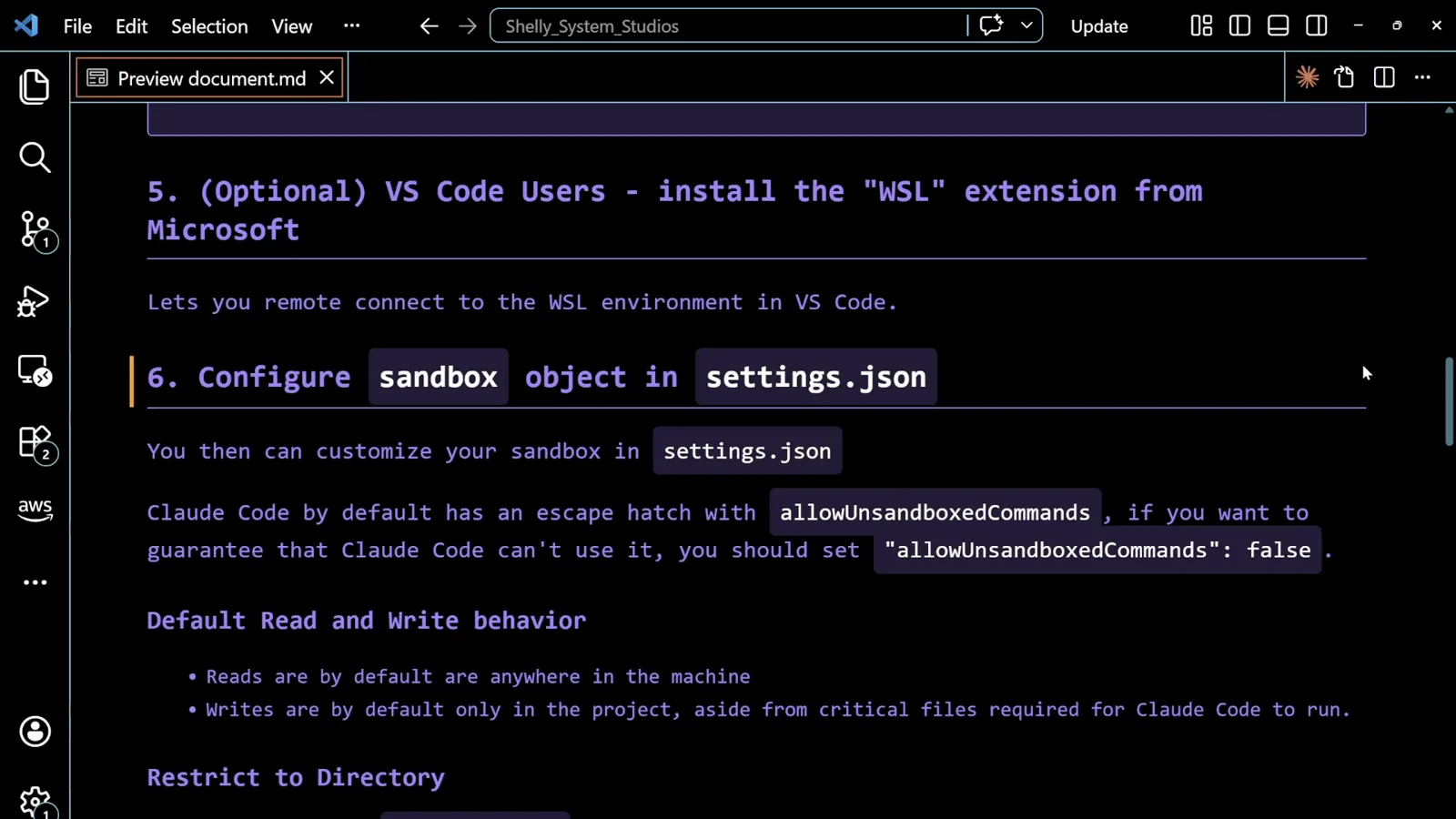
Reads are the loose half of the defaults - which is why the example denies ../ instead of adding more allow rules.Watch at 6:56
Start a session and check that it is sandboxed
Claude Code says so on the first screen, and the first command you try proves it.
- 7
Launch claude and read the banner
Start Claude Code in the project. The version line here is v2.1.118, and directly under the welcome box the session prints Your bash commands will be sandboxed. Disable with /sandbox. That line is the check: no banner, no sandbox. Go back to the settings file and the runtime install before you trust anything.
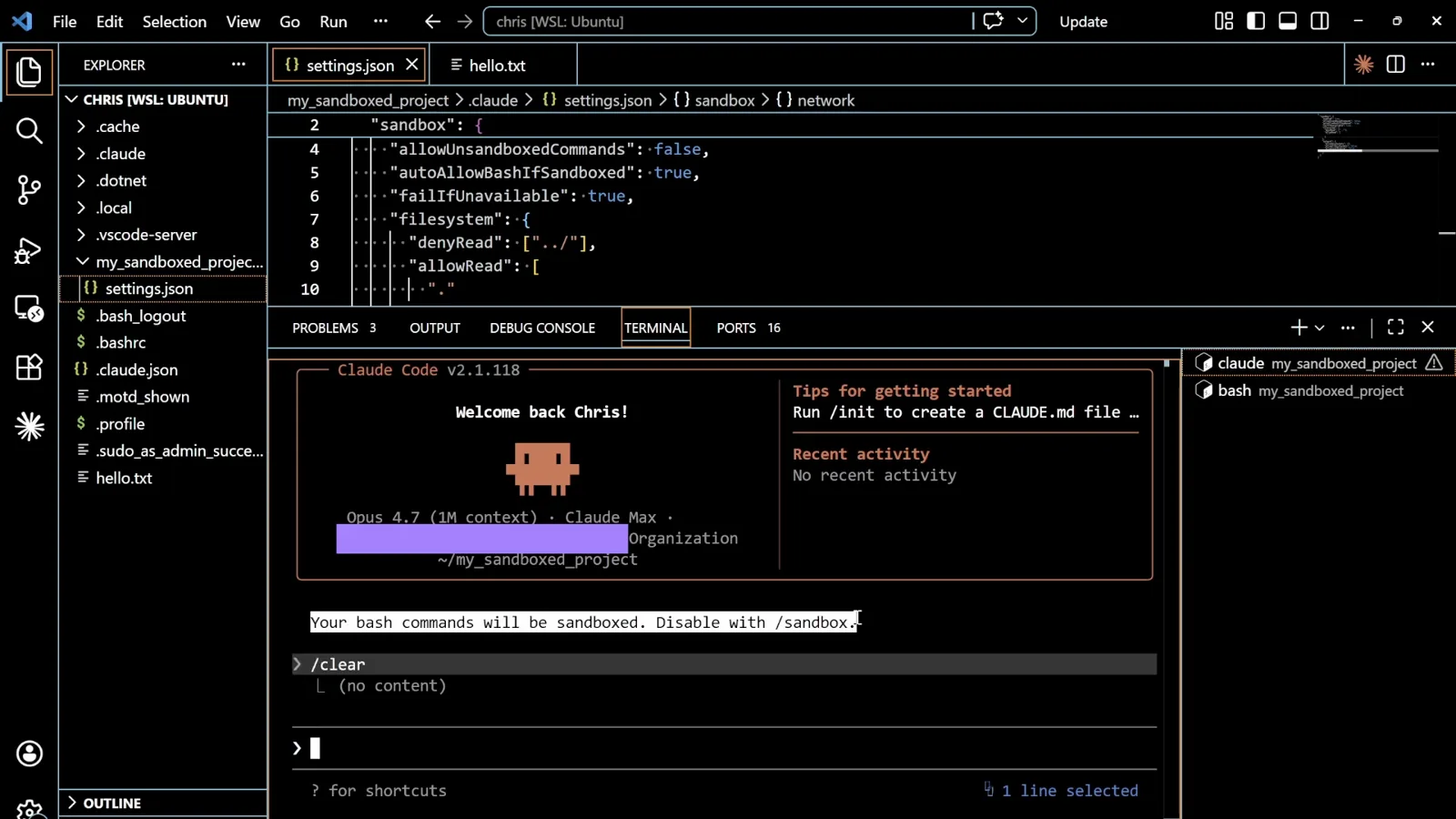
The banner names the way out in the same breath as the fact that you are inside.Watch at 4:44 - 8
Prove the file boundary from bash mode
Type ! cat ../hello.txt to run a command straight from the prompt. The file exists - it is open in the editor above and listed in the explorer at the home level - but the sandboxed shell answers cat: ../hello.txt: No such file or directory. That is denyRead: ["../"] working: the path is not hidden behind a dialog, it is simply not there.
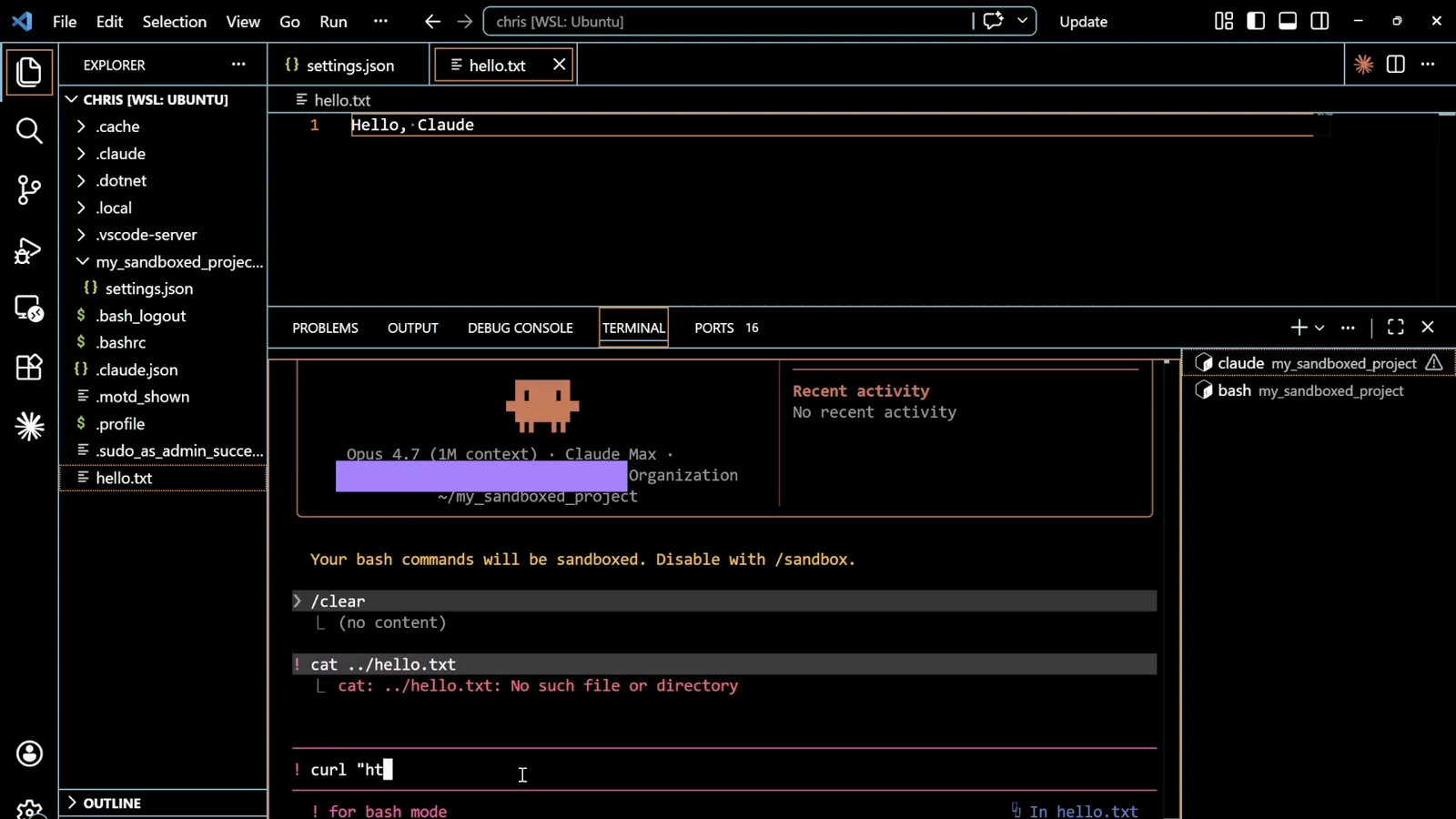
A denied read looks like a missing file, not like a refusal. That is exactly why a prompt injection cannot argue with it.Watch at 5:56 - 9
Fetch the domain that is on the list
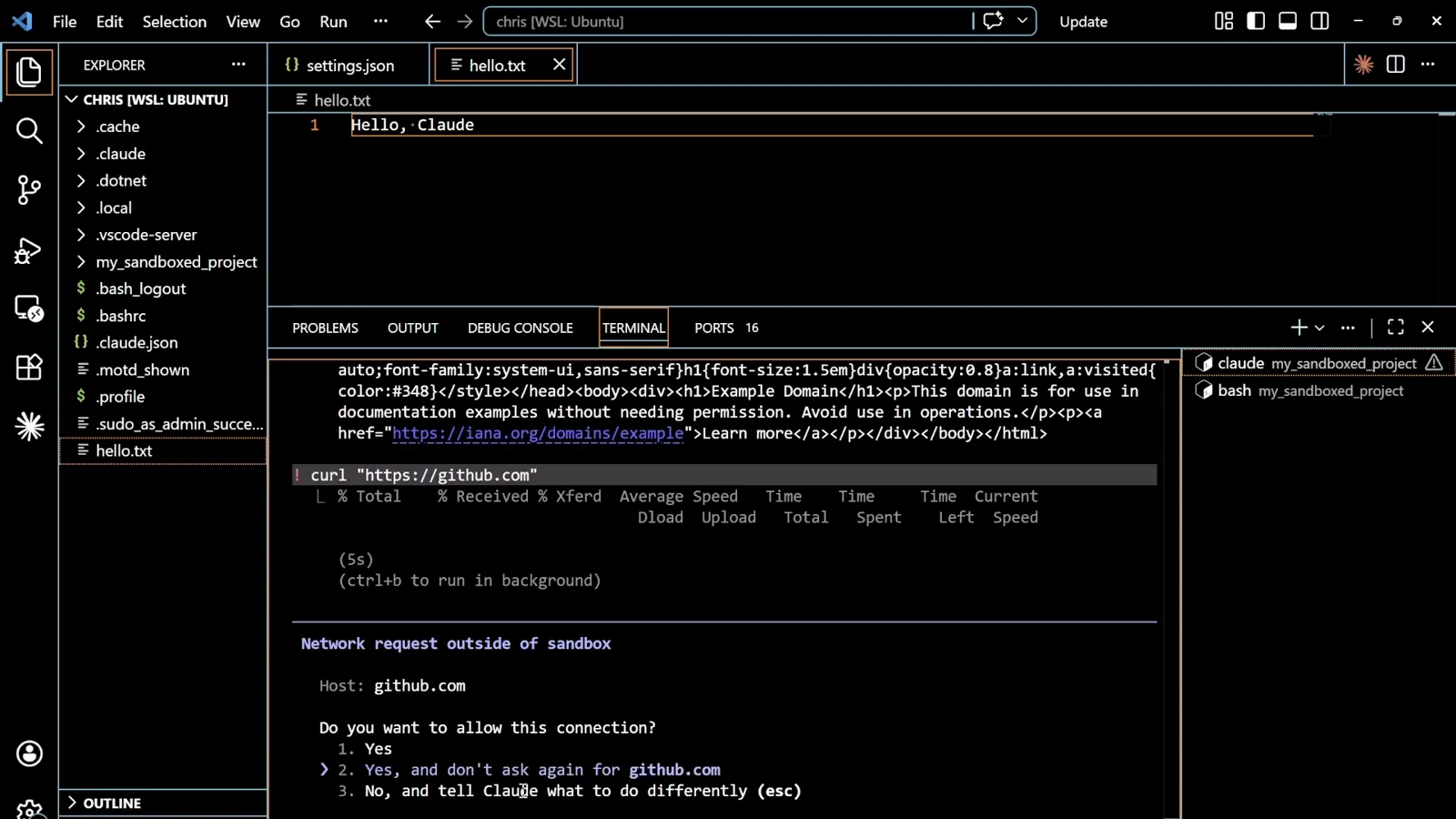
! curl "https://example.com" comes back with 528 bytes and the Example Domain HTML, because that host is the single entry in allowedDomains. The next line, ! curl "https://github.com", is still showing Running... - the proxy has no rule for github.com, so the request waits instead of failing.
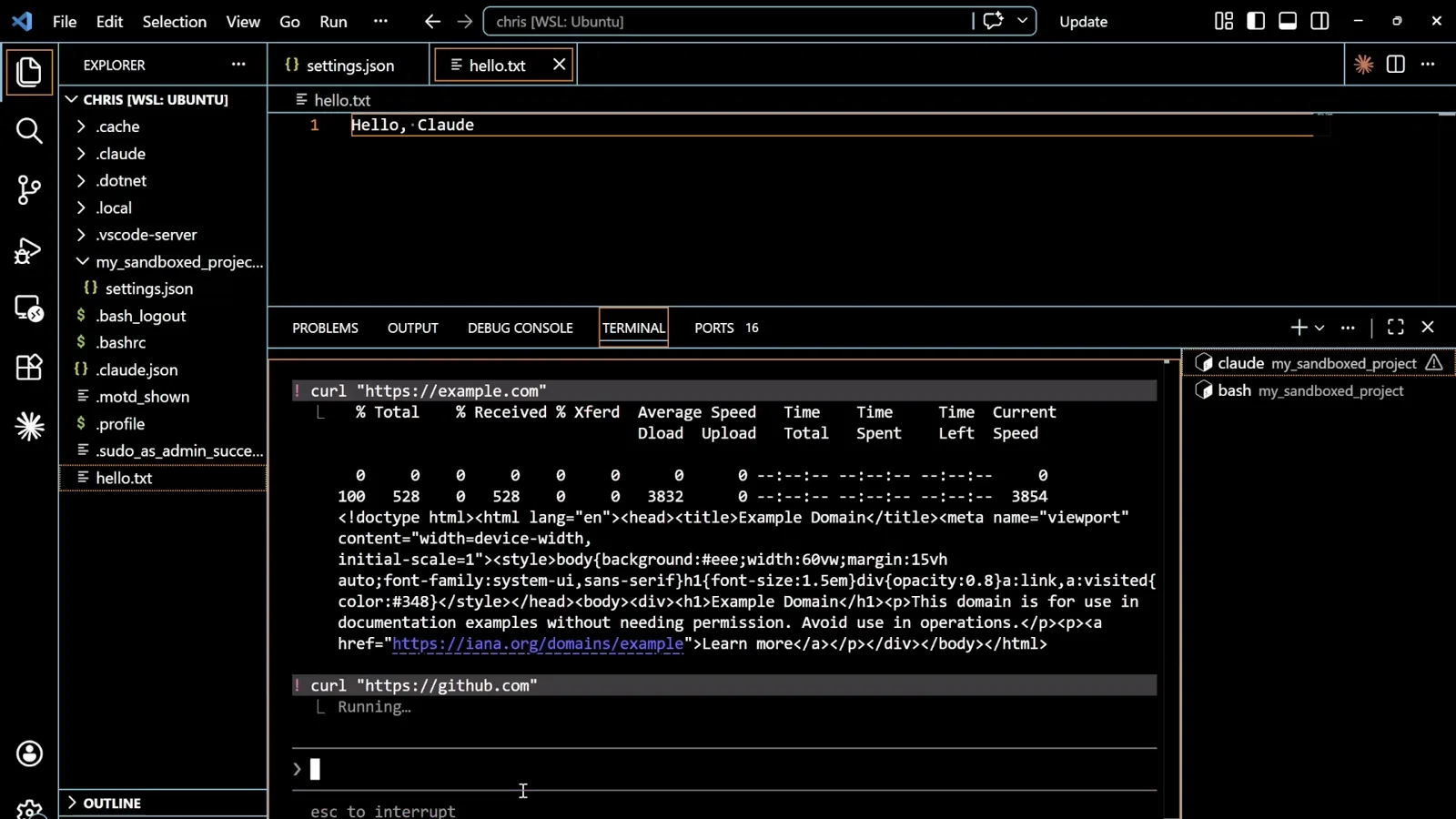
Allowed traffic is silent. The interesting part is what happens when there is no rule either way.Watch at 6:12 - 10
Reopen the session to confirm it stuck
The guide's step 8 is the check you should run after any settings change: close claude, start it again, and look for the message saying the session is sandboxed. Settings are read at launch, so an edit that never produced the banner is an edit that never loaded.
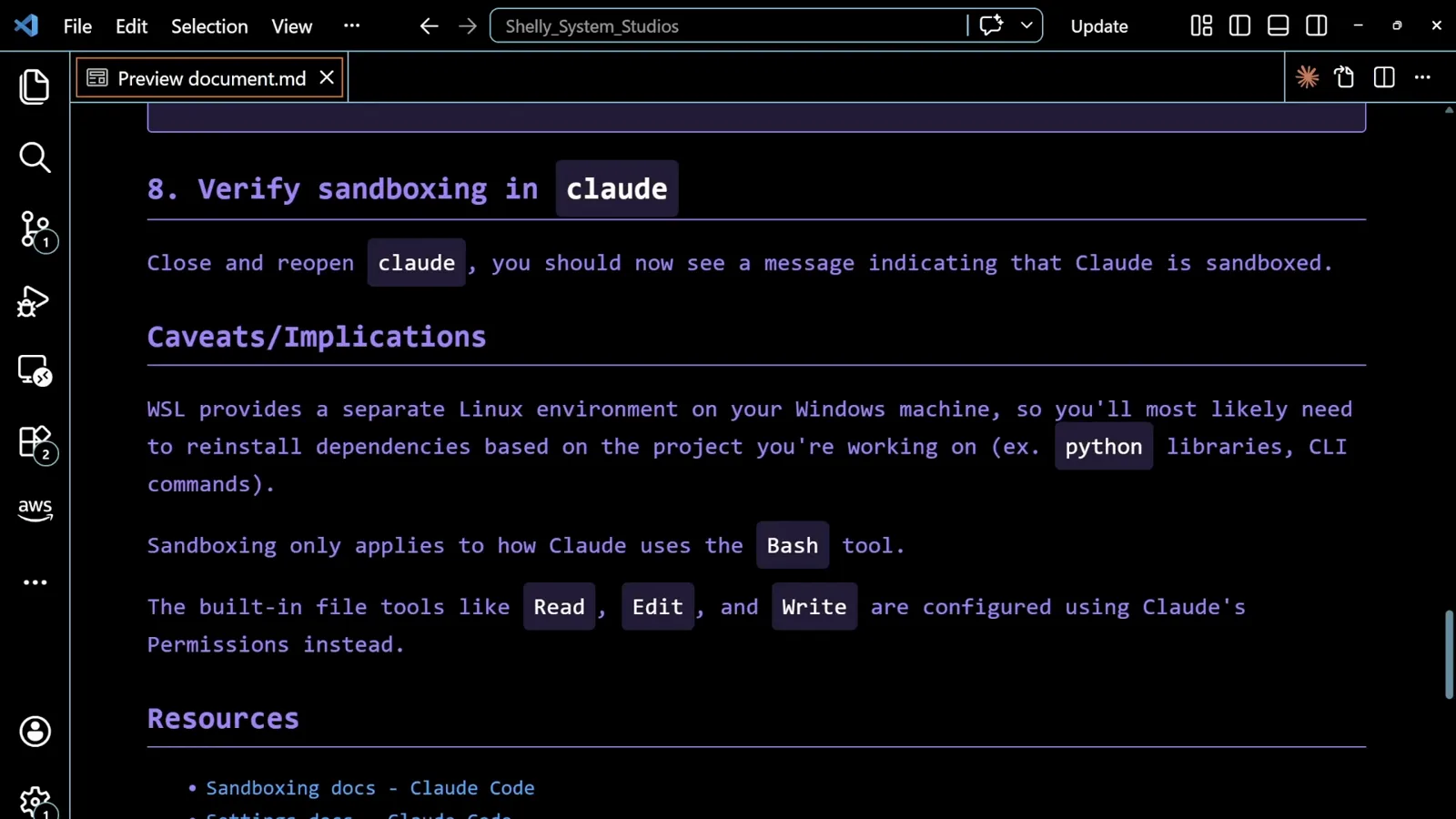
Unglamorous, and that is why it is a step: the config file is silent about mistakes, the banner is not.Watch at 7:26
The network prompt, and what happens after it
This is the approval that replaced the per-command dialog: one question per domain, answered by the proxy rather than by reflex.
- 11
Answer the network prompt
The wait ends in a dialog that is different in kind from per-command approvals: Network request outside of sandbox, the destination on its own Host: line, and the question Do you want to allow this connection? Three options follow - Yes, Yes, and don't ask again for github.com, and No, and tell Claude what to do differently (esc). The middle one is what changes your week: approve a host once and every later request to it is quiet.
Note the granularity. The promise is per host, not per command, so it does not collapse back into the dialog you were trying to escape.Watch at 6:18 - 12
See what a declined request costs
The frame after the prompt shows a transfer table of zero-byte rows and curl: (56) CONNECT tunnel failed, response 403: the proxy refused to open the tunnel, so the command ran and got nothing. The video does not show which option was pressed, so read this as the refused outcome rather than a transcript of the click.
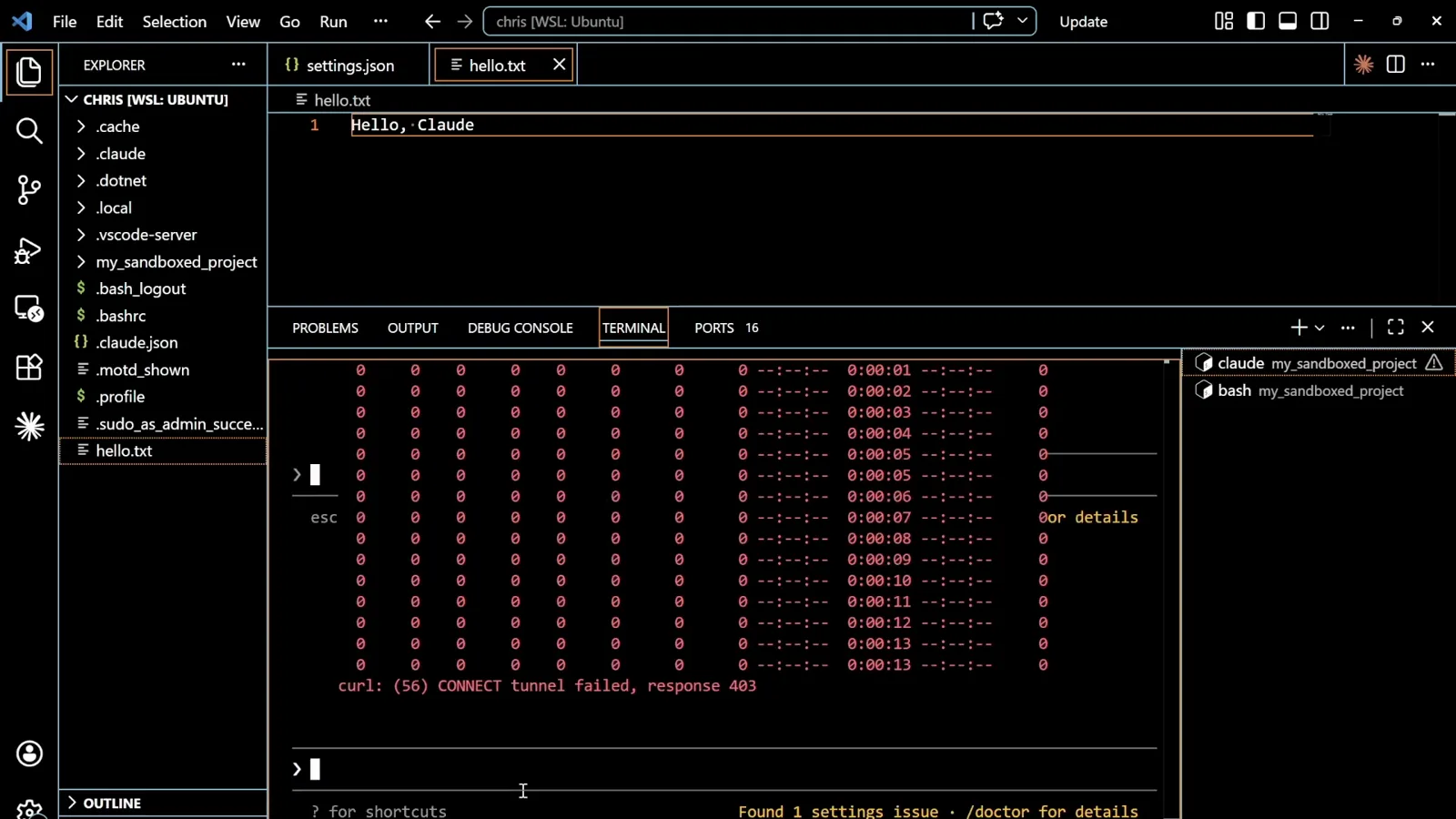
Declining does not kill the session. The command exits with an error and Claude keeps working.Watch at 6:26 - 13
Remember what the sandbox does not cover
The caveats section is worth quoting, because it is the most common misunderstanding: Sandboxing only applies to how Claude uses the Bash tool. The built-in Read, Edit and Write tools are configured through Claude Code's Permissions instead. The sandbox is not a box around the whole session - it is a floor under shell commands, and the file tools still need rules of their own.
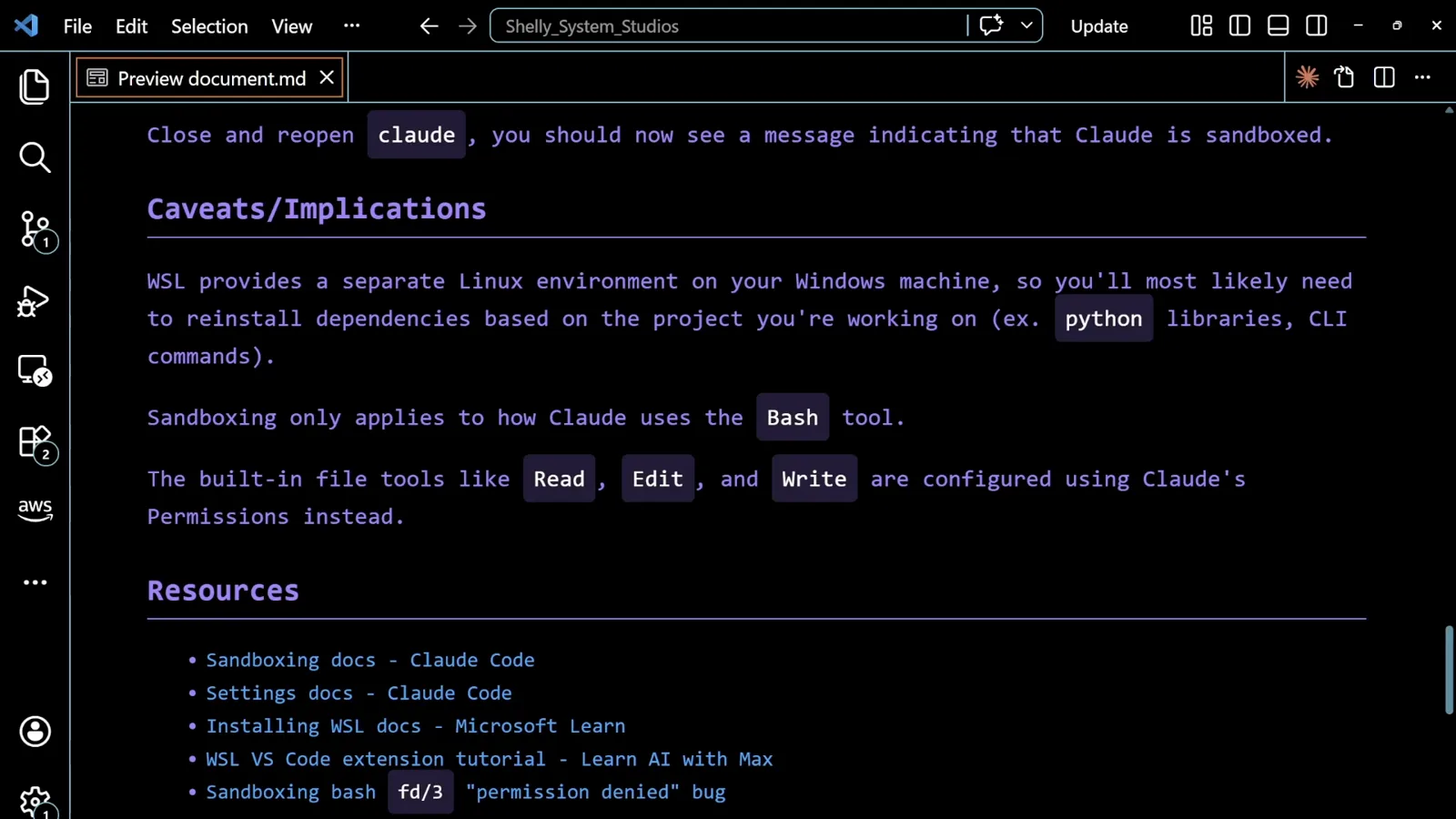
Two enforcement layers, two config files. The permissions walkthrough covers the second one.Watch at 7:32